Tutorial · CarPlay
How to set up and use WrenchTime in CarPlay
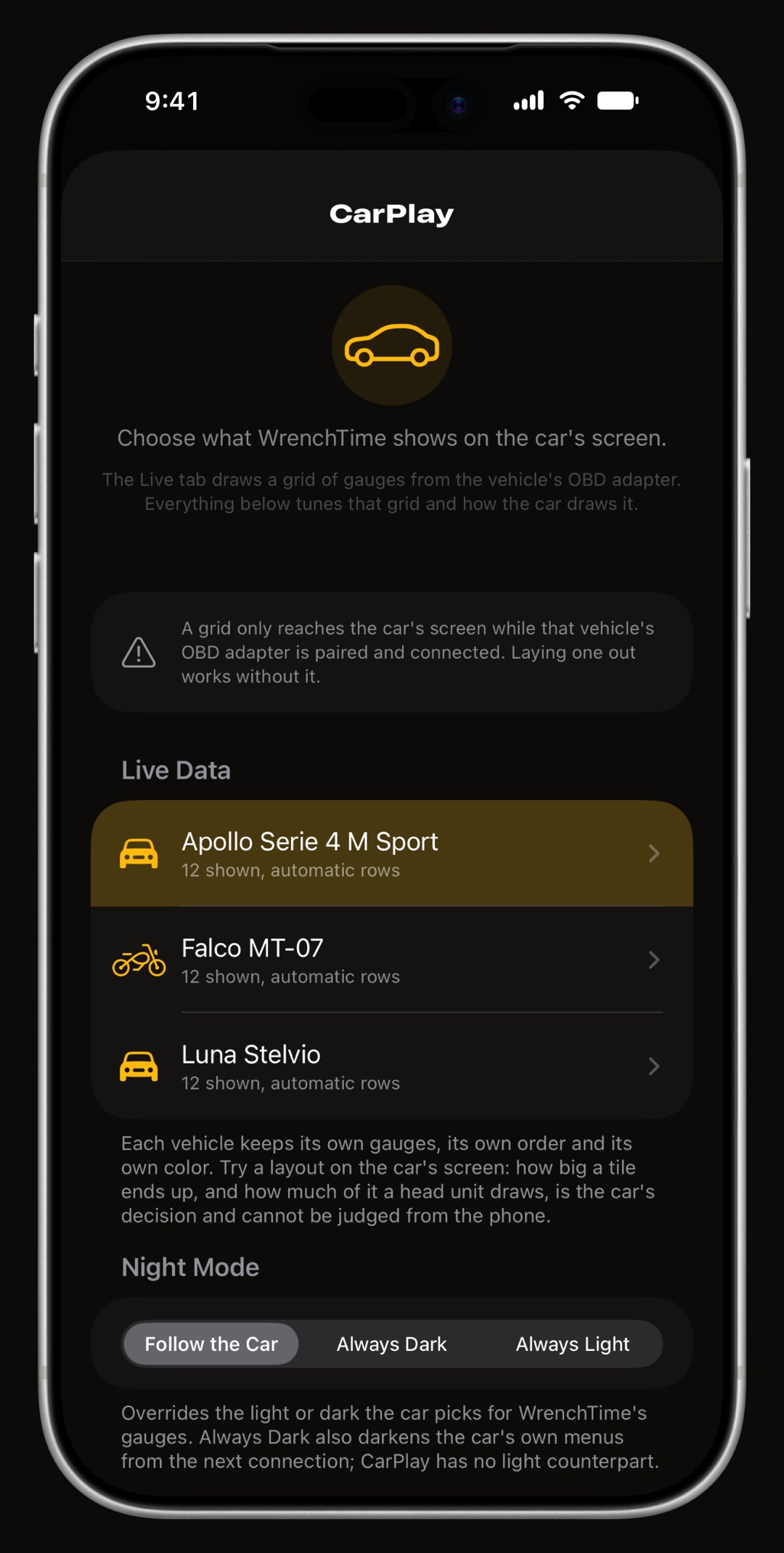
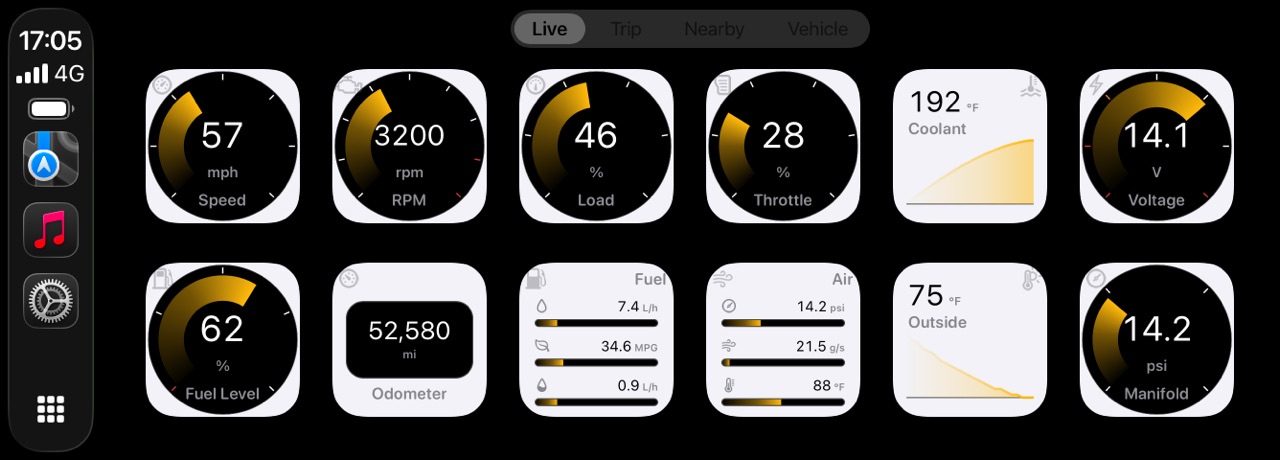
WrenchTime appears on the car's screen as soon as the iPhone connects to CarPlay, with four tabs: Live, Trip, Nearby and Vehicle. CarPlay is part of WrenchTime Pro, and the Live gauge grid needs a paired OBD-II adapter or Demo Mode. Lay out each vehicle's grid on the iPhone in Settings › CarPlay: tap the vehicle, switch on the tiles you want, drag them into order, pick how each one is drawn, and set tiles per row, tile style and color. On the same page choose the night mode, the Performance pace and the tab order. In the car, Trip starts and stops a recording and tags it.
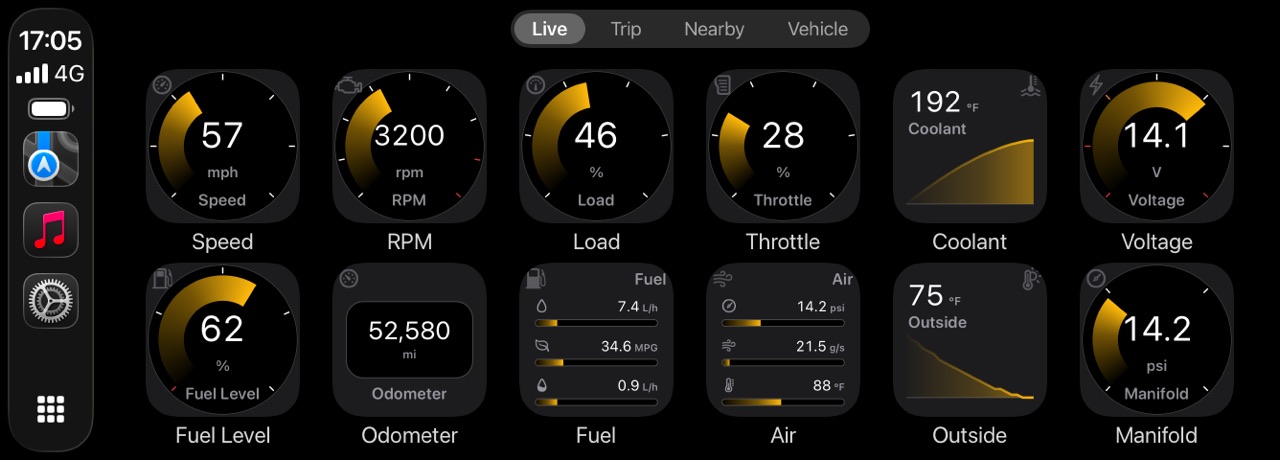
What do I need before WrenchTime shows up in CarPlay?
An iPhone on iOS 26 connected to a car with CarPlay, wired or wireless, and WrenchTime Pro. Without Pro the car's screen shows a single page saying live OBD data on CarPlay is part of WrenchTime Pro; you upgrade from the iPhone when parked. The Live tab also needs an OBD-II adapter linked to the vehicle (how to connect one), or Demo Mode. Why gauges on the car's screen are worth it is covered in the CarPlay OBD-II guide.
- No adapter yet? turn on Settings › Connections › Demo Mode. The Live tab then reads Live (DEMO) and shows simulated readings that are never saved.
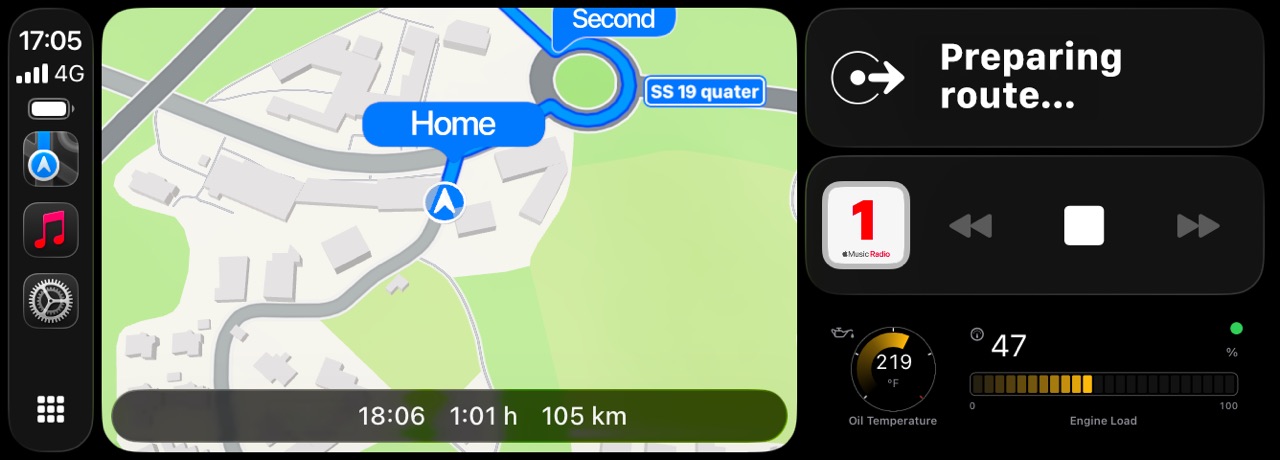
What are the four CarPlay tabs?
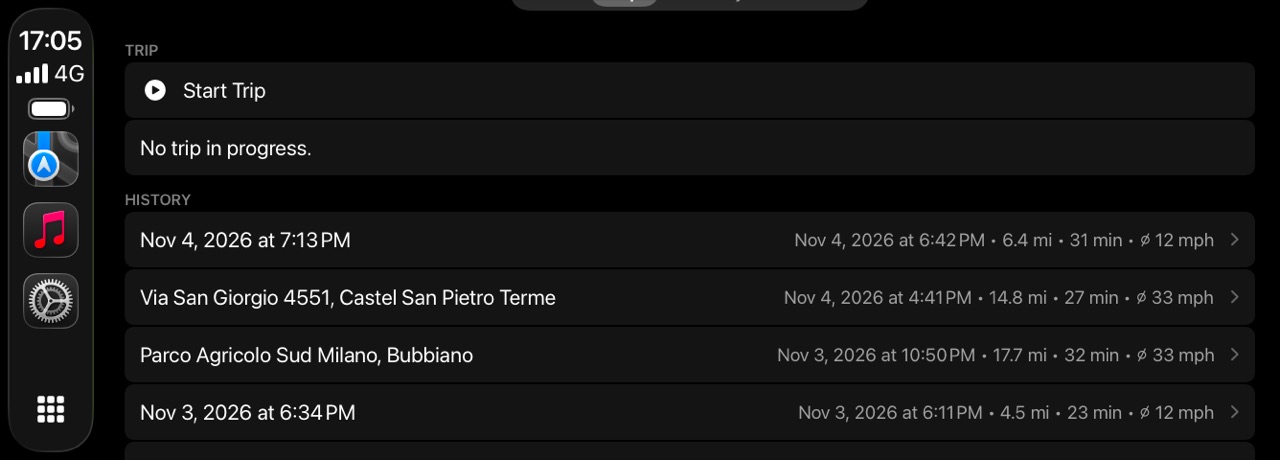
Live is a grid of gauges read from the car's OBD-II adapter. Trip shows the current drive's distance, duration and average speed, with Start Trip or Stop Trip, a Tag row and a History of recent trips. Nearby puts fuel stations, or chargers for an electric vehicle, on a map, cheapest first where prices are known. Vehicle shows the odometer, upcoming maintenance and dues. Tapping a Live tile shows its Current, Minimum, Maximum and Average for the session. For the rest of the car's screen, see the best CarPlay apps for iPhone, free ones included.
Choose which gauges each vehicle shows
On the iPhone open Settings › CarPlay and, under Live Data, tap the vehicle. The Live Data Layout screen lists every tile with a preview of how the car draws it. The Shown on CarPlay switch puts a tile on the grid; drag shown tiles to reorder them, or use Sort. Each signal's Show As menu picks Automatic, Gauge, Graph or Text. Every vehicle keeps its own layout, and Default Layout resets it.
- Missing a signal? signals switched off in Vehicle Tools › Signals are not offered here.
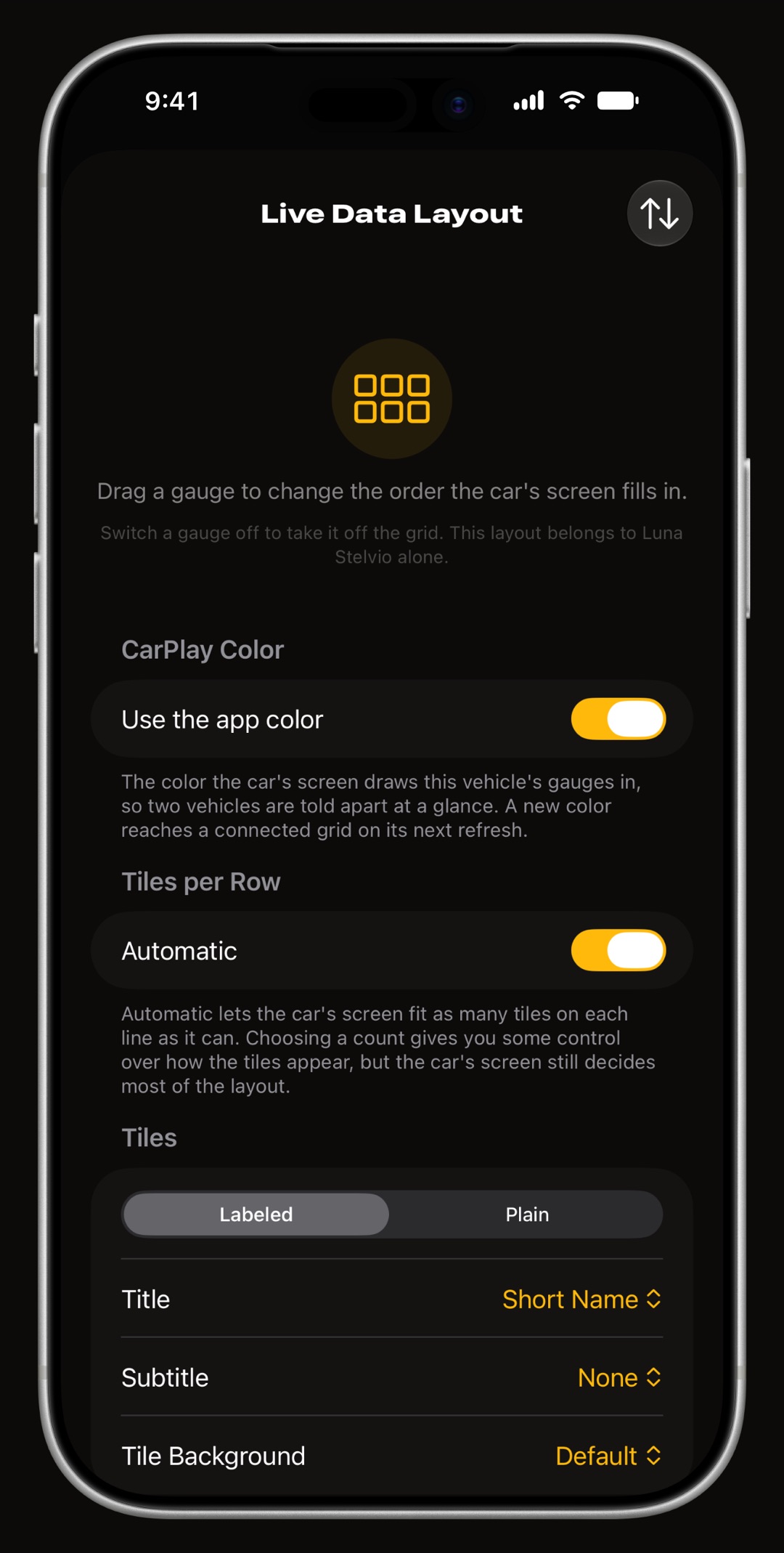
Set tiles per row, tile style, color and gauge style
On the same screen, Tiles per Row is Automatic by default; switch it off to choose from three to eight. Tile Style is Labeled (the name printed under the gauge, with a Title and Subtitle to pick) or Plain (the gauge alone, name inside). Tile Background is Default, Black or White. Under CarPlay Color, switch off Use the app color to give this vehicle its own accent, and Gauge Style picks the ring's look.
- Check it in the car how big a tile ends up is the head unit's decision, so judge a layout on the car's screen, not the phone.
Set night mode, Performance and tab order
Back on Settings › CarPlay, these apply to every vehicle. Night Mode is Follow the Car, Always Dark or Always Light for WrenchTime's gauges; Always Dark also darkens the car's own menus from the next connection. Performance sets how often the gauges are redrawn, from Very Slow to Very Fast, with Slow as the default; Low Power Mode drops it to Slow unless Ignore Low Power Mode is on. Tab Order lets you drag the four tabs.
- Fewer tabs on screen? a head unit that shows fewer tabs drops them from the right, so put the one you can spare last.
- Wireless CarPlay Very Fast is not recommended, as it can make the connection less stable.
Start, stop and tag a trip from the car
Open the Trip tab and tap Start Trip; it records for the vehicle CarPlay has picked, and Stop Trip ends it. If automatic trips are on, a drive is recorded anyway (set them up here). The Tag row picks one of your existing tags, during the trip or right after it ends; tags are created on the iPhone, and the row is hidden when none exist. History lists recent trips with a Show on Map view.
What does an alert look like on the car's screen?
When a reading crosses into its critical band, such as coolant running hot, the car shows an alert titled Critical reading that says which signal is at which value, with an OK button. It fires once per transition, for every signal the session reads whether its tile is on the grid or not, and that signal then stays quiet for ten minutes. A newly stored trouble code raises a New Trouble Code alert with Details, which opens the codes list.
- Where the bands come from each signal's gauge scale, set per vehicle in Vehicle Tools › Signals, the same scale the iPhone draws.
What if the Live tab stays empty?
The car's screen says what is missing. Pair an OBD-II adapter with a vehicle in WrenchTime on your iPhone means the vehicle CarPlay picked has no linked adapter; it chooses the vehicle of the running trip, then the one whose car stereo is connected, then the one whose adapter answers, then your favorite. Waiting for the first reading from the vehicle means the adapter is linked but the car has not answered yet: switch the ignition on.
- Alarm-Sensitive Vehicle with this switch on, CarPlay opens a session only when that car's own stereo names it.
- Adapter in another app close other OBD apps so WrenchTime can take the adapter. More help on the support page.
Frequently asked questions
Is WrenchTime on CarPlay free?
No. CarPlay is part of WrenchTime Pro: without it the car's screen shows only a page saying so. Laying out the grid in Settings › CarPlay works on the iPhone at any time.
Can I use the CarPlay gauges without an OBD-II adapter?
Only in Demo Mode, which you turn on in Settings › Connections. It shows simulated readings marked DEMO and saves nothing. Trip, Nearby and Vehicle work without an adapter.
Can two cars have different CarPlay layouts?
Yes. Each vehicle keeps its own tiles, order, face per signal, tiles per row, tile style, gauge style and color. Night mode, Performance and tab order are shared by every vehicle.
Why does my car show fewer tabs than WrenchTime has?
The head unit decides how many tabs it shows and drops the extra ones from the right. Reorder them in Settings › CarPlay › Tab Order so the one you need least is last.
Made for people who would rather know than guess.
Free to download. One vehicle, real features, no ads. Your garage will thank you.
Download WrenchTime on the App Store