Tutorial · OBD-II
How to connect an OBD-II adapter to WrenchTime
You connect an OBD-II adapter to WrenchTime once per vehicle, from the OBD-II tab of that vehicle's pairing screen. Plug the adapter into the car's diagnostic port and turn the ignition on, then open Settings › Connections, pick the vehicle and switch to OBD-II. The scan lists the adapters it recognizes; tap Pair next to yours. A Connection Check starts by itself and confirms the car answers. From then on, with Connect During Trips on, every trip in that vehicle opens the connection and records the readings, and Live Data & Status shows them on demand.
Which adapter can my iPhone use with WrenchTime?
WrenchTime talks to two kinds of adapter: any ELM327-compatible adapter that uses Bluetooth Low Energy, and the Apple-certified OBDLink MX+. Wi-Fi adapters and other classic Bluetooth adapters cannot be reached by the app. The guide on which adapters work with an iPhone lists the models confirmed on a real car. The two kinds are set up differently before you open WrenchTime:
- Bluetooth LE adapter do not pair it in iPhone Settings › Bluetooth. WrenchTime finds it with its own scan.
- OBDLink MX+ pair it once in iPhone Settings › Bluetooth, like headphones, then link it to the vehicle inside WrenchTime as below.
Open the OBD-II tab for your vehicle
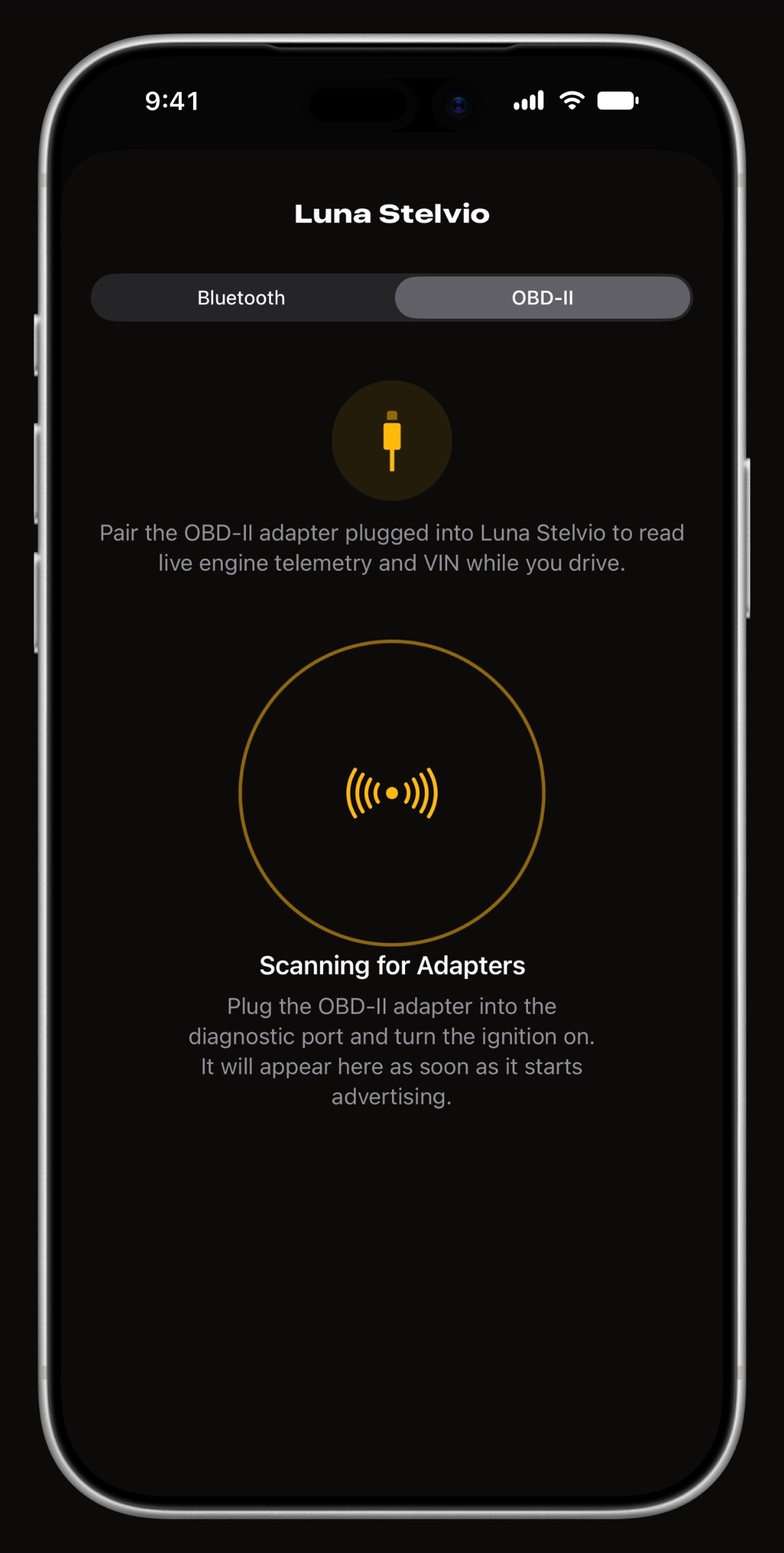
Plug the adapter into the OBD-II port, usually under the dashboard on the driver's side, and switch the ignition on. In WrenchTime, open Settings › Connections and tap the vehicle in the Vehicles list. Its pairing screen opens on the Bluetooth tab: switch the segmented control to OBD-II. The same screen opens from the vehicle's edit form (Connections › Bluetooth & OBD-II) or from Pair Adapter in Vehicle Tools. Allow Bluetooth access when the app asks.
Scan for the adapter and pair it
The radar scan starts as soon as the tab opens and lists each adapter it recognizes with a Pair button. Tap it to link that adapter to this vehicle; the link is kept on this iPhone, one adapter per vehicle.
- Weak signal a warning under a name means it may be the adapter in a car parked next to yours.
- Other Nearby Devices if your adapter is not recognized by name, pick it here. The app first checks that it answers like an OBD-II adapter, and refuses to pair it if it does not.
- Search Again appears when the scan ends, for an adapter that powered up late.
Run the Connection Check
Once paired, the tab shows the adapter with an Unpair button and a Connection Check card. The first check starts by itself right after pairing: it connects, confirms the vehicle answers and measures how often live readings refresh, in about fifteen seconds with the engine running. It then lists the adapter, the protocol, the VIN when the car reports it, the refresh rate and the readings available. Tap Check Again after changing adapter or if readings feel slow.
See the live readings in Live Data & Status
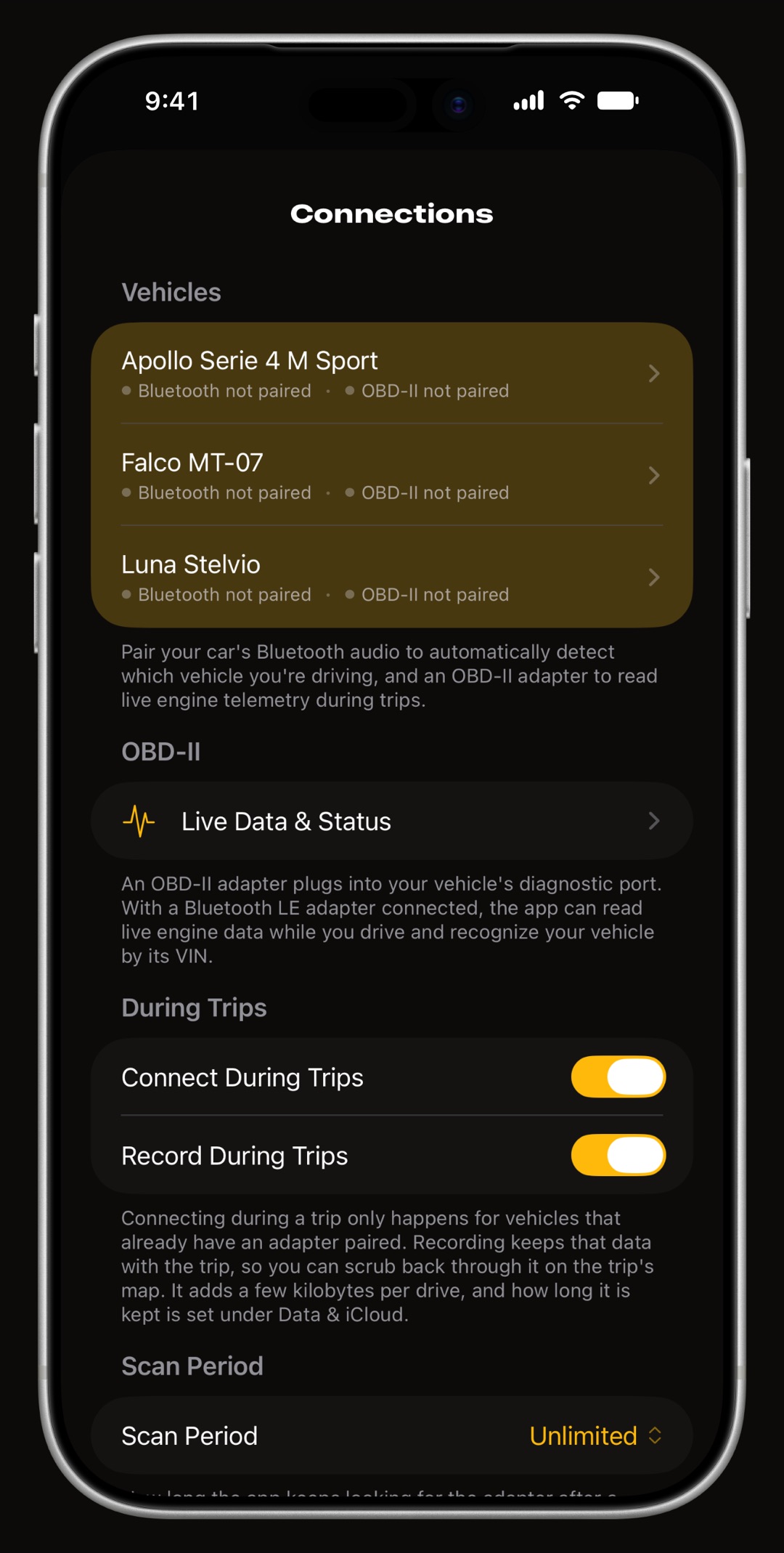
Open Settings › Connections › Live Data & Status, pick the vehicle and tap Connect. The page shows the session (status, adapter, protocol, supported PIDs, VIN) and a Live Data grid of gauges that fill in as the car answers. If the adapter read a VIN, the page offers it for the vehicle: Assign stores it, Ignore leaves the record alone. The connection stays open until you tap Disconnect or leave the app. See what WrenchTime reads from the car.
Let every trip connect on its own
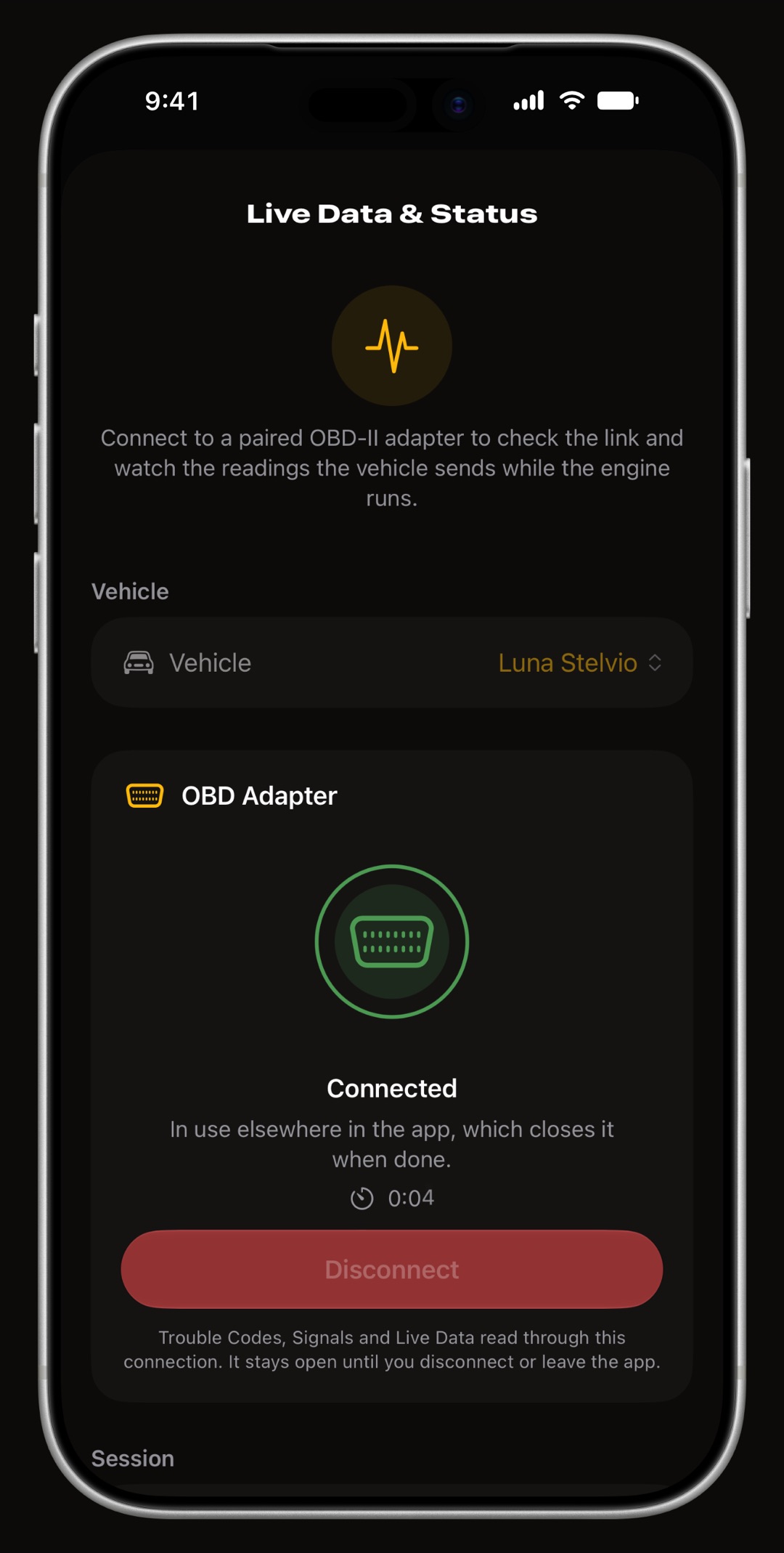
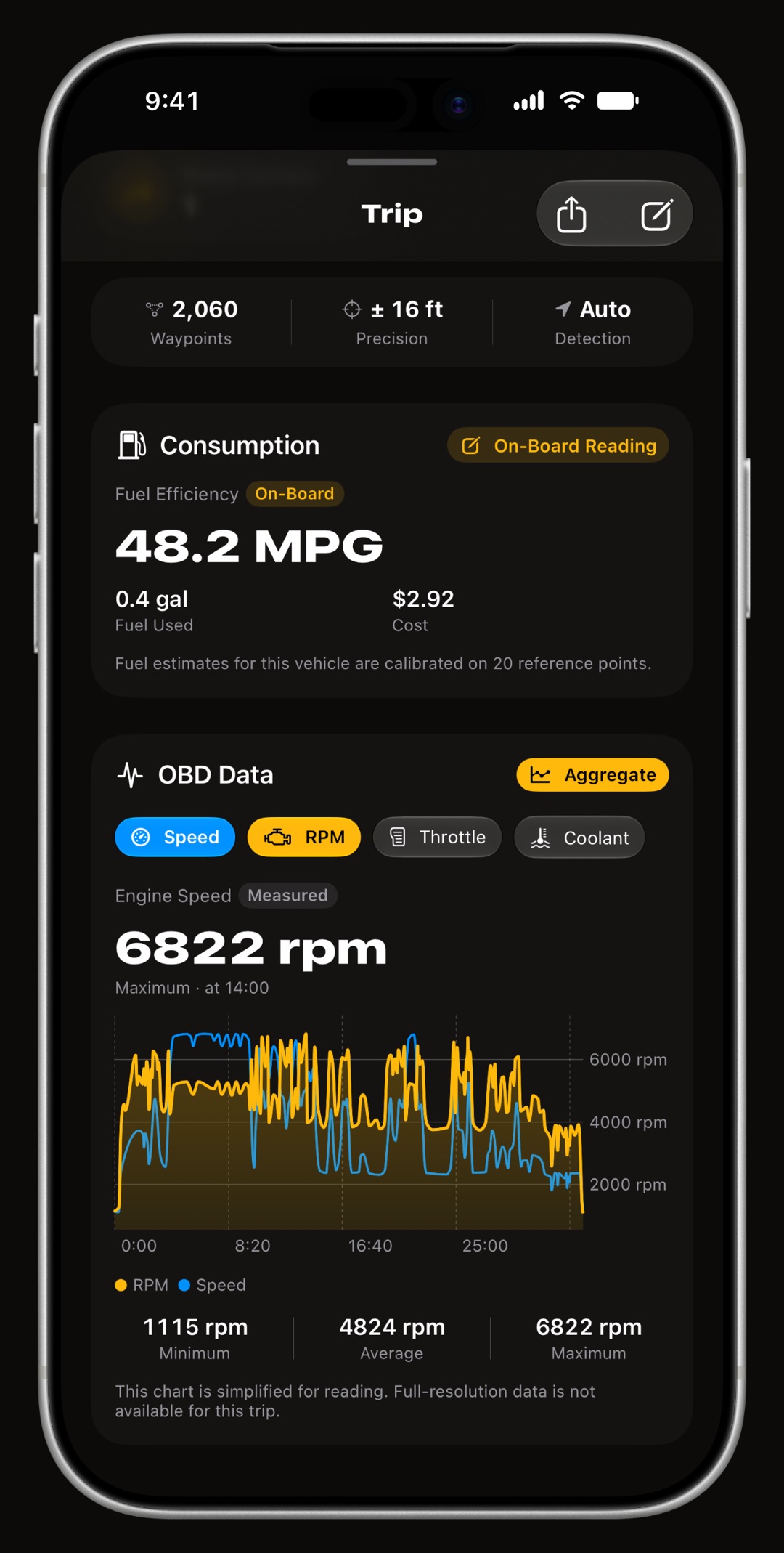
In Settings › Connections, under During Trips, Connect During Trips is on by default: a trip recorded in a vehicle with a paired adapter opens the connection by itself and closes it when the trip ends. Record During Trips keeps the readings with the trip, so you can scrub back through them on its map. Scan Period sets how long a drive keeps looking for a switched-off adapter. Trips have to be set up first: set up automatic trips.
When should I turn on Compatibility Mode or Alarm-Sensitive Vehicle?
Both switches sit on the OBD-II tab under the Connection Check, they apply to that vehicle only, and both are off by default.
- Compatibility Mode turn it on if a Recommended for This Adapter warning appears, or if connecting keeps failing. Some inexpensive adapters lose track of the protocol the app asks them to reuse; with this on, the adapter searches for it at every connection, a few seconds slower.
- Alarm-Sensitive Vehicle turn it on if the alarm goes off when the port is used while the car is locked. The app goes quiet as soon as the engine is off and resumes once you drive.
- Also Drop the Bluetooth Link appears under it. Use it only if the alarm still goes off: the link is dropped at engine off and reconnects at every drive-off.
Try it without an adapter, and read trouble codes
No adapter yet? Turn on Demo Mode at the bottom of Settings › Connections. It replaces the adapter with a simulated one on any vehicle; the readings are generated by the app, marked DEMO and never saved. Reading and clearing trouble codes is a WrenchTime Pro feature, in Vehicle Tools › Trouble Codes (the button at the bottom of the Vehicles tab), as are the automatic scans under Trouble Codes in Settings › Connections. See the code reader guide.
What if the adapter does not show up or will not connect?
The app's own messages point to the cause in most cases:
- No adapters found plug it in, turn the ignition on and tap Search Again. Some adapters need their button pressed to wake.
- Bluetooth access is off turn it back on for WrenchTime in iPhone Settings with Open Settings.
- Paired in iPhone Settings a Bluetooth LE adapter paired there can hide from the scan. Forget it in iPhone Settings › Bluetooth and scan again.
- Another app open close other OBD apps: an adapter answers one app at a time.
- Check fails make sure the adapter is seated and the engine is running, then Try Again. Still stuck? Write to support.
Frequently asked questions
Do I pair the OBD-II adapter in iPhone Settings?
Only the OBDLink MX+. A Bluetooth Low Energy adapter is found and paired inside WrenchTime, on the OBD-II tab of the vehicle's pairing screen, and should not be paired in iPhone Settings › Bluetooth.
Can one adapter be used with two cars?
Each vehicle links one adapter. If you pair an adapter that is already linked to another vehicle, WrenchTime asks whether to move it to this one.
Does WrenchTime work with Wi-Fi OBD-II adapters?
No. WrenchTime reads Bluetooth Low Energy ELM327-compatible adapters and the OBDLink MX+, not adapters that connect over Wi-Fi.
Is connecting an adapter free?
Yes. Pairing, the Connection Check, Live Data & Status and recording readings with trips are free. Reading and clearing trouble codes needs WrenchTime Pro.
Made for people who would rather know than guess.
Free to download. One vehicle, real features, no ads. Your garage will thank you.
Download WrenchTime on the App Store