Tutorial · Backup and sync
How to back up, sync and export your data in WrenchTime
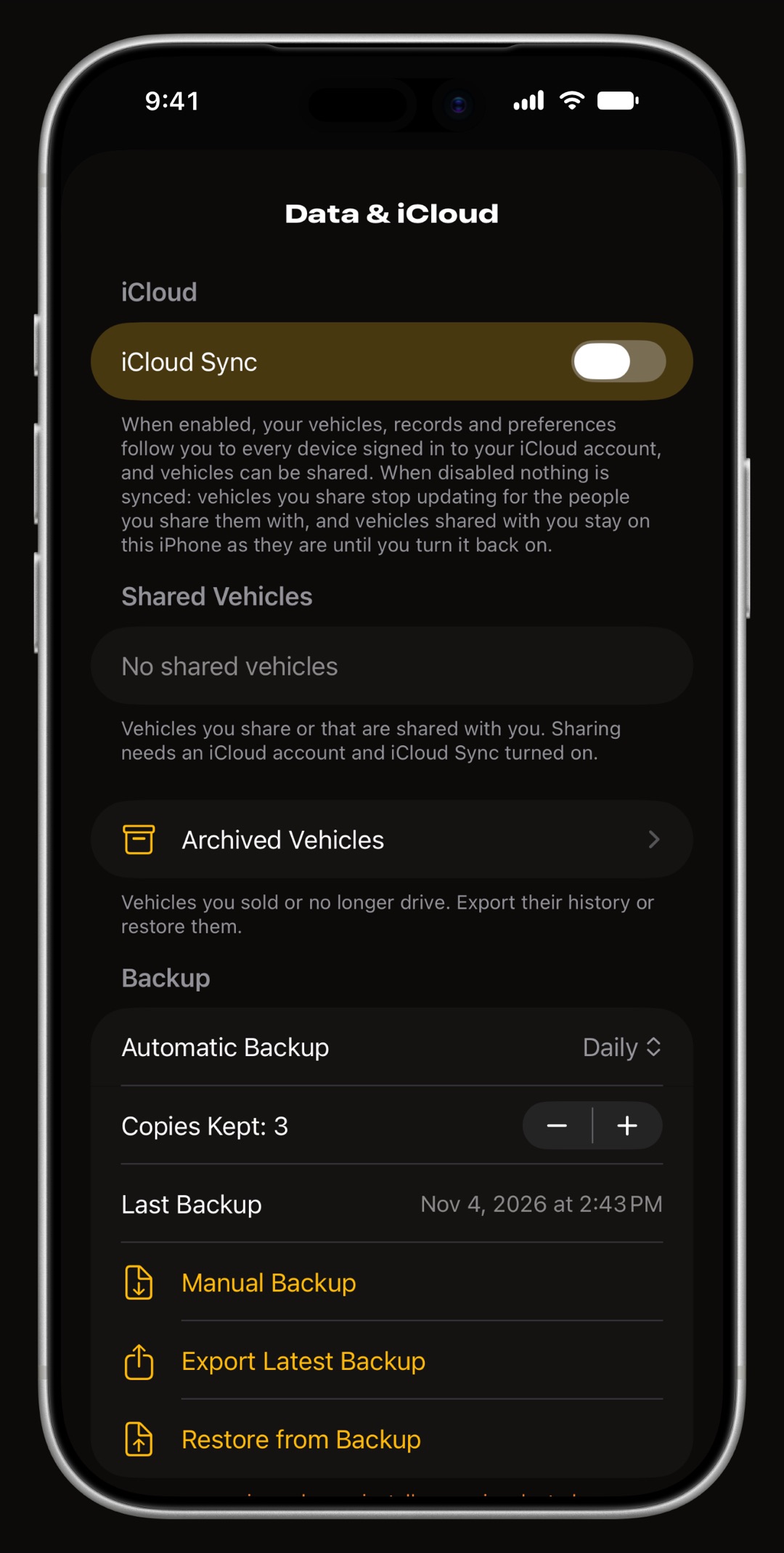
Everything about your data lives in Settings › Data & iCloud. Turn on iCloud Sync and your vehicles, records and preferences follow you to every device signed in to the same iCloud account. Automatic Backup writes a full copy daily by default into iCloud Drive › WrenchTime › Backups, Manual Backup makes one now, and Restore from Backup brings one back. Data Retention sets how long each kind of record is kept. To get a single vehicle out as a CSV or PDF, use Export Vehicle Data, which is part of WrenchTime Pro.
How do I turn on iCloud Sync?
Open Settings › Data & iCloud and switch on iCloud Sync. It is off until you turn it on, and it needs the iPhone to be signed in to iCloud. Your data travels through your own iCloud account, not a WrenchTime server. Under the switch a caption reads "Last successful sync" with a time, or "Not synced yet". Turn it on with the same Apple ID on your iPad or second iPhone and the garage appears there too.
- Turning it off nothing syncs while it is off. If a vehicle is shared, the app asks first, because the people you share it with stop getting updates; see sharing a vehicle.
- Upgrade card if the page shows "iCloud Sync needs an upgrade", tap Upgrade: nothing syncs until you do.
Do my units and settings sync too?
Yes, with iCloud Sync on. Your choices in Settings › Units & Currency (distance, volume, engine oil, tire and engine pressure, temperature, displacement, fuel and charging efficiency, currency) and every Data Retention period follow you to your other devices. A new device keeps its own until they arrive. Things tied to one phone, such as a paired OBD-II adapter, stay on that phone.
Set up automatic backups and make a manual one
In the Backup section, pick how often Automatic Backup runs: Off, Daily (the default), Weekly or Monthly. Copies Kept sets how many automatic copies are kept, three by default; the oldest rolls over first. Tap Manual Backup before anything risky: a manual copy is never removed for you, and its folder name ends in "(manual)". Export Latest Backup hands the newest one to AirDrop, Files or anywhere else. Backups are free.
- Where they live each backup is a folder in iCloud Drive › WrenchTime › Backups holding every vehicle, record and photo, so deleting the app does not lose them. With iCloud Drive off they stay on the iPhone, in the Files app.
How do I restore a backup?
Tap Restore from Backup and pick a backup folder. WrenchTime shows how many records it holds and when it was made, then asks "Replace everything with this backup?". A restore replaces everything in the app, and with iCloud Sync on it does so on every device signed in to the same account, so restore on one device only. Vehicles shared with you come back from their owner, not from the backup. It cannot be undone.
Export one vehicle to CSV or PDF
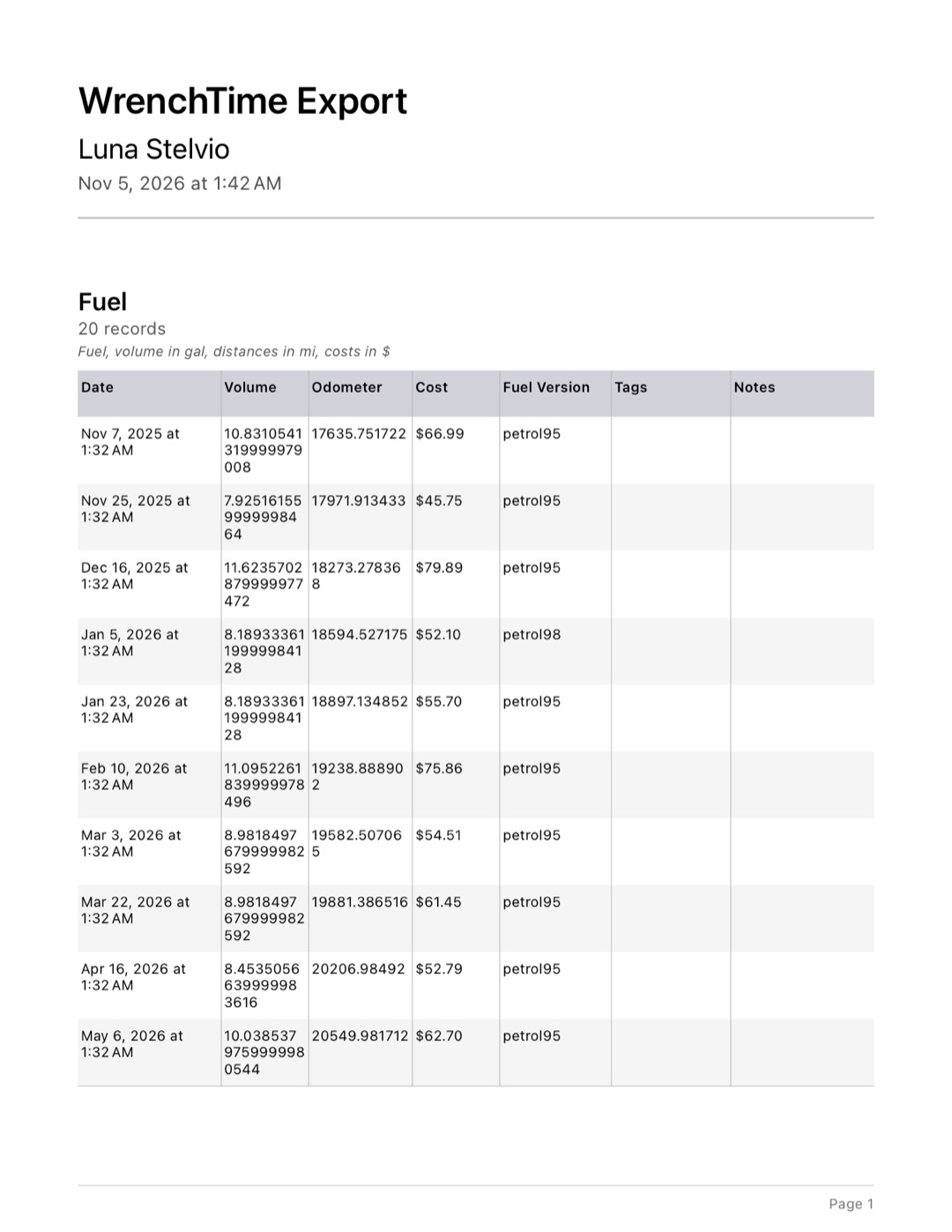
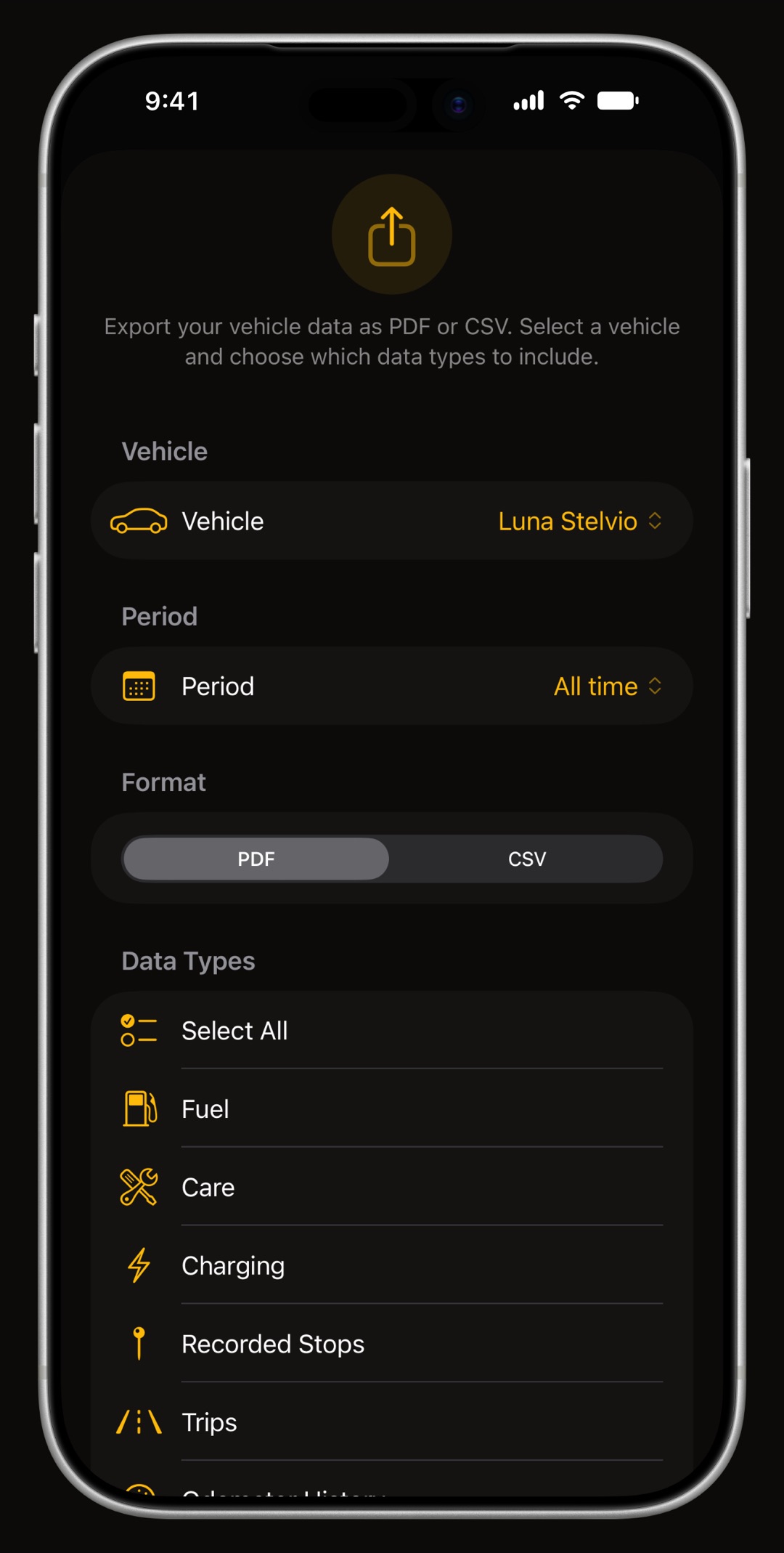
Tap Export Vehicle Data at the top of Settings, in a vehicle's edit page, or in the menu you get by holding a vehicle card in the Vehicles tab. On the Export Data page choose the vehicle, the period and any tags, then the format. A PDF holds every data type you tick: Fuel, Care, Charging, Recorded Stops, Trips and Odometer History. A CSV holds one at a time. The car expense tracker guide explains the figures.
- Receipts the same page exports the documents attached to that vehicle's entries, as a Merged PDF or a ZIP.
- Pro export is part of WrenchTime Pro; on the free tier the row shows a lock and opens the upgrade sheet.
Choose how long old records are kept
Under Data Retention, each kind of record has its own period: Fuel Entries, Charging Sessions, Care, Trips, Odometer History, Parking History, Fuel Stops, Trip Telemetry, Trouble Code Scans and Acceleration Runs. Choose from one month to five years, or Forever. Everything starts on Forever except Trip Telemetry, which keeps OBD engine data for six months but never deletes the trip itself. Older records are removed when the app launches, and the iCloud copy follows. Shared vehicles are never trimmed.
- Data Cleanup removes records by vehicle, data type, period and tag on demand, such as everything one CSV import added, with Delete Selected Data.
Move WrenchTime to a new iPhone
The simplest way is iCloud Sync: install WrenchTime on the new iPhone, signed in with the same Apple ID, and turn on iCloud Sync in Settings › Data & iCloud. Vehicles, records, tags and synced settings download on their own. Without sync, make a Manual Backup on the old phone, then on the new one tap Restore from Backup and pick it from iCloud Drive › WrenchTime › Backups. Then pair your OBD-II adapter again.
What do Reset iCloud Copy and Delete Everything do?
Both sit in the Danger Zone at the bottom of Data & iCloud, and both ask you to confirm.
- Reset iCloud Copy almost never needed, for a sync that is stuck. The copy in iCloud is deleted and built again from this iPhone; nothing on the phone is deleted. Shared vehicles stop being shared, so share them again. Do it on one device only, the one with your up-to-date data.
- Delete Everything empties the app as on the day you installed it: every vehicle, record and photo, here and on every device on the same iCloud account. Vehicles shared with you are left. Take a Manual Backup first.
What if sync or backup does not work?
Most problems come down to iCloud itself. Check these before anything else, and contact support with a diagnostic log if they do not help.
- Not synced yet check that the iPhone is signed in to iCloud and online, and that iCloud Sync is on on both devices.
- A device is still on an earlier version update WrenchTime on that device; until then it can bring back what you delete.
- Export Latest Backup is dimmed no backup exists yet; tap Manual Backup first.
- Backups not in iCloud Drive iCloud Drive is off, so they are on the iPhone in the Files app, under WrenchTime.
- Delete Everything did not finish some vehicles could not be removed from iCloud, so nothing was deleted; check the connection and try again.
Frequently asked questions
Is iCloud Sync part of WrenchTime Pro?
No. iCloud Sync, automatic and manual backups and restore work on the free tier. Exporting a vehicle to CSV or PDF, importing from CSV and sharing a vehicle are part of WrenchTime Pro.
Does deleting the app delete my backups?
Not with iCloud Drive on: backups live in iCloud Drive › WrenchTime › Backups, which belongs to your iCloud, not to the app. With iCloud Drive off they sit on the iPhone and go with the app.
Is a backup the same as an export?
No. A backup is a full copy of vehicles, records, photos and settings that only WrenchTime can restore. An export is one vehicle's records as a CSV or PDF for a spreadsheet, an accountant or a buyer.
Will restoring a backup on my iPad overwrite my iPhone?
Yes, if iCloud Sync is on. A restore replaces everything on every device signed in to the same iCloud account, so restore on one device and let sync carry it to the others.
Why did old trips disappear?
A Data Retention period is probably set for Trips. Records older than it are removed when the app launches. Set it to Forever in Settings › Data & iCloud to keep everything from now on; removed records come back only from a backup.
Made for people who would rather know than guess.
Free to download. One vehicle, real features, no ads. Your garage will thank you.
Download WrenchTime on the App Store