Getting started · iPhone · iOS 26+
Getting started with WrenchTime: how to use the app
To start with WrenchTime, download it from the App Store and follow the welcome tour, which ends by adding your first vehicle: there is no account to create. From then on the app is five tabs. Fuel (or Charging, for an electric car) logs fill-ups and charging sessions, Care schedules and records maintenance, Trips records your drives, Charts shows what each vehicle costs, and Vehicles holds your garage, the Vehicle Tools and Settings. The tutorials below each set up one thing step by step: automatic trips, maintenance reminders, an OBD-II adapter, CarPlay and your backups.
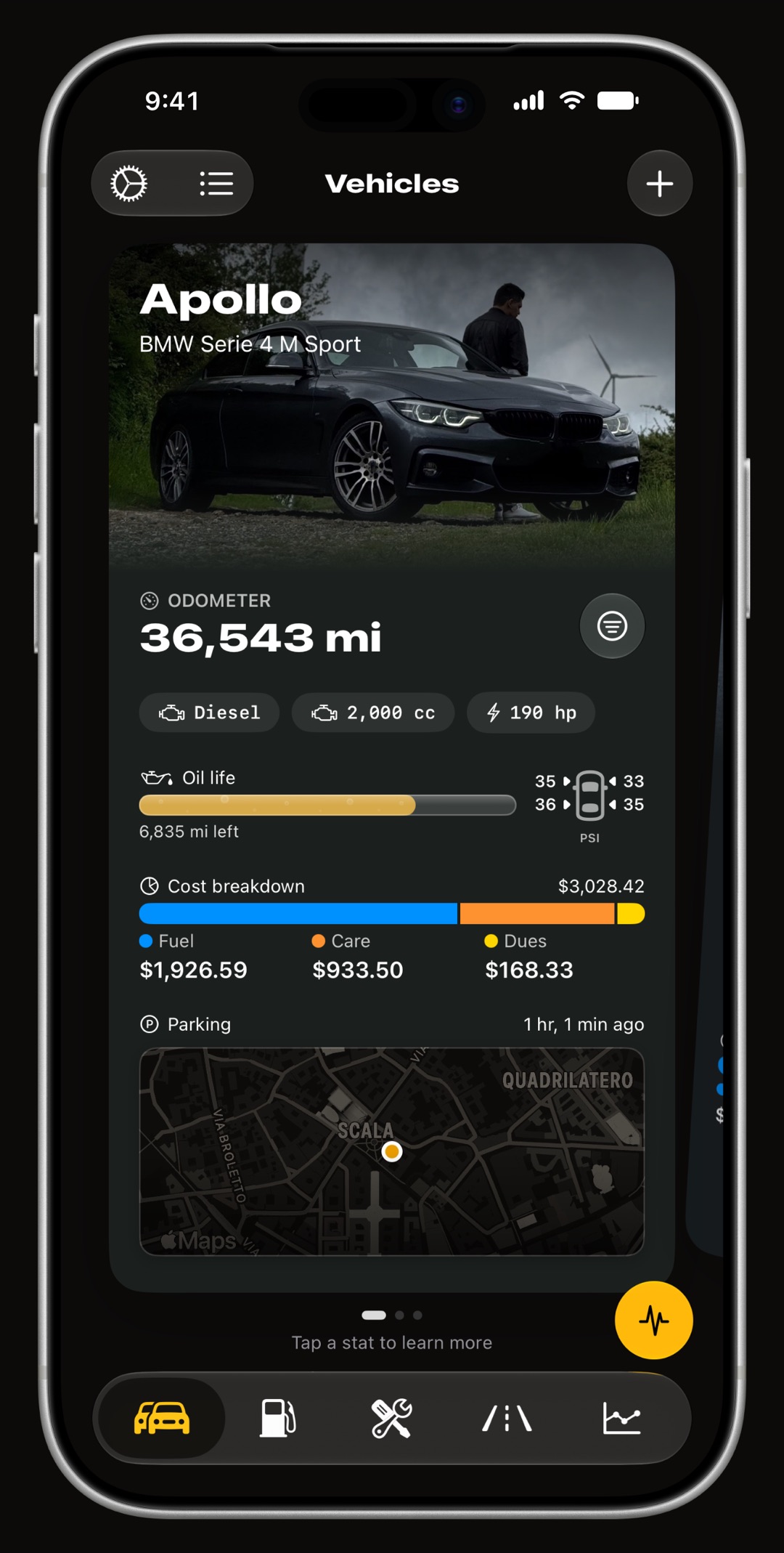
What do I need to start using WrenchTime?
An iPhone or iPad on iOS 26 or later, and nothing else. WrenchTime is a free download with no account, no login and no WrenchTime server: your records live on the device and, if you turn it on, in your own iCloud. The first time it opens, a welcome tour shows what the app does, asks for the permissions it needs and how you want trips recorded, and then opens the form for your first vehicle; Settings, Support, Replay Welcome Tour shows it again. A few features need extra hardware, and they are optional:
- A car stereo or helmet headset on Bluetooth lets trips start and stop by themselves and land on the right vehicle.
- A Bluetooth OBD-II adapter adds live engine data, trouble codes and custom readings. See which adapters work with an iPhone.
- A CarPlay head unit or an Apple Watch puts gauges on the car's screen and the garage on your wrist, both part of WrenchTime Pro.
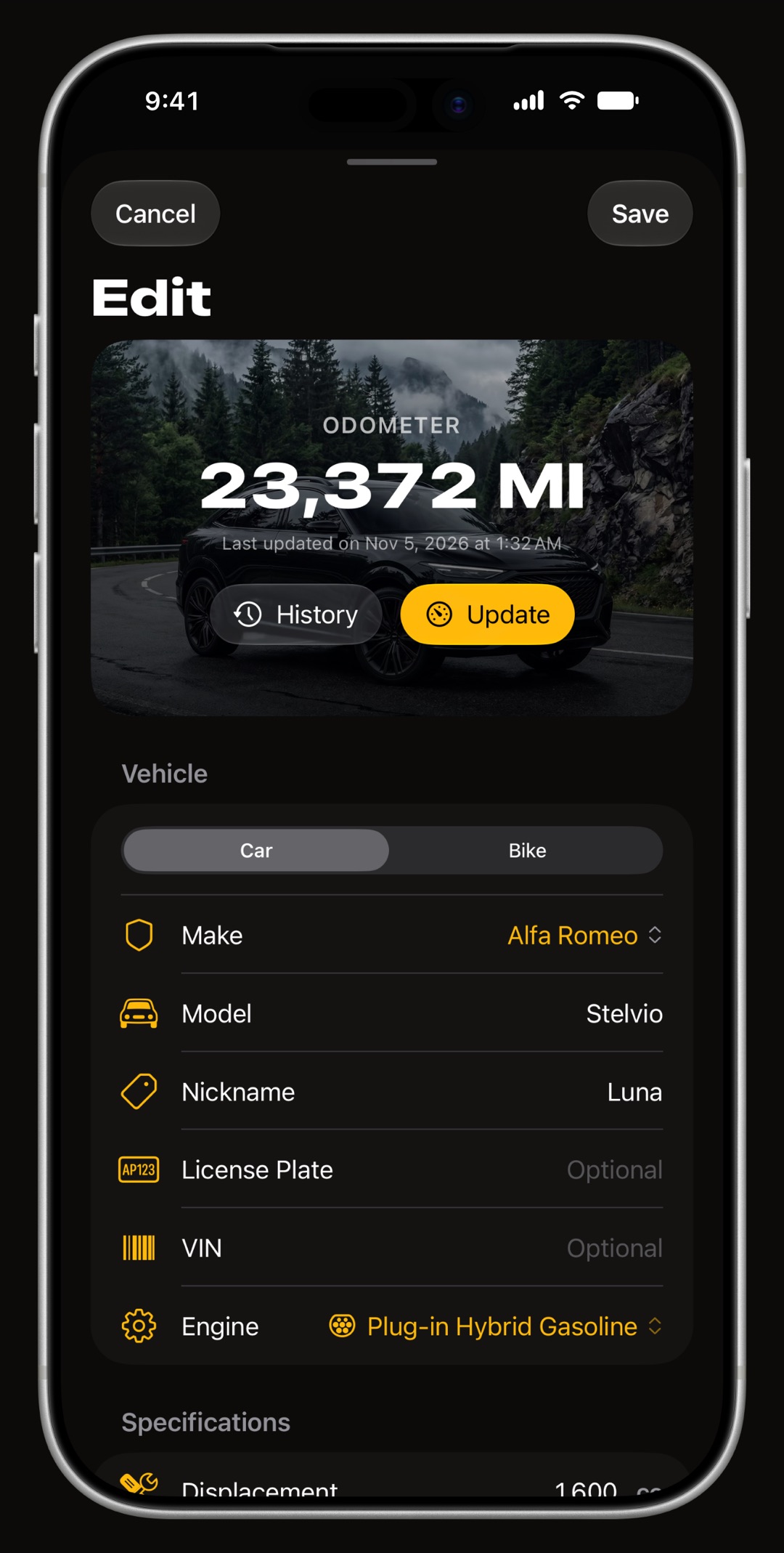
How do I add my first vehicle?
The welcome tour opens the form for you; later, open the Vehicles tab and tap Add Vehicle. Choose a car or a motorcycle, the make, the model and one of 11 engine types, from gasoline and diesel through the hybrids to fully electric, then enter the current odometer reading. The engine type matters more than it looks: it decides whether the vehicle logs fuel, charging or both, and which maintenance procedures it is offered, so an electric car is never asked for an oil change.
- Optional details nickname, photo, license plate, model year, VIN, engine displacement, horsepower and the engine oil it takes.
- Mark as favorite the favorite vehicle is preselected whenever you add an entry.
- Several vehicles a car and a motorcycle live side by side in the same garage, each with its own log. More than 1 vehicle is part of WrenchTime Pro.
- Sold or retired Archive Vehicle hides a vehicle from the garage and keeps its history.
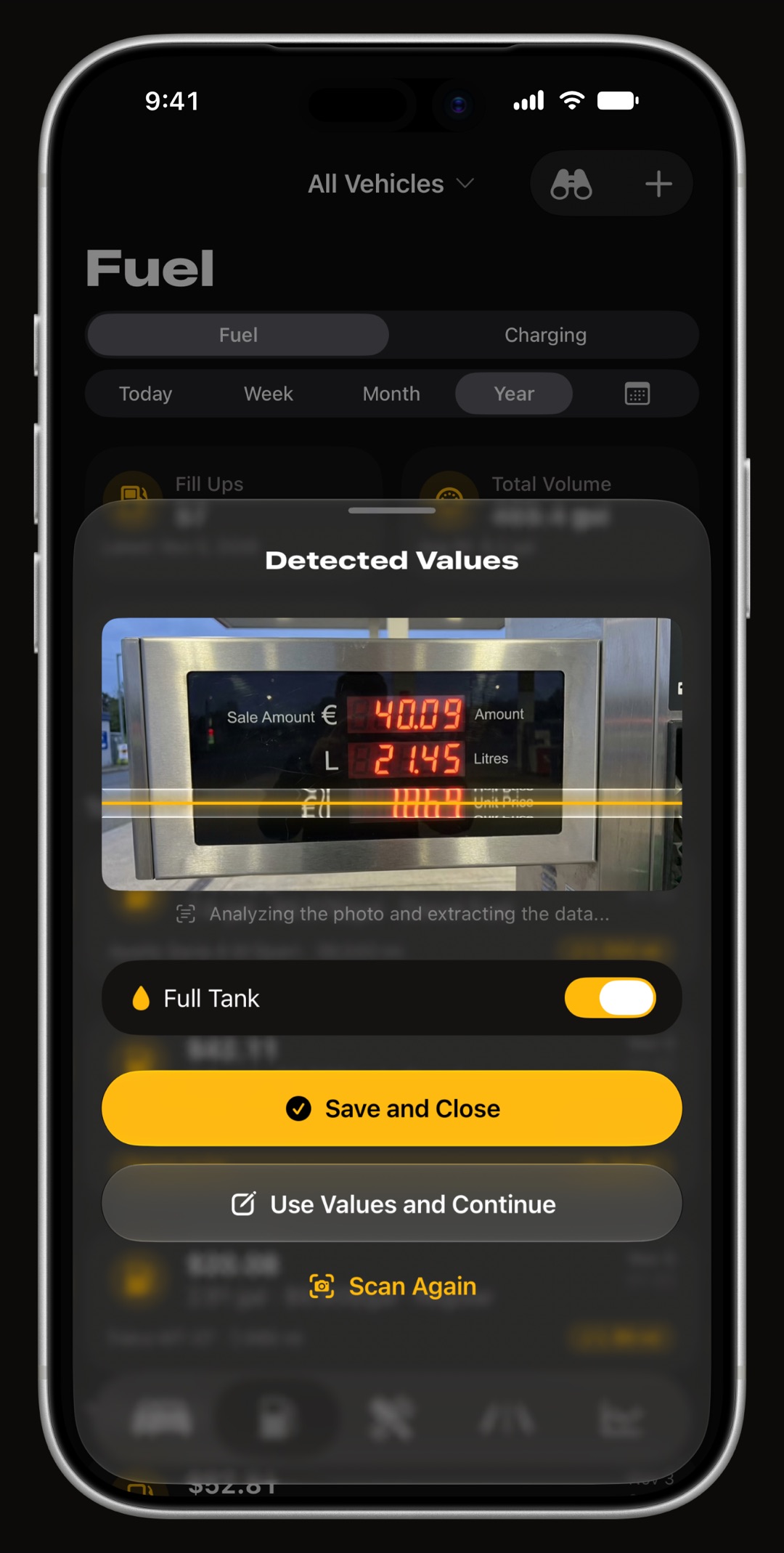
How do I log a fill-up or a charging session?
Open the Fuel tab and tap Add Fuel Entry, or Add Charging Entry for a plug-in vehicle. Enter any two of volume, price and total cost and the third is worked out for you, then the odometer, and leave Full Tank on when you filled to the top: fuel economy is computed tank to tank, only between two full fill-ups. Instead of typing, you can scan the pump display or the receipt with the camera, read on the device. A charging session records energy in kWh, cost, charger type, location and the battery percentage before and after.
- Units liters, US gallons or imperial gallons, and economy in km/L, L/100 km or MPG, set in Settings, Units & Currency.
- Economy alerts Efficiency Drop Alerts, in Settings, Fuel & Charging, warns you when consumption rises against your own history.
- Faster still touch and hold the app icon on the Home Screen to add a fill-up or a care entry, or to start a trip; touch and hold a vehicle's card for a fill-up, a charge or a care entry on that vehicle.
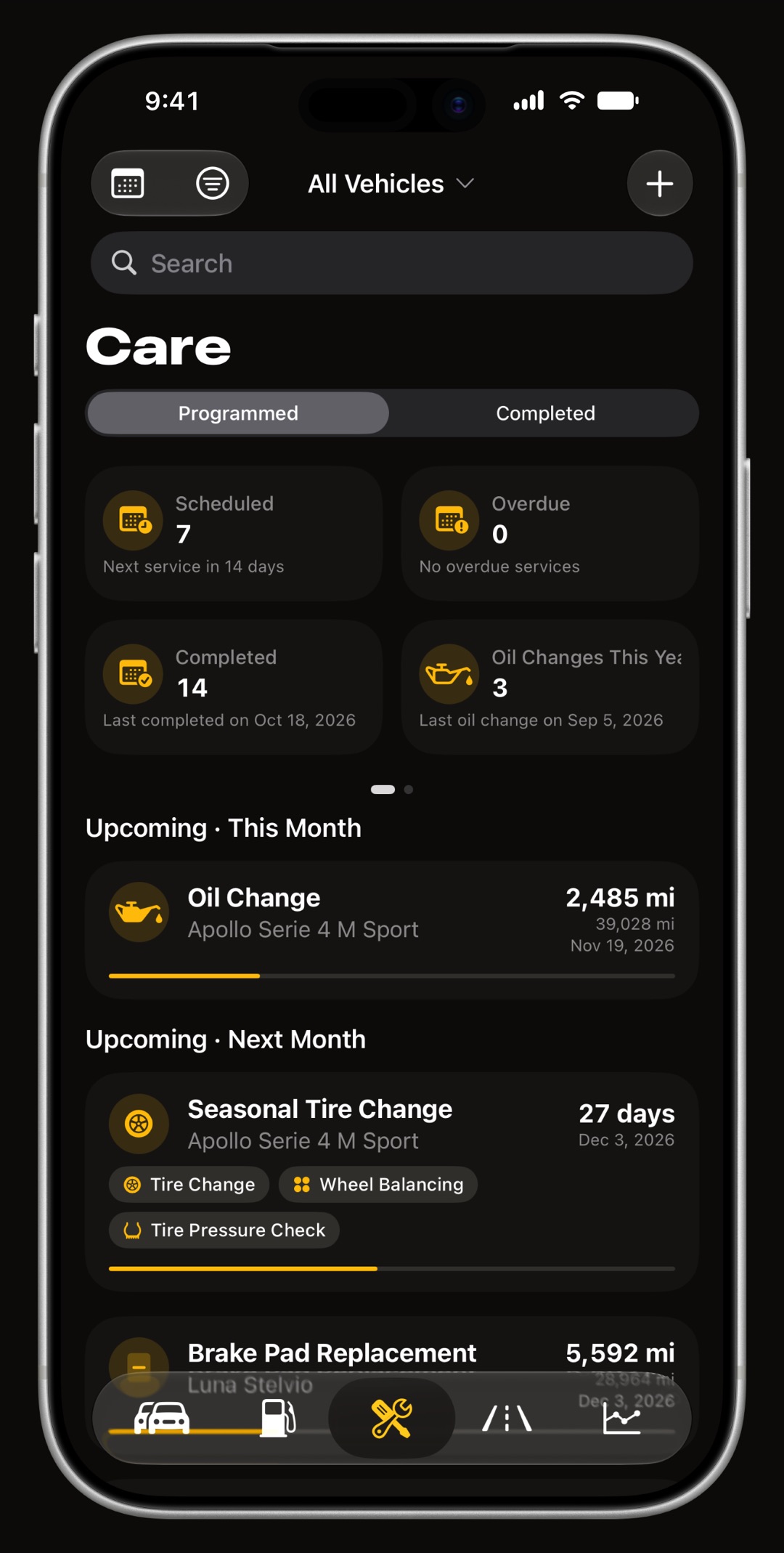
What are WrenchTime's five tabs for?
Each tab holds one part of the vehicle's record, and the vehicle menu at the top of every tab shows one vehicle or all of them. Every entry feeds the others: a fill-up moves the odometer, the odometer brings a service closer to due, and the cost of both lands in the charts.
- Fuel, or Charging fill-ups and charging sessions with tank-to-tank economy. The fuel economy tracker guide explains the method.
- Care maintenance by date, mileage or both, with reminders, plus insurance, road tax and other running costs. See how to schedule maintenance and reminders.
- Trips every drive, started by hand or recorded on its own. See how to set up automatic trips.
- Charts what each vehicle costs and how it performs over time, described in the car expense tracker guide.
- Vehicles the garage, the Vehicle Tools for an OBD-II adapter and, behind the gear button, Settings. See how to connect an OBD-II adapter.
Which tutorial should I read next?
Pick the one that matches the next thing you want WrenchTime to do. Each tutorial is a single setup, in the order you do it in the app, and ends with what to check when something does not work.
- Record drives without touching the phone set up automatic trip recording with your car stereo or a Shortcuts automation.
- Never miss a service schedule maintenance and reminders by date, mileage or both.
- Read the engine connect an OBD-II adapter for live data and trouble codes.
- Gauges on the car's screen set up WrenchTime in CarPlay, part of WrenchTime Pro.
- Keep your records safe back up, sync and export your data.
- Bring a history or share a car import from Fuelly, Drivvo or Fuelio, or share a vehicle's log with your family.
Where are the settings, and what can I change?
On iPhone, tap the gear button in the Vehicles tab; on iPad, Settings is in the sidebar. A search field at the top finds any setting by name. The settings are grouped into pages: Units & Currency, Appearance, Fuel & Charging, Trip Tracking, WrenchTime Live, Connections, CarPlay, Live Activity, Notifications, Data & iCloud, Support and Experimental Features.
- Make it yours light or dark mode, 30 accent colors (part of WrenchTime Pro), the map style, the tab order and, on iPhone, whether the tab bar shows titles, in Appearance.
- Units distance, volume, engine oil, tire pressure, temperature, economy and currency are each their own choice, so miles with liters or kilometers with MPG both work.
- Help Support, Help & Feedback writes to us from inside the app; shaking the phone opens the same form. See Support.
What is free and what needs WrenchTime Pro?
The free tier is a working log, with no ads: 1 vehicle, 3 fuel or charging entries and 2 maintenance entries a month, 10 recorded trips a week, 1 chart, 2 statistic cards per tab and 3 WrenchTime Live instruments, plus the Price Radar, the acceleration timer and iCloud sync. WrenchTime Pro, a monthly or yearly subscription with a free trial or a one-time lifetime purchase, removes every limit and adds the rest:
- More of everything unlimited vehicles, entries and trips, all 31 charts and every statistic card, unlimited WrenchTime Live pages.
- Features of their own trip maps, 3D replay, merge and split, pump and receipt scanning, CarPlay, the Apple Watch app, vehicle sharing, CSV import, CSV and PDF export, trouble codes, custom signals and 30 accent colors.
Frequently asked questions
Do I need an account to use WrenchTime?
No. There is no WrenchTime account and no login. Your records stay on your device and, if you turn on iCloud Sync, in your own iCloud.
Does WrenchTime work without an OBD-II adapter?
Yes. Maintenance, fuel and charging logs, automatic trip recording, charts, the Price Radar, parking, widgets and most of the WrenchTime Live dashboard need only the iPhone. An adapter adds live engine data, trouble codes and engine gauges on CarPlay.
Where is the Settings page in WrenchTime?
On iPhone, behind the gear button in the Vehicles tab. On iPad, in the sidebar. The search field at the top of Settings finds any setting by name.
Can I see the welcome tour again?
Yes. Open Settings, Support, Replay Welcome Tour. Settings, Support, What's New lists what each update added.
How do I move my data to a new iPhone?
Turn on iCloud Sync in Settings, Data & iCloud on the old iPhone, then install WrenchTime on the new one with the same Apple Account. A backup saved with Export Latest Backup can also be restored on the new iPhone with Restore from Backup.
Does WrenchTime work on iPad?
Yes. On iPad the tabs, the vehicle filter and Settings sit in a permanent sidebar, and the same iCloud Sync keeps the iPad and the iPhone in step.
Is WrenchTime free?
Yes, with limits and without ads: one vehicle, a set number of entries a month and trips a week. WrenchTime Pro, by subscription with a free trial or as a one-time lifetime purchase, removes the limits and adds CarPlay, the Apple Watch app, sharing and more.
Made for people who would rather know than guess.
Free to download. One vehicle, real features, no ads. Your garage will thank you.
Download WrenchTime on the App Store