Tutorial · Trips
How to set up automatic trip recording in WrenchTime
WrenchTime records trips on its own once you choose a tracking mode in Settings › Trip Tracking › Automatic Trip Detection. Shortcuts, the recommended mode, starts and stops a trip from a Shortcuts automation on your car's Bluetooth or CarPlay and works with Location set to While Using the App. Automatic records when a car stereo you paired with a vehicle connects, and All Trips records every drive it detects; both need Location set to Always, Motion & Fitness and Bluetooth. Pair the stereo in Settings › Connections, then set the minimum distance and duration a trip needs to be kept.
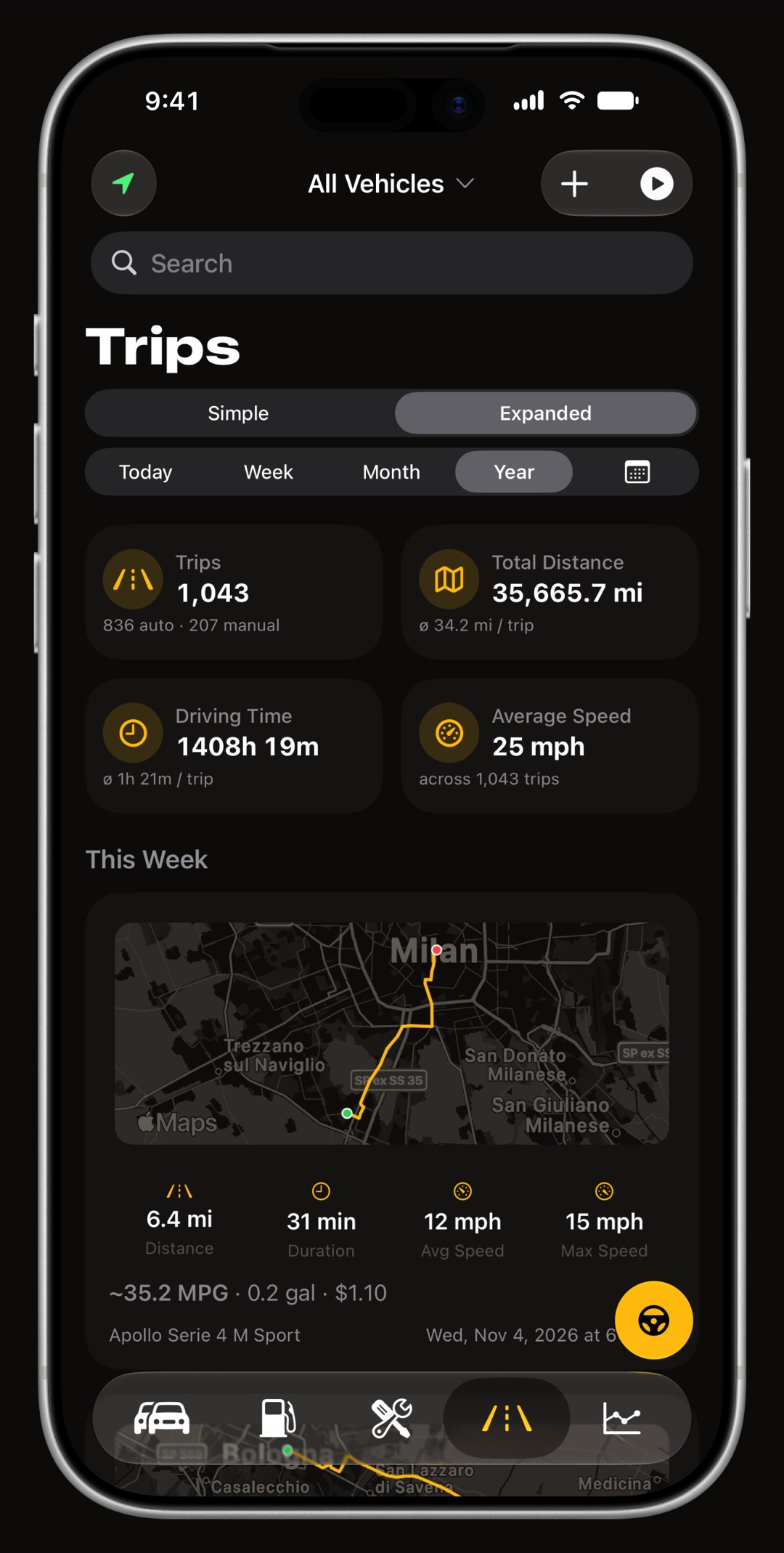
Which tracking mode should I pick?
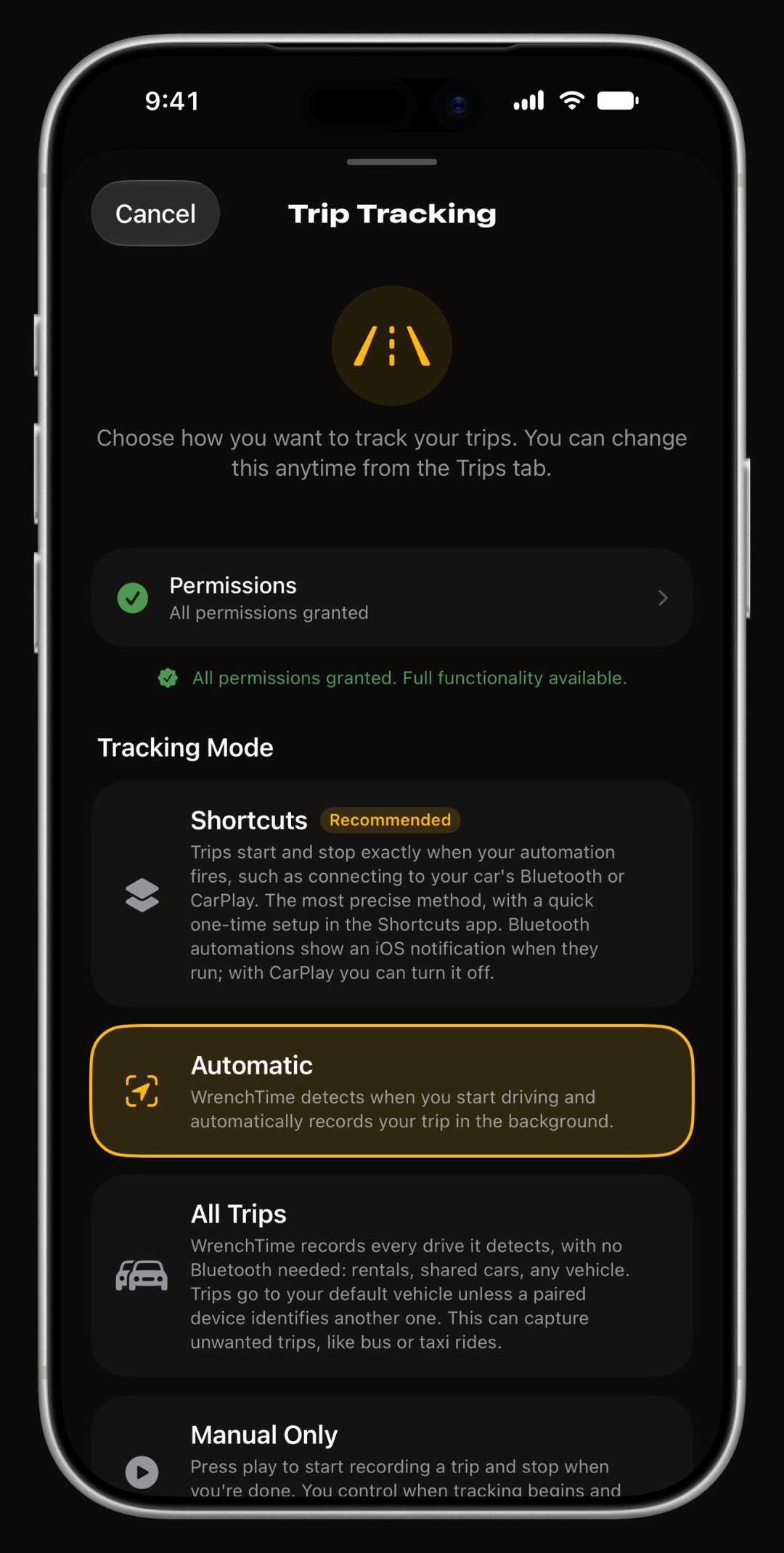
Open Settings › Trip Tracking and turn on Automatic Trip Detection, or tap the status icon at the top of the Trips tab. Both open the Trip Tracking sheet, where you choose one of four cards under Tracking Mode and tap Confirm. If you are still deciding whether automatic logging fits how you drive, the automatic mileage tracker guide explains how detection works.
- Shortcuts (Recommended) a trip starts and stops exactly when your automation fires, on the car's Bluetooth or CarPlay.
- Automatic WrenchTime records in the background when a car stereo or headset you paired with a vehicle connects.
- All Trips every drive it detects, no Bluetooth needed, filed under a Default Vehicle unless a paired device names another. It can also catch bus or taxi rides.
- Manual Only you press play to start a trip and stop it when you are done.
Which permissions does each mode need?
Tap Permissions at the top of the sheet to see each one and grant what is missing. Automatic and All Trips wake the app on their own, so they need Location Access set to Always, plus Motion & Fitness and Bluetooth. Shortcuts mode also works with Location set to While Using the App if Live Activities are on for WrenchTime. Keep Background App Refresh on, or trips are only detected while the app is open.
- Blocked a permission you declined earlier can only be changed in the iOS Settings app; the sheet offers Open Settings.
How do I set up Shortcuts mode?
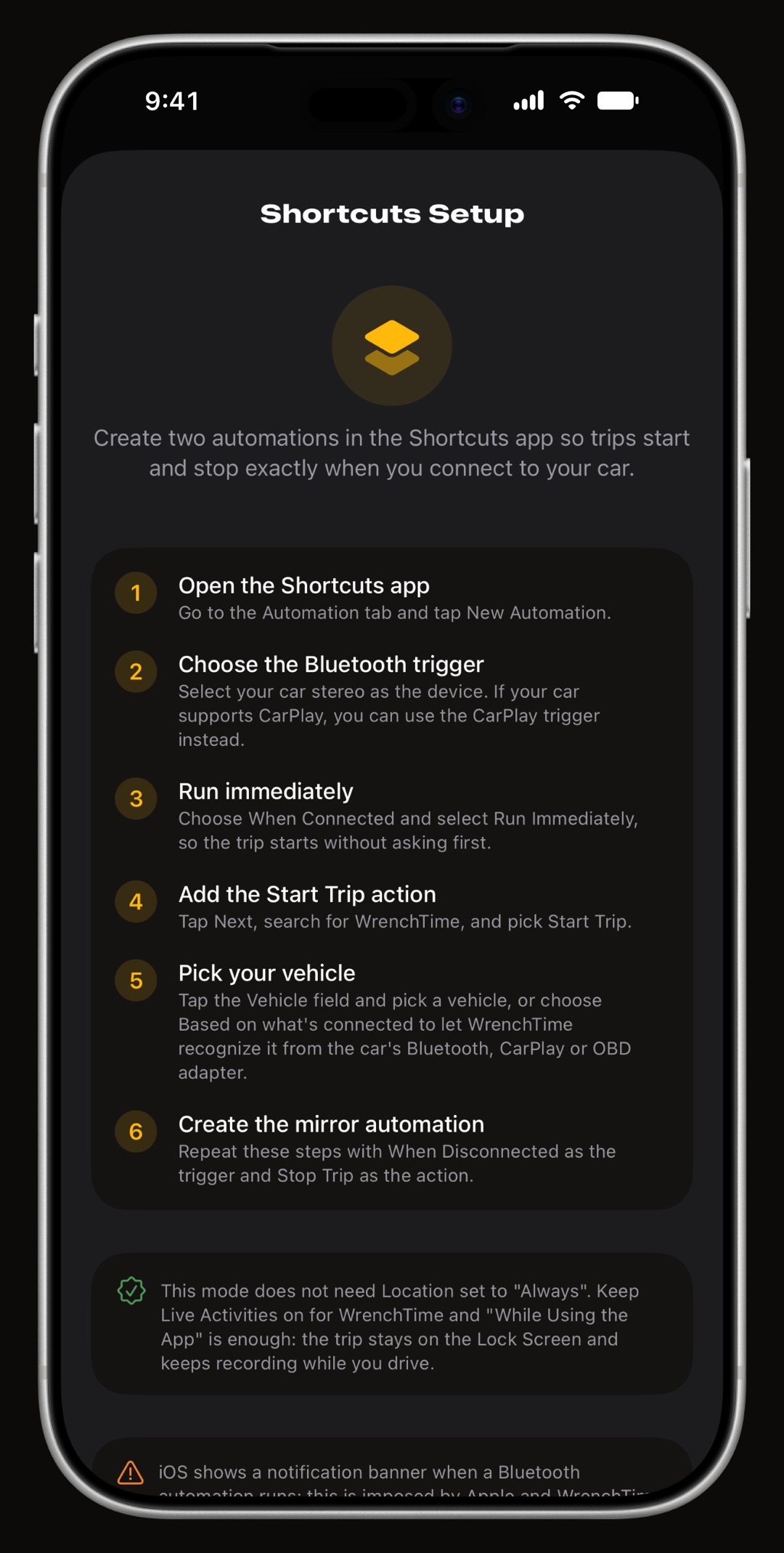
Select the Shortcuts card and tap How to set up in the Shortcuts app for the guided steps. In Apple's Shortcuts app, open the Automation tab and tap New Automation, choose the Bluetooth trigger with your car stereo (or the CarPlay trigger), pick When Connected and Run Immediately, then add WrenchTime's Start Trip action. In its Vehicle field pick a vehicle, or choose Based on what's connected. Repeat with When Disconnected and Stop Trip.
- Notifications Bluetooth automations show an iOS notification when they run; with CarPlay you can turn it off.
How do I pair my car stereo with a vehicle?
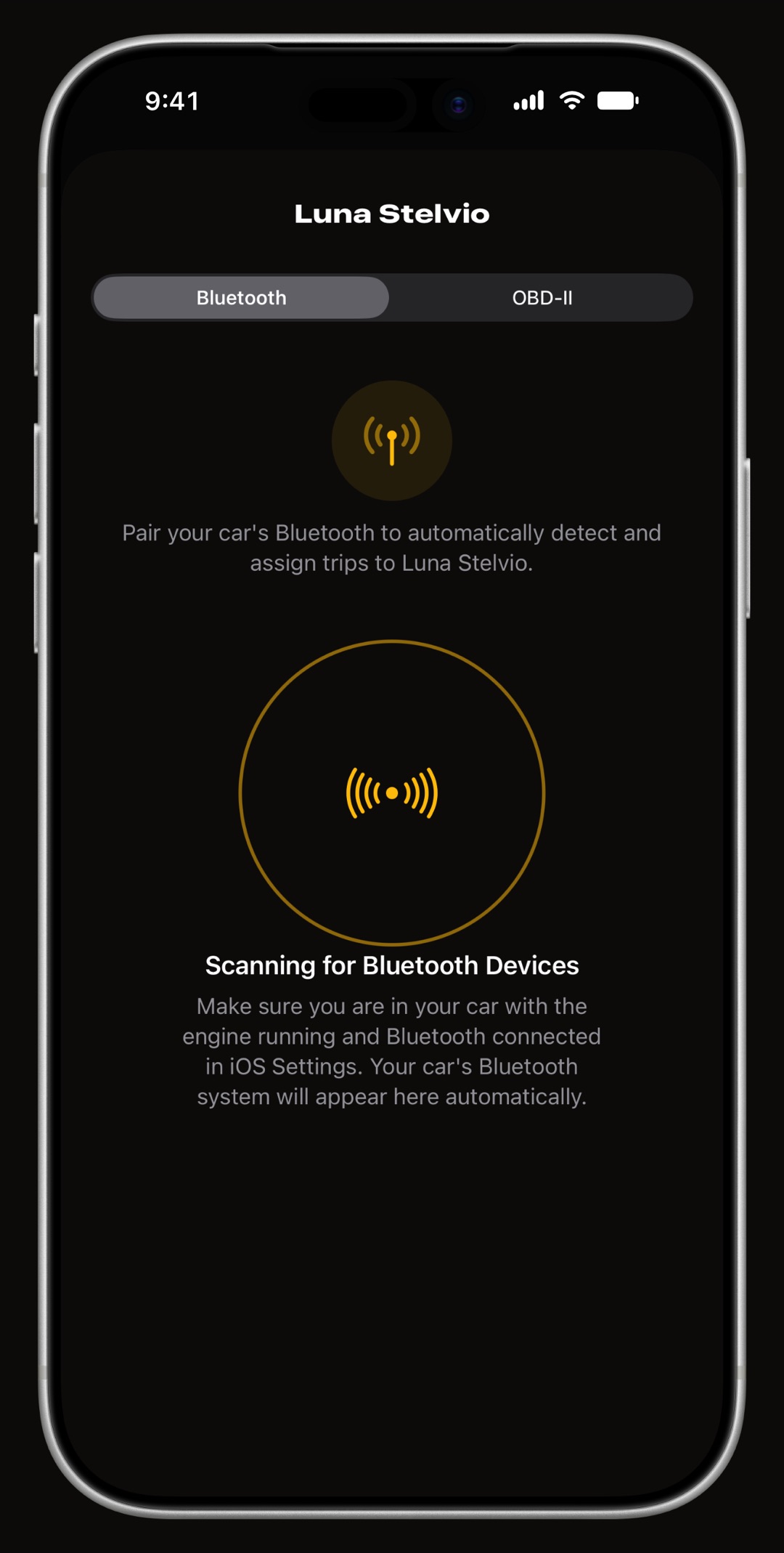
Get in the car with the engine running and the stereo connected to the iPhone in iOS Settings. In WrenchTime open Settings › Connections and, under Vehicles, tap the vehicle: the Bluetooth tab shows the stereo as Connected now. Tap Pair. Automatic mode needs this pairing to start a trip, and in every mode it is how a trip lands on the right vehicle. A helmet headset works the same way for a motorcycle.
- One device per vehicle pairing a second one asks whether to replace the first; Unpair removes the link.
When does a trip stop, and which trips are kept?
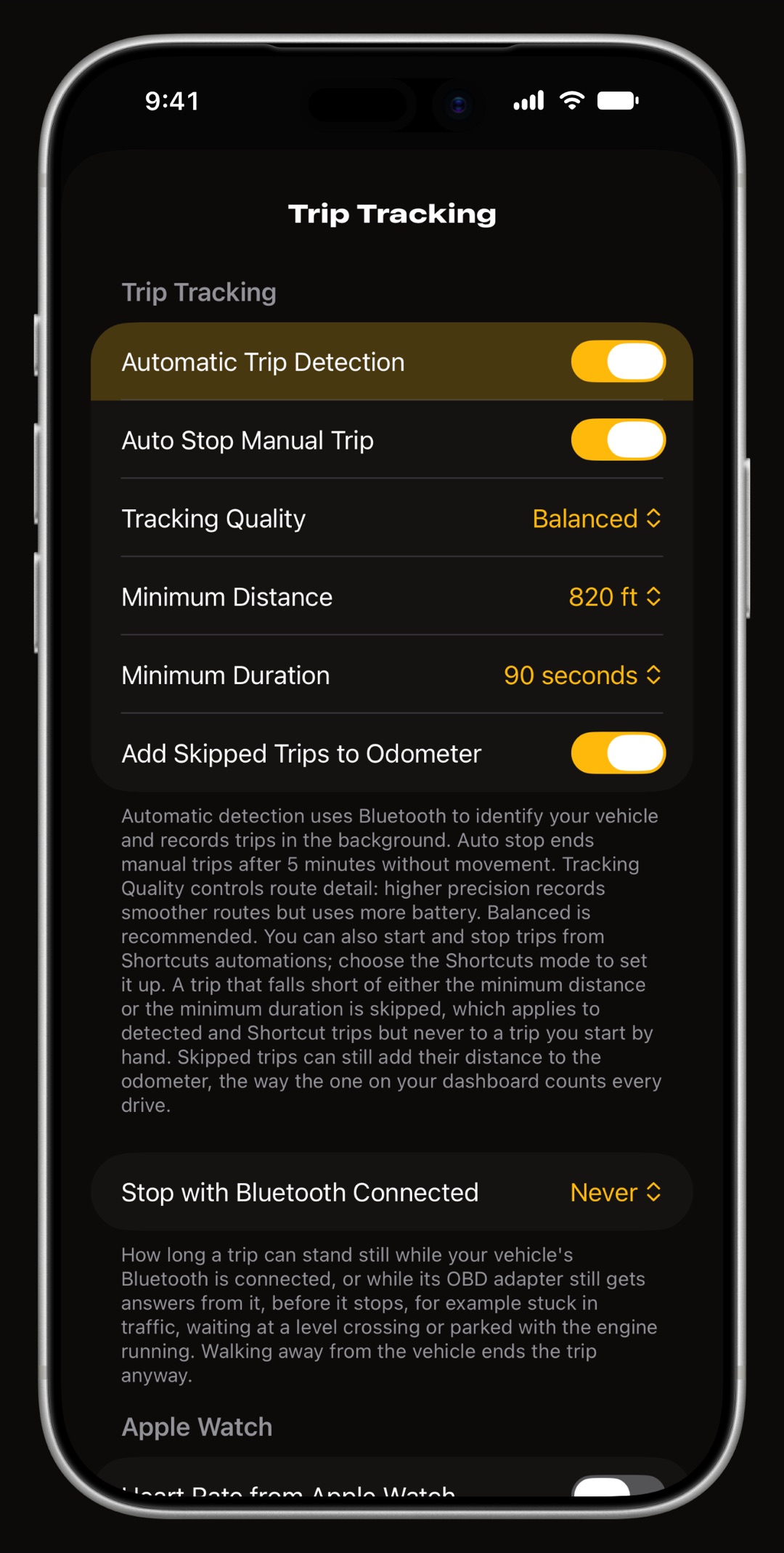
A detected trip ends about five minutes after the vehicle last moved; when the stereo disconnects the wait shortens, and walking away ends it within seconds. Where it ended is saved as the vehicle's parking spot. Settings › Trip Tracking sets the rest: Minimum Distance and Minimum Duration (each can be Off) decide which drives are kept, and a trip must clear both.
- Stop with Bluetooth Connected how long a trip may stand still while the car's Bluetooth stays connected, such as in traffic. Never is the default.
- Add Skipped Trips to Odometer a drive too short to keep still adds its distance to the odometer.
- Auto Stop Manual Trip applies only to trips you start by hand, which also skip the minimums.
What does a detected trip look like?
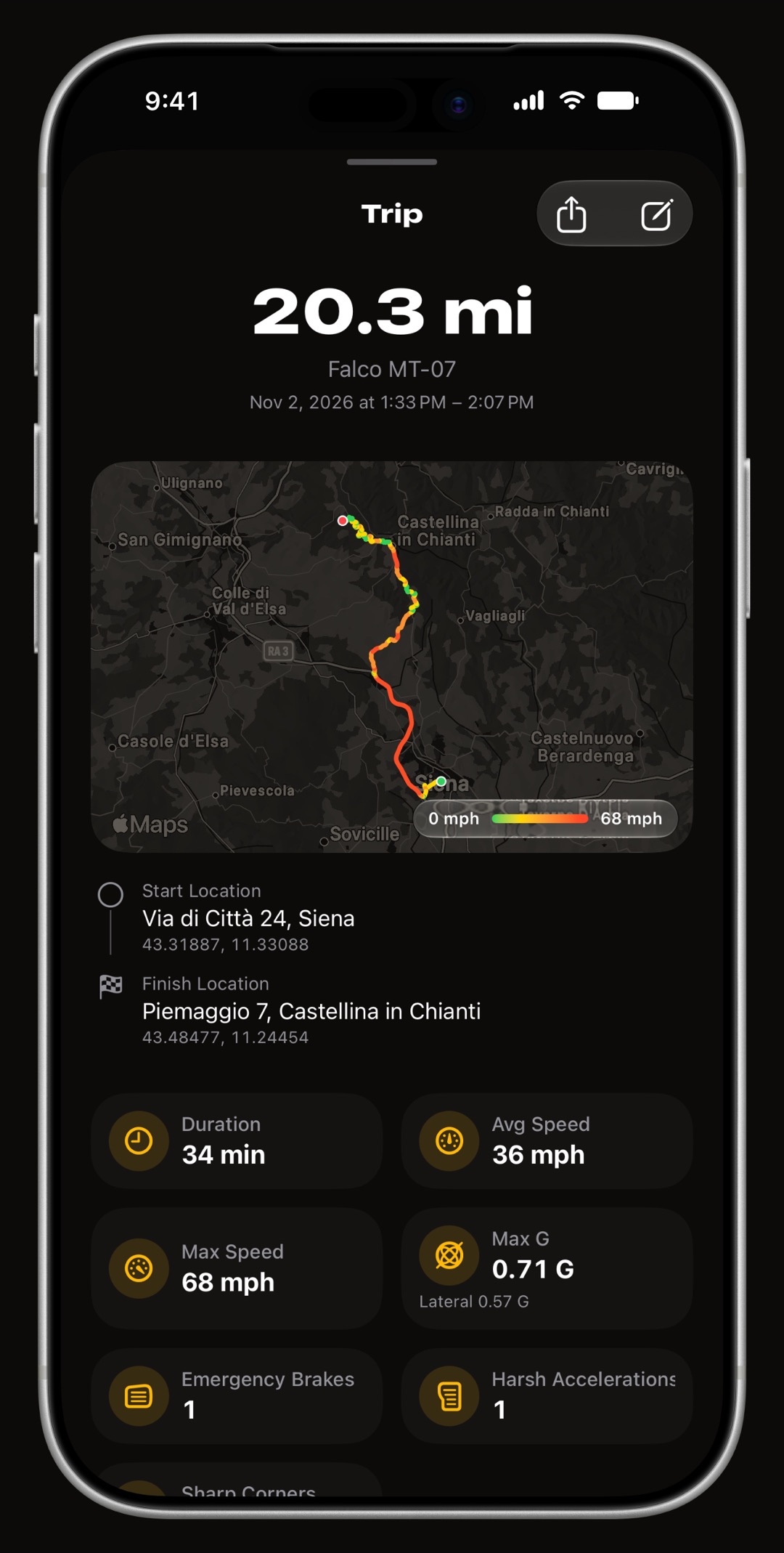
While a trip runs, a Trip in progress banner sits at the bottom of the screen with the vehicle, distance, average speed and elapsed time, and a Live Activity shows it on the Lock Screen. Once saved, the trip appears in the Trips tab with its route, distance and duration and a badge for how it started: Auto, Shortcut or Manual. Its distance is added to the vehicle's odometer. Tap a trip to open the full detail.
- No vehicle assigned a trip WrenchTime could not attribute is flagged in orange; assign it to a vehicle from the trip.
- Free tier keeps 10 trips a week; WrenchTime Pro removes the limit.
What if trips are not recorded?
Open the Trip Tracking sheet again: its summary line names what is wrong.
- Location is not Always Automatic and All Trips need it; set it in the iOS Settings app, or switch to Shortcuts mode.
- Motion or Bluetooth off automatic detection needs Motion & Fitness, and Bluetooth to recognize your vehicle.
- Background App Refresh off trips are only detected while the app is open.
- Live Activities off Shortcuts mode on While Using the App needs them.
- Stereo not paired in Automatic mode, check Settings › Connections lists your stereo on the vehicle.
- Trip too short lower Minimum Distance or Minimum Duration, or set them to Off.
Frequently asked questions
Does WrenchTime need Location set to Always?
Only for Automatic and All Trips, which wake the app on their own. Shortcuts mode works with While Using the App, provided Live Activities are on for WrenchTime, because the trip's Live Activity keeps the recording running in the background.
Can WrenchTime record trips without pairing Bluetooth?
Yes. All Trips records every drive it detects and files it under your Default Vehicle, and a Shortcuts automation on CarPlay needs no pairing either. Pairing is still what tells WrenchTime which vehicle you are in.
Why was a short drive not saved?
It fell below the Minimum Distance or Minimum Duration in Settings › Trip Tracking. A trip must clear both to be kept. With Add Skipped Trips to Odometer on, its distance still reaches the odometer.
Why did a trip end while I was stuck in traffic?
A detected trip ends after a few minutes without movement. While the car's Bluetooth stays connected, Stop with Bluetooth Connected decides how long it may stand still; Never, the default, keeps it running until you walk away or the stereo disconnects.
Made for people who would rather know than guess.
Free to download. One vehicle, real features, no ads. Your garage will thank you.
Download WrenchTime on the App Store