CarPlay
Best CarPlay apps for iPhone (2026)
The best CarPlay apps for iPhone for navigation, music, radio, podcasts, audiobooks, messaging, EV charging, parking, food, weather, AI and car tools, the free ones, and how widgets reach the car.
Parking
To find your parked car on an iPhone, open Apple Maps and choose Parked Car below Siri Suggestions, then tap Directions. Apple Maps drops that marker when the iPhone disconnects from the car's Bluetooth or CarPlay and you get out, as long as Location Services, Significant Locations and Show Parked Location are on (Apple iPhone User Guide). In Google Maps, tap the search bar and choose Saved parking; a saved spot is kept for 48 hours unless you remove it or start driving.
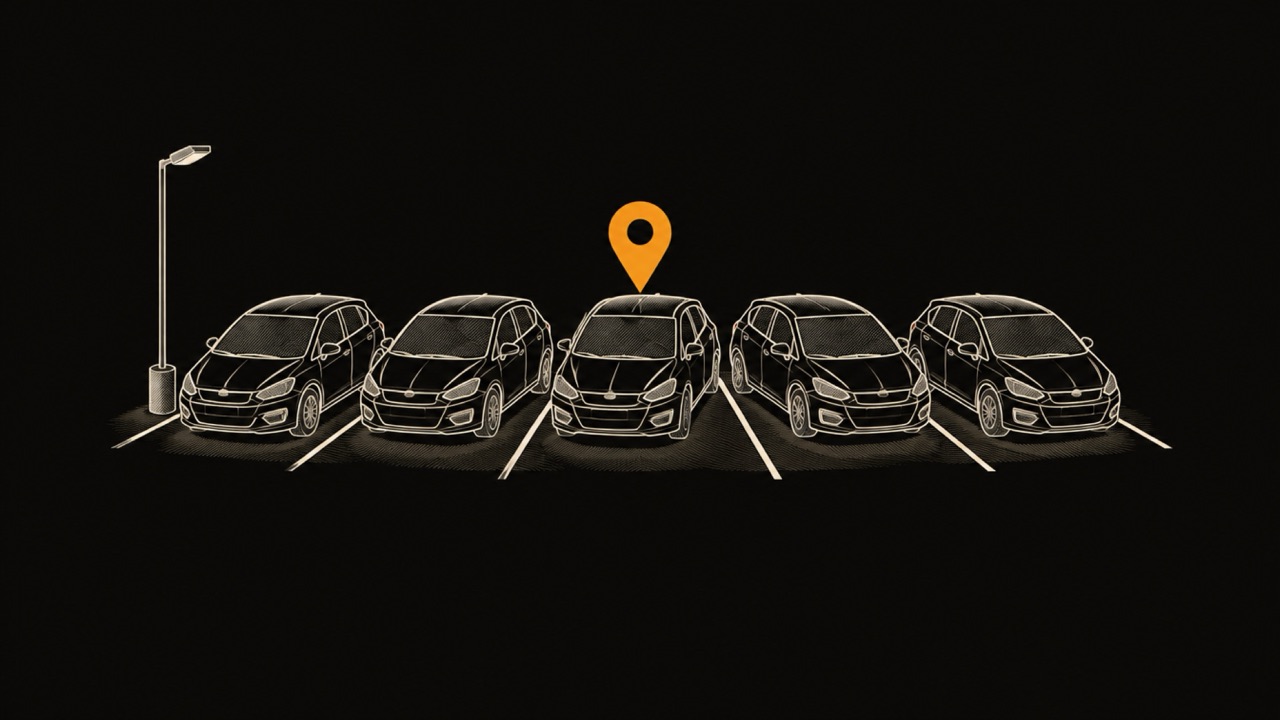
If you are wondering how to find my parked car or how to find where I parked my car, start with the phone in your pocket. On an iPhone, Apple Maps already saves the spot for you in most cases, and finding it takes two taps. Google Maps and Waze can do the same, with different rules, covered further down.
Apple Maps marks the car by itself. According to Apple's iPhone User Guide, when you disconnect your iPhone from your car's CarPlay or Bluetooth system and get out of the vehicle, Maps drops a parked car marker so you can find your way back. Nothing has to be tapped when you leave the car.
To walk back to it, open the Maps app and choose Parked Car below Siri Suggestions, as the iPhone User Guide describes. Apple Support (September 2026) gives two more routes: search for "Parked Car" in Maps, or tap the Search field on the Home Screen and choose Parked Car under Siri Suggestions. Select the result to see the location, edit it or add notes, then tap Directions.
When you no longer need the marker, touch and hold it and tap Remove Car. To stop Maps from saving the spot at all, go to Settings > Apps > Maps and turn off Show Parked Location. If the car has CarPlay, our guide to CarPlay apps covers what else runs on the car's screen.
Apple Maps shows no Parked Car marker for one of three reasons: the iPhone was not connected to the car, a setting is off, or you parked somewhere Maps considers familiar. Apple's troubleshooting list starts with the connection: make sure the iPhone is paired to CarPlay or Bluetooth in the car, then check Location Services, Significant Locations and Show Parked Location.
The familiar-place rule is the cause people miss. Apple's iPhone User Guide states that if you park your car at a familiar location, such as your home or work, Maps does not mark it as parked. A marker that appears at the mall and never at the office is working as designed, not broken.
A car with no Bluetooth and no CarPlay never triggers the Apple Maps marker, because the disconnect is the signal. For that car, Google Maps can detect parking from the phone's motion instead, and any of the three apps below can save the spot by hand before you walk away.
Yes. Google Maps on iPhone and iPad saves your parking spot automatically after you disconnect from the car over Bluetooth, CarPlay or USB, according to Google Maps Help. An optional setting under Settings > Navigation, "Let maps use your motion to save your parking", lets Maps notice that you stopped driving even without a car connection, and setting Location Services to Always helps it detect parking in the background.
Google states that a saved spot "stays saved for 48 hours unless you remove it or start driving." To find it, look for the You parked here pin on the map, or tap the search bar and then Saved parking, and tap Directions.
To save the spot by hand, tap the blue dot that shows your location, then tap Saved parking. Under Saved parking you can also tap Change location to move the pin, or Share to send the spot to someone else. Google documents these steps on its iPhone and iPad help page; Android has its own version of the page, which this guide does not cover.
Waze keeps a parking spot that you mark yourself. According to Waze Help, you long press your location on the map, tap the more options icon, then tap Mark your parking spot. The camera icon takes a picture of the spot, and Edit location moves the pin if it landed in the wrong place.
When you are back at the car, tap Remove from map. A BGR guide from September 22, 2026 notes that Waze deletes the saved spot once you start driving away, and that if it does not, you can clear it by hand. The photo option makes Waze useful in a garage where the map alone cannot tell one level from another.
The free parked car finders split into two kinds. Apple Maps and Google Maps save the spot automatically, but depend on a car connection or on the phone's motion. Waze, and the manual mode of Google Maps, work anywhere, but only if you remember to save the spot before you walk away. A dedicated app adds a history of past spots.
Choose by your car: with Bluetooth or CarPlay and an iPhone, Apple Maps needs no setup beyond three settings. Without either, Google Maps' motion option is the automatic choice. For a garage with several levels, a manual save with a photo or a note beats any automatic pin.
| Method | What saves the spot | Needs car Bluetooth or CarPlay? | How long it is kept | Photo or note | Saves at home or work? |
|---|---|---|---|---|---|
| Apple Maps Parked Car | Disconnecting from the car and getting out | Yes | Until you remove it | Notes | No, familiar places are not marked |
| Google Maps, automatic (iPhone) | Disconnecting over Bluetooth, CarPlay or USB, or motion detection | No, motion detection is an option | 48 hours, or until you remove it or start driving | Not documented | Not documented |
| Google Maps, manual | Tapping the blue dot, then Saved parking | No | 48 hours, or until you remove it or start driving | Not documented | Not documented |
| Waze | You mark it by hand | No | Until you remove it or drive away | Photo | Not documented |
| WrenchTime | The end of a recorded trip, or saving by hand | No | The current spot, plus a parking history in WrenchTime Pro | Not documented | Not documented |
Sources: Apple iPhone User Guide, Apple Support (2026), Google Maps Help, Waze Help, BGR (2026). "Not documented" means the source does not say.
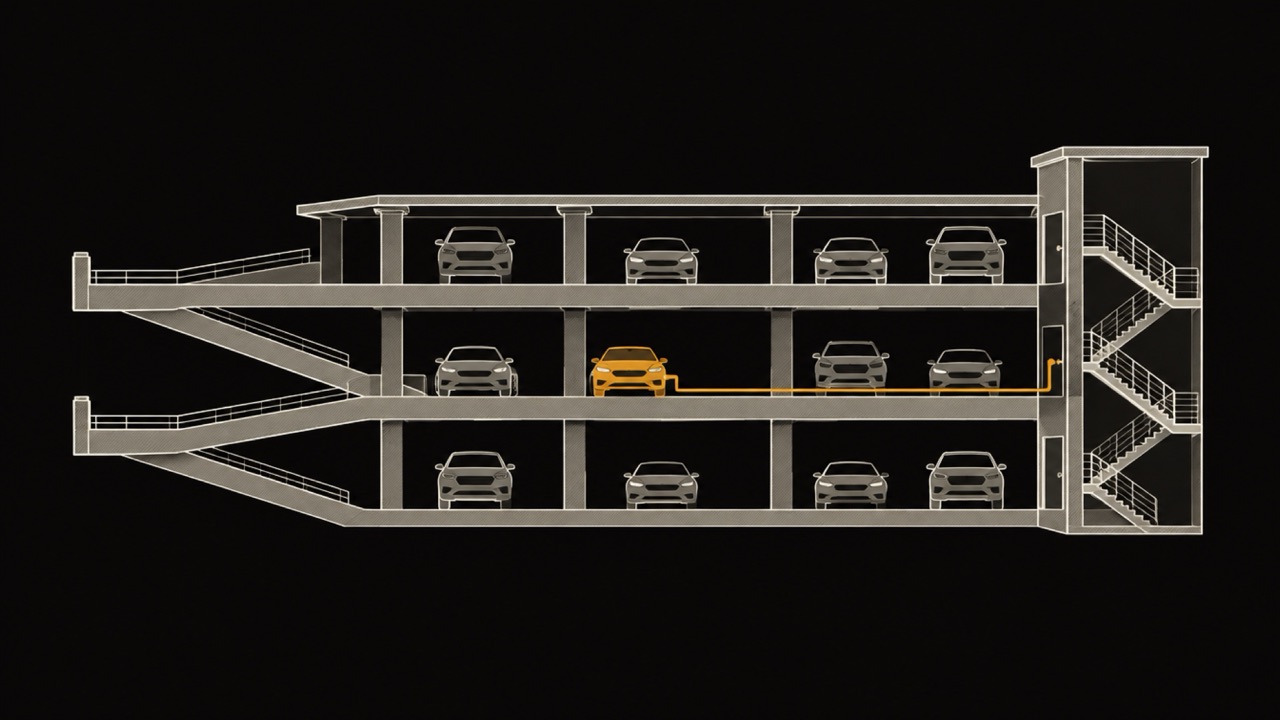
In a parking garage, save the spot by hand even if an automatic save is on, and add the level. A map pin shows where the car is on the ground, not which deck it is on, and a covered or underground deck weakens the GPS signal the pin depends on. A note in Apple Maps or a photo in Waze settles the level.
Before walking away, note four things: the level, the nearest pillar or row marking, the stair or elevator you take, and the exit you leave by. Coming back, reverse that order: the same exit, the same stair, the level, then the row. A photo of the pillar marking does the remembering for you.
Forgetting where you parked is common. In a survey of 2,000 drivers by Insurance.com, 52% admitted forgetting where they parked, the top driving embarrassment in the poll (AutoGuide, 2014). A 2018 OnePoll survey of 2,000 UK drivers found a typical search lasts about 10 minutes, and 5% had searched for more than half an hour. The same survey named multi-story car parks as the most common place to lose a car (Fox News, December 2018).
Unfamiliar city garages on a long drive are where this happens most, which is why our road trip checklist is worth a look before you leave.
When no app saved the spot, a phone cannot locate the car unless the car reports its own position. Some cars do, through their maker's connected app, so check whether yours has one before anything else. Otherwise, finding the car is a matter of retracing your steps.
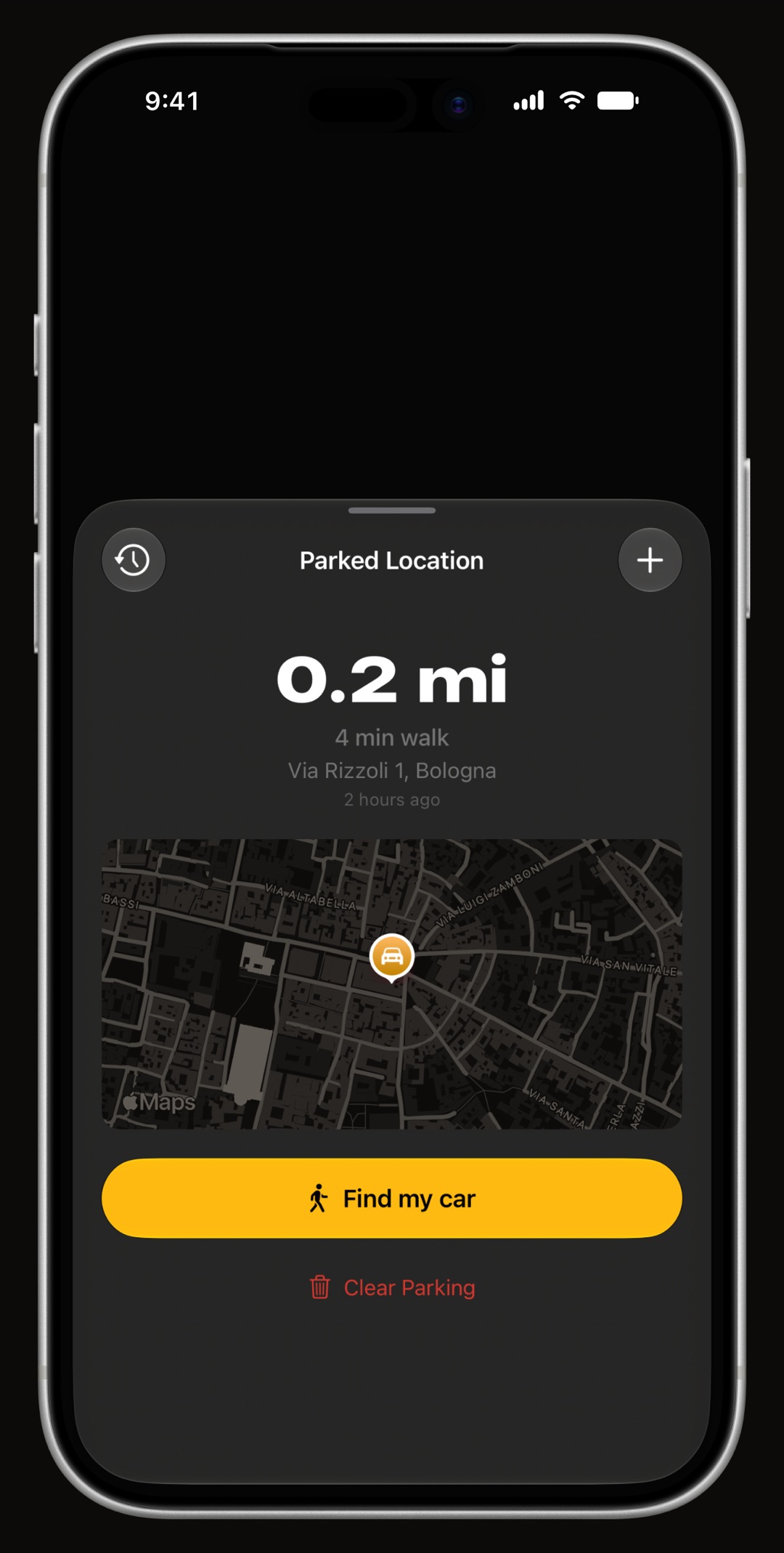
WrenchTime, a car and motorcycle log for iPhone, saves where you parked when a recorded trip ends, or when you save the spot by hand. The vehicle card, a Home Screen widget and the Apple Watch app show the spot on a map with its address and how long ago you parked, and one tap opens walking directions back to it.
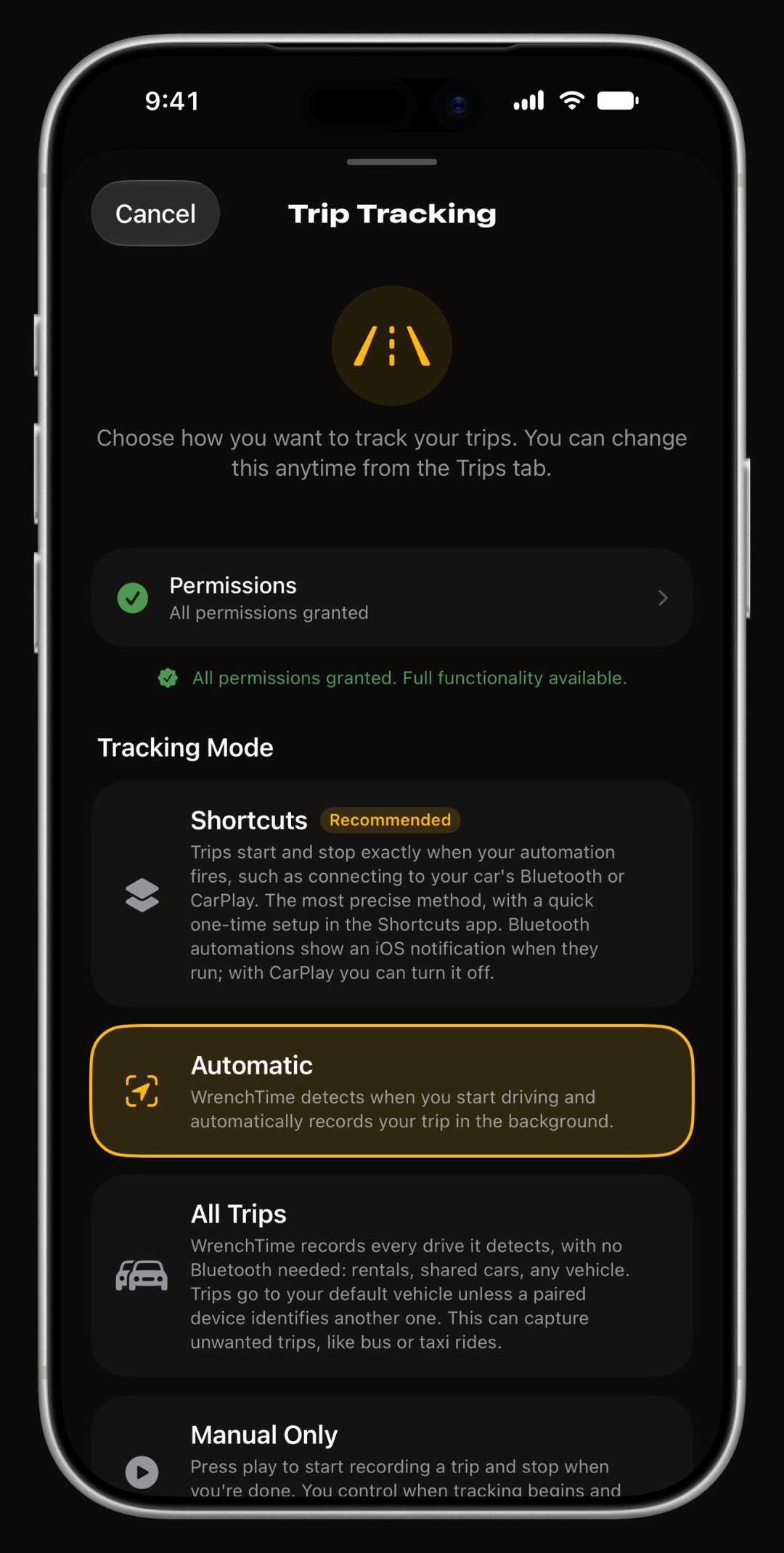
No step is needed at the curb: the car's Bluetooth, a departure from the geofence around where you parked, or the phone's motion wake trip detection. A geofence is a virtual boundary around the spot, watched so departure is detected without draining the battery. The automatic trip tracking guide explains each trigger.
A parking history answers "where did I leave it on Tuesday". On a motorcycle the app says find my bike, and a helmet headset can be the paired Bluetooth device. When you share a car with your family, its parking spot stays in sync for everyone in the share. Parking spots stay on your devices and in your own iCloud, and a shared vehicle's spot syncs only with the people you shared it with.
The same rules apply whichever app you use: an automatic save needs a trigger, and a manual save needs you to remember it.
Let the end of every drive save the spot in WrenchTime, so the next car park is a walk, not a search. The free version covers 1 vehicle and 10 recorded trips a week; parking history, the Apple Watch app, CarPlay and vehicle sharing are part of WrenchTime Pro. The automatic mileage tracker guide shows how trips start and end on their own.
Open Apple Maps and choose Parked Car below Siri Suggestions, or search "Parked Car", then tap Directions. Maps drops that marker when your iPhone disconnects from the car's Bluetooth or CarPlay and you get out, with Location Services, Significant Locations and Show Parked Location turned on.
Yes. On iPhone, tap the search bar and choose Saved parking, or look for the You parked here pin. Google Maps saves the spot after you disconnect from the car or, with motion detection on, when you stop driving, and keeps a saved spot for 48 hours unless you remove it or start driving.
The usual causes are a phone not paired with the car's Bluetooth or CarPlay, one of three settings off (Location Services, Significant Locations, Show Parked Location), or the place itself: Apple Maps does not mark a car parked at a familiar location such as home or work.
For most iPhone owners the built-in Apple Maps Parked Car marker is enough when the car has Bluetooth or CarPlay. Google Maps adds a motion option for cars without either. An app that saves the spot at the end of every trip, with a history, suits several vehicles or a motorcycle.
Apple Maps, Google Maps and Waze all save your parking spot at no cost. Apple Maps and Google Maps can do it automatically when the phone disconnects from the car; Waze needs you to mark the spot by hand, and can add a photo of it.
Only if the car reports its own location, for example through its maker's connected app. Otherwise retrace your route from the entrance you used, ask the car park staff, and press the key fob's lock or panic button as you walk until the car answers.
More from the blog
CarPlay
The best CarPlay apps for iPhone for navigation, music, radio, podcasts, audiobooks, messaging, EV charging, parking, food, weather, AI and car tools, the free ones, and how widgets reach the car.
Road trips
Check tires, battery, brakes, fluids, lights and wipers and the emergency kit one to two weeks before you leave, so a shop has time to fix what you find.
Mileage
MileIQ, Everlance, TripLog, Driversnote, Stride and WrenchTime compared on free limits, prices, how a trip starts on its own, and what each one is for.
Free to download. One vehicle, real features, no ads. Your garage will thank you.
Download WrenchTime on the App Store