CarPlay
Best CarPlay apps for iPhone (2026)
The best CarPlay apps for iPhone for navigation, music, radio, podcasts, audiobooks, messaging, EV charging, parking, food, weather, AI and car tools, the free ones, and how widgets reach the car.
CarPlay
Yes, CarPlay can show live car gauges, but only through an iPhone app that reads an OBD2 adapter and draws the gauges itself: CarPlay has no gauge feature of its own and no access to the car's diagnostic port. Many OBD apps show their CarPlay data as a plain list, and OBD Fusion's App Store listing says outright that real-time gauges are not supported there. A few apps, such as WrenchTime, draw ring and trend tiles for readings like RPM, boost and coolant temperature. You need a Bluetooth LE ELM327-compatible adapter or an Apple MFi adapter such as the OBDLink MX+; Wi-Fi adapters do not work with WrenchTime.
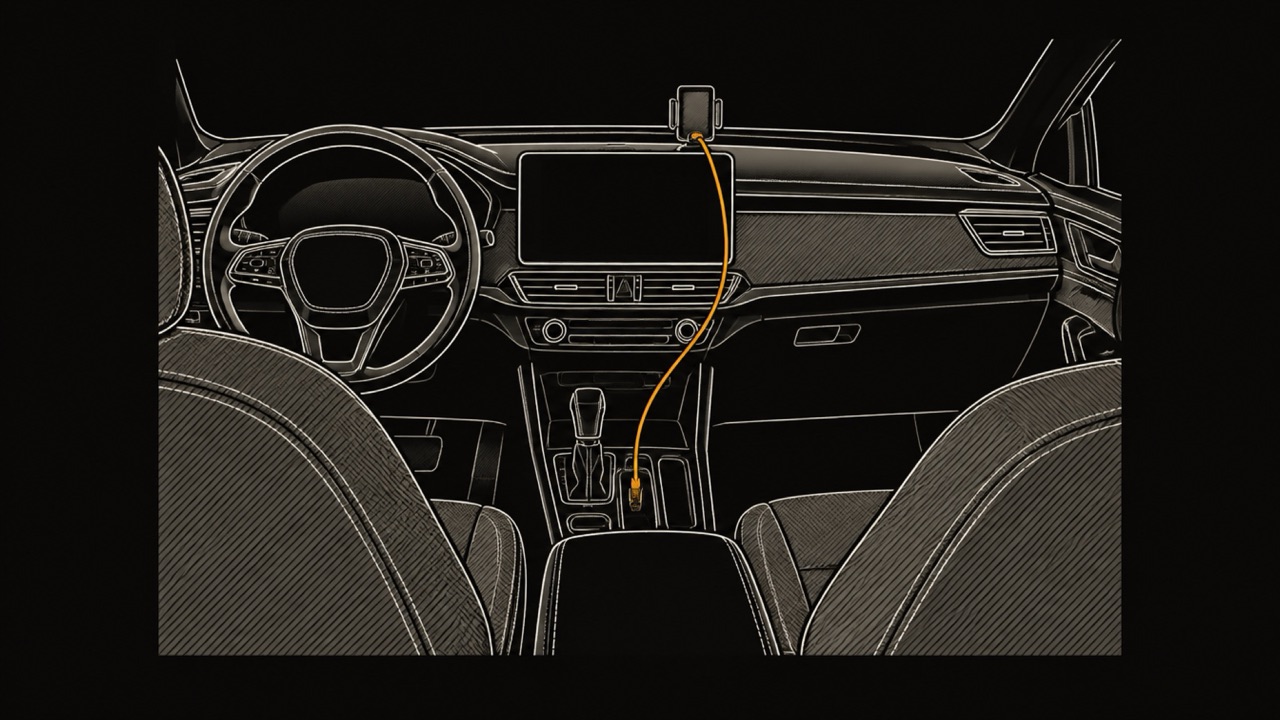
CarPlay can show live gauges only through a third-party app paired with an OBD2 adapter. OBD2 is the standard diagnostic port and protocol in almost every modern car, and the adapter plugged into it reads values such as engine speed or coolant temperature on request. CarPlay itself never talks to that port: the iPhone app reads the adapter over Bluetooth and uses the car's screen as its display.
Most OBD apps show a list on CarPlay because CarPlay apps are not free-form screens. They are assembled from Apple's templates, and an OBD app falls under the driving task category, which Apple introduced "to enable a wider variety of very simple apps" and limited to "tasks that can be accomplished in a few seconds" (Apple, WWDC22 session 10016). A list template is the obvious fit. OBD Fusion's listing says it shows "vital driving information in a list" and that "real-time gauges are not supported by CarPlay" (OBD Fusion, App Store, checked October 7, 2026).
Some apps still show gauges on CarPlay by drawing each gauge as an image and placing those images inside the templates Apple allows. WrenchTime, the app I build, draws its ring, trend and readout tiles that way with Core Graphics and redraws a tile only when its reading changes.
Seeing OBD2 data on CarPlay takes four things: a car with an OBD2 port, an adapter your iPhone can talk to, an app with a CarPlay interface that reads that adapter, and a head unit with CarPlay. In the US, OBD-II has been required on all new gasoline and alternate-fuel passenger cars and trucks sold in California since 1996, and on diesels from 1997 (TransportPolicy.net, checked October 7, 2026), so almost any car built since then has the port, usually under the dashboard on the driver's side. The owner's manual shows where.
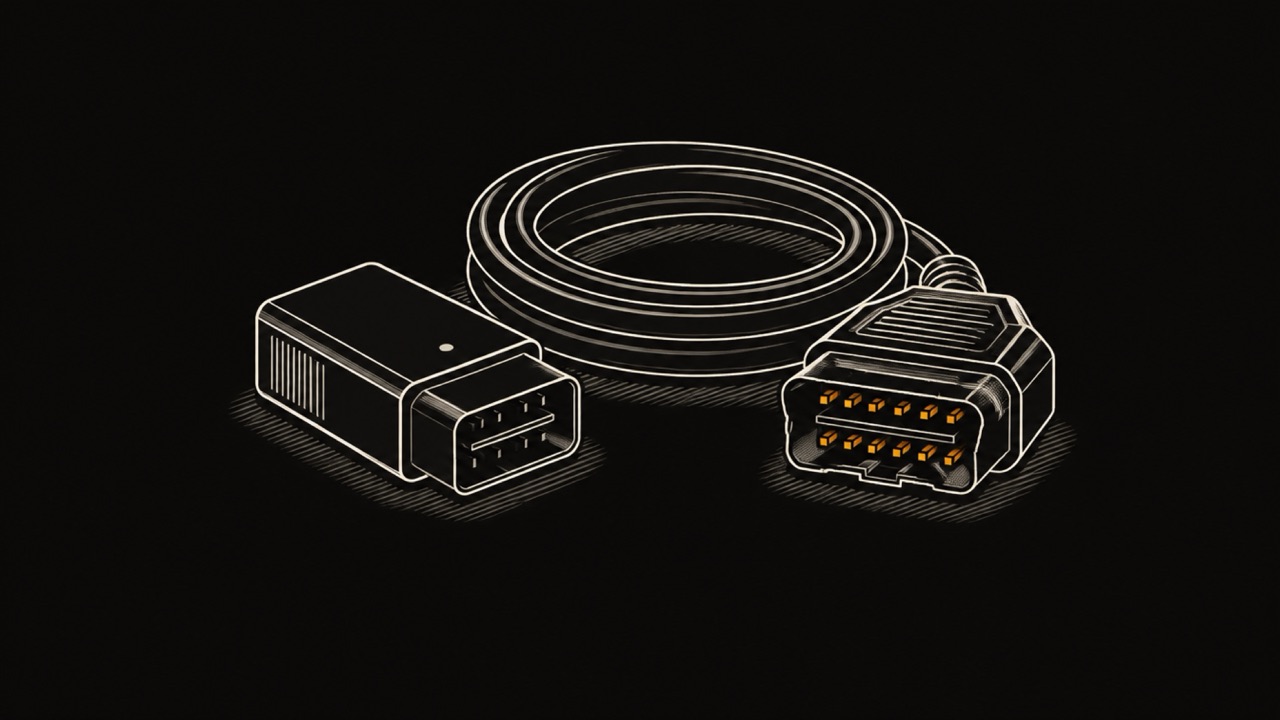
The adapter is where most setups fail. An iPhone app can use Bluetooth Low Energy adapters, Wi-Fi adapters if the app supports them, and classic Bluetooth adapters only when they are Apple MFi certified for that app. A cheap classic Bluetooth adapter that works with Android apps such as Torque Pro will not answer an iPhone app at all; Torque Pro on iPhone explains why. For plugging the adapter in and reading a first code, see how to use an OBD2 scanner.
| Adapter type | Works with iPhone apps? | Notes |
|---|---|---|
| Bluetooth LE (ELM327) | Yes | The most common iPhone adapter. Vgate iCar Pro and iCar Pro 2S are confirmed working in WrenchTime. |
| Classic Bluetooth, Apple MFi | Yes, in apps that support it | OBDLink MX+ works in WrenchTime and is listed by OBD Fusion. |
| Classic Bluetooth, not MFi | No | Sold as Android adapters; an iPhone app cannot open the connection. |
| Wi-Fi (ELM327) | Depends on the app | OBD Fusion lists Wi-Fi ELM327 adapters; WrenchTime does not support Wi-Fi. |
Sources: OBD Fusion, App Store; WrenchTime's own adapter log, OBD-II app for iPhone. Checked October 7, 2026.
CarPlay apps that show car data fall into two groups: OBD apps that read the adapter, and speedometer apps that use the iPhone's GPS and need no adapter. Within the OBD apps, the visible difference is the form: a text list or drawn gauge tiles. The table below sticks to what each developer states on its App Store listing, checked October 7, 2026. For the wider picture of iPhone diagnostic apps, see the best OBD2 apps for iPhone; for every other kind of car app, the best CarPlay apps. A GPS speedometer and the car's own dial rarely agree exactly; how accurate a speedometer is covers why.
This is not a complete list. Smaller developers announce CarPlay OBD features on car forums and Reddit, and those apps change quickly. Integrated Engineering's POWERlink app also reaches CarPlay for cars running an iE tune; IE POWERlink CarPlay vs WrenchTime covers what it needs. Before buying one for its CarPlay view, read the listing for the words "gauges" or "list": that single word tells you what the car's screen will show.
| App | What it shows on CarPlay | OBD2 adapter needed | Source |
|---|---|---|---|
| OBD Fusion | Driving data as a list and trouble codes; no gauge dashboards | Yes | App Store |
| Speedometer: Speed Tracker & GPS | Current speed, trip log and speed limit alerts | No, no OBD support listed | App Store |
| WrenchTime | Live tab of gauge tiles (ring, trend, readout, stack), plus Trip, Nearby and Vehicle tabs | Yes for Live; no for the other tabs | Developer (the author) |
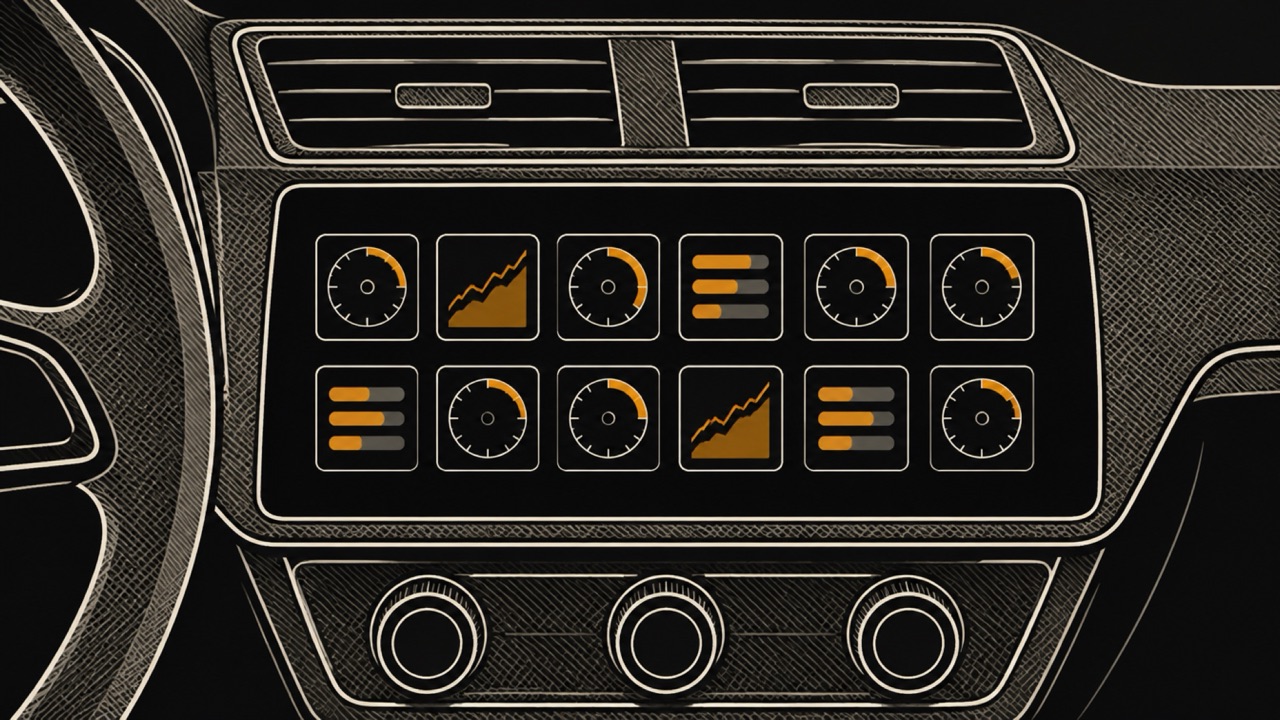
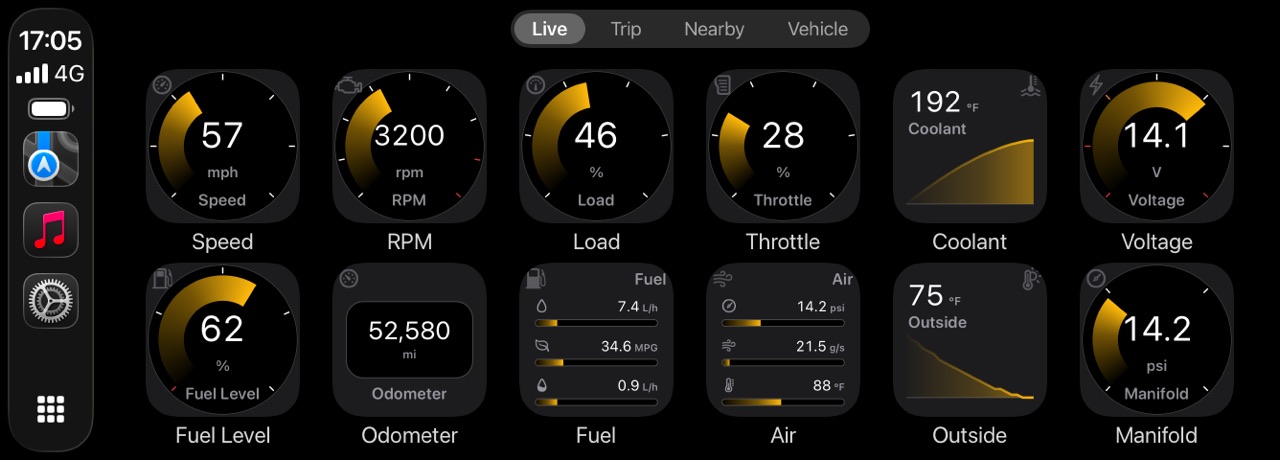
WrenchTime, an iOS app for vehicle maintenance, fuel and trip logs that also reads live OBD2 data, shows that data on CarPlay as a grid of square gauge tiles in its Live tab, laid out like the instrument grid of Hyundai's IONIQ companion app. I build WrenchTime, so read this section as the developer's description of the shipping app, not as an independent review.
Each tile has one of four faces. A ring tile draws the scale with its caution and critical bands on the same track and the number inside it. A trend tile shows a short sparkline under the number, used for coolant, intake air and ambient temperature, which matter for how they move rather than where they are. A readout tile shows a number with no scale, and a stack tile draws two or three related readings together, such as fuel rate with instant and idle consumption, or manifold pressure with air flow and intake temperature.
Tapping a tile opens the current, minimum, maximum and average value for the session. When a reading enters its critical band, WrenchTime shows one alert on the car's screen, then waits ten minutes before that same reading can alert again, so a hot afternoon in traffic does not turn into a stream of pop-ups. The alert is computed from the readings themselves, so it fires even for a value you left off the grid.
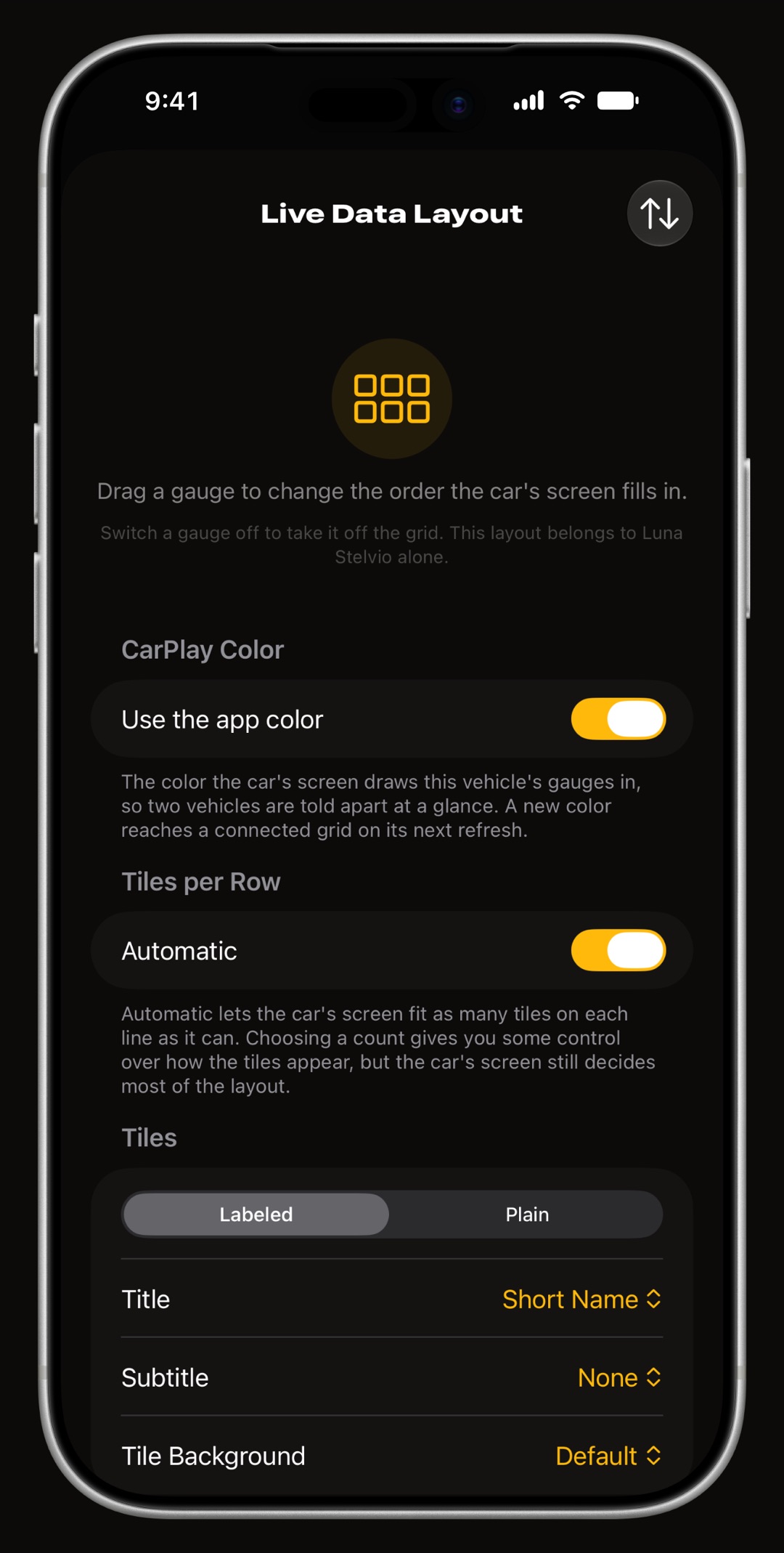
In WrenchTime, the CarPlay gauge layout is set on the iPhone in Settings > CarPlay, never on the car's screen. The grid editor is per vehicle: you pick which tiles appear and drag them into order, and the row length is automatic by default, filling each line of the car's screen, or a fixed three to eight tiles per row when you turn Automatic off. Tiles sit on the car's standard background, pure black or pure white, and a preview drawn by the same code that draws the car's screen shows the result.
The same page sets the order of the four CarPlay tabs, an accent color for each vehicle, and a night mode that follows the car or stays always dark or always light.
The scales behind the rings are editable too, for free: each signal's page in Vehicle Tools, Signals, has a Gauge Scale section that sets that vehicle's own range, caution and critical bands and, for RPM, the red line. The phone, the full-screen Live dashboard and CarPlay all read the same numbers, so a diesel that red-lines early or a tuned turbo car with more boost draws correct bands everywhere.
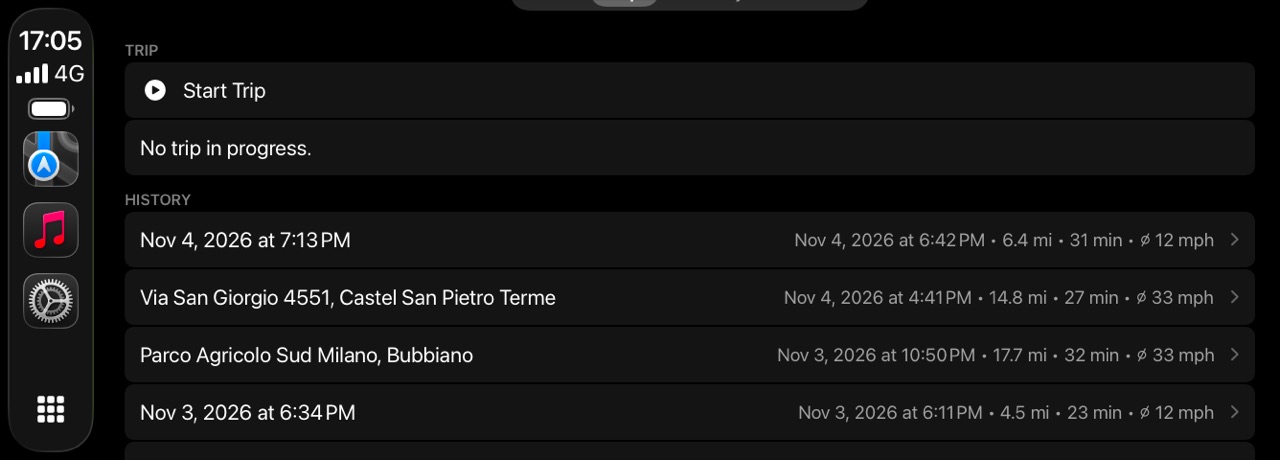
Only the Live tab needs an OBD2 adapter; the other three CarPlay tabs in WrenchTime work from the phone alone. Trip starts and stops a recording and shows distance, duration and average speed, lets you set a purpose tag from the car's screen, and lists your last ten trips with a route thumbnail and a map. Nearby shows fuel stations, or charging points for an electric vehicle, on the car's map. Vehicle shows the odometer with the maintenance and dues coming up, read-only.
Every OBD2 reading taken during a drive is also recorded with the trip, so a moment you glanced at on CarPlay can be found again afterwards on the trip's chart on the iPhone. The OBD-II app for iPhone guide covers the recording in detail.
The gauges worth a CarPlay tile are the ones your car's own cluster leaves out and that change what you do. Apple's guidance for driving task apps is to enable only tasks "that can be accomplished in a few seconds" and to avoid "detailed configuration" while driving (Apple, WWDC22), so the grid should be readable at a glance and set up while parked.
Read colors before numbers. A ring that sits in its normal band needs no attention; the caution and critical bands, set once for your car, are what should catch your eye. A live gauge does not replace the car's own warning lights: a warning light on the dashboard always wins over any app.
A CarPlay gauge app and a replacement digital instrument cluster solve the same wish in opposite ways. An app plus an adapter uses the screen and the phone you already have, works on any car with an OBD2 port, unplugs in seconds and moves to the next car with you. A replacement cluster, the kind sold on eBay and AliExpress for a specific model, swaps the factory instruments for a screen, has to match your exact car, and is a permanent modification to install and to undo.
For most owners who simply want boost, oil or coolant figures their car hides, the app route is the reversible one to try first. A replacement cluster makes sense when the goal is the look of the dashboard itself rather than the data. A reading the car does not report at all, such as oil pressure on most cars, still needs its own sender, as the comparison of aftermarket car gauges and an OBD2 app explains.
Live OBD2 gauges on CarPlay come down to three choices: an adapter the iPhone can use, an app that draws gauges rather than a list, and a layout readable at a glance.
To see your own car on CarPlay as gauges: download WrenchTime, pair a Bluetooth LE ELM327 adapter or an OBDLink MX+ in Settings > Connections, link it to the vehicle, and open the Live tab on the car's screen. CarPlay is part of WrenchTime Pro, $4.99 a month, $19.99 a year with a free trial, or $49.99 once; the free version keeps 1 vehicle with its fuel log, maintenance and trips on the iPhone. The OBD-II app for iPhone guide lists every reading and adapter.
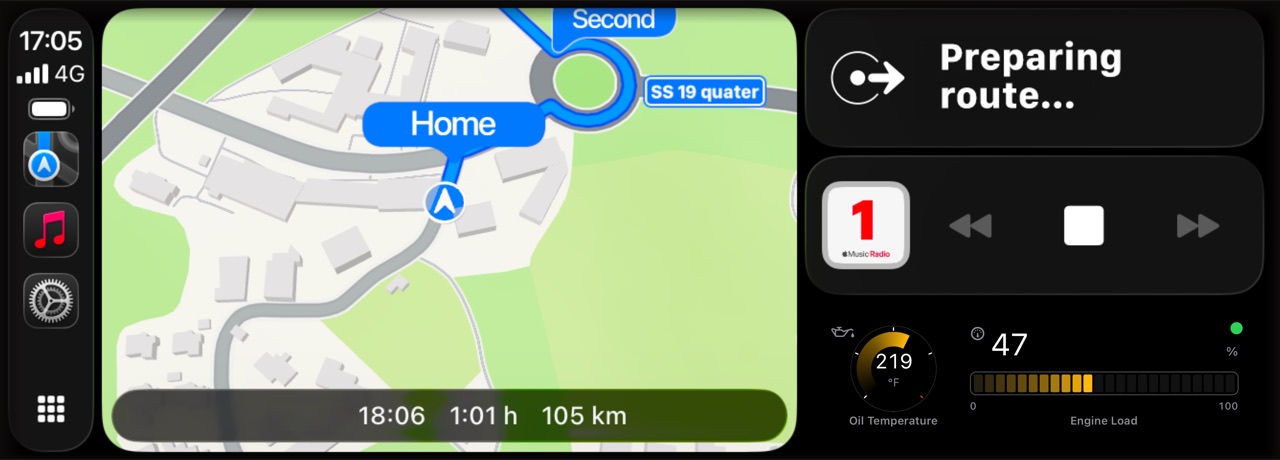
While a trip records, the WrenchTime Live Activity can also put a row of readings on the CarPlay Dashboard next to the map, such as oil temperature and engine load, chosen per vehicle in Settings > Live Activity.
Not by itself. CarPlay has no gauge feature and no access to the car's diagnostic port. Apps that read an OBD2 adapter can show live data on CarPlay, either as a list, like OBD Fusion, or as drawn gauge tiles, like WrenchTime.
Yes. Several apps show your speed on CarPlay without an adapter, for example Speedometer: Speed Tracker & GPS, whose listing advertises current speed, a trip log and speed limit alerts. WrenchTime shows vehicle speed as a Live tile from the OBD2 adapter and average speed in its Trip tab.
One the iPhone can talk to: a Bluetooth LE ELM327-compatible adapter, such as the Vgate iCar Pro, or an Apple MFi adapter such as the OBDLink MX+. Classic Bluetooth adapters without MFi are Android-only, and Wi-Fi adapters work only in apps that support them, not in WrenchTime.
CarPlay apps are built from Apple's templates and meant for simple tasks that take a few seconds, and many developers keep to the list template. OBD Fusion states that real-time gauges are not supported on its CarPlay screen. Apps that show gauges draw each one as an image inside those templates.
Treat CarPlay gauges like your instrument cluster: glance, do not study. Let caution and critical bands and alerts get your attention instead of reading numbers, set up the layout while parked, and always trust the car's own warning lights over any app.
More from the blog
CarPlay
The best CarPlay apps for iPhone for navigation, music, radio, podcasts, audiobooks, messaging, EV charging, parking, food, weather, AI and car tools, the free ones, and how widgets reach the car.
App comparison
What the OBD Fusion app costs, what it shows on CarPlay, which adapters it needs on iPhone, what its paid make packs add, and where WrenchTime differs.
Diagnostics
Six OBD2 apps for iPhone compared on price, adapter, readiness, Mode 06, manufacturer modules, CarPlay and logs, from what each developer states.
Free to download. One vehicle, real features, no ads. Your garage will thank you.
Download WrenchTime on the App Store