CarPlay
Best CarPlay apps for iPhone (2026)
The best CarPlay apps for iPhone for navigation, music, radio, podcasts, audiobooks, messaging, EV charging, parking, food, weather, AI and car tools, the free ones, and how widgets reach the car.
CarPlay
To add apps to CarPlay, install an iPhone app that supports CarPlay: compatible apps appear on CarPlay Home automatically when the iPhone connects. If the icon is missing, open Settings on the iPhone, tap General, then CarPlay, select your car, tap Customise, and tap the add button next to the app under More Apps (Apple iPhone User Guide). There is no CarPlay store. An app with no CarPlay support never appears as an icon, because Apple allows CarPlay apps only in listed categories. Apple says an app's small widget or Live Activity appears in CarPlay automatically.
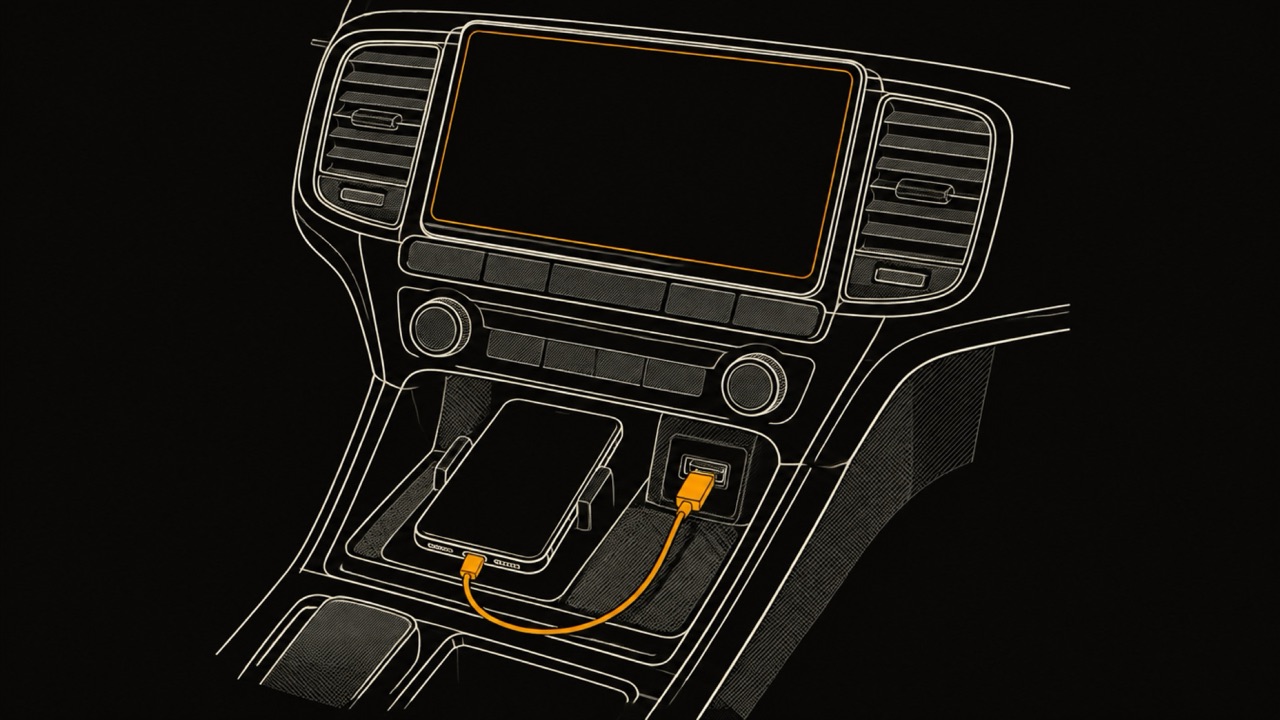
Adding an app to CarPlay happens on the iPhone, not on the car's screen. CarPlay is the interface the iPhone shows on the car's display, and CarPlay Home is its screen of app icons. Apple says compatible apps "appear automatically on CarPlay Home" once they are installed (Apple, Use other apps with CarPlay), so most of the time installing the app is the whole job.
When an installed app is still missing, its icon was most likely removed from that car's list. Apple's steps below restore it, and they work the same way for every compatible app. Do them when you are not driving: Apple's guide starts these steps with that condition.
Apple keeps a CarPlay app list of categories, not of apps. An iPhone app can have a CarPlay version only if it fits one of them, and its developer asks Apple for permission, called an entitlement, through the Apple Developer CarPlay page. Apple's own iPhone User Guide adds that apps made by your vehicle manufacturer also appear on CarPlay Home.
For named apps in each category, from navigation and podcasts to parking and charging, see the best CarPlay apps by category. The table below is the rule those apps follow, as Apple states it in November 2026.
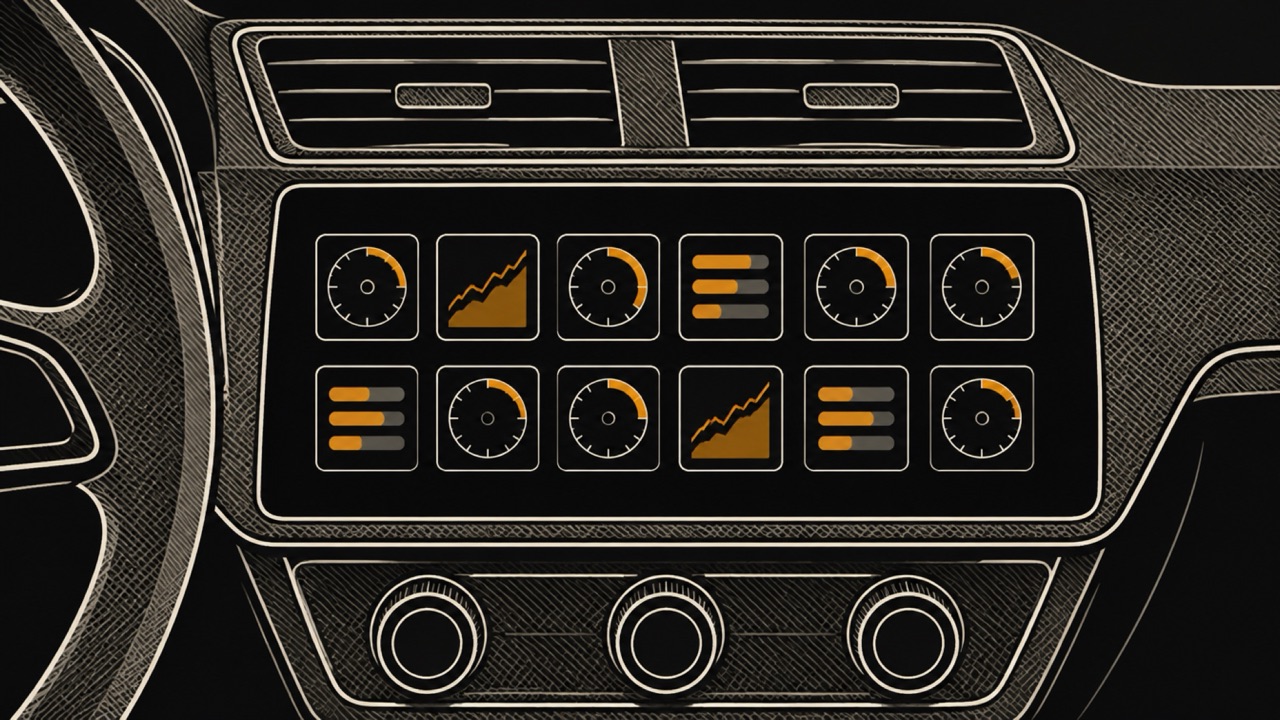
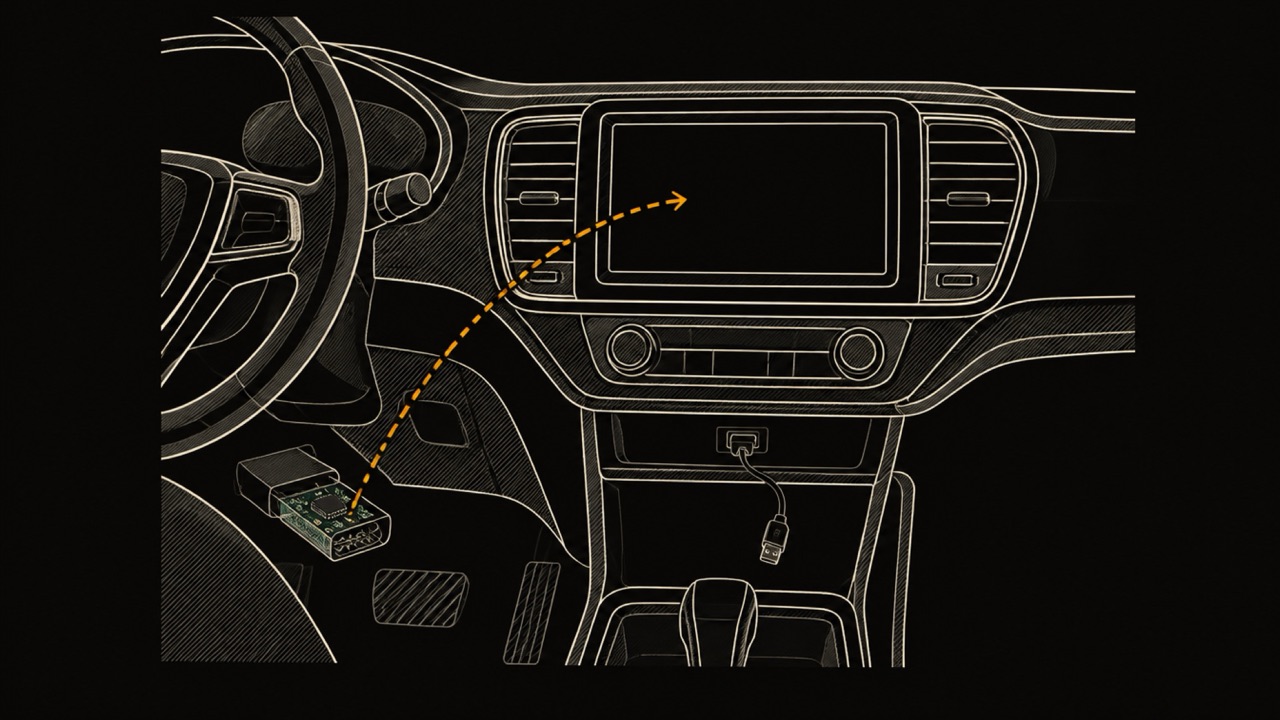
A driving task app, in Apple's words, helps people accomplish important tasks without taking out their phone. WrenchTime, a maintenance, fuel and trip log for iPhone, is one: on a CarPlay head unit it has four tabs, Live, Trip, Nearby and Vehicle, and like any compatible app it appears on CarPlay Home once the iPhone connects. Its Live tab draws OBD-II gauges on CarPlay, read from the car through a Bluetooth adapter.
| Category | What Apple says it does | Note |
|---|---|---|
| Audio | Plays music, podcasts and more | Appears on CarPlay Home once installed |
| Video | Plays video in supported cars when parked | Needs a car with the video-in-car feature |
| Messaging and VoIP | Messaging and calling apps that support SiriKit intents | Works with Siri |
| Navigation | Turn-by-turn directions, guidance in the instrument cluster or head-up display | The last one used shows on CarPlay Dashboard |
| EV charging | Helps people accomplish important tasks without taking out their phone | Also named in Apple's iPhone User Guide |
| Fueling | Same task-app rule | Also named in Apple's iPhone User Guide |
| Parking | Same task-app rule | Also named in Apple's iPhone User Guide |
| Public safety | Same task-app rule | Listed on Apple's developer page |
| Quick food ordering | Same task-app rule | Also named in Apple's iPhone User Guide |
| Voice-based conversational | Same task-app rule | Listed on Apple's developer page |
| Driving task | Same task-app rule | WrenchTime is one example |
Source: Apple Developer, CarPlay; Apple iPhone User Guide, Use other apps with CarPlay.
The most common reason an app does not show up on CarPlay is that it has no CarPlay version: Apple allows CarPlay apps only in the categories it lists, such as audio, navigation, messaging, parking and driving task apps (Apple Developer). A banking app or a game never appears as an icon, whatever the settings say.
When an app that does support CarPlay is missing, or CarPlay shows nothing at all, most of the causes in the table are the ones Apple lists in If you can't connect your iPhone to CarPlay, published October 19, 2026. Try CarPlay again after each one, as Apple advises.
| Cause | How to check | Fix | Why it matters |
|---|---|---|---|
| The app has no CarPlay version | It is outside Apple's CarPlay categories | None for the icon; add its widget if it has one | Only apps in an allowed category can appear |
| The icon was removed | Settings, General, CarPlay, your car, Customise, More Apps | Tap the add button next to it | The icon is listed below More Apps, off CarPlay Home for that car |
| A video app in a car without video support | Whether the car supports the video in car feature | Use the app in a car that supports it | Apple shows CarPlay video apps on CarPlay Home only in those cars |
| Screen Time restrictions | Screen Time, Content & Privacy Restrictions, Allowed Apps | Turn CarPlay on | Apple's fix when the iPhone is not detected |
| Siri is off | Settings, Siri | Turn Siri on | Apple asks for Siri to be on for CarPlay |
| An old iOS version | Settings, General, Software Update | Install the latest iOS | A prerequisite Apple lists before the other steps |
| The connection | Cable and USB port, or Bluetooth, Wi-Fi and Auto-Join | Try another cable or port, check Auto-Join on the CarPlay network | Apple's first troubleshooting step |
| A stale car pairing or old stereo software | Settings, General, CarPlay, your car | Forget This Car and set up again; update the stereo firmware | Apple lists both as fixes |
| The country or the car | Whether CarPlay is offered there and in that car | Ask the car's manufacturer | CarPlay is not available in every region or car |
Source: Apple Support, If you can't connect your iPhone to CarPlay (published October 19, 2026); Apple Developer, CarPlay; Apple iPhone User Guide, Rearrange the icons on CarPlay Home; Apple, WWDC26: Rev up your CarPlay app; Apple iPhone User Guide, Intro to CarPlay.
Not as an icon on CarPlay Home. An app reaches CarPlay Home only when its developer builds a CarPlay version in one of Apple's categories and Apple grants the CarPlay entitlement (Apple Developer, CarPlay). Nothing in the iPhone's settings can turn an ordinary app into a CarPlay app.
There is a second route. Apple's rule for developers, verbatim: "If your app includes a small widget or Live Activity, it will automatically appear in CarPlay with no changes required." A Live Activity is the live, updating card an app shows on the iPhone's Lock Screen. A CarPlay app can use it too: WrenchTime, a CarPlay app, also shows its trip Live Activity on the CarPlay Dashboard while a drive records.
A developer can also mark a widget as not optimised for CarPlay, Apple says, so not every widget an app has will be offered in the car.
Widgets are added to CarPlay from the iPhone, like app icons. When you are not driving, open Settings, tap General, then CarPlay, then your car, then Widgets, then Add Widgets, and follow the onscreen instructions (Apple, Customise widgets in CarPlay).
On the same Widgets page you drag a widget to move it, tap the remove button to delete it, and turn on Smart Rotate or Widget Suggestions. An app needs no CarPlay version for its small widget to appear, so a widget is how an app without CarPlay support can still reach the car's screen.
To remove an app from CarPlay, open Settings on the iPhone when you are not driving, tap General, then CarPlay, select your car and tap Customise. Tap the delete button next to the icon, then tap Remove (Apple iPhone User Guide).
Only icons that have a delete button next to them can be removed, Apple says, so some icons stay on CarPlay Home whatever you do. Removing an icon takes it off CarPlay Home for that car; it is listed below More Apps, where the add button brings it back. The list changes only CarPlay Home, not the apps on the iPhone.
CarPlay icons are reordered in the same Customise list: Settings, General, CarPlay, your car, Customise, then drag the reorder handle next to an icon up or down (Apple iPhone User Guide). The list is opened from the car you select, so the order is set for that car.
The look of CarPlay is set on the car's screen instead. In CarPlay's own Settings, reached with the car's controls, you pick a Wallpaper, choose whether Appearance stays Always Dark (CarPlay is dark by default in most vehicles, Apple says), and turn Suggestions in CarPlay on or off (Apple, Change settings in CarPlay).
No. CarPlay shows a car-friendly version of the iPhone on the car's display when the two are connected, for directions, calls, music, the calendar and more (Apple, Intro to CarPlay). CarPlay is not something you download from the App Store: it comes with the iPhone, and its settings on the iPhone live in Settings, General, CarPlay.
The car is the other half. Apple's CarPlay page counts over 800 car models and says CarPlay is either standard or available as an option on many new 2016 and later cars, with aftermarket head units from several brands. CarPlay is not available in every country or region, Apple adds.
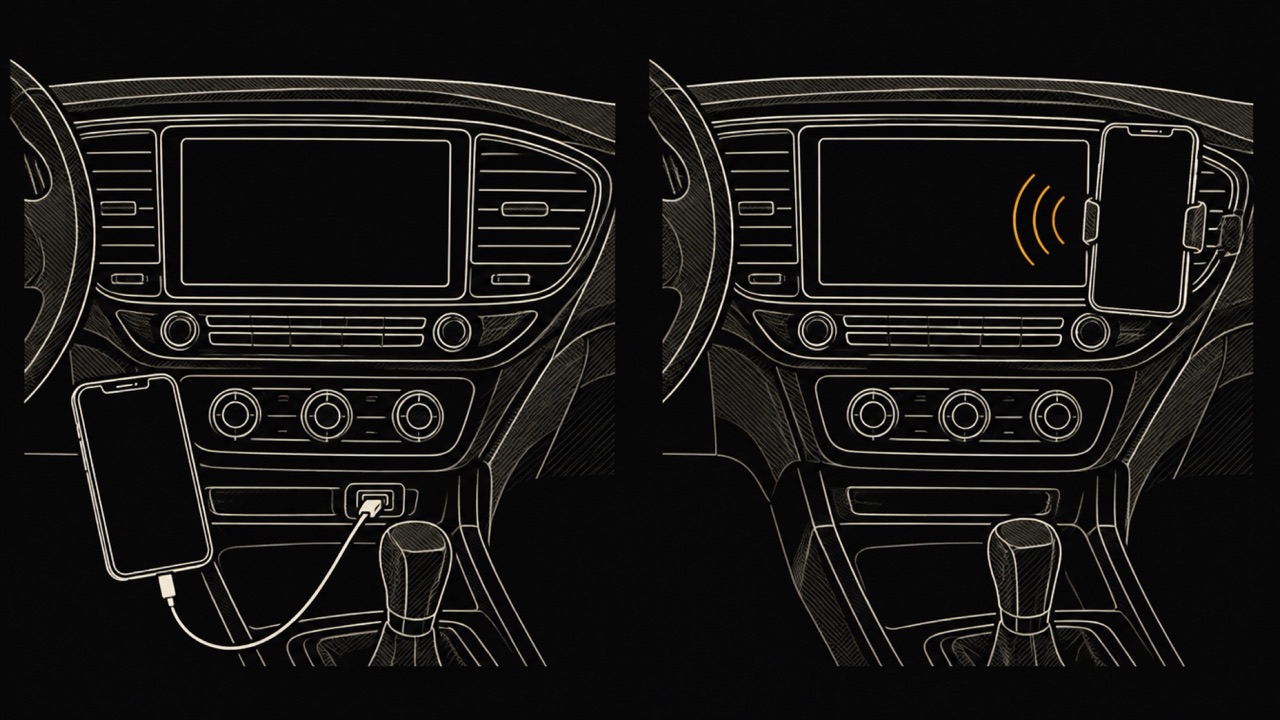
No. Apple's steps for managing CarPlay apps are the same for a wired or a wireless connection: both go through the car you select in Settings, General, CarPlay. What differs is only how the iPhone connects.
Wired CarPlay uses the car's USB port, which may carry a CarPlay or smartphone icon, and Apple says to use an Apple USB cable. Wireless CarPlay needs a car that supports it: hold the voice command button on the steering wheel, join the car's CarPlay Wi-Fi network and keep Auto-Join on. Both need Siri turned on (Apple, Connect to CarPlay).
Dasher is DoorDash's app for its couriers, a service that does not operate in every country, so this is an example more than a local how-to. The Dasher app reaches CarPlay like any compatible app: install it on the iPhone and connect to the car. DoorDash announced CarPlay for the Dasher app on July 26, 2023, piloted in select markets first, and said that once the phone connects by Bluetooth or USB, "directions displayed in the Dasher app will automatically be shown on their vehicle's screen" (DoorDash).
DoorDash's announcement describes the Dasher app's navigation on the car's screen, and it needs the Dasher app for iOS and a car that supports CarPlay. If the icon does not appear, use the Customise steps above, and check DoorDash's help center for the app version it currently requires.
Only while parked, and only in some cars. Apple says that when you are not driving you can play videos from the iPhone on the CarPlay display, and that CarPlay video apps work in vehicles that support the video-in-car feature (Apple, Play videos with CarPlay).
iOS 27 lets developers build CarPlay video apps for supported vehicles when parked; the video plays as audio only when video is not available (Apple, WWDC26: Rev up your CarPlay app). Whether Netflix or any other streaming service ships one is up to that company.
Install WrenchTime and it shows up on CarPlay Home with the other compatible apps: gauges read from the car on the Live tab, trip recording and tagging on Trip, nearby fuel stations or chargers on Nearby, and the odometer with what is due next on Vehicle. The Live tab needs a Bluetooth OBD-II adapter linked to the vehicle, or Demo Mode; Trip needs no adapter.
CarPlay is part of WrenchTime Pro, and it works wired or wireless on an iPhone running iOS 26 or later. The free version covers 1 vehicle and up to 3 instruments on the phone's Live dashboard. Every step from the first connection to the gauge layout is in how to set up WrenchTime in CarPlay.
Yes, if the app supports CarPlay: install it on the iPhone and it appears on CarPlay Home automatically. Apple allows CarPlay apps only in listed categories such as audio, navigation, messaging, parking and driving task apps. Apple also says an app's small widget or Live Activity appears in CarPlay automatically.
Most apps have no CarPlay version, because Apple limits CarPlay to categories like audio, navigation, messaging, EV charging, fueling, parking and driving task apps. If a compatible app is missing, look under More Apps in Settings, General, CarPlay, your car, Customise, then check Screen Time restrictions and Siri.
No. CarPlay shows a car-friendly version of the iPhone on the car's display when the two connect. It is not something you download from the App Store: it comes with the iPhone, and its settings live in Settings, General, CarPlay. The car must support it, which Apple says is standard or optional on many 2016 and later cars.
When you are not driving, open Settings on the iPhone, tap General, then CarPlay, select your car and tap Customise. Tap the delete button next to the icon, then Remove. Only icons with a delete button can be removed; the icon is then listed below More Apps, and the apps on the iPhone are unchanged.
Not while driving. Apple allows video on CarPlay only when the car is parked and only in vehicles that support the video-in-car feature, and since iOS 27 developers can build CarPlay video apps for those cars. Whether a streaming service offers one is that company's decision.
On Apple's CarPlay developer page, developer.apple.com/carplay, which links the downloadable CarPlay Developer Guide, covering the supported app categories and templates, under its tools and resources, next to Request CarPlay app entitlement. A small widget or Live Activity needs no CarPlay version: Apple says it appears in CarPlay automatically.
More from the blog
CarPlay
The best CarPlay apps for iPhone for navigation, music, radio, podcasts, audiobooks, messaging, EV charging, parking, food, weather, AI and car tools, the free ones, and how widgets reach the car.
CarPlay
How to see live OBD2 readings such as RPM, boost and coolant temperature on CarPlay, why most apps show a list, which apps draw gauges, and which adapters work with iPhone.
App comparison
What the OBD2AA plugin does on Android Auto, why it is installed outside Google Play, what it needs, and how to get OBD2 gauges on CarPlay with an iPhone.
Free to download. One vehicle, real features, no ads. Your garage will thank you.
Download WrenchTime on the App Store