Live Activity · Dynamic Island · CarPlay
A car Live Activity you build yourself, on the Lock Screen, in the Dynamic Island and on CarPlay
WrenchTime, a maintenance, fuel and trip log for iPhone, shows a Live Activity while it records a drive: one row of WrenchTime Live cards on the Lock Screen, in the Dynamic Island and on the CarPlay Dashboard, which you choose for each vehicle in Settings > Live Activity. A row is six units wide, and each card takes a third, a half, two thirds or the whole row: trip stats, speed, altitude, road grade, outside temperature, weather, phone battery, clock, range, heart rate, or any OBD-II signal the car reports, standard or custom. Speed, altitude, grade, weather and range need nothing but the phone; an OBD-II adapter adds the engine readings. Each vehicle keeps its own accent colour, one of seven gauge styles and a background for the Lock Screen and another for CarPlay. The activity updates at most every two seconds and starts with the trip, even when the app is in the background. Cards, shapes and signals are free; a colour or a gauge style other than the default is part of WrenchTime Pro.
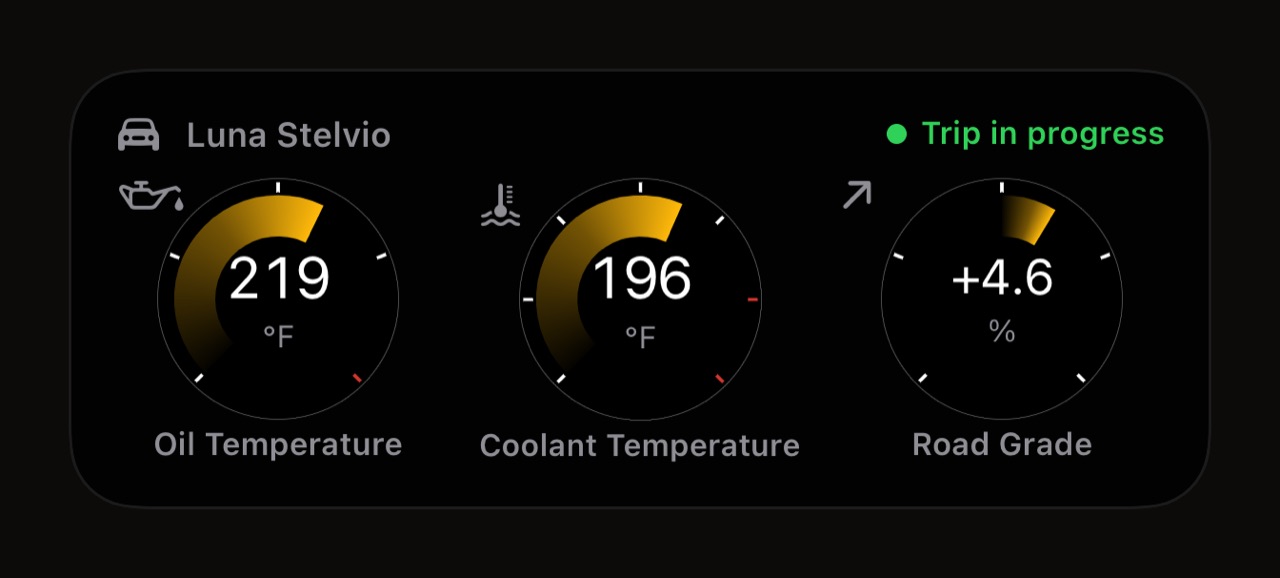
What does the trip Live Activity show?
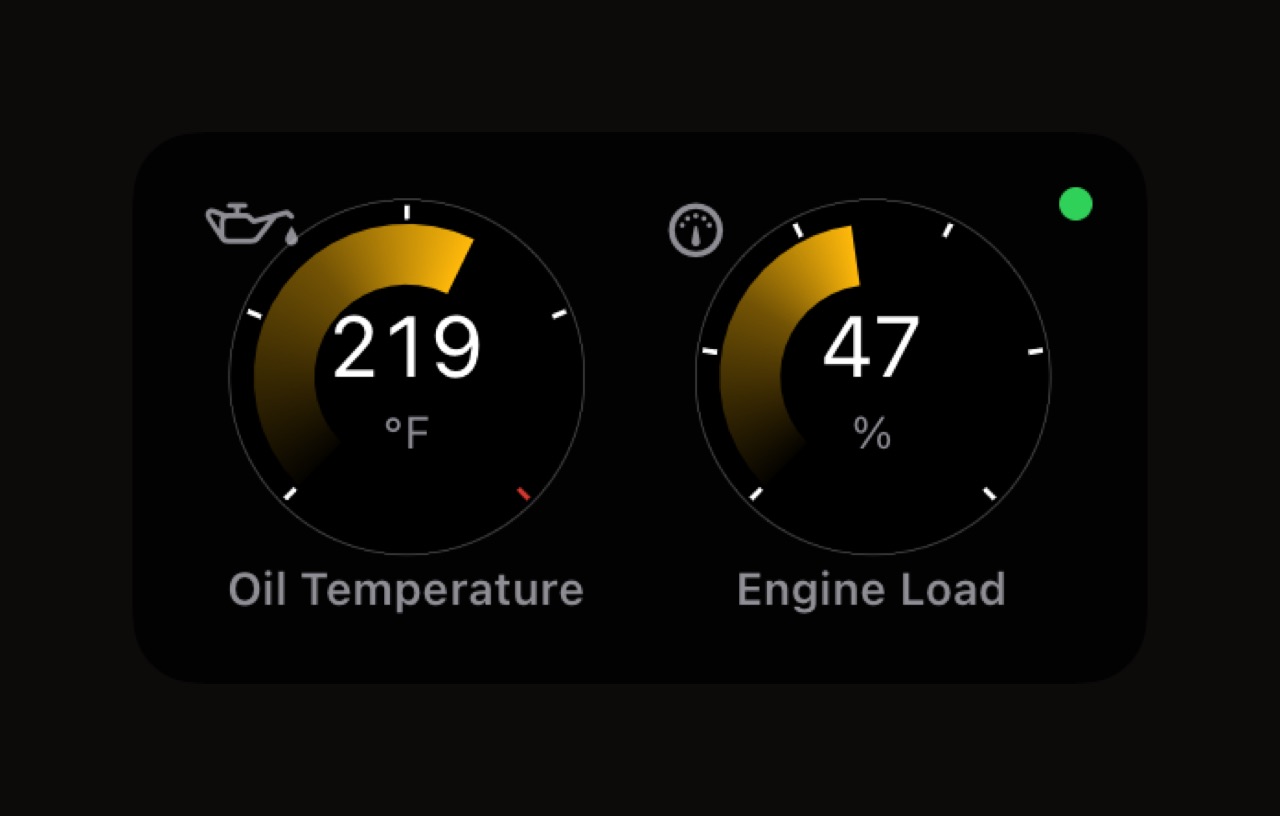
A header strip and one row of cards. The header names the vehicle, says whether the trip is recording or ending and, when an Apple Watch is sending it and no card already shows it, your heart rate. Under it is the row you built for that vehicle, drawn by the same gauge faces as the WrenchTime Live dashboard: a ring with caution and critical bands for a temperature, a bar for engine load, a large figure for speed. Out of the box the row is one trip card the whole row wide, with distance, elapsed time and average speed. A row you emptied shows a dashed card reading "Add a widget from Settings" rather than a blank space. When the trip ends, its summary stays on the Lock Screen for five minutes by default, anywhere from Immediately to Never in Settings > Live Activity > Summary Display.
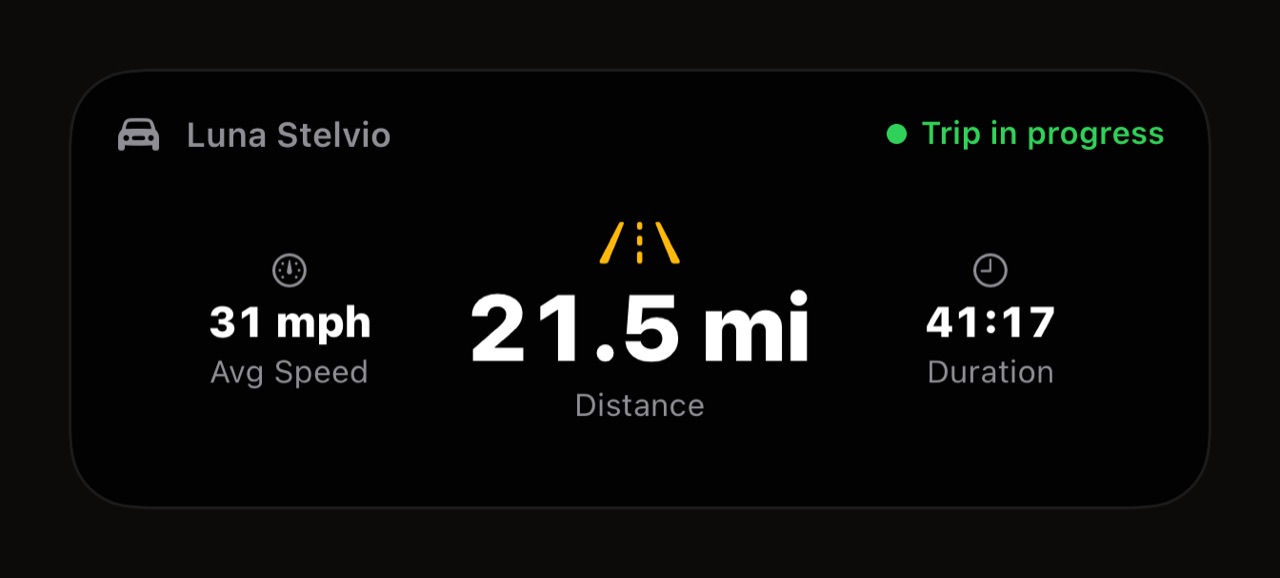
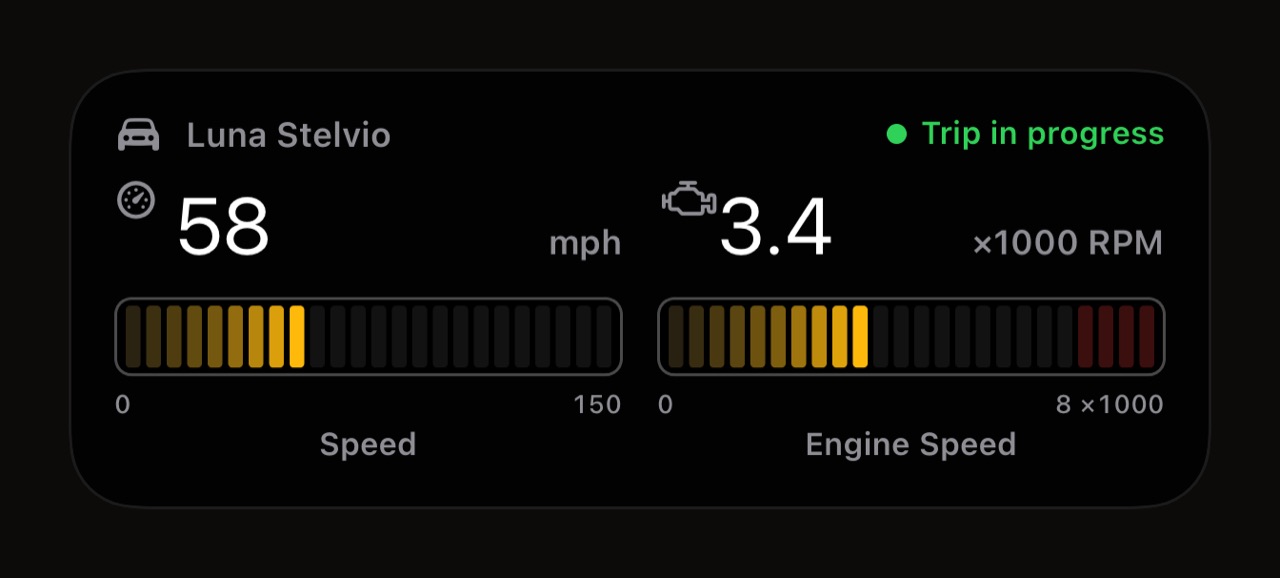
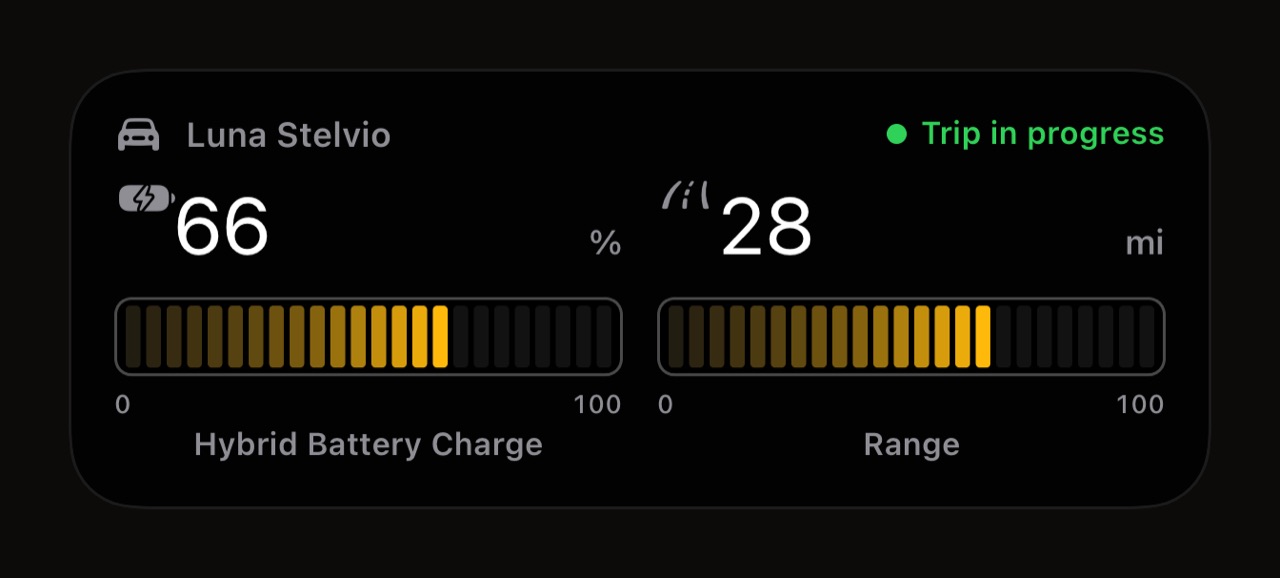
What can a Live Activity row look like?
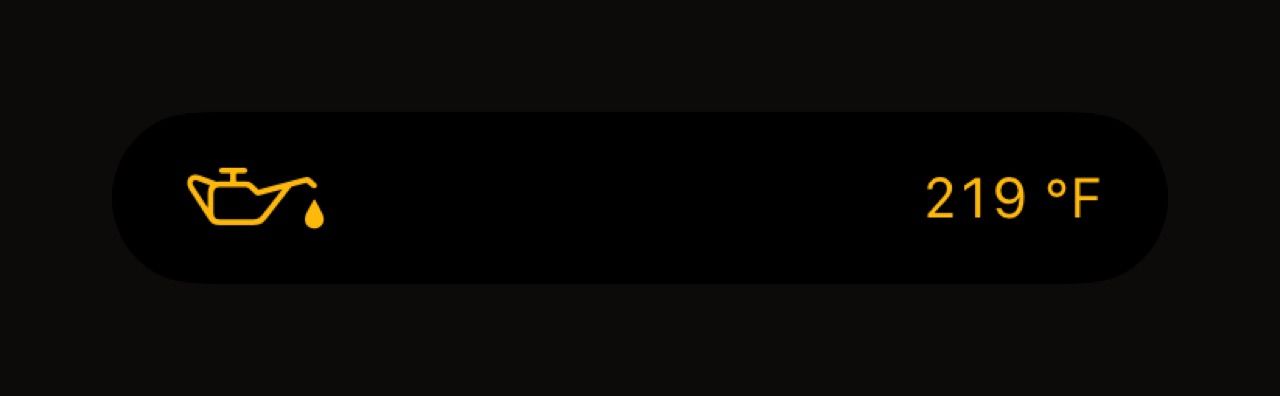
Whatever fits in six units, in the order you put it. The rows below are drawn by the app itself with sample readings, all in the Tourer gauge style and the default amber; each is one vehicle's choice, and every vehicle in the garage keeps its own.
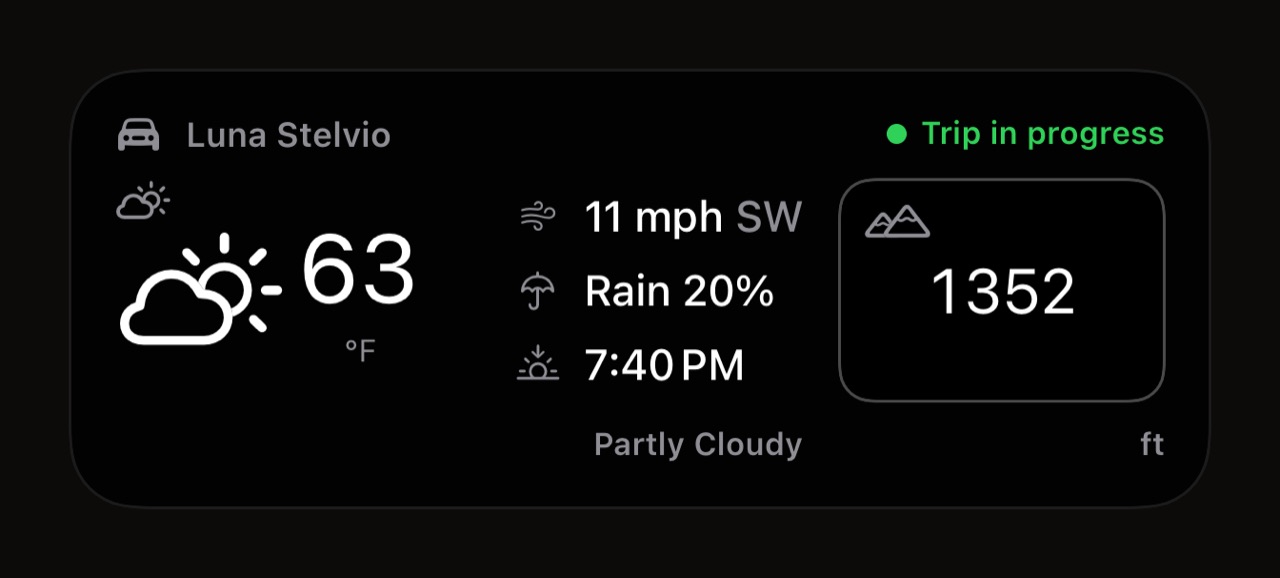
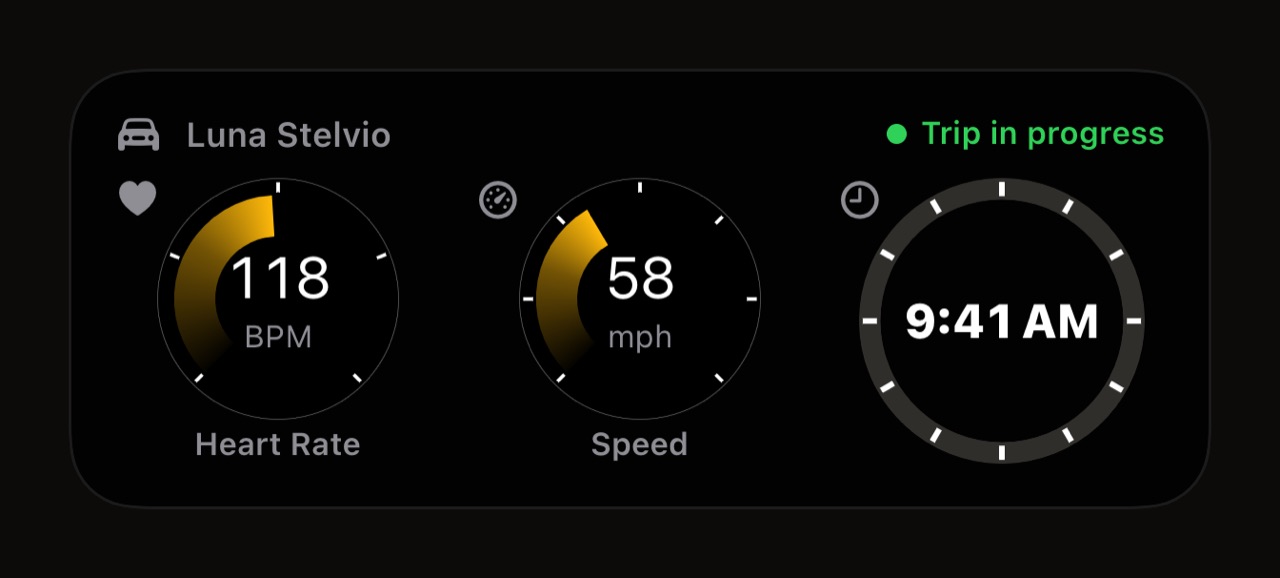
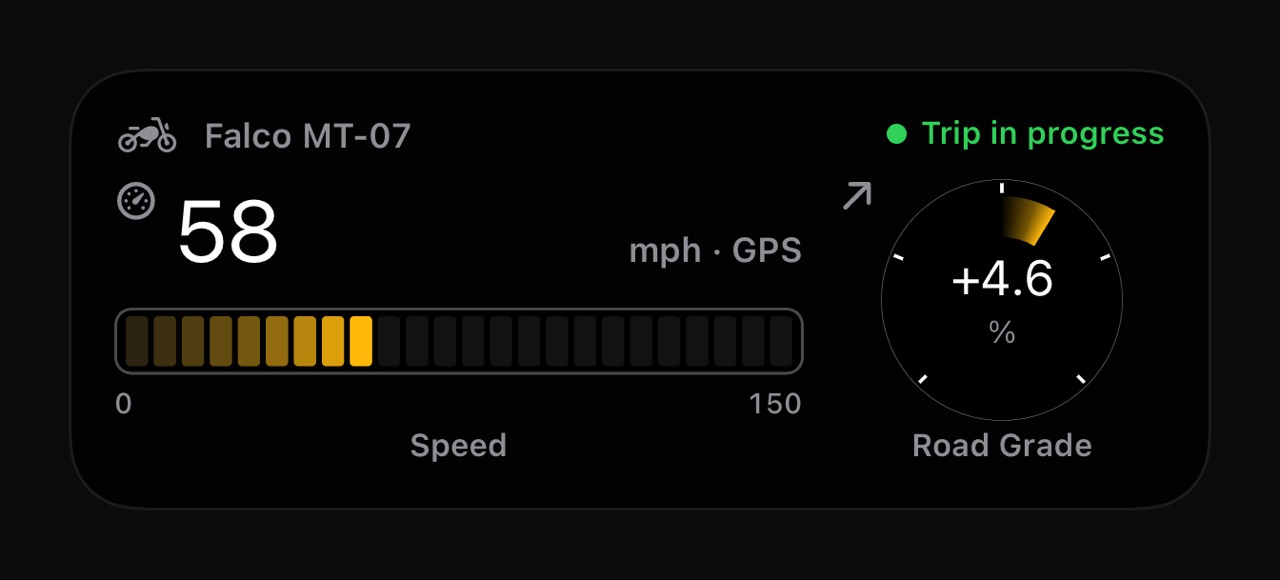
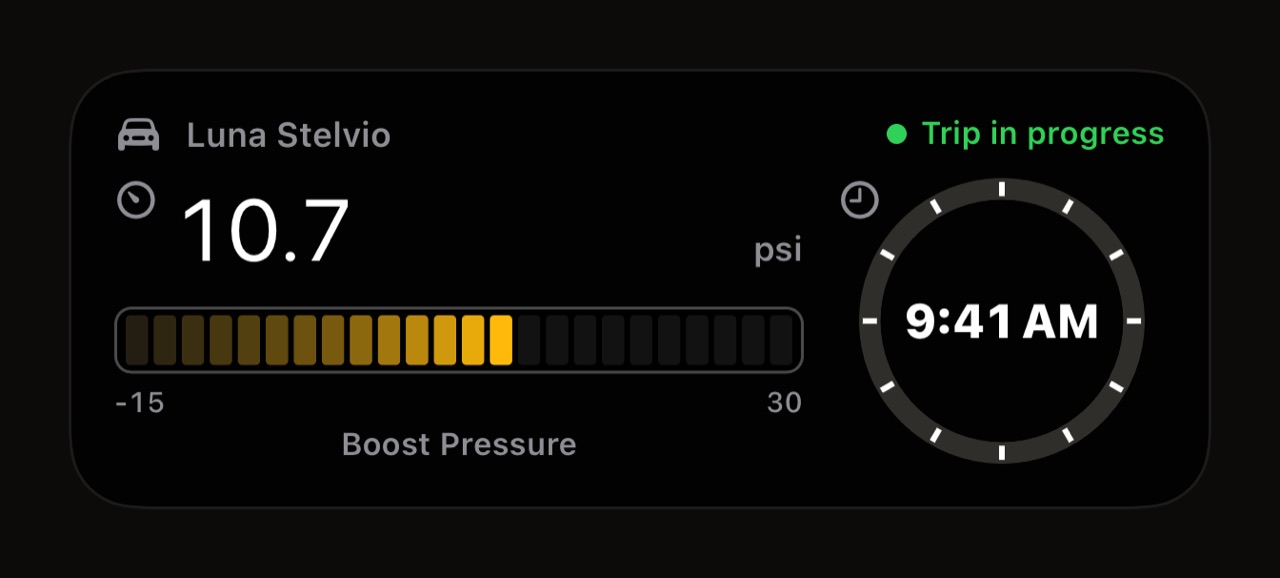
Where does the Live Activity appear?
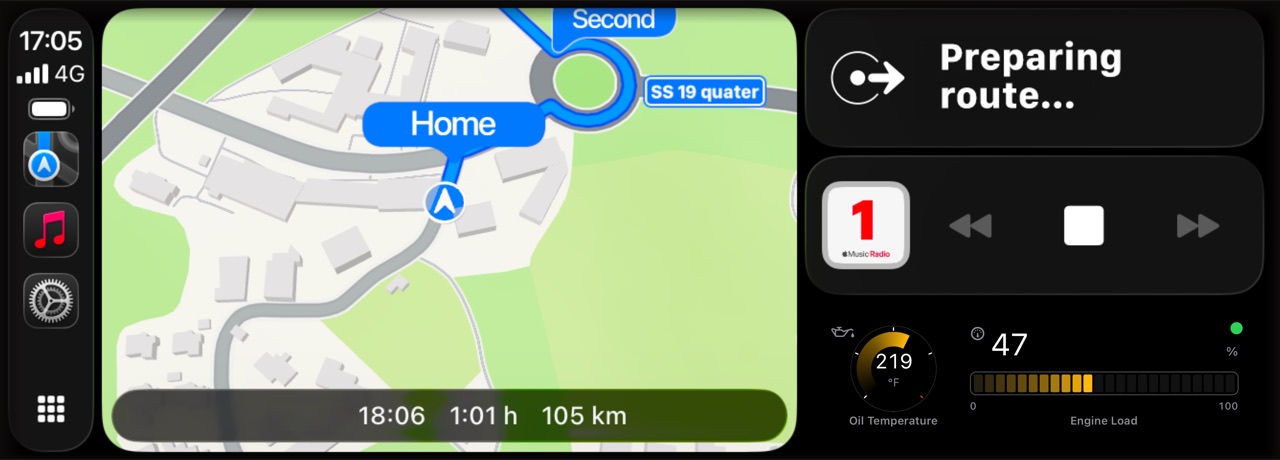
On four surfaces at once, from one setup per vehicle. iOS decides which ones a moment calls for; WrenchTime draws each of them for the room it has, and a change you make in Settings reaches all of them.
- Lock Screen the header strip and the full row, six units wide, for as long as the trip records and the summary afterward.
- Dynamic Island the compact pill shows two readings, one each side of the camera, each a glyph and a figure; it follows the row's first card until you pick its two sides. Touch and hold the pill and it opens into the Lock Screen view, header and row. When another app shares the Island, the minimal view keeps the leading glyph.
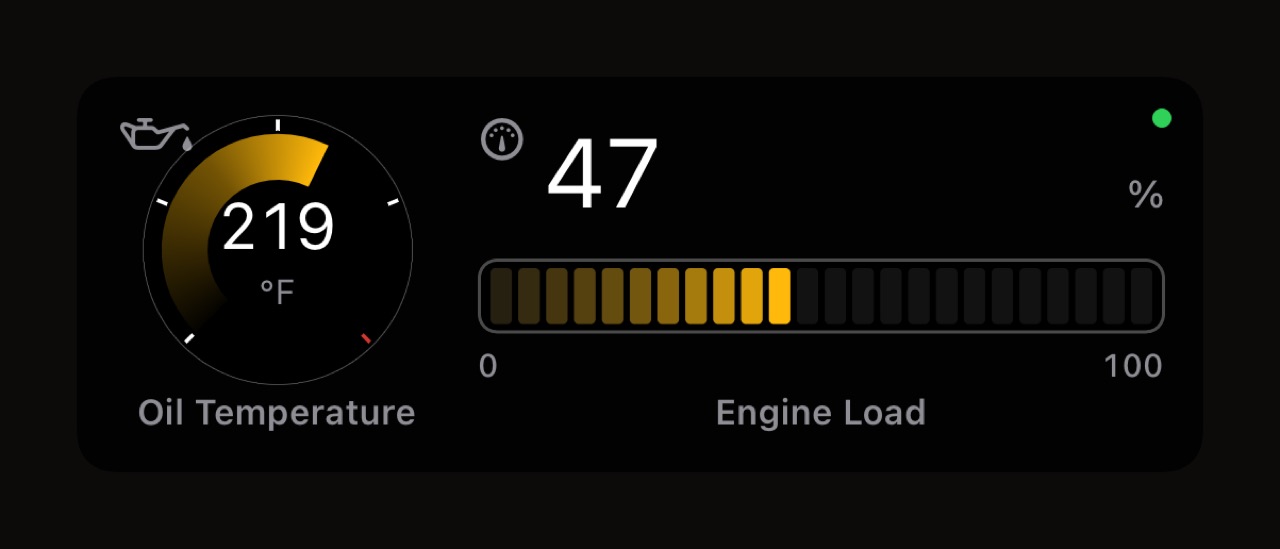
- CarPlay Dashboard since iOS 26 a Live Activity shows on the Dashboard beside the map. It carries a row of its own, six units of third and two-thirds cards, built from the Lock Screen row until you edit it, and on a wide screen the cards grow and widen to fill the space.
- Apple Watch and small CarPlay screens the Smart Stack on the watch and a narrow car screen get the compact row: room for two cards, a two-thirds card drawn at a third except the trip card, and a card at the end that still does not fit left out.
What can I put on a car Live Activity?
Almost everything the Live dashboard offers, at the shapes a row can hold. What it leaves out moves faster than a Live Activity refreshes, or is something iOS does not let a Live Activity draw.
- From the phone alone trip stats, GPS speed, altitude, road grade, outside temperature and weather from Apple Weather, the phone's battery, a clock, and range, counted down from your own fill-ups or read from the car when an adapter reports it.
- Heart rate from an Apple Watch, once Heart Rate from Apple Watch is on in Settings > Trip Tracking, with WrenchTime Pro.
- Any OBD-II signal with an adapter linked to the vehicle: revs, coolant, oil or transmission temperature, boost, engine load, a state of charge, or a custom PID you defined. Several signals can share a row.
- Gear, experimental offered only where Gear Estimation is turned on in Settings > Experimental Features.
- Left out on purpose G-force, lean angle, the compass, the live map and the fuel station list, which stay on the Live dashboard.
- Shapes a third, a half, two thirds or the whole row, up to six units on the Lock Screen. The CarPlay row is six units too and takes thirds and two thirds only. A card offers a shape only where it has a drawing for it.
Can each vehicle have its own look?
Yes. Every vehicle keeps its own row, colour, gauge style and backgrounds, so the car and the motorcycle in one garage are told apart at a glance on the Lock Screen.
- Colour the app colour by default, or any of the 30 accent colours shown below, for that vehicle alone.
- Gauge style one of the seven styles shown below, each drawn the same way in the Live Activity as on the Live dashboard and in CarPlay.
- Background Automatic, Dark, Light or Transparent, chosen once for the Lock Screen and once for CarPlay and Apple Watch. Automatic follows the screen's own appearance; Transparent puts the cards straight on your wallpaper; a light background on CarPlay can dazzle at night. The Dynamic Island is always dark.
Which gauge styles can the Live Activity use?
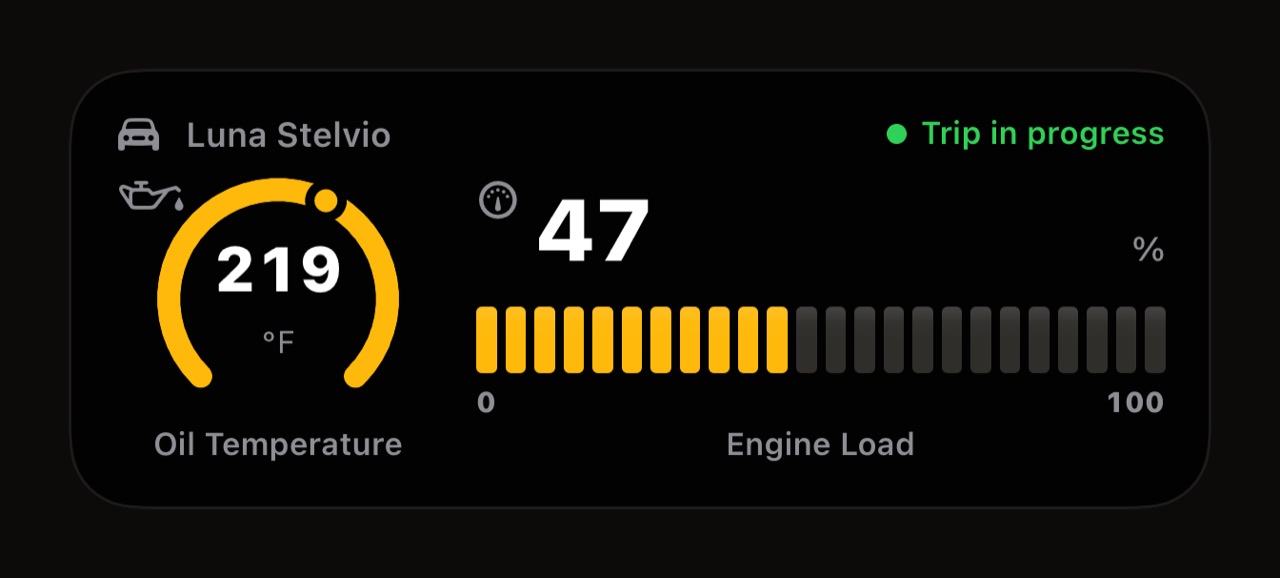
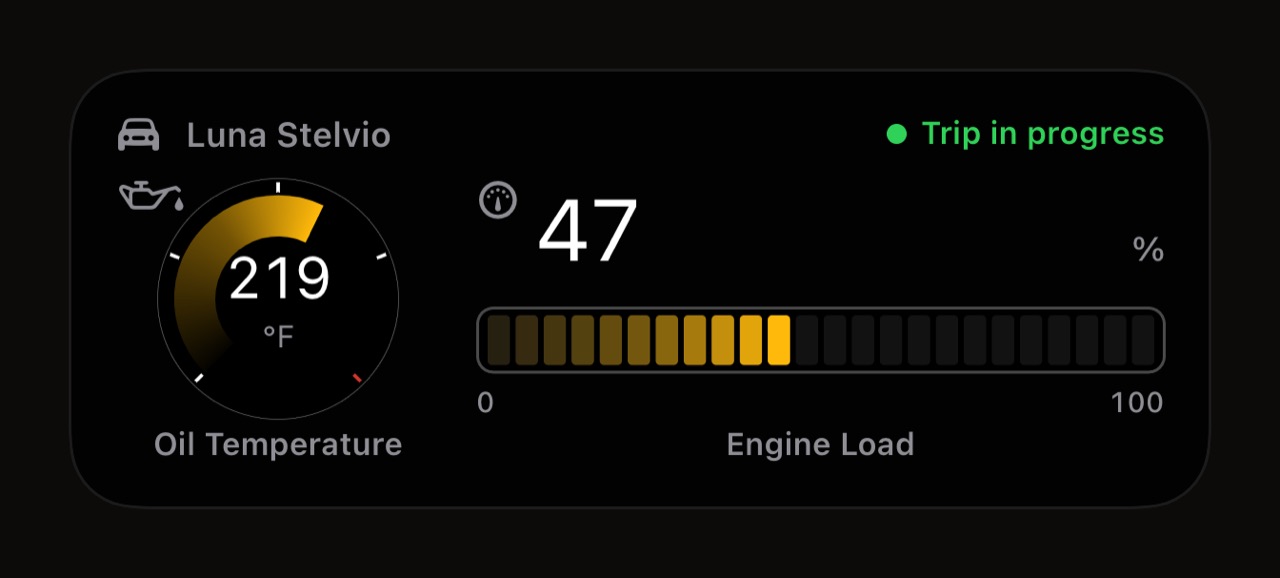
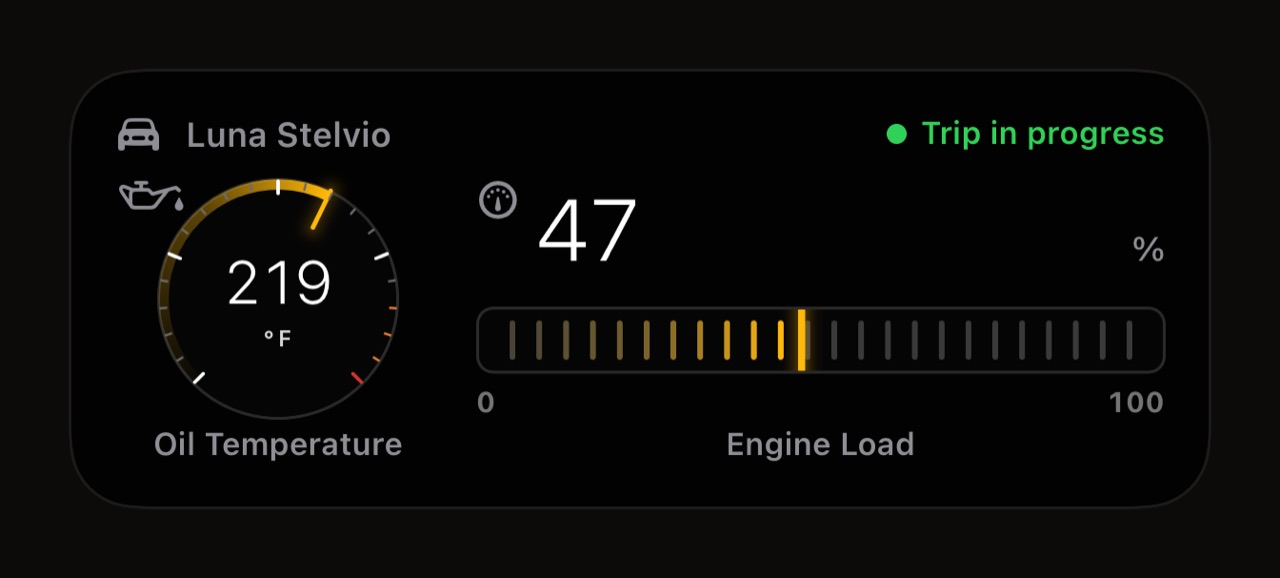
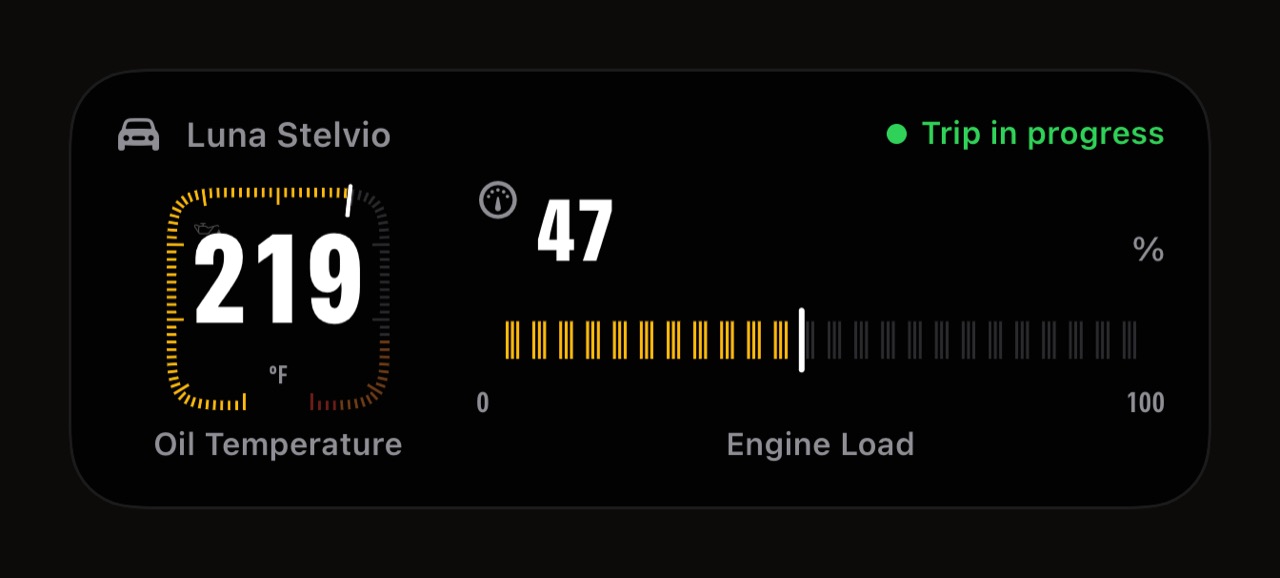
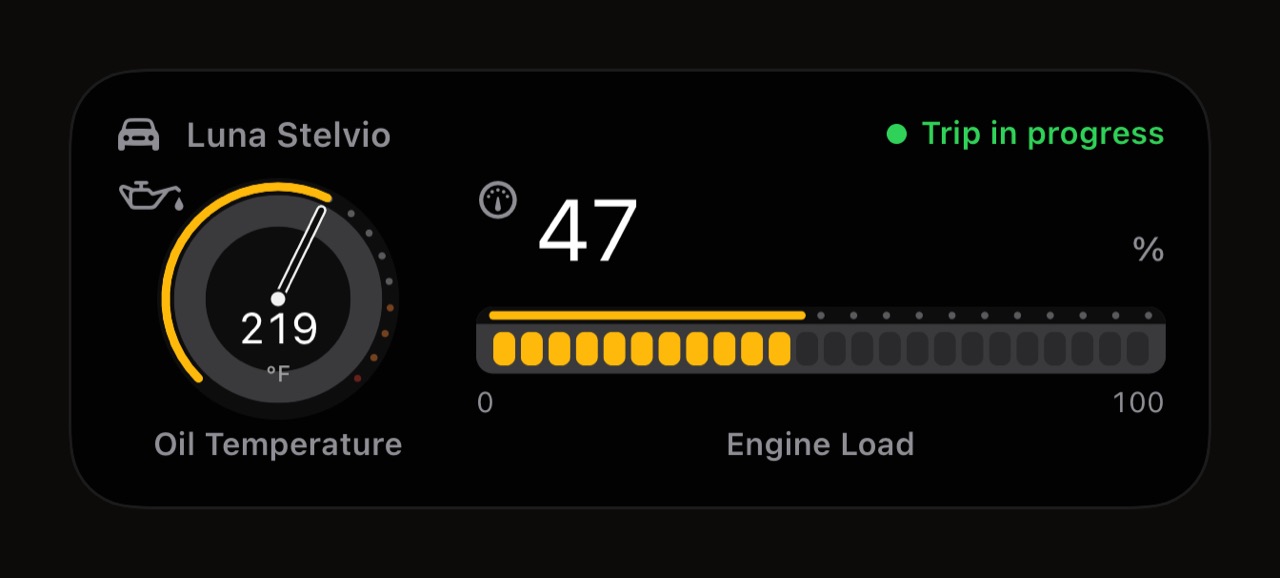
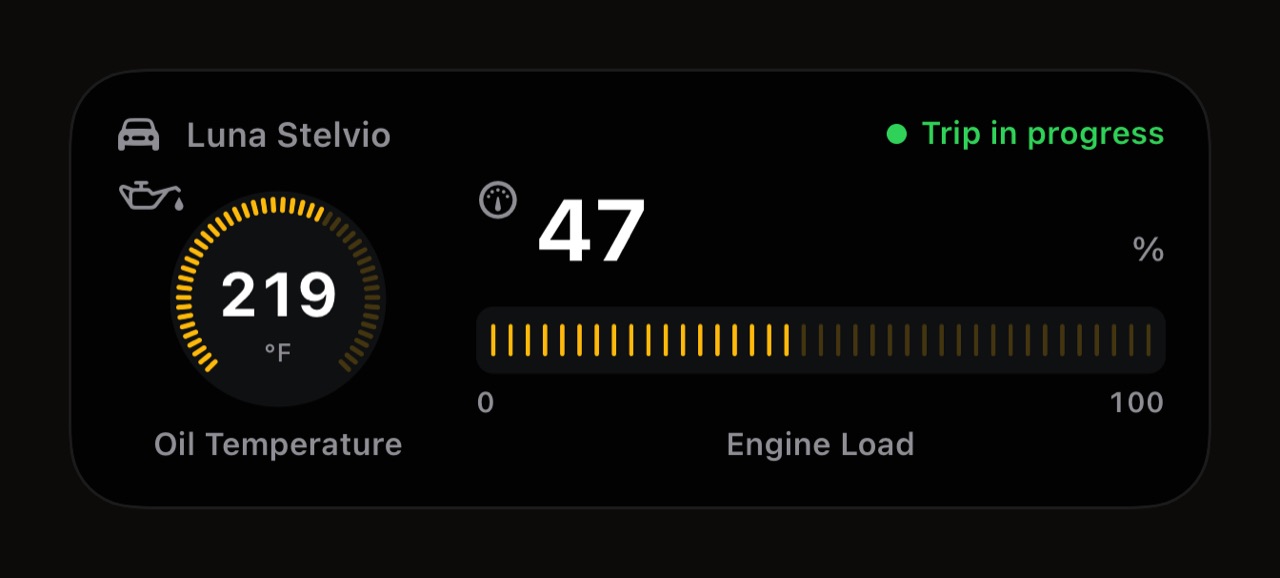
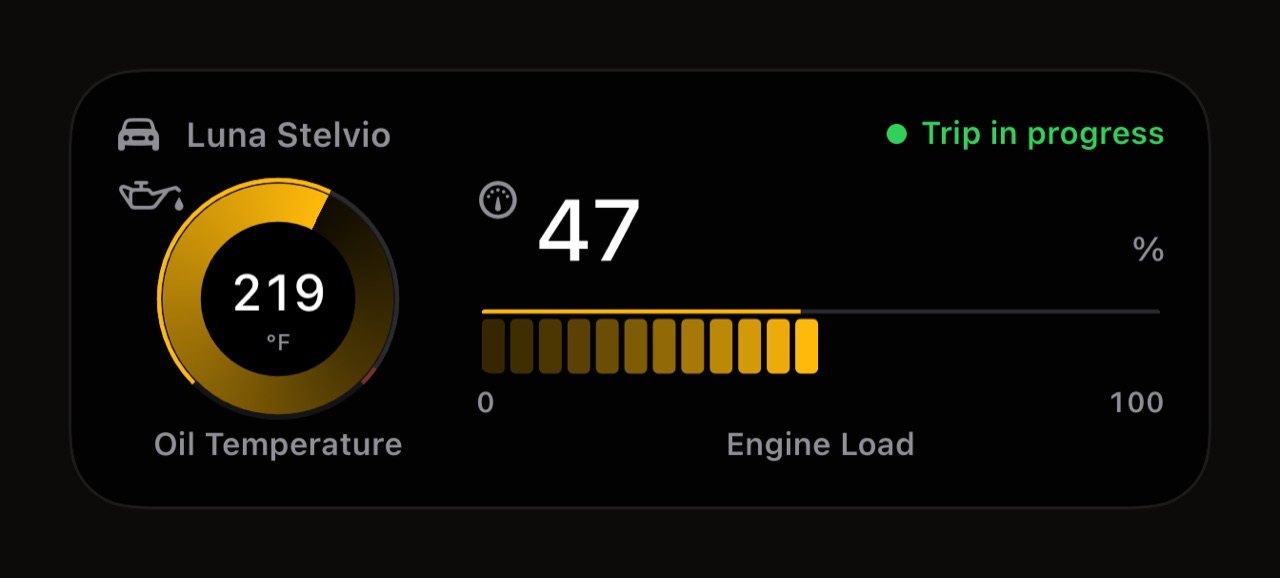
Seven, the same as on the Live dashboard and CarPlay: Standard, Tourer, Circuit, Hairline, Chrono, Radial and Apex. A style changes how a gauge is drawn, never which instrument a card gets, so a third-width card stays a ring and a two-thirds card stays a bar in every one. Standard is free; the other six are part of WrenchTime Pro. Each render below is the same Lock Screen row, engine oil temperature as a ring beside engine load as a bar, in the default amber.
Which colours can the Live Activity take?
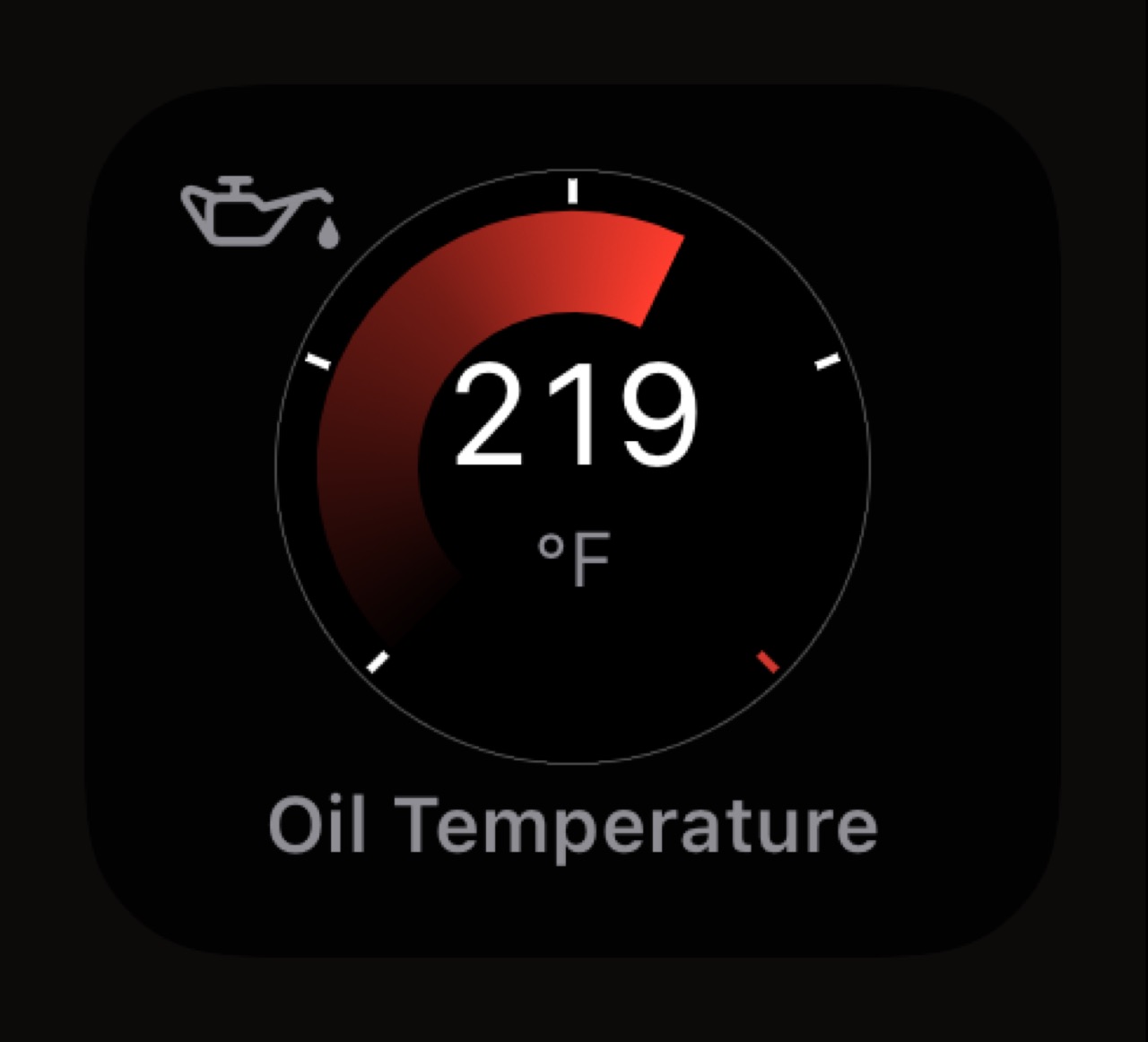
Any of the 30 accent colours the app has, chosen per vehicle, so two cars in one garage are told apart at a glance. The default follows the app colour and is free; any other colour is part of WrenchTime Pro. Each tile below is the same engine oil temperature ring in the Tourer style, in one colour.
Fire Red 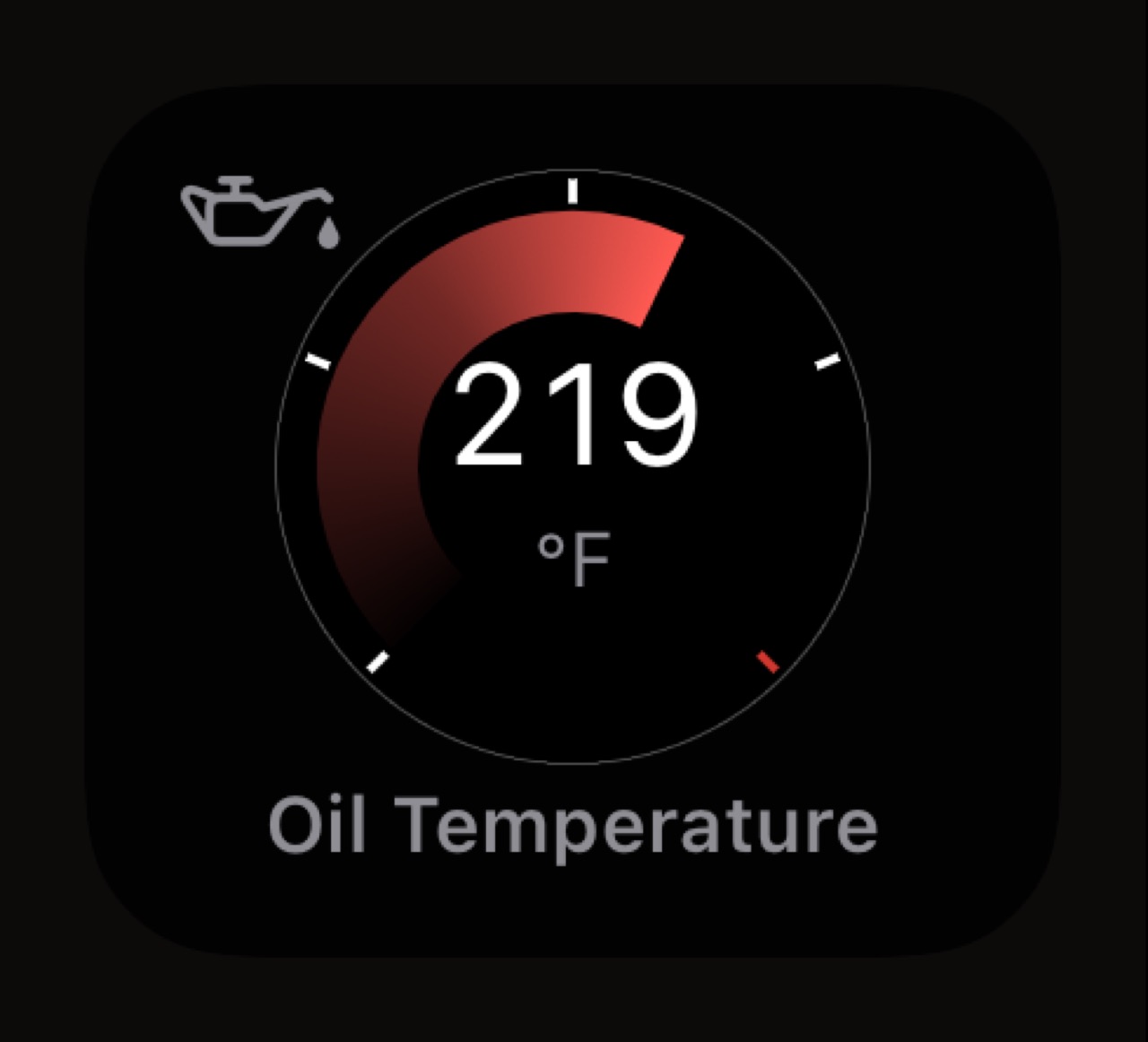
Racing Red 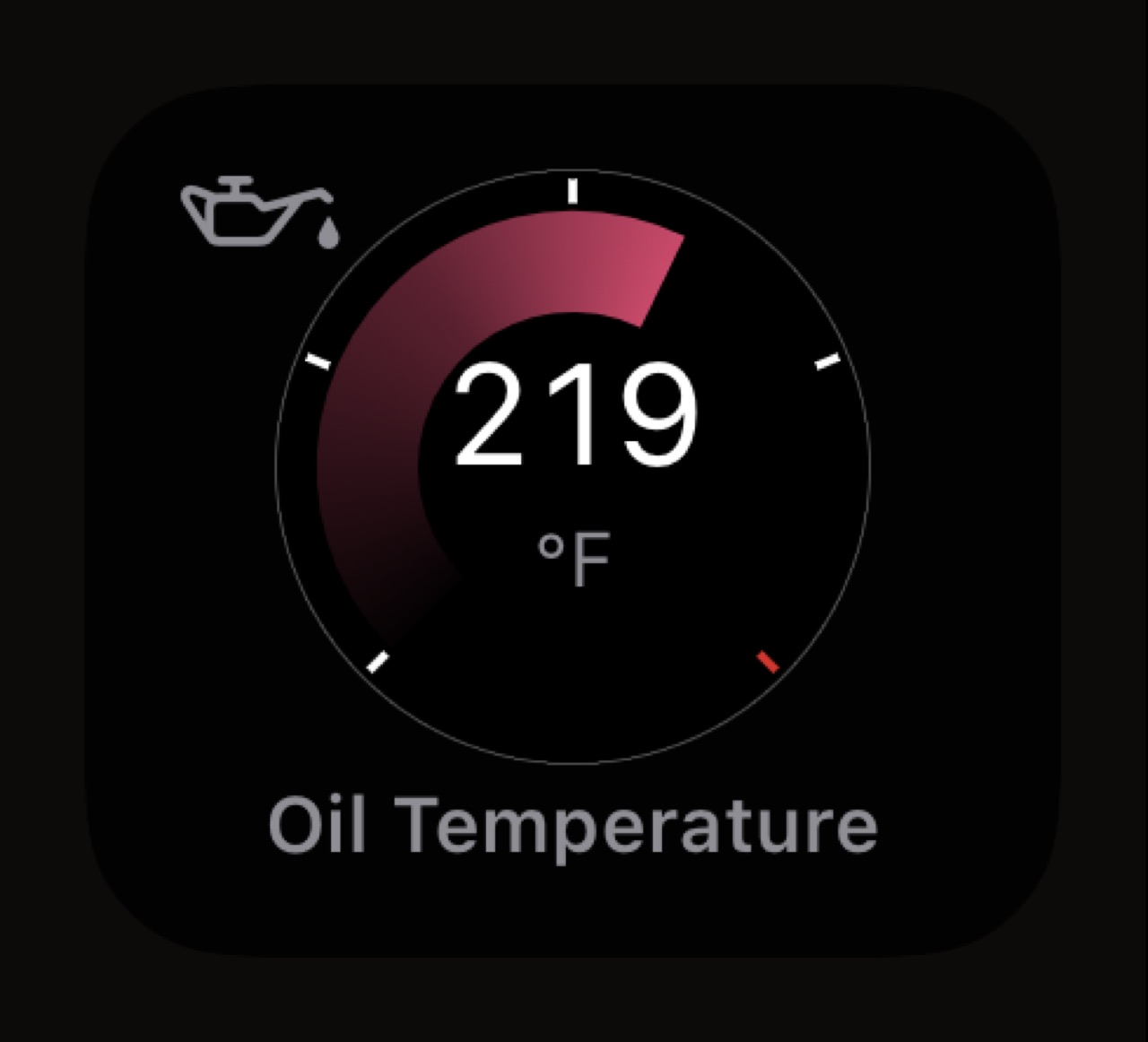
Bordeaux 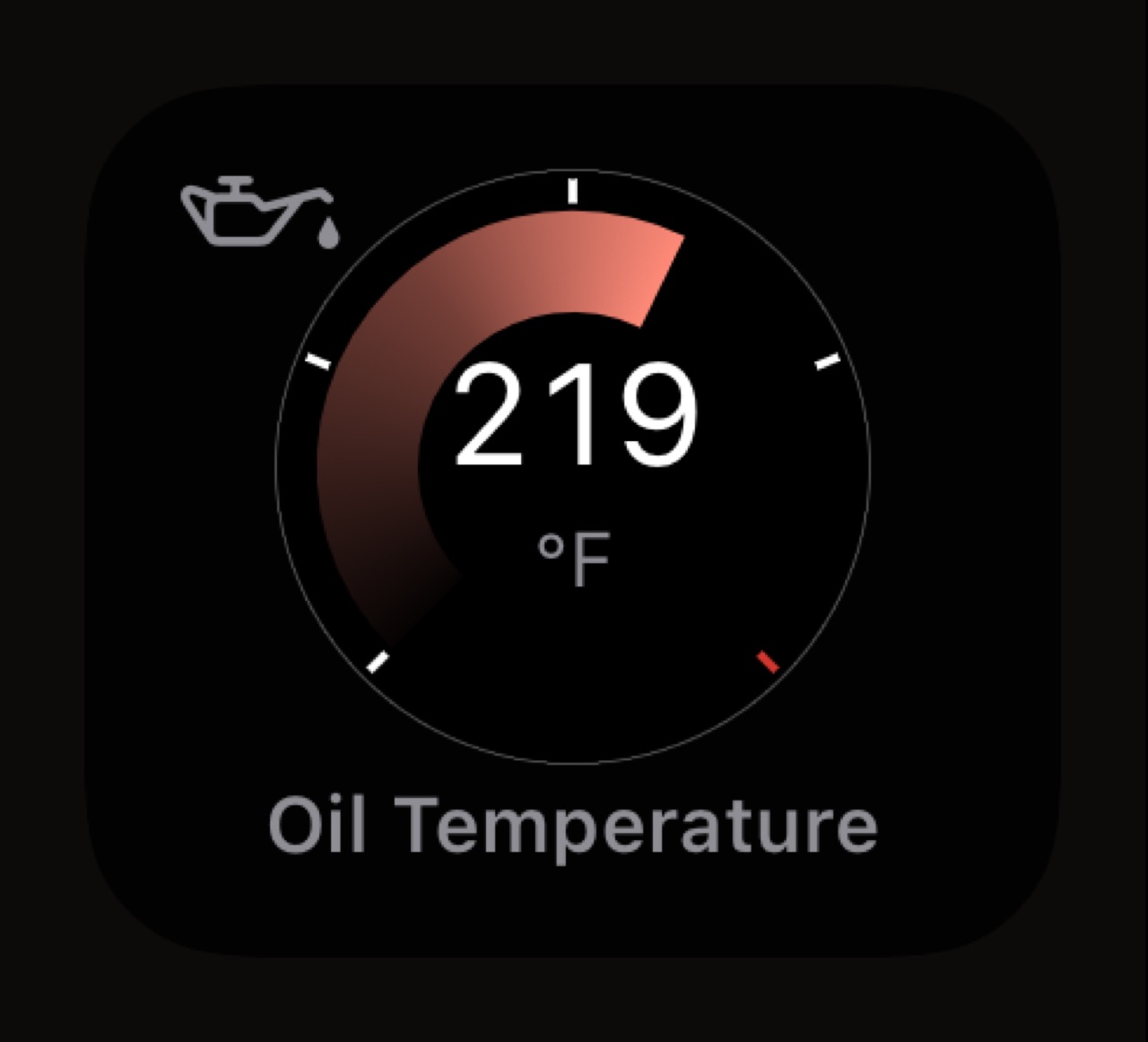
Coral 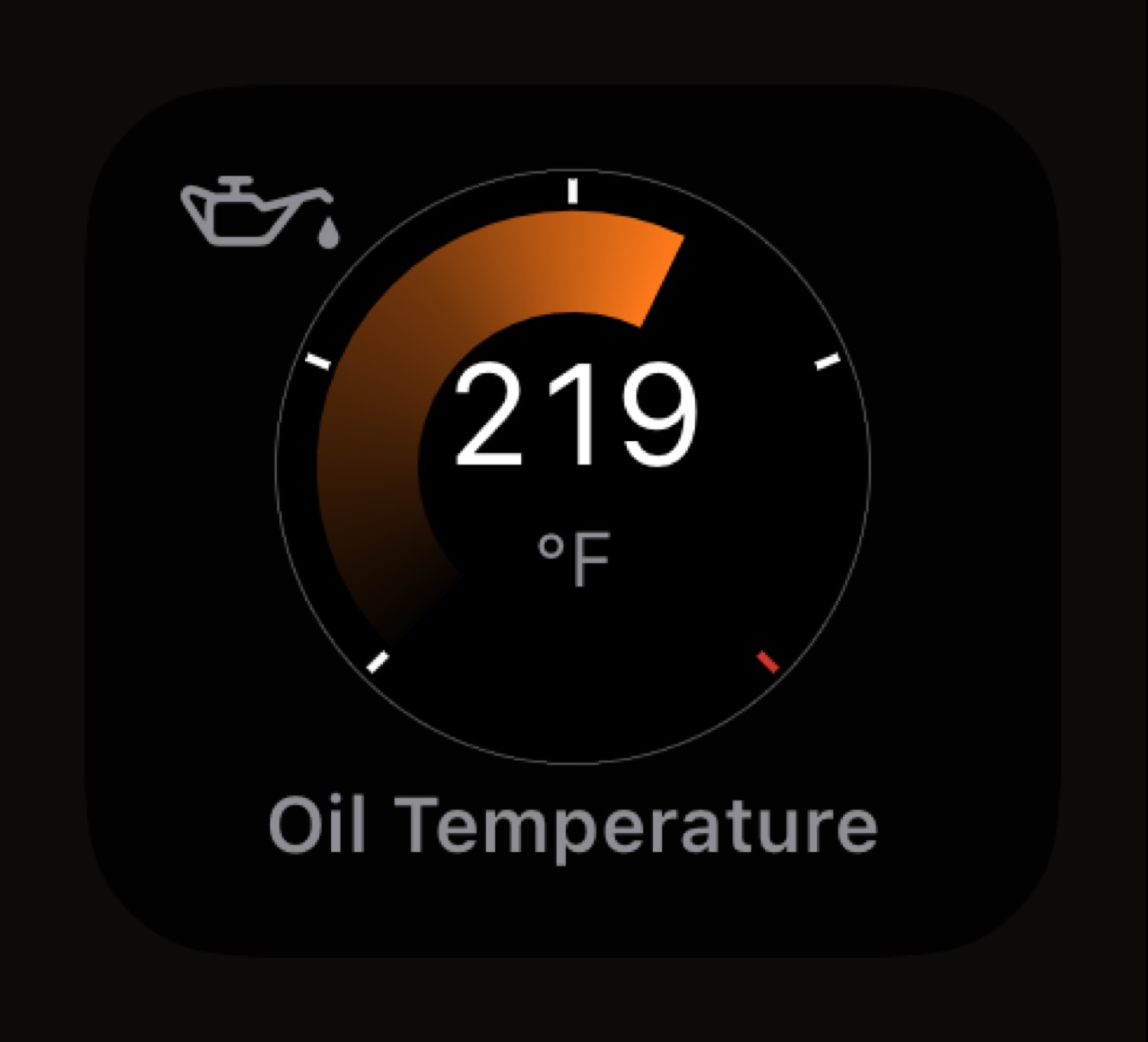
Bright Orange 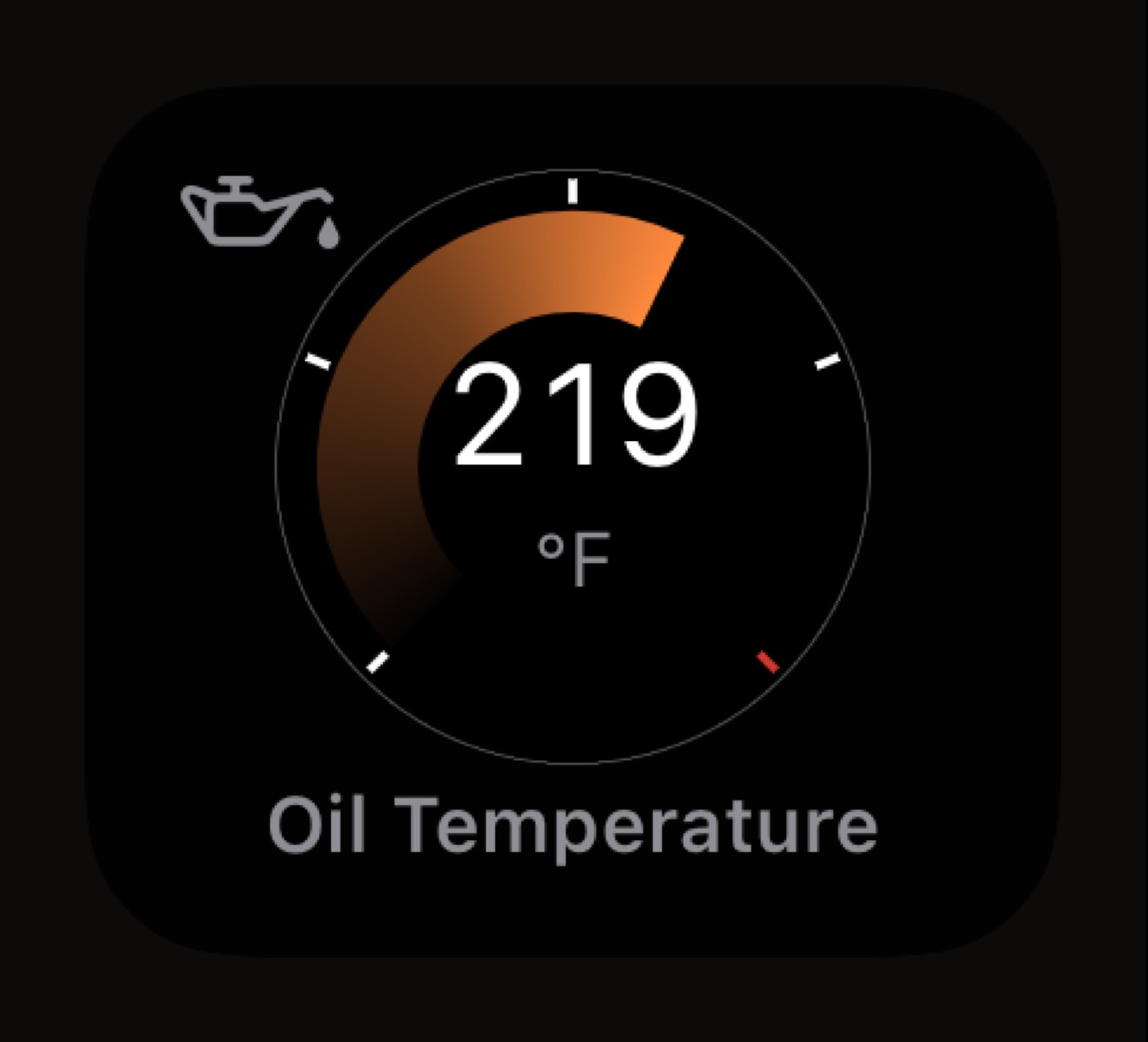
Sunset Orange 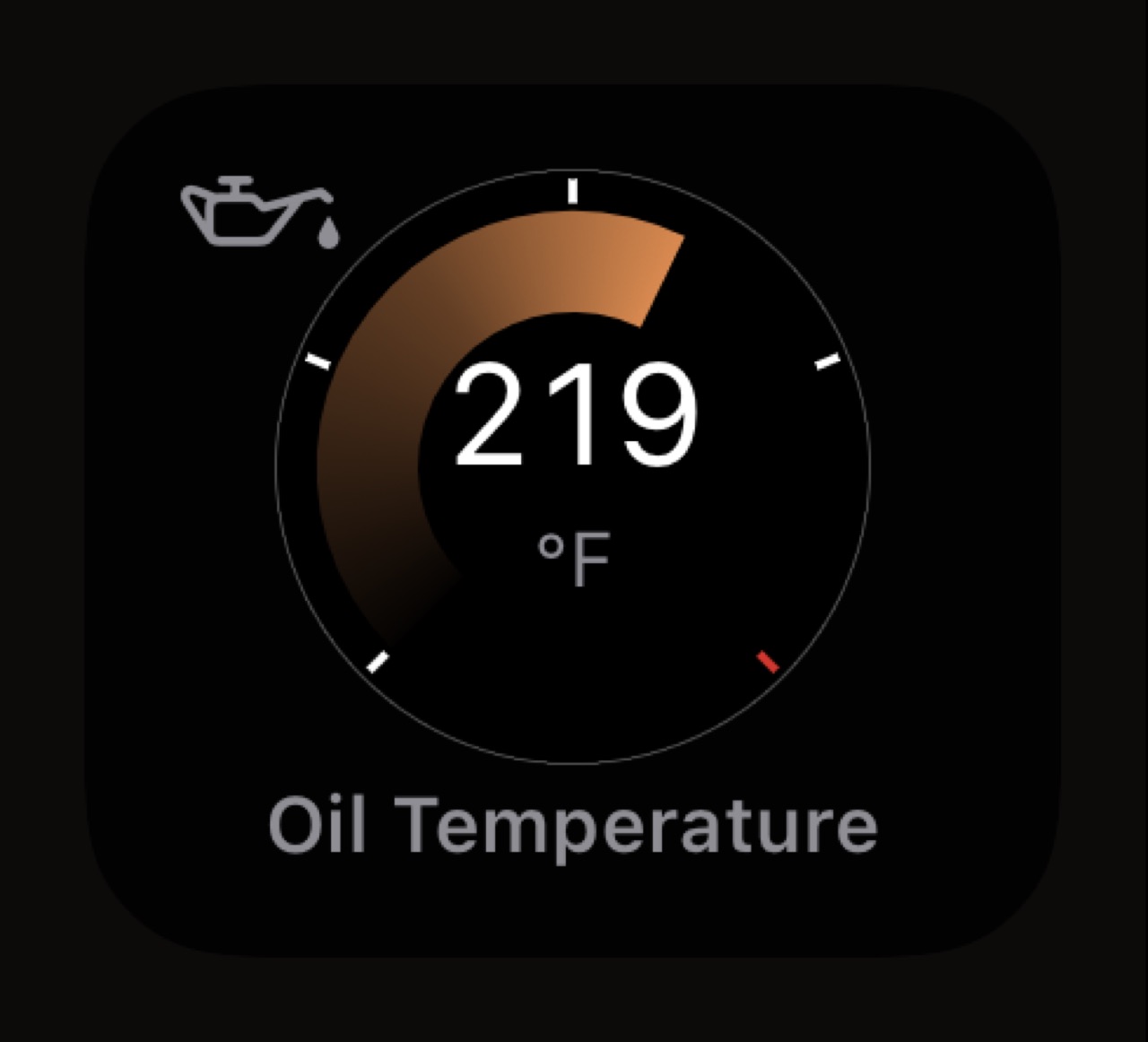
Copper 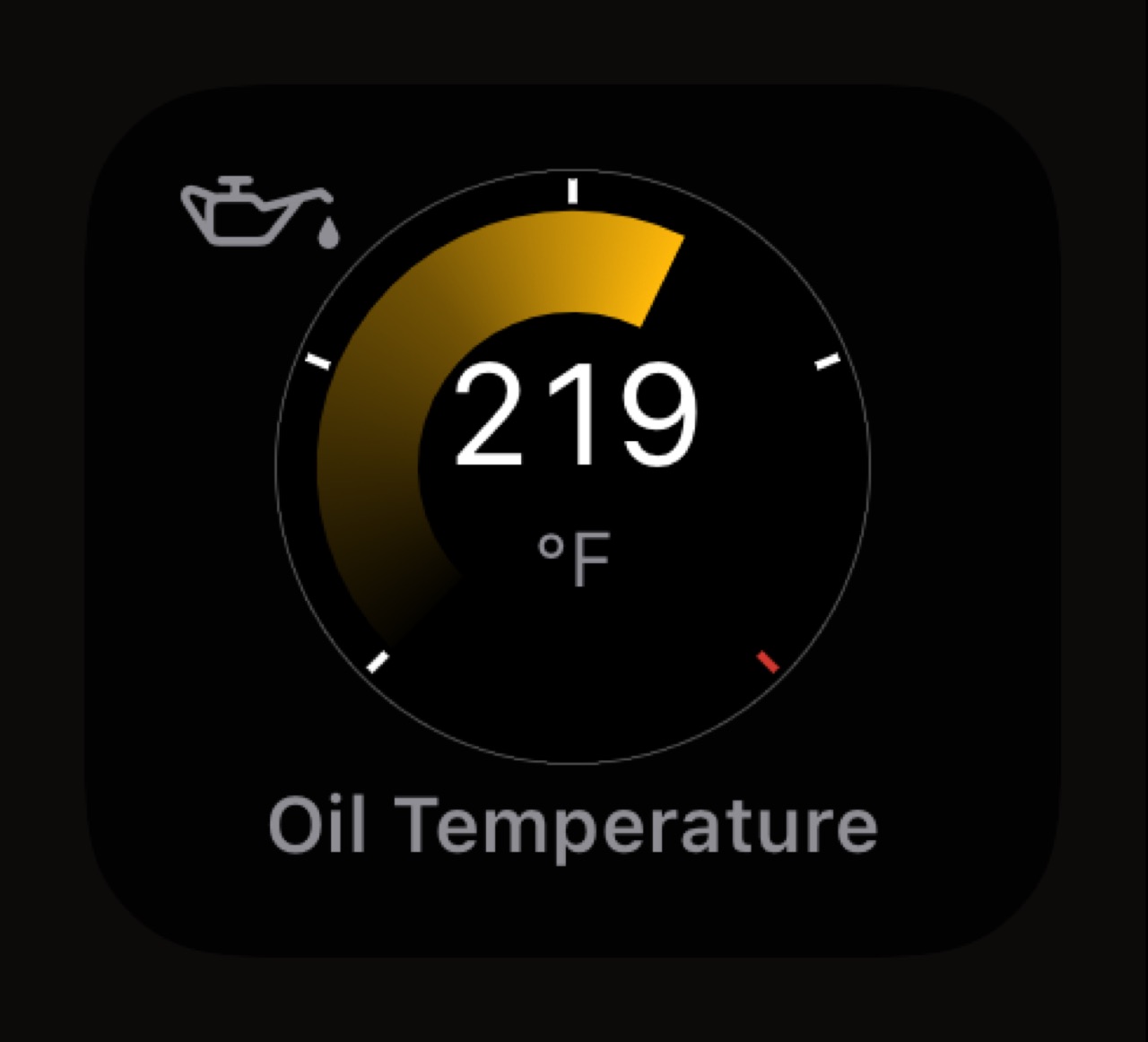
Amber 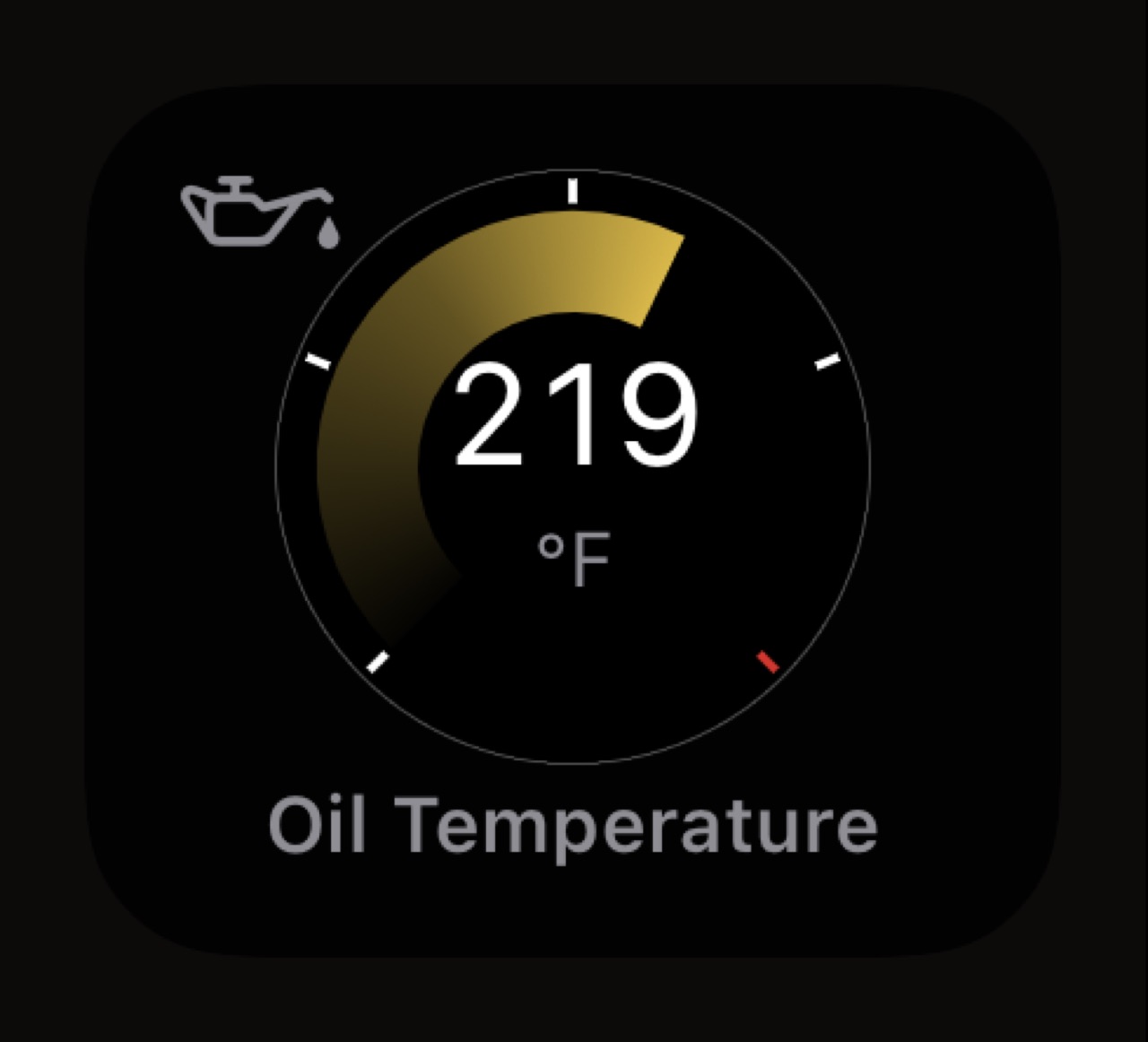
Gold 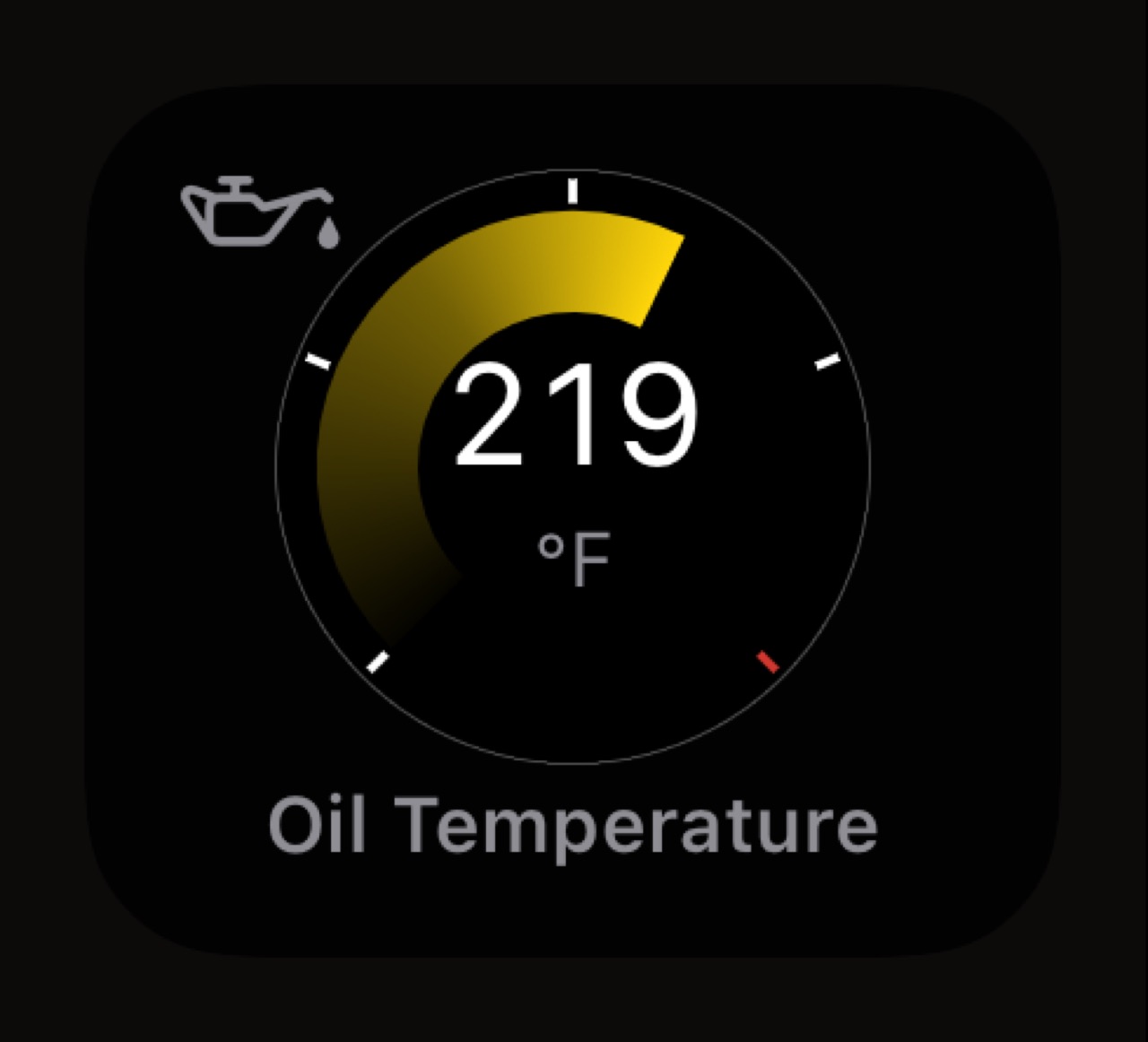
Yellow 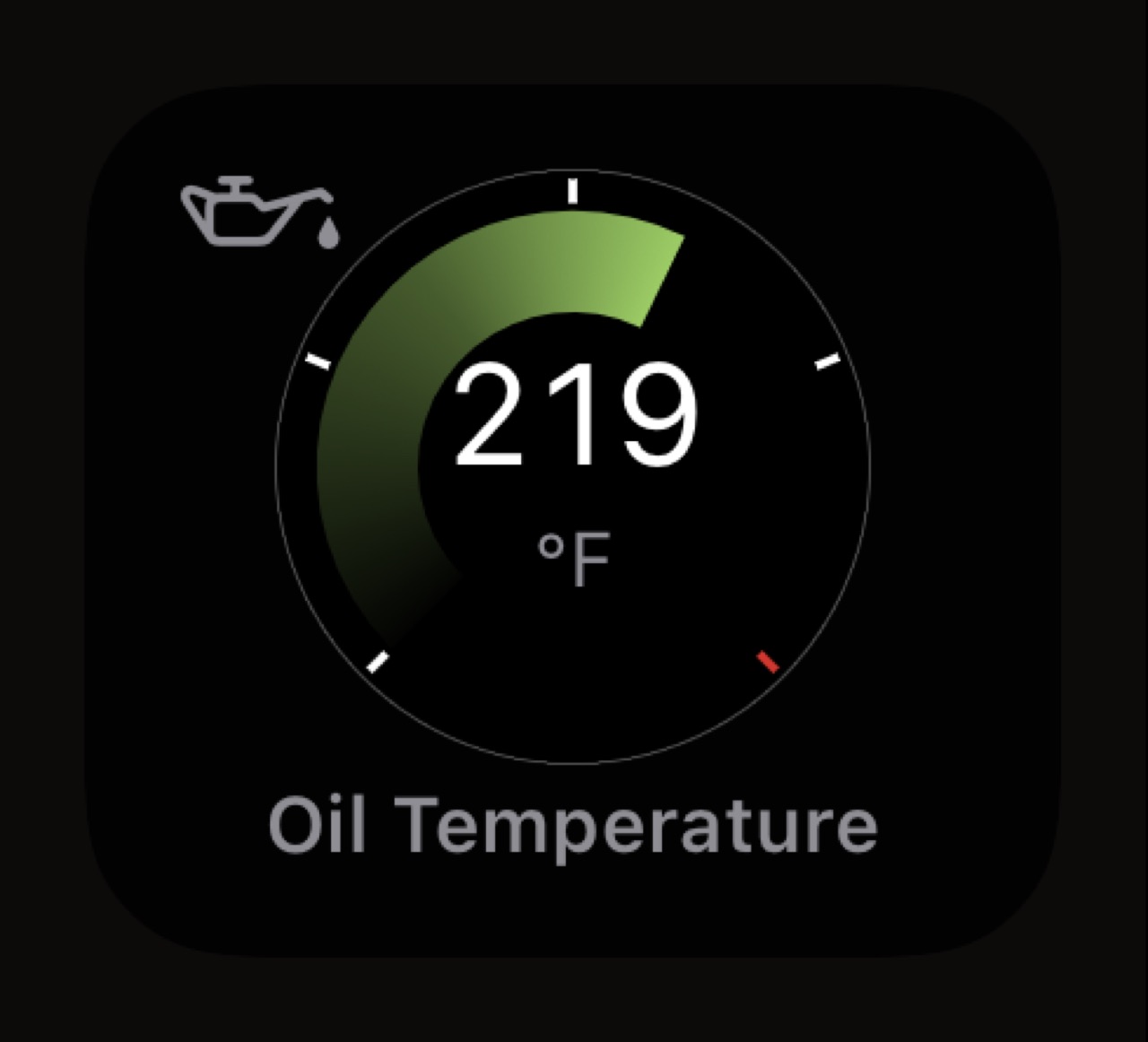
Lime 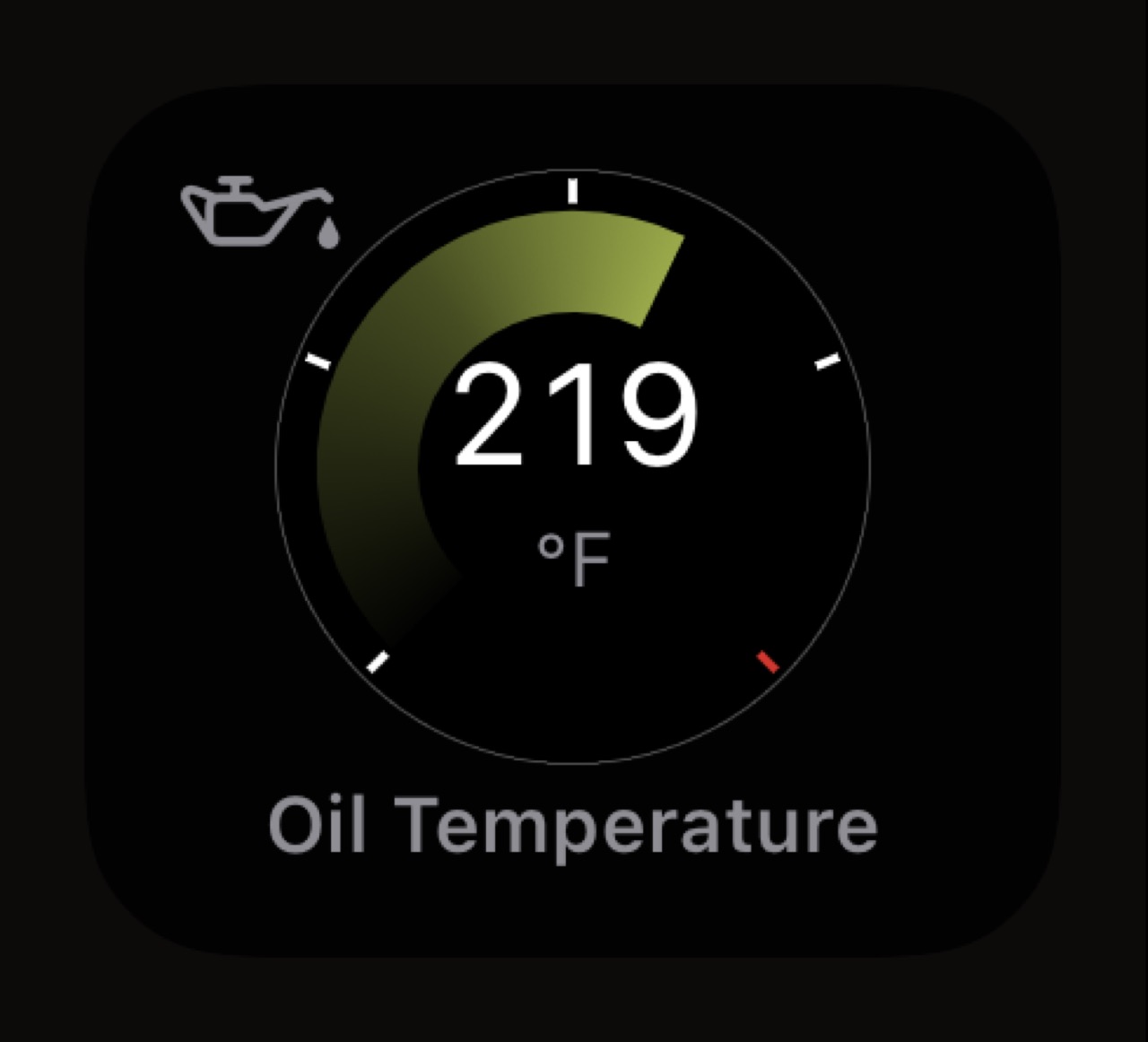
Olive 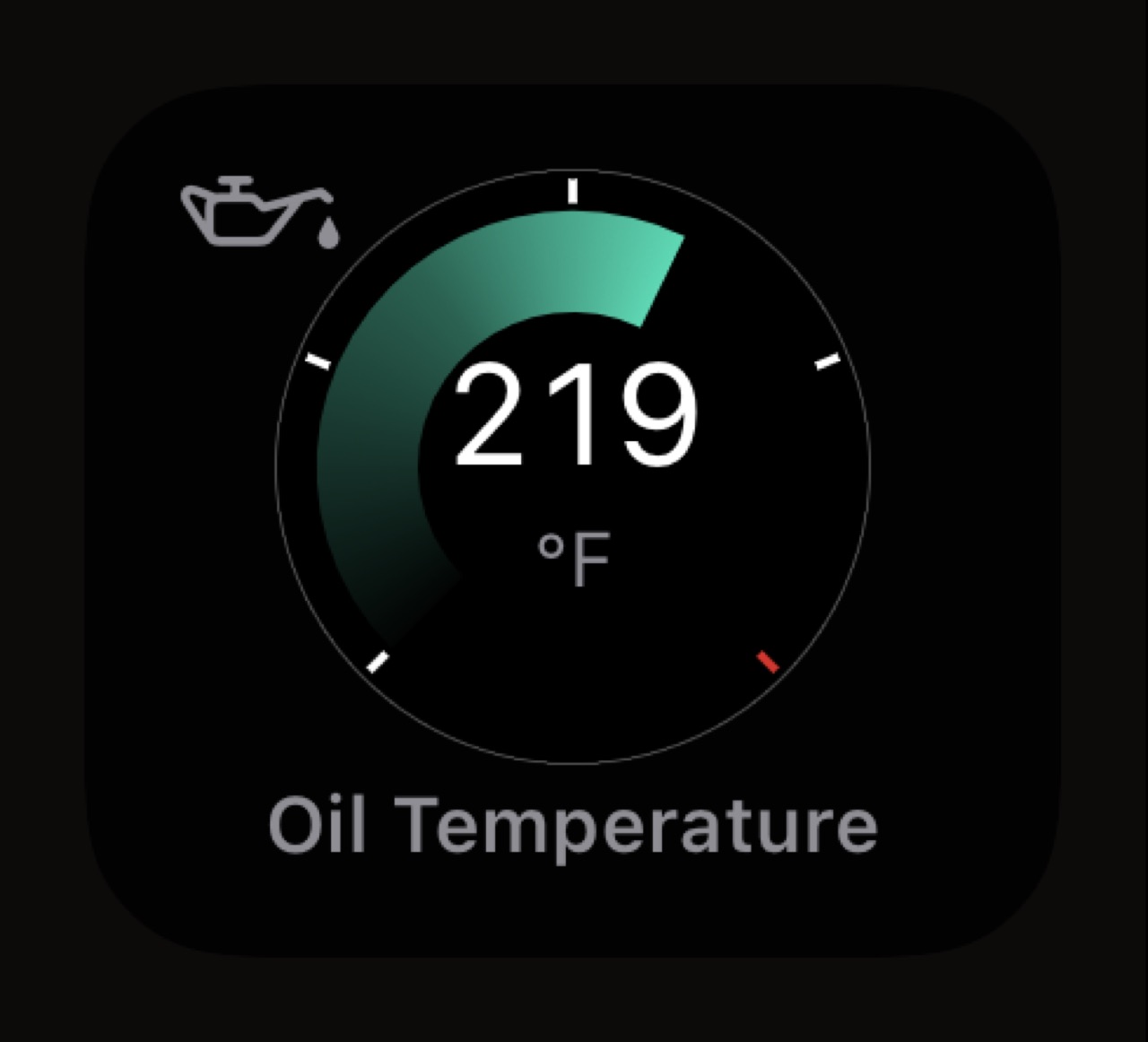
Mint 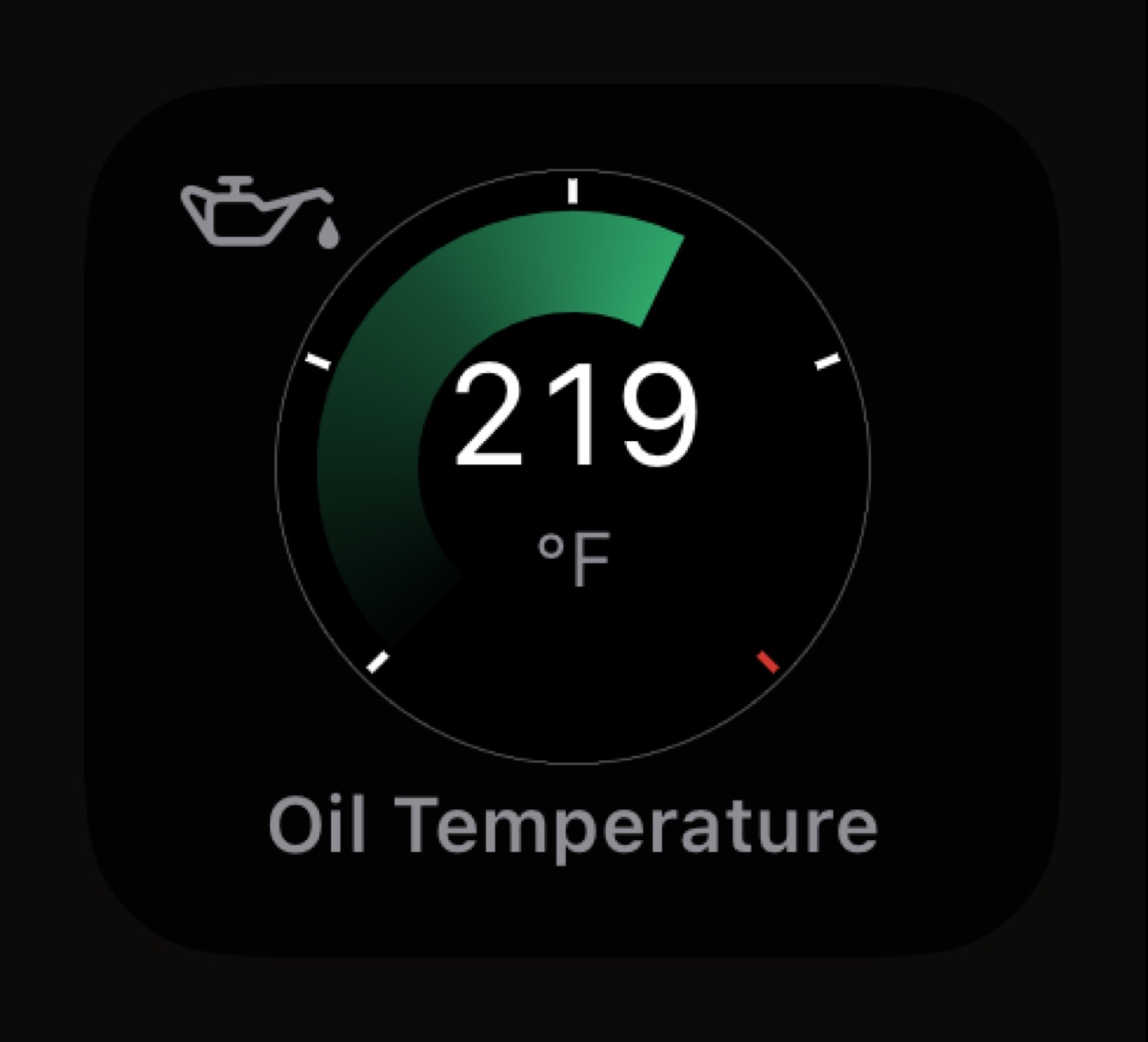
British Green 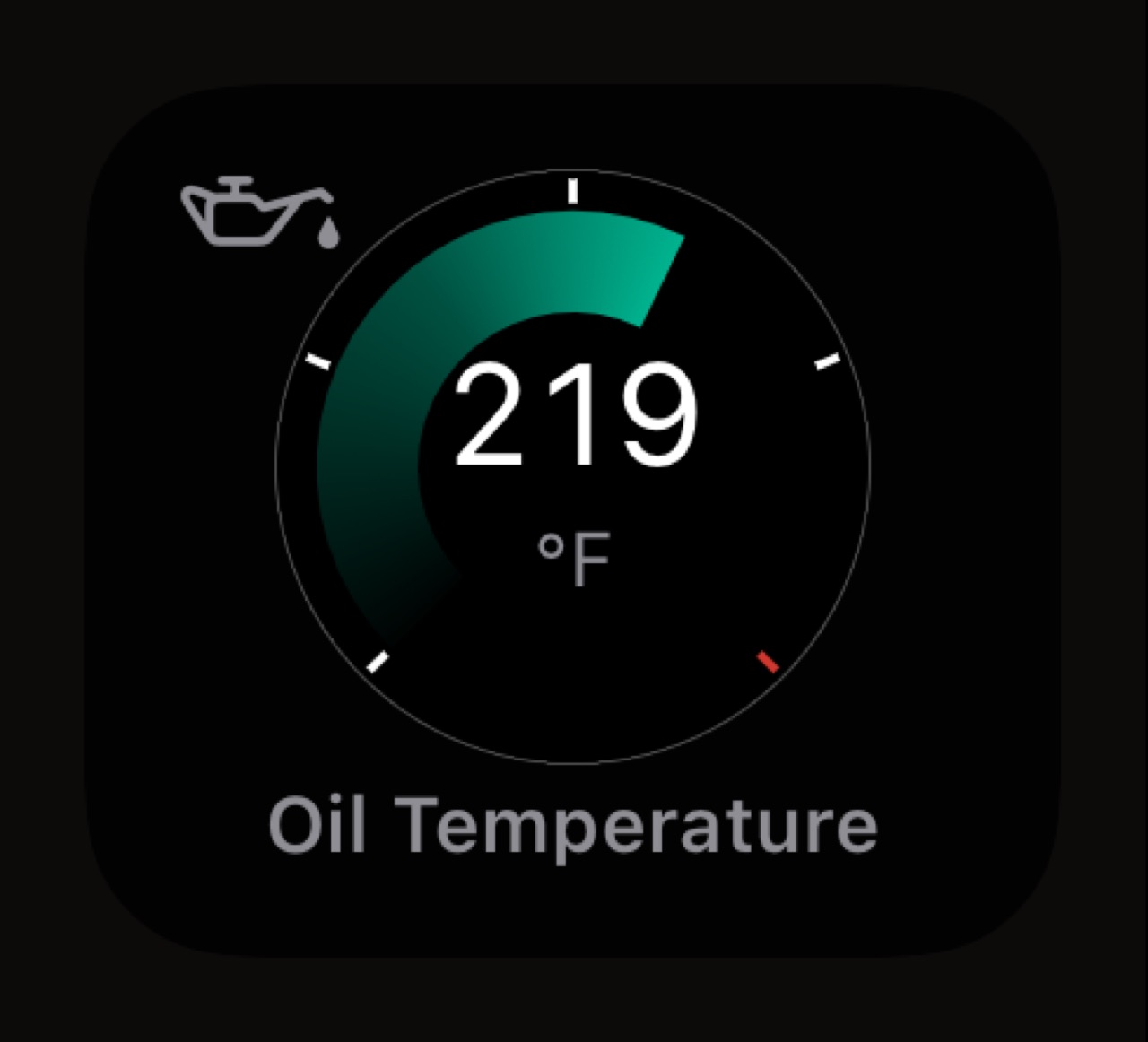
Phthalo Green 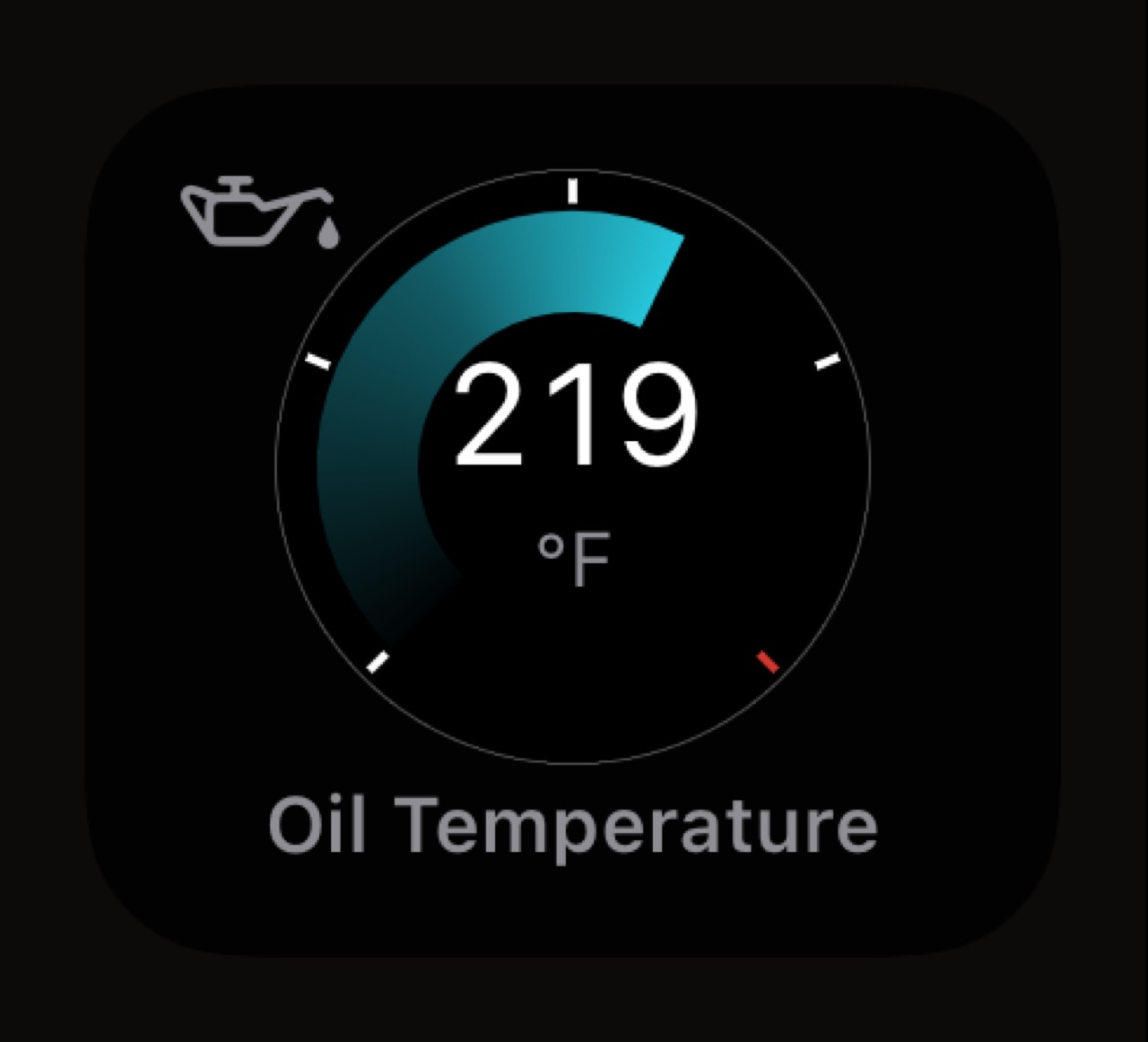
Teal 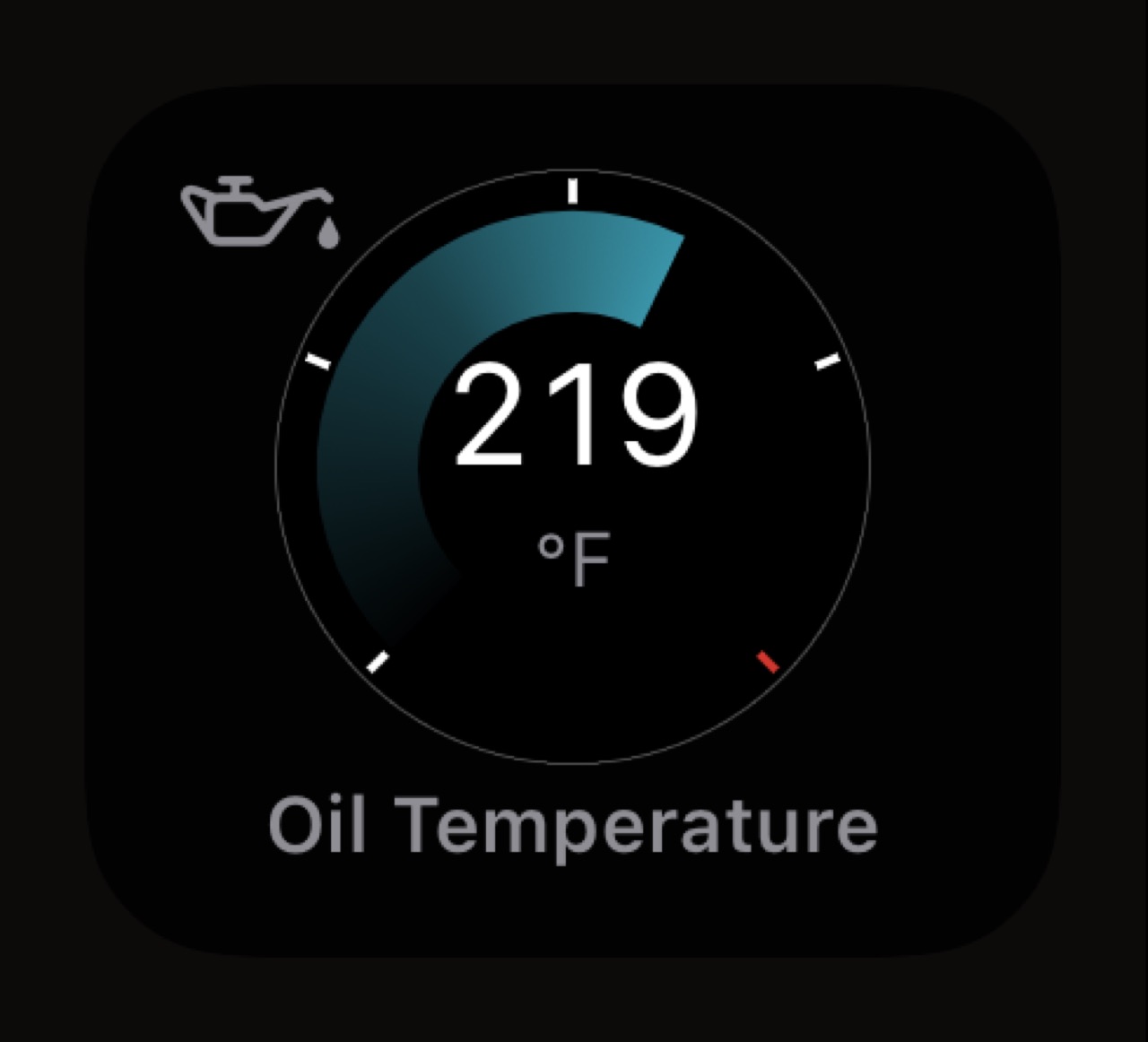
Petrol Blue 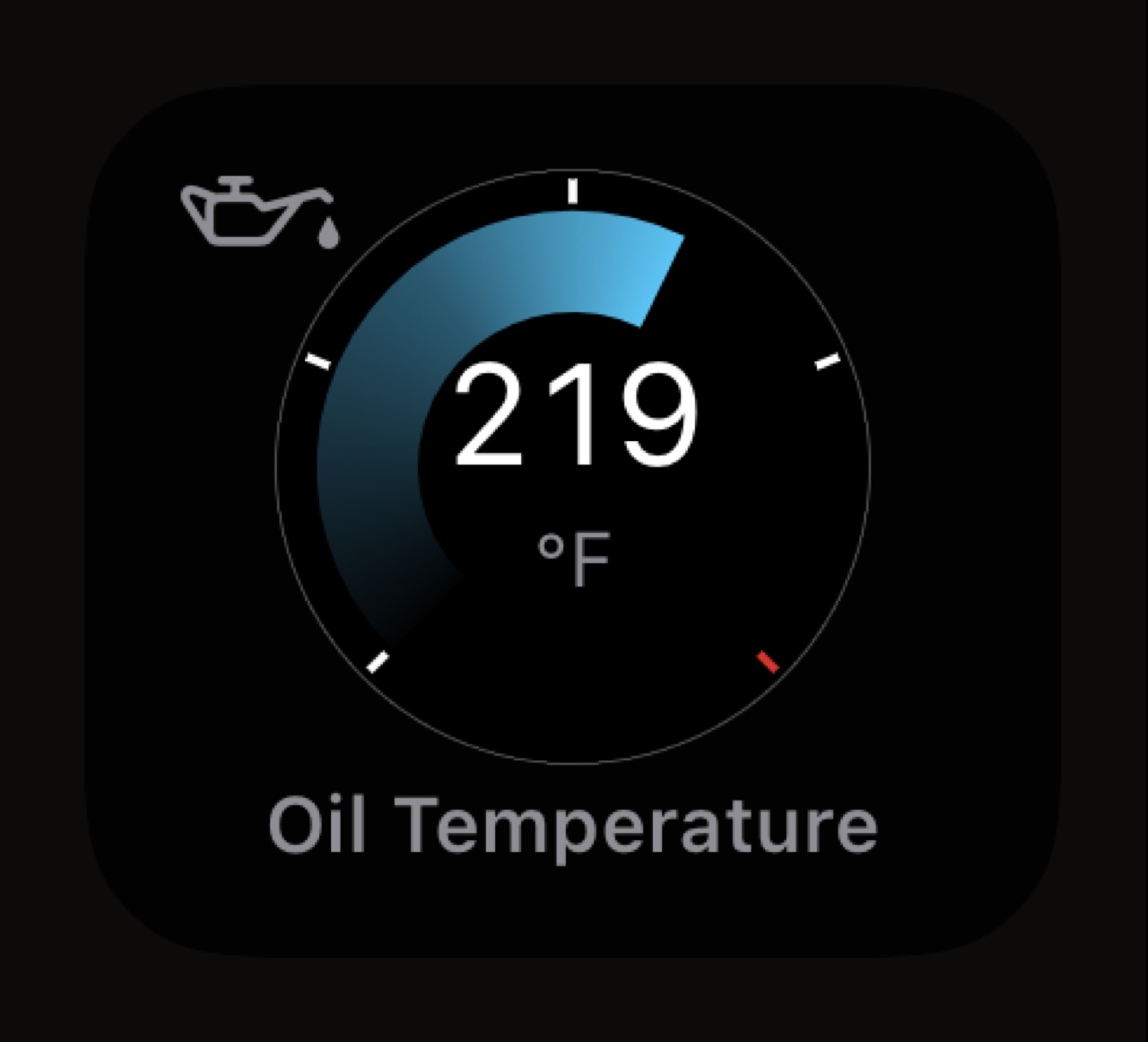
Sky Blue 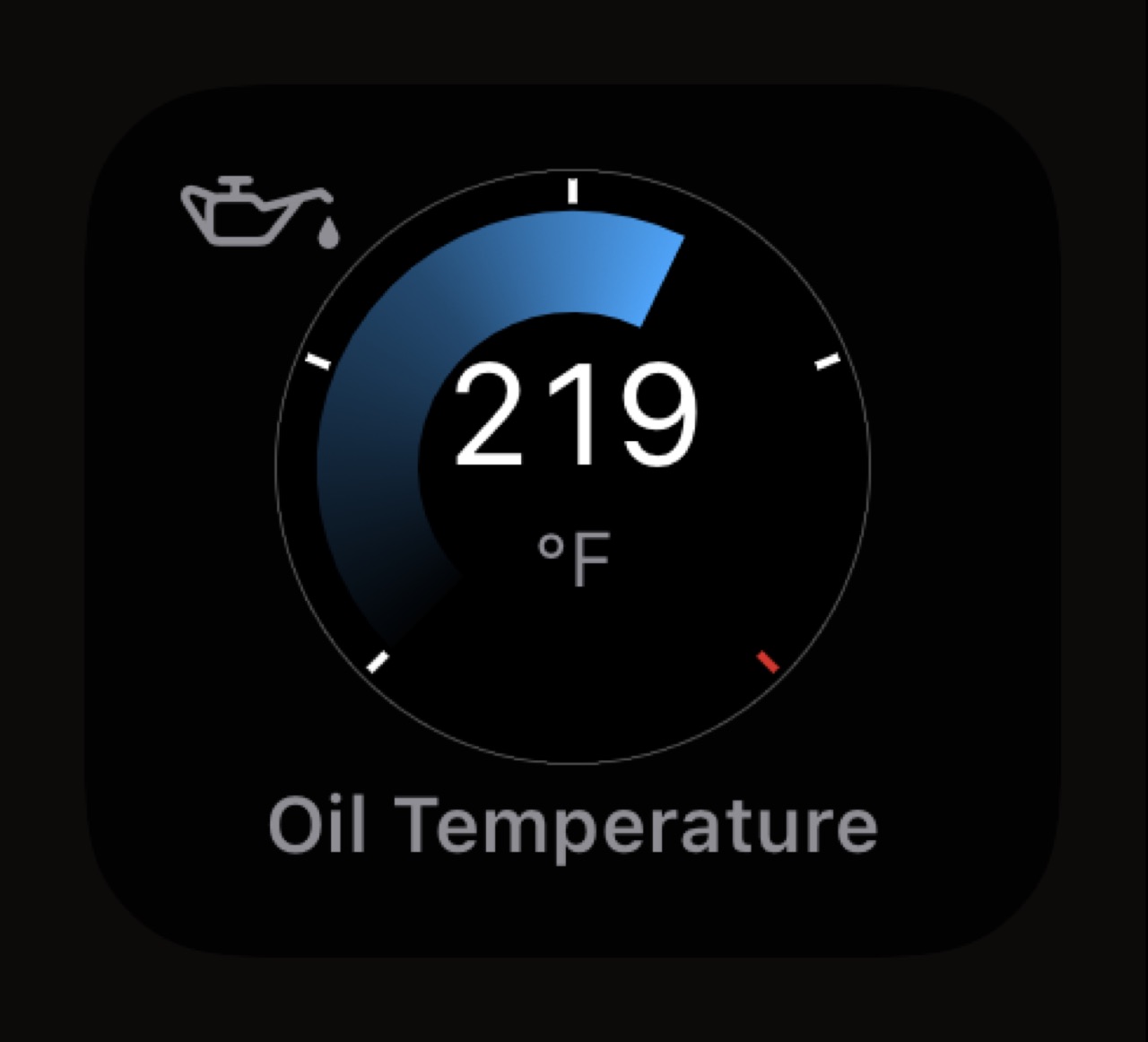
Ice Blue 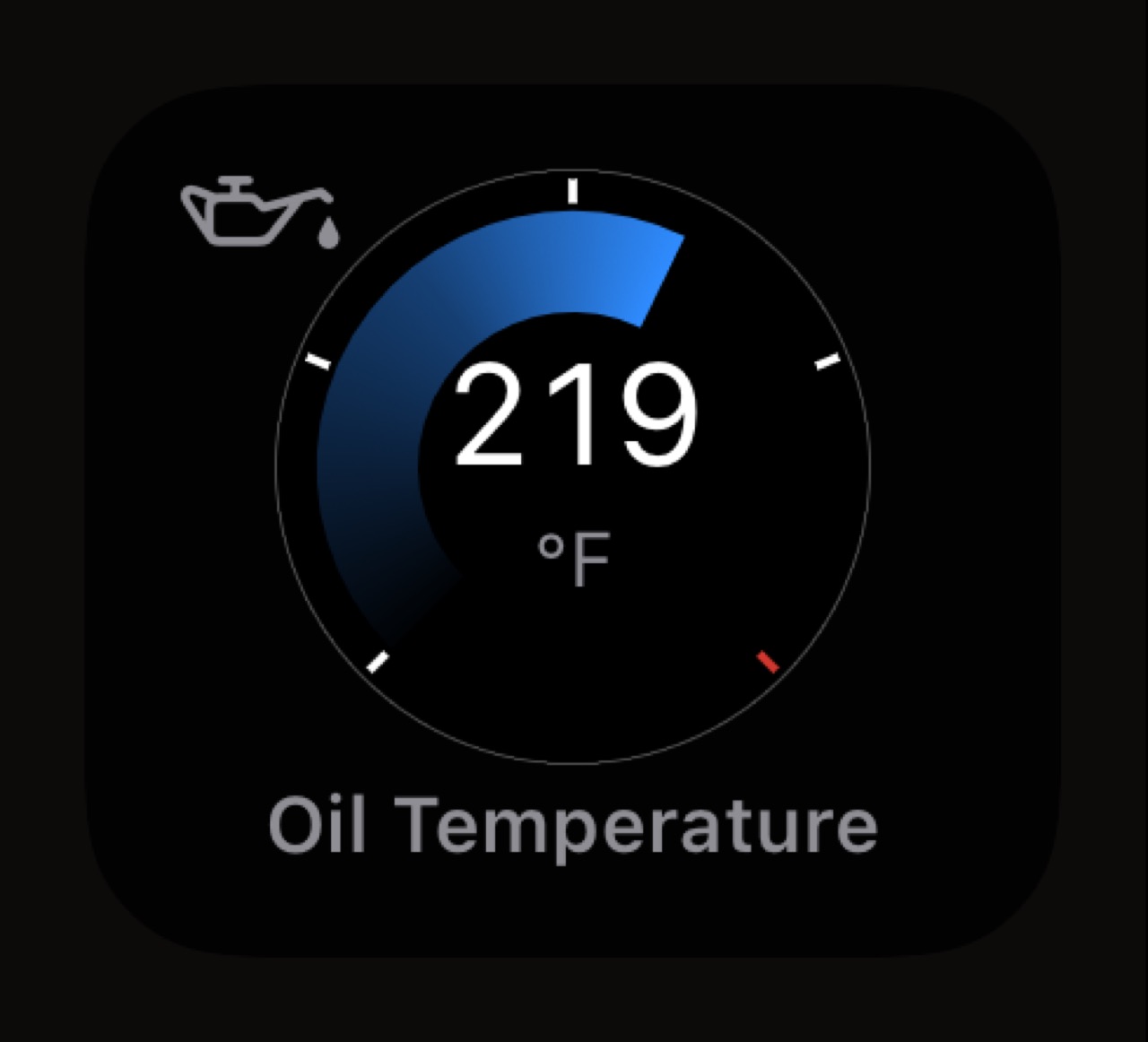
Electric Blue 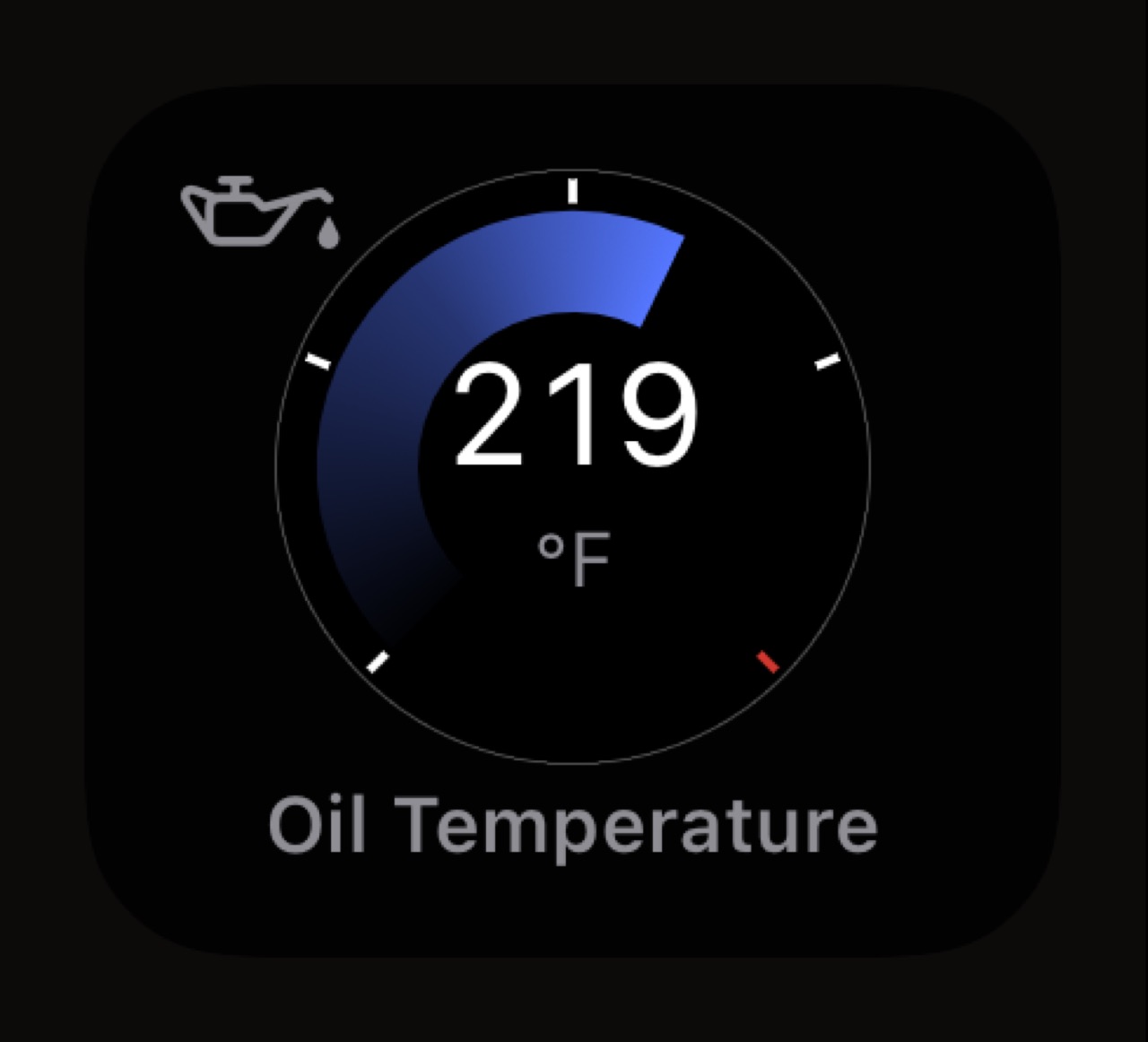
Cobalt 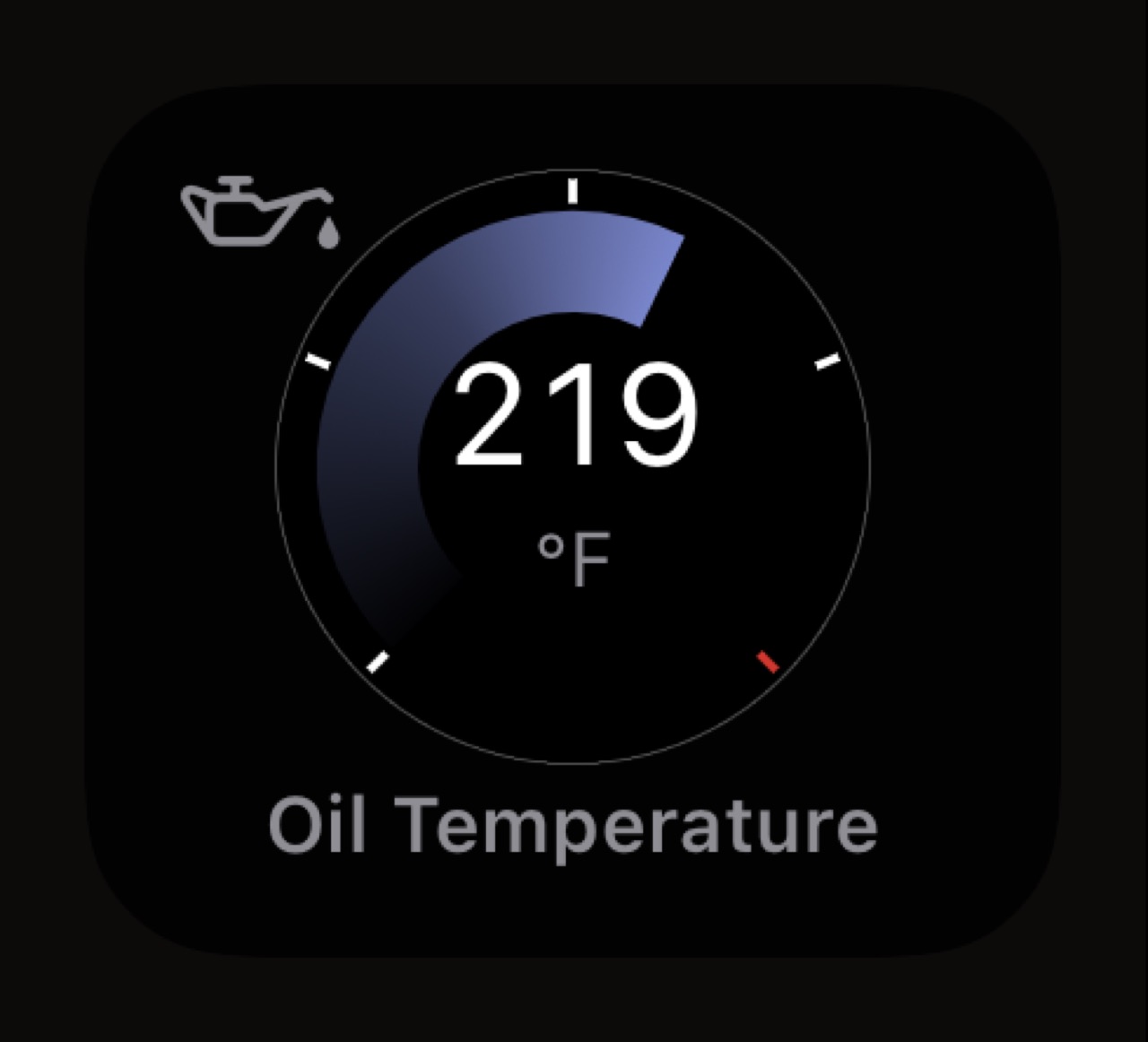
Midnight 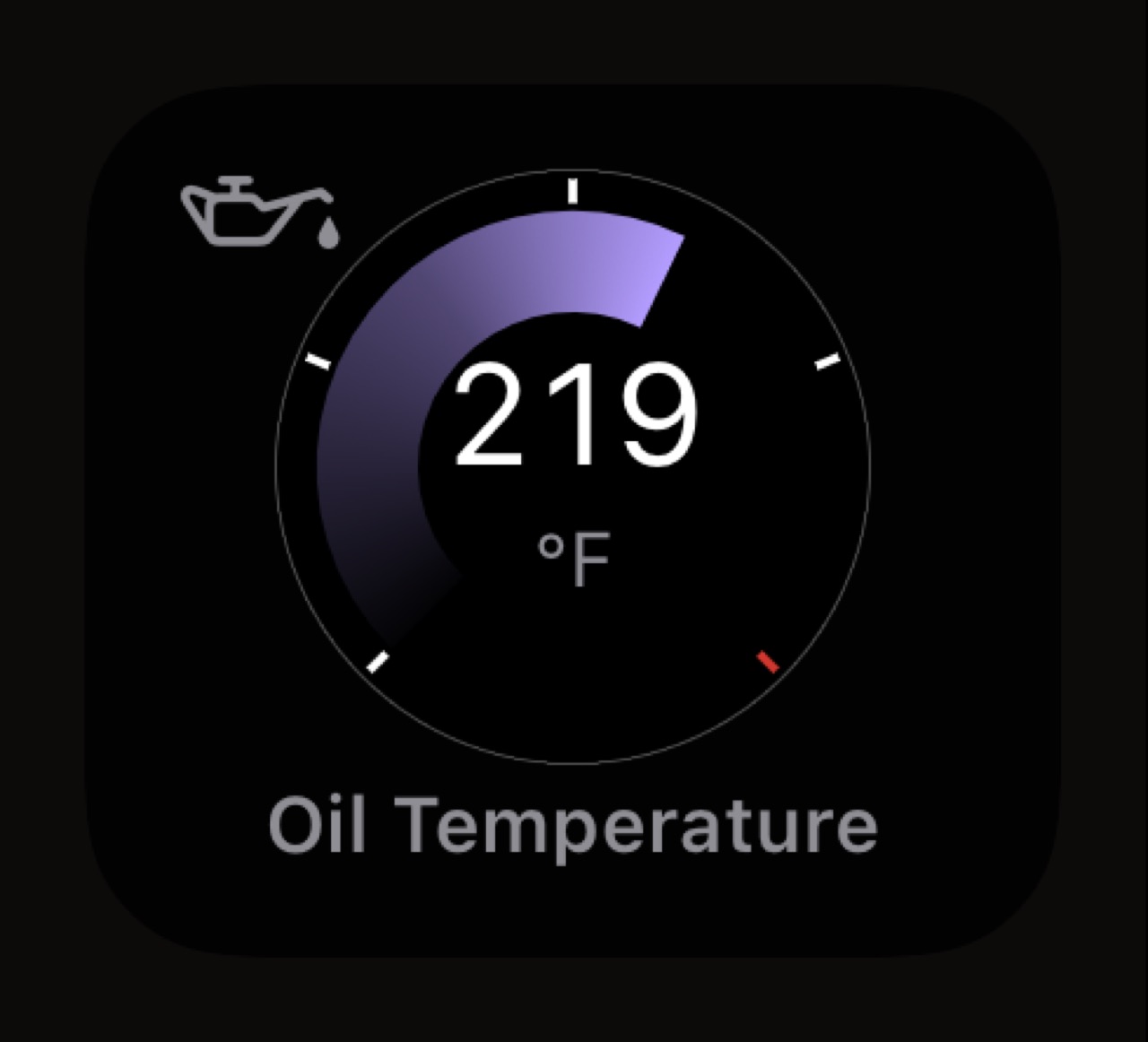
Lavender 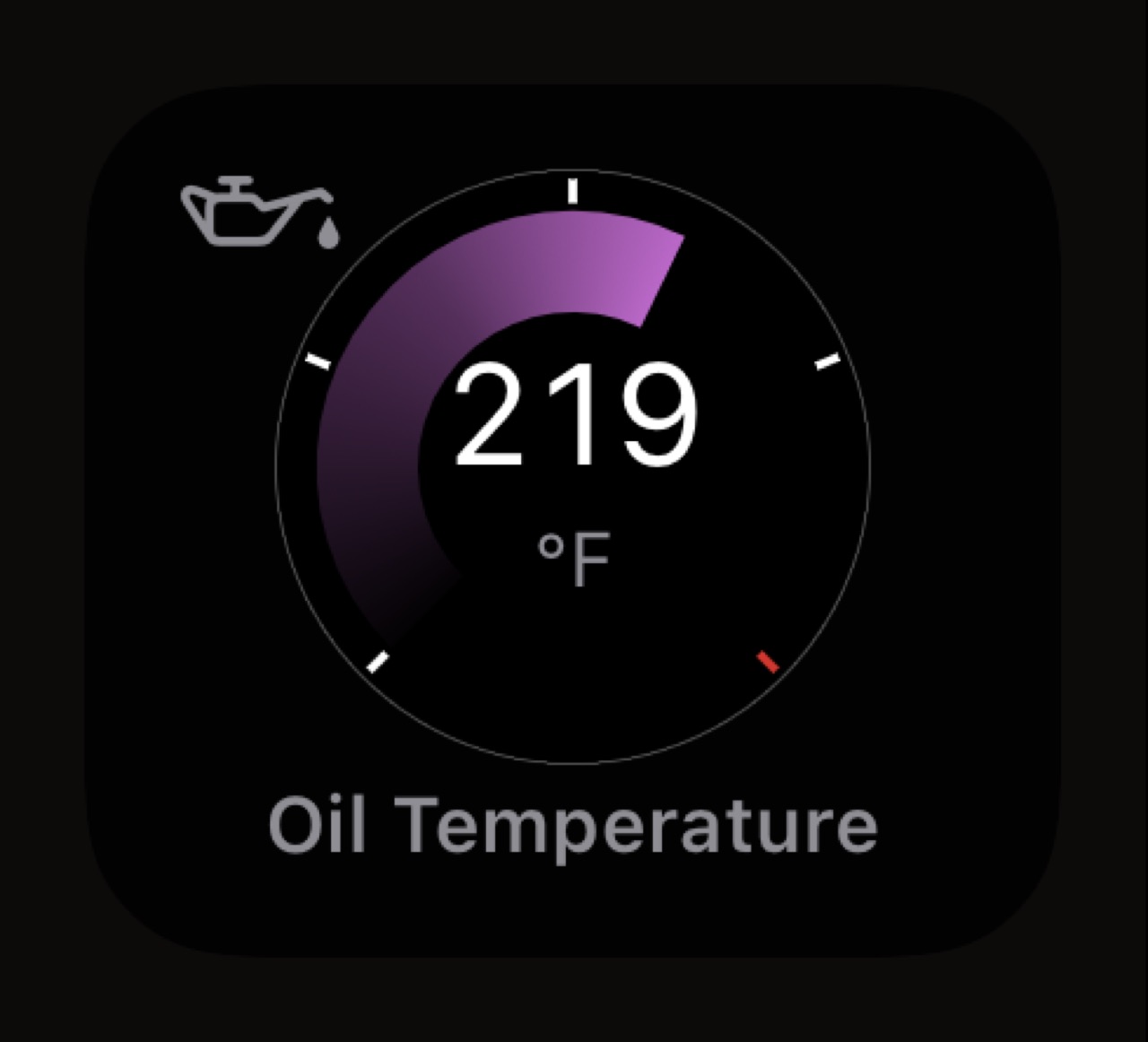
Violet 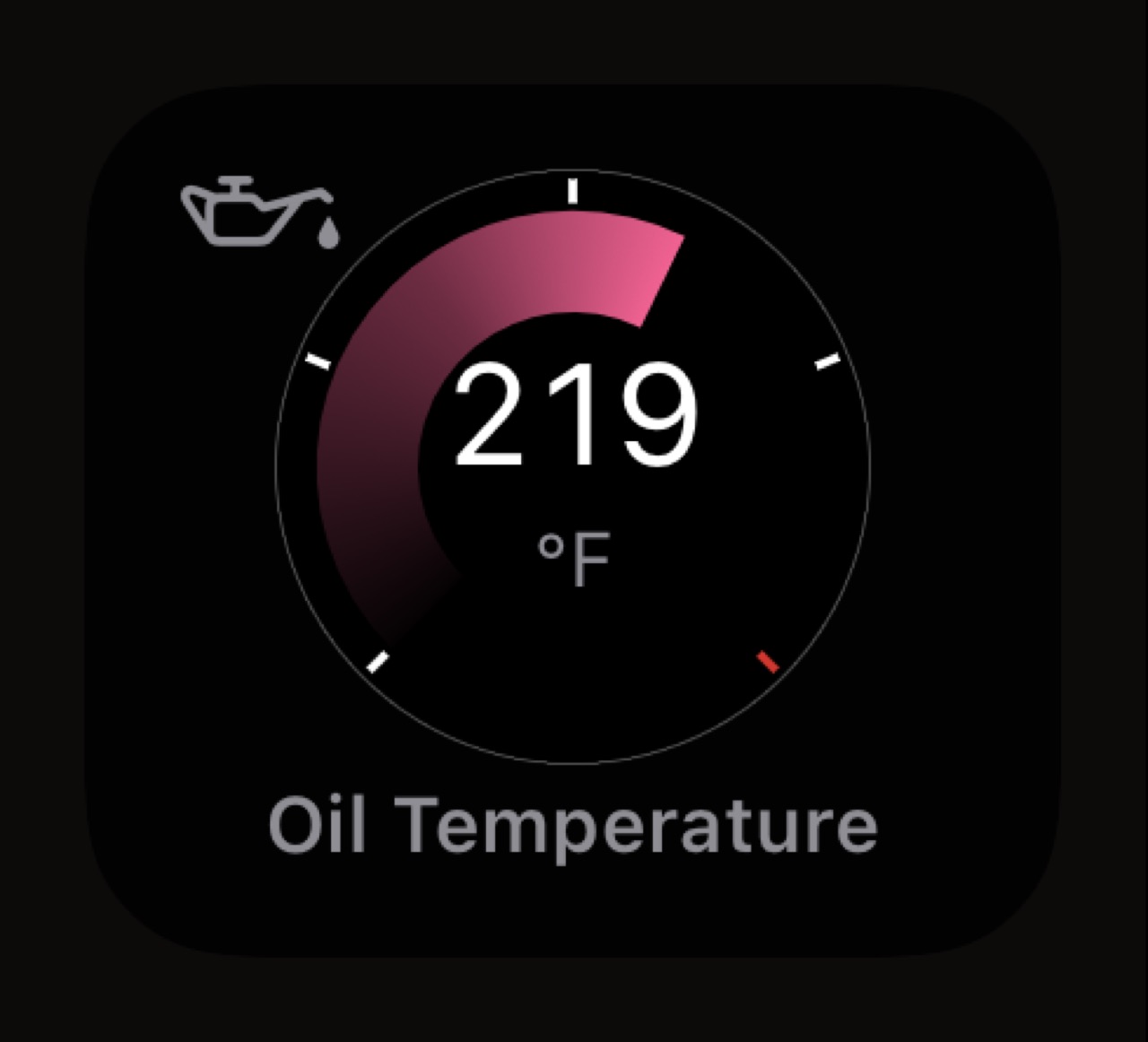
Magenta 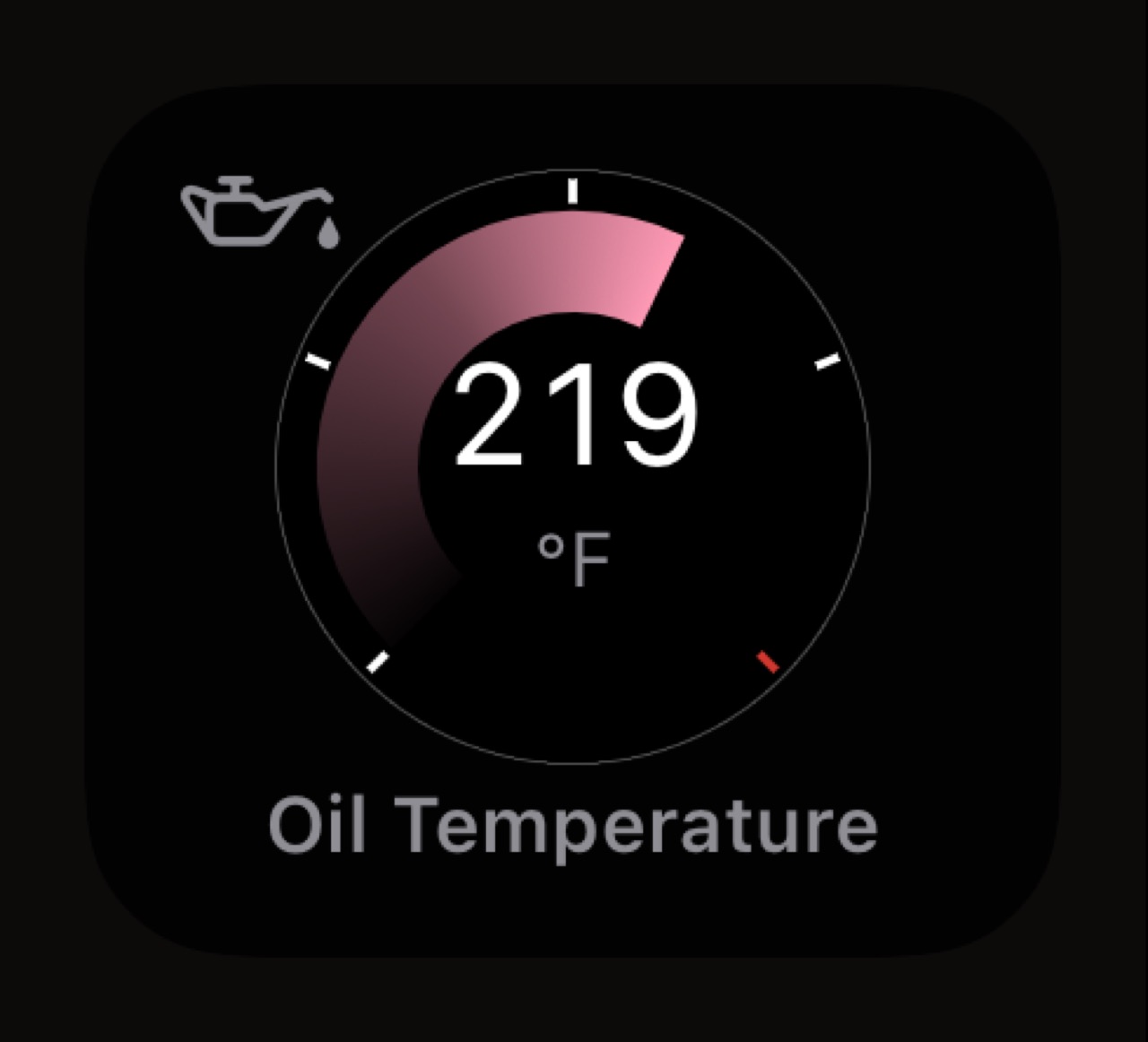
Rose 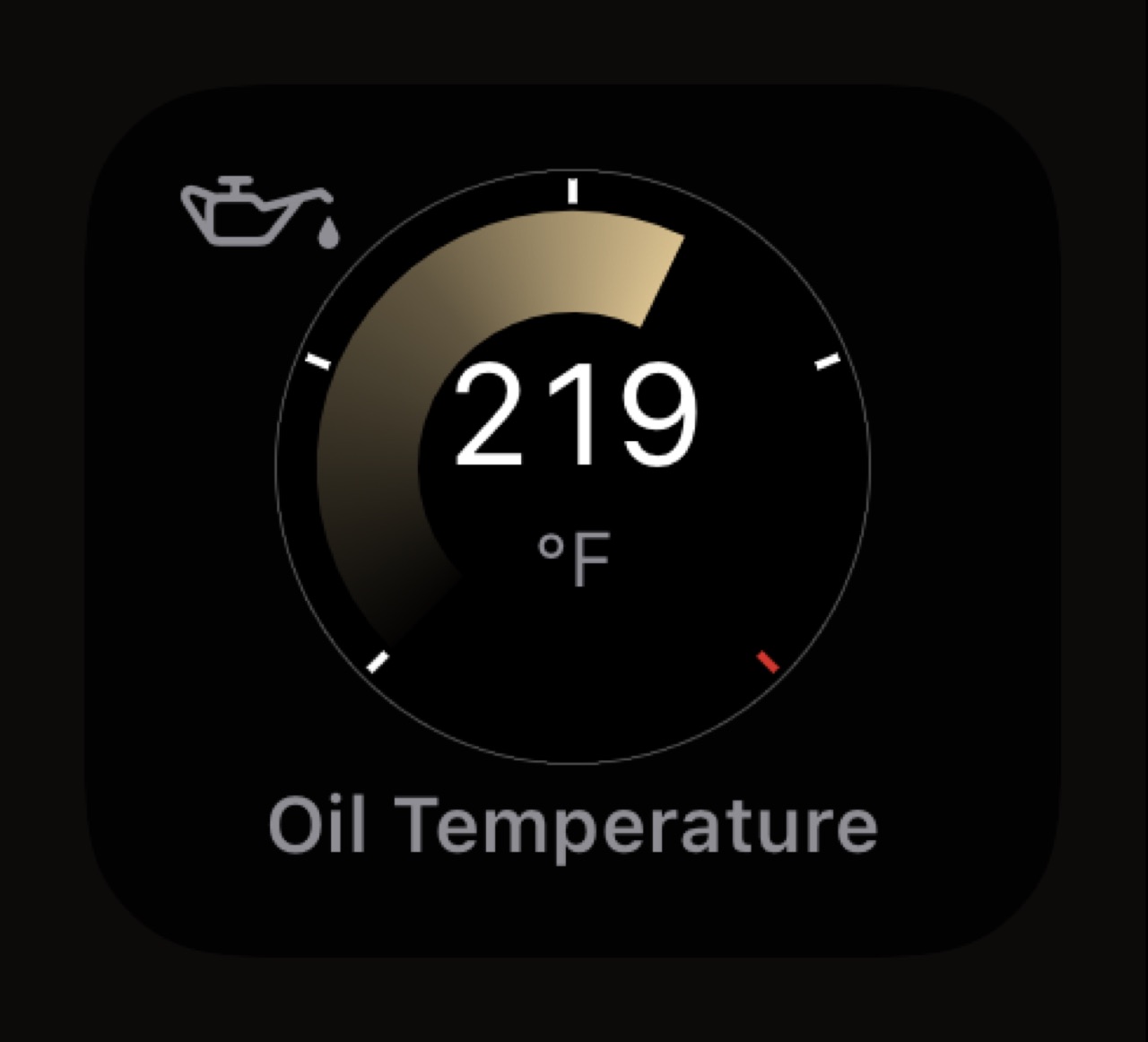
Sand 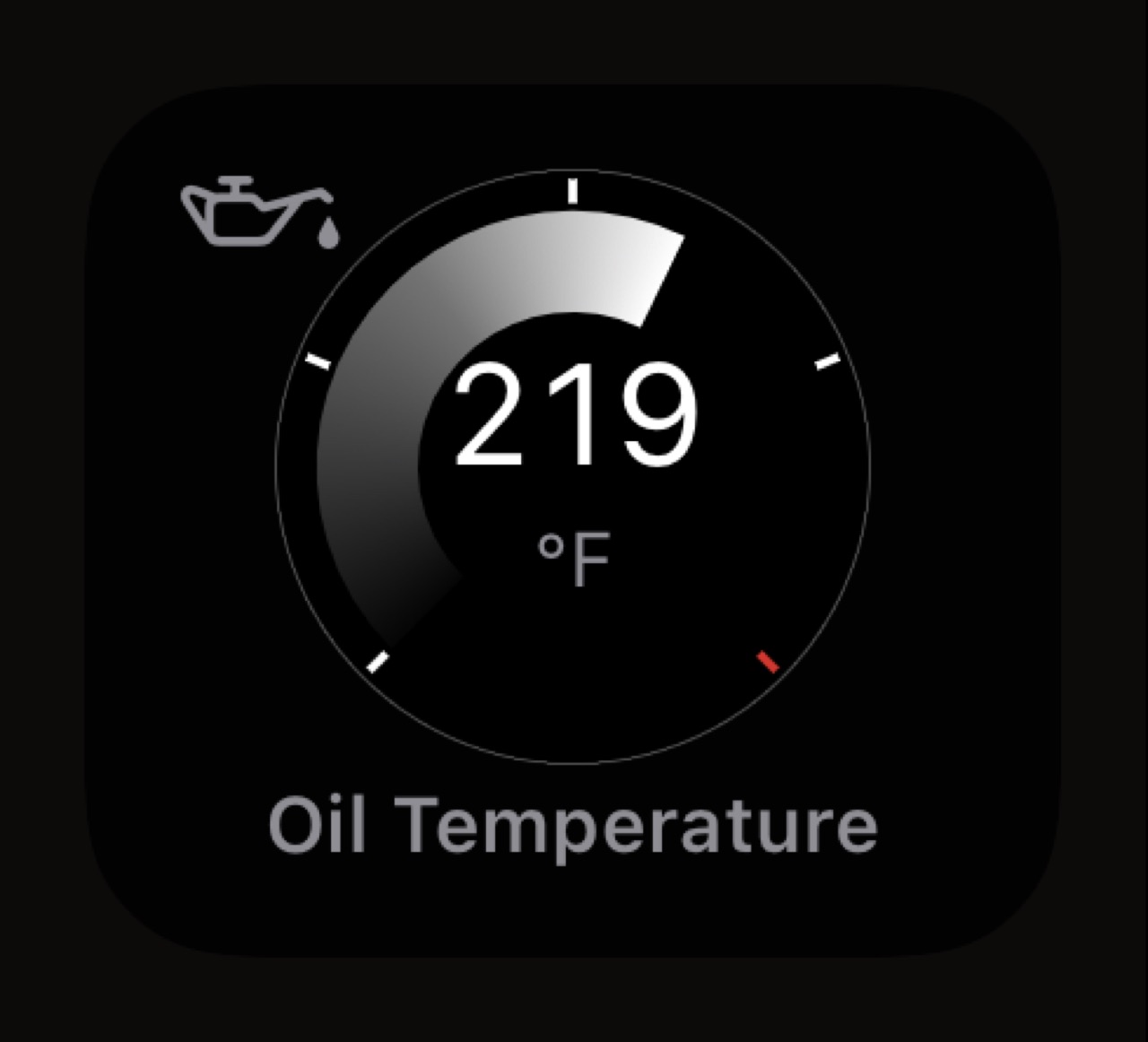
Pure White 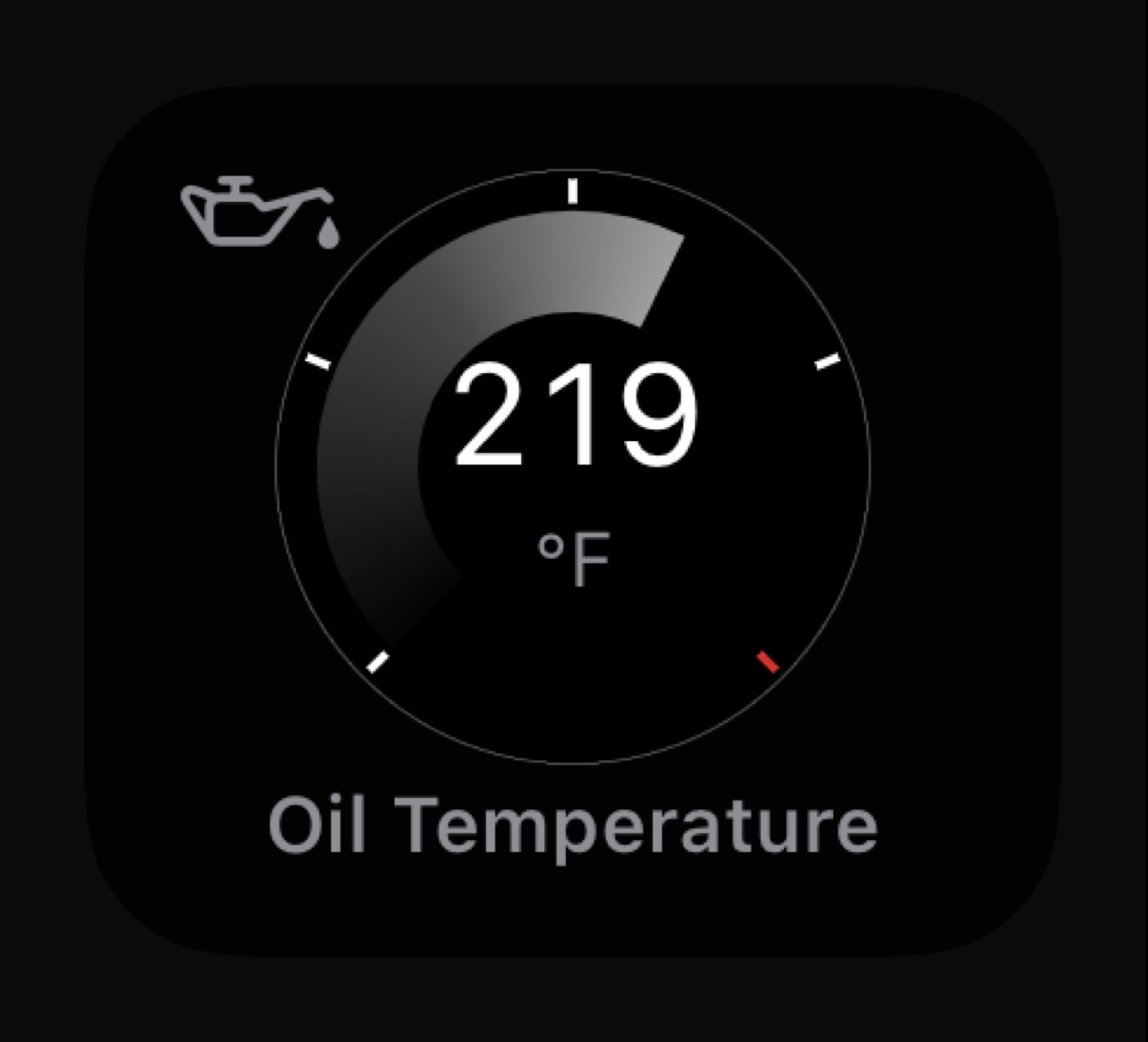
Titanium 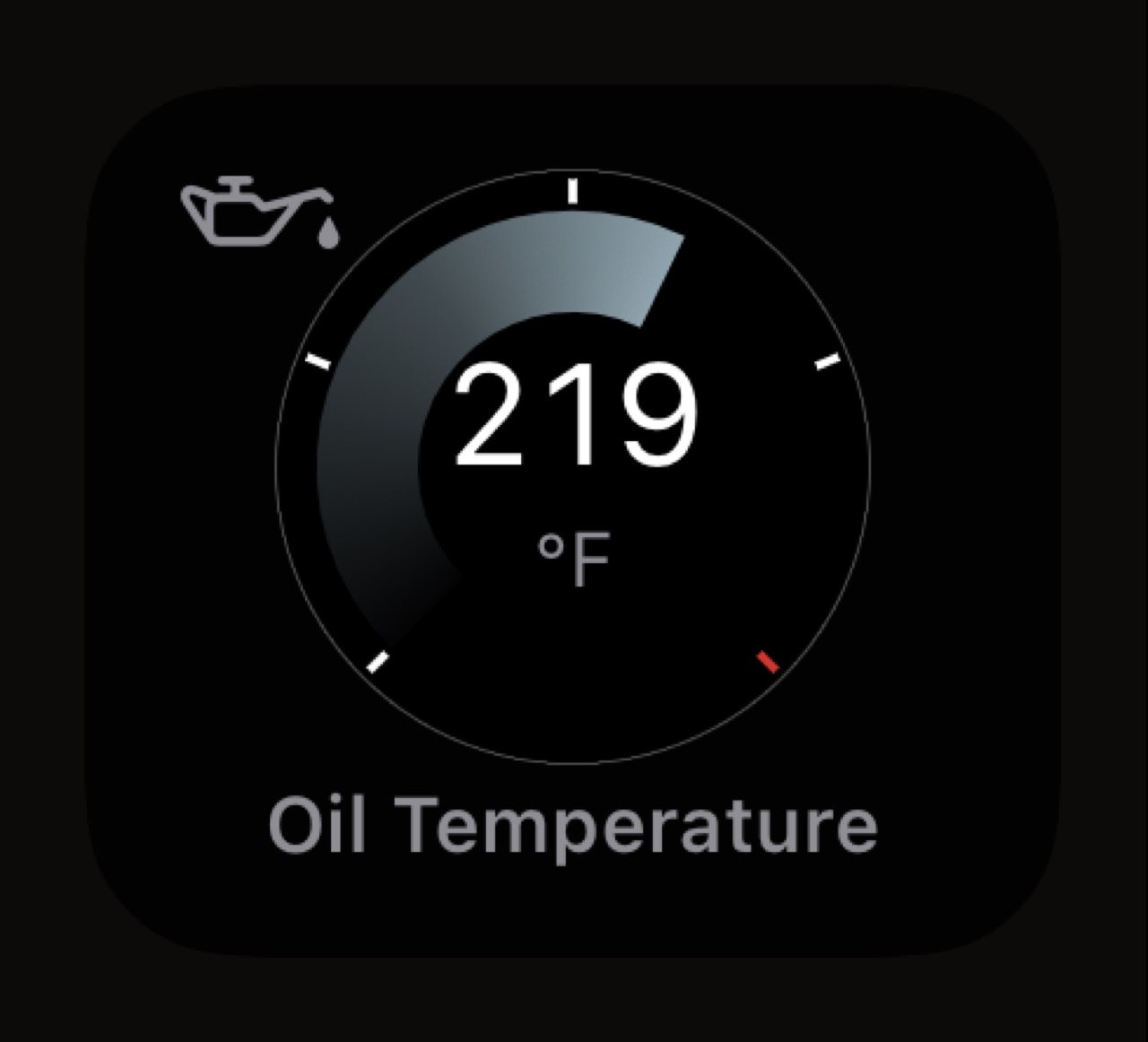
Graphite
How often does it update, and does it start by itself?
At most every two seconds while a trip records, on the trip's own location fixes, and iOS may update it less often to save battery. It starts with the trip, whether the trip was detected automatically, started from a Shortcut or started by hand. When iOS will not let an app in the background start a Live Activity, WrenchTime asks Apple's push service to start it, through a small relay that passes Apple a generic start and the trip's start time, no location, no vehicle and no record; the phone fills in the rest. Edits in Settings reach a running activity by themselves, and Restart Live Activity, under the panels, brings back one you swiped away.
Is the Live Activity free?
Yes. The Live Activity, every card, every shape and every OBD-II signal on it cost nothing, and it shows for every trip the free tier records, up to 10 a week. A colour other than the app colour and any gauge style other than Standard are part of WrenchTime Pro, and so is the heart-rate card.
How do I customise the Live Activity?
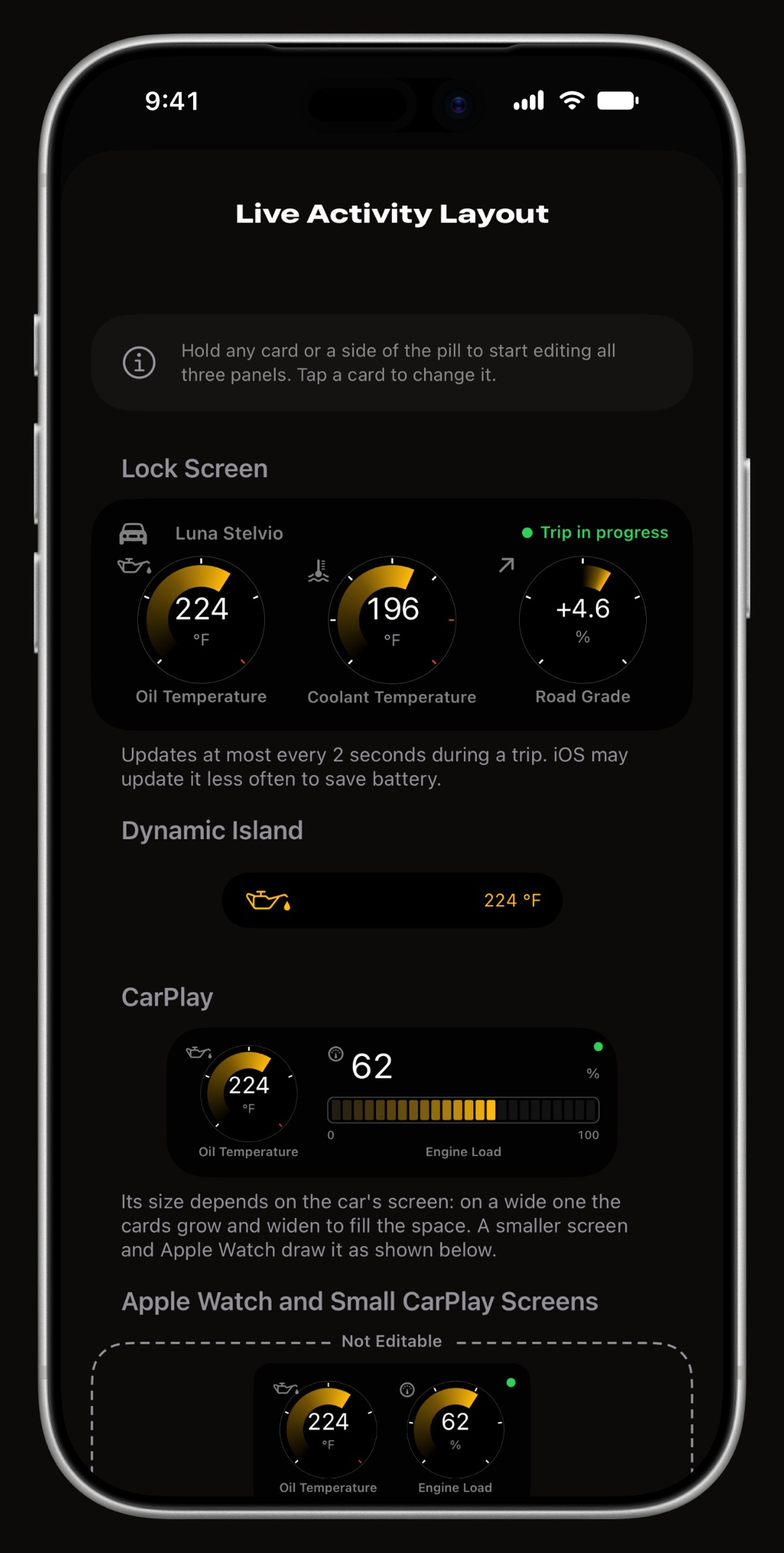
In Settings > Live Activity. With one vehicle the page is that vehicle's editor; with several, tap the vehicle first. The editor draws three panels from sample readings, Lock Screen, Dynamic Island and CarPlay, with the compact row for Apple Watch and small CarPlay screens previewed under CarPlay, and you edit them in place the way you edit the Home Screen.
- Hold a card and all three panels start to wiggle. Done, in the navigation bar, stops them.
- Tap a card, or a side of the pill to change what is there: the widgets that fit that slot, or a searchable list of the vehicle's signals.
- The shape badge moves a card to its next shape that still fits; the remove badge takes it off the row, and dragging a card swaps it with another.
- The + on the free units adds a card where the row still has room.
- Colour, Gauge Style and Background sit under the panels, and Restore Defaults puts that vehicle back to one trip card, the app colour and Standard gauges.
Frequently asked questions
Does the WrenchTime Live Activity need an OBD-II adapter?
No. Trip stats, speed, altitude, road grade, weather, outside temperature, range and the clock all come from the iPhone. An adapter adds a card for any reading the car reports, from revs to oil temperature.
Does the Live Activity show on CarPlay?
Yes. Since iOS 26 it appears on the CarPlay Dashboard beside the map, with a row of its own that you can edit separately in Settings > Live Activity.
Does it show on Apple Watch?
Yes. The Smart Stack on Apple Watch shows the compact row, with room for two cards.
Does the Live Activity drain the battery?
It adds little to the trip it belongs to. It is drawn from what the trip is already recording, at most every two seconds, and iOS may update it less often to save battery.
Does it work on a motorcycle?
Yes. A motorcycle gets its own row, colour and gauge style like any vehicle, drawn on a bike's scales.
Can I turn the Live Activity off?
Yes. Swipe it away on the Lock Screen to dismiss it for that trip, or turn off Live Activities for WrenchTime in the iPhone's Settings app. Summary Display set to Immediately removes it as soon as the trip ends.
Is the Live Activity free?
Yes. Every card, shape and OBD-II signal is free. A colour other than the app colour, a gauge style other than Standard and the heart-rate card are part of WrenchTime Pro.
Made for people who would rather know than guess.
Free to download. One vehicle, real features, no ads. Your garage will thank you.
Download WrenchTime on the App Store