Import · Fuelio · Drivvo · Fuelly · Spritmonitor
Switch from Fuelly, Drivvo, Fuelio or Spritmonitor and bring your history with you
WrenchTime imports the history you kept in Fuelly, Drivvo, Fuelio or Spritmonitor, so switching apps does not mean starting your car's log from zero. Export a CSV file from the old app, then in WrenchTime open Settings, Data & iCloud, Import from CSV, pick the vehicle the history belongs to and choose the file. Exports from those four apps are recognised by their own column headers; any other CSV, including a spreadsheet saved from Excel, Numbers or Google Sheets, goes through a column mapper where you say which column is which. Fill-ups, charging sessions, services and other running costs, and odometer readings come across, with the units and full-tank flags the file records and service names matched to WrenchTime's own maintenance procedures. Nothing is saved until you have checked a preview, entries you already have are skipped as duplicates, and every import carries a tag of its own, so Data Cleanup can remove it in one step. Trips are the one thing that cannot come across, because a spreadsheet row has no GPS route. The import is part of WrenchTime Pro, runs on your iPhone or iPad, and deletes nothing in the other app.
Which apps can WrenchTime import from?
Four are recognised automatically: Fuelly, Drivvo, Fuelio and Spritmonitor. WrenchTime identifies each one from the column headers of its own CSV export, so there is no format to choose, and it reads columns by name rather than by position, so an export with extra columns still imports. Any other file that can be saved as CSV, whether another app's export or a spreadsheet you kept yourself, goes through a column mapper instead. Each run brings one file into one vehicle already in your garage; run it again for another vehicle or another file.
- Fuelly both of its exports. The app's file can hold several vehicles, and the import asks which one to bring in; the fuelly.com export comes as a fuel-ups file and a services file for one vehicle, and each imports the same way.
- Drivvo one vehicle's refuellings, charging sessions, services and expenses from a single export, including one whose column headers are in a language other than English.
- Fuelio one vehicle per file: fill-ups and charging sessions from its log, services and other costs from its cost list, with the units the file states.
- Spritmonitor the website's export, a fuellings file and a costs file per vehicle, with headers in German or English.
- Anything else any CSV with a header row, from another app or a spreadsheet, matched column by column in the mapper.
How do I export my data from Fuelly, Drivvo, Fuelio or Spritmonitor?
Each app writes its own CSV file, and that file is all WrenchTime needs. Save it where the Files app can reach it, such as iCloud Drive, or save the attachment when an app emails the export to you, then choose it in Import from CSV. Where each app keeps its export, according to its own help pages:
- Fuelly in the app, Export Data in the Settings menu emails you one CSV holding every vehicle. On fuelly.com, a vehicle's page has an Export Fuel-ups link below its log book.
- Drivvo the export icon at the top of the History screen saves a CSV.
- Fuelio Settings, Backup, Export CSV. A Fuelio backup in Dropbox or Google Drive also keeps CSV files in a backup-csv folder, which helps when the old phone was an Android one.
- Spritmonitor the export is on the spritmonitor.de website and gives each vehicle a fuellings file and a costs file. Import both into the same vehicle.
- If a menu has moved look for Export, Backup or CSV in the app's settings or on its website. A CSV about the vehicle is what you want; a PDF or Excel report will not import.
What comes across in an import, and what does not?
The vehicle's recorded history comes across. Trips do not, because a spreadsheet row has no GPS route to draw and no drive to replay, so the trip log starts with the first drive WrenchTime records. Care entries arrive as history, completed on their own date, so an import never fills the Care tab with reminders or recurring series you did not set up.
- Fill-ups date, odometer, quantity, cost, unit price, fuel type and notes, plus the full-tank and missed fill-up flags where the other app records them. The station becomes the fill-up's location when the file carries its coordinates, and goes into the notes when it does not.
- Charging sessions energy, cost and, where recorded, the battery level before and after, from exports that tell electricity apart from fuel (Drivvo, Fuelio, Spritmonitor) or from a spreadsheet you map as charging sessions.
- Care entries services and repairs, and running costs such as parking, tolls, fines, road tax, insurance and loan payments, each matched to a maintenance procedure or kept under its own name.
- Odometer readings entries that record only the mileage, which join the vehicle's odometer history.
- AdBlue logged as a fuel in another app, it comes in as a care entry, so it does not distort your fuel economy.
- Left out, and listed templates, reminders, refunds and rows that cannot be read. The preview names every one with its reason and its line number in the file.
How are my service records matched to WrenchTime's maintenance procedures?
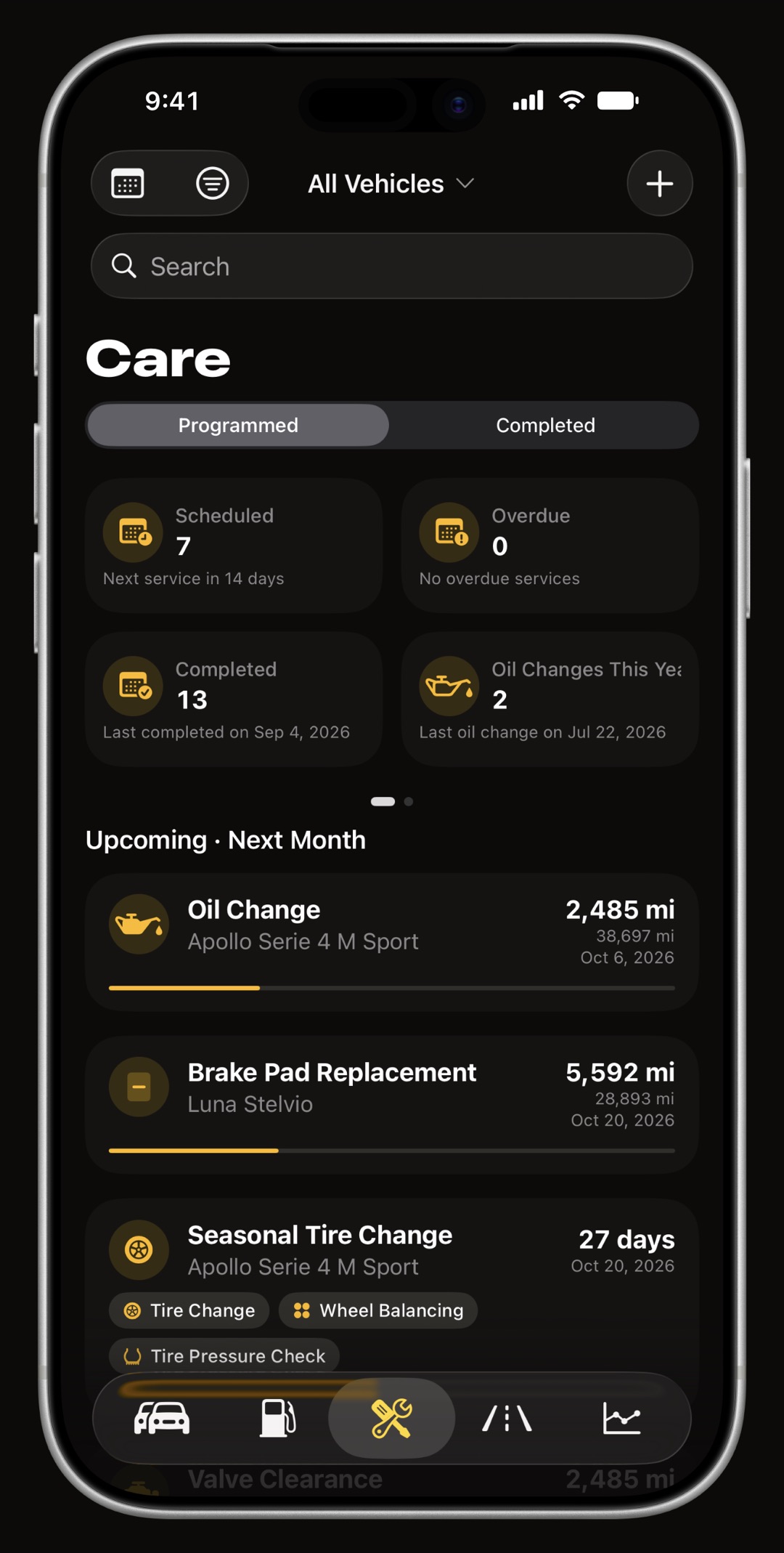
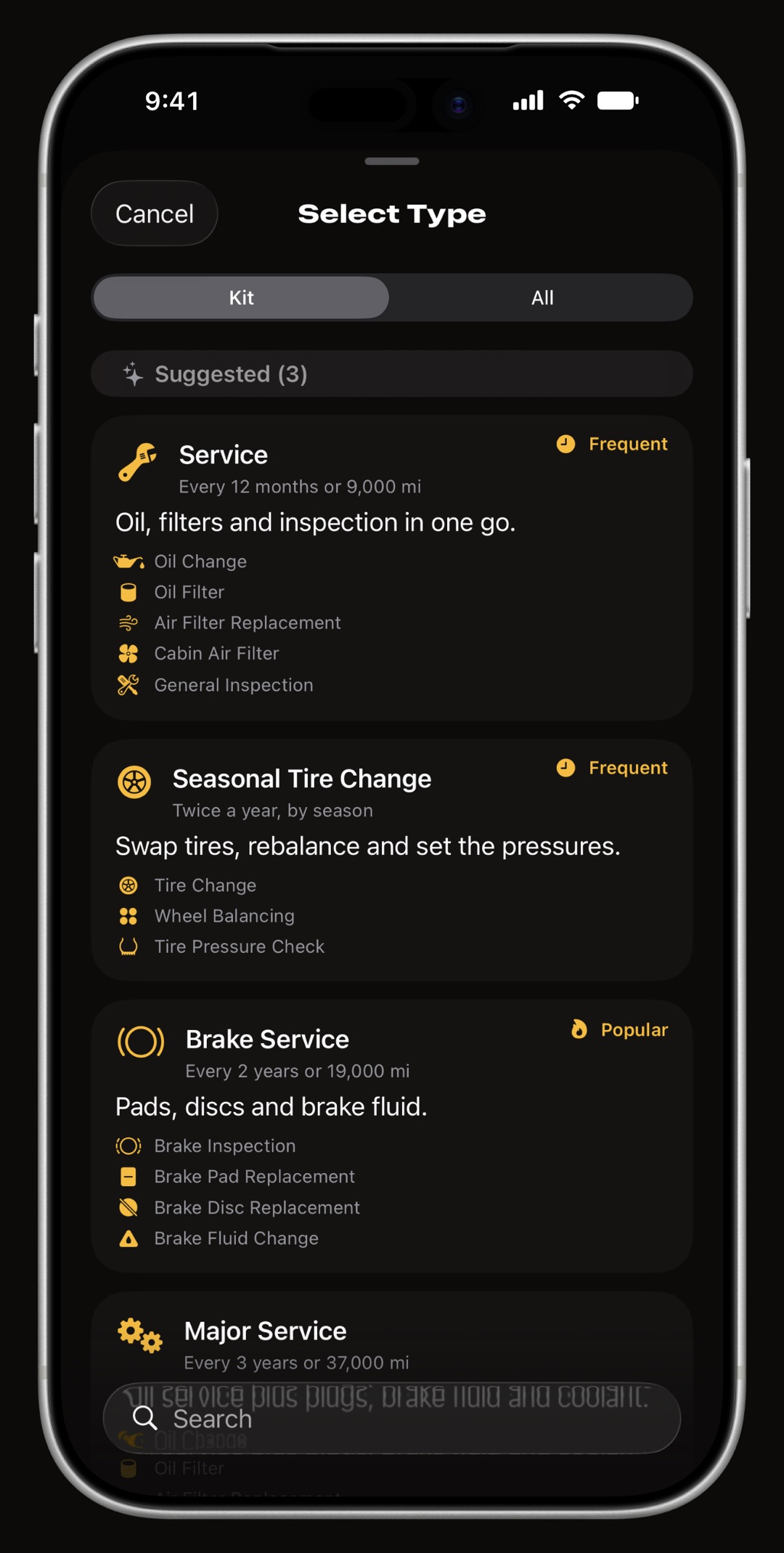
In three passes, and never by guessing. A keyword table in several languages settles the obvious names first, so Oil change, Cambio olio and Ölwechsel all land on the oil change procedure. On a device with Apple Intelligence, Apple's on-device model then suggests a procedure for the names the table left open, and its suggestions are marked as such. Last, a review screen lists each distinct service name once, with how many entries carry it, and for each one you pick one of WrenchTime's 56 maintenance procedures, keep the file's own name as a custom entry, or choose Don't Import. A name nothing matched stays a custom-named entry rather than being forced into the wrong procedure, and no pass ever suggests a procedure the vehicle cannot have, such as an oil change on an electric car.
- Running costs have their own procedures parking, tolls, fines, road tax, insurance and loan payments each map to a procedure of their own rather than to a generic expense.
- Money that is not a running cost a refund, fuel already paid through a cost entry, a shop purchase at the station or the car's purchase price is set to Don't Import, and you can change any row before continuing.
What happens to miles, gallons and a different currency?
Units are read from the file wherever it states them and asked for where it does not, and every figure is then converted like any other entry, so a history logged in miles and US gallons reads correctly in kilometres and litres, and the reverse. Amounts come in as written; for a history kept in another currency, enter a conversion rate and every amount is multiplied by it.
- Stated in the file Fuelio, Drivvo and Fuelly exports say which distance and volume units they use.
- Asked in the preview Spritmonitor's export carries no units at all, so the preview asks which ones your account was set to.
- Two gallons when Fuelly writes gallons it does not say which, so they are taken as US gallons and the preview asks you to confirm. A British history in imperial gallons is put right there, before anything is saved.
- Dates and decimals when every date in the file could be read more than one way, the import asks which order the other app wrote them in. Numbers are read with a decimal point or a decimal comma, with or without a currency symbol.
- Currency there is no live exchange-rate lookup: the rate you enter is the one applied, and the preview shows what an amount in the file becomes before you import.
Will importing create duplicate entries?
No. Before anything is saved, every row is compared with what the vehicle already holds, and a row with the same day and the same odometer, volume, energy, procedure, service name or reading as an existing entry is skipped as a duplicate and listed next to the entry it matches. Importing the same file twice adds nothing the second time, and a later export of the same log brings in only the rows that are new since. The preview shows every entry as it will be saved, in your own units and currency, as counts per record type that open into the individual rows, and lists every row left out with its reason and its line number in the file.
Can I undo an import?
Yes, in one step. Every import gets a tag of its own, named after the source app and the day, such as Imported from Fuelly followed by the date, and numbered if that name is already taken. Every entry the import added carries that tag, so you can check what came in, and in Settings, Data & iCloud, Data Cleanup, picking that tag deletes exactly the entries of that import and leaves everything you logged yourself. The one thing an undo leaves alone is the vehicle's odometer, which you set by hand from the vehicle's page if it needs to go back; the app says so when the import finishes.
What happens to my odometer when I import?
It can only go up. When the file holds a reading higher than the vehicle's current odometer, the odometer is raised to that highest reading, and the preview says from what to what before you confirm. An import never lowers it, so an old export cannot roll the car back to last year's mileage. Undoing an import does not lower it either; correct it by hand from the vehicle's page if you need to.
Can I import an Excel, Numbers or Google Sheets spreadsheet?
Yes, once it is saved as CSV. The import reads text files, not workbooks, so an .xlsx or .numbers file is not read; Excel, Numbers and Google Sheets can all save or download a sheet as CSV. A CSV that does not come from one of the four recognised apps opens a column mapper, where you say what each row is and which column holds what.
- One kind of row per import a fill-up, a charging session, a care entry or an odometer reading. A workbook with fill-ups on one sheet and services on another becomes two CSV files and two imports.
- The columns date, odometer, volume or energy, total cost, unit price, full tank, fuel type, station, notes, service and category, among others. A fill-up needs a date and either the volume or the total cost; a care entry needs a date and either the service or its category.
- Prefilled for you on a device with Apple Intelligence the mapper arrives filled in by Apple's on-device model, and elsewhere by matching the column names; either way you check it before continuing.
- Any layout comma, semicolon or tab separated, with extra columns in any order. Columns are matched by their header, so a header row is the one thing the file must have.
Is importing free, or does it need WrenchTime Pro?
Import from CSV is part of WrenchTime Pro; on the free tier, the row in Settings opens the Pro offer instead. Pro is a monthly or yearly subscription with a free trial, or a one-time lifetime purchase. The way out stays free: CSV and PDF export of your vehicles is on the free tier, so a history you bring in can always leave again as a file.
Where does my data go during an import?
Nowhere but your own device. The file is read and converted on the iPhone or iPad; there is no WrenchTime server to upload it to and no account to create, and Apple Intelligence, where it helps with service names and columns, runs on the device too. From then on the imported entries are ordinary WrenchTime entries, synced through your own private iCloud when iCloud Sync is on. Nothing is deleted or changed in the other app: the import reads a copy of your data, so the old app keeps its history until you decide otherwise.
What can I do with my history once it is in WrenchTime?
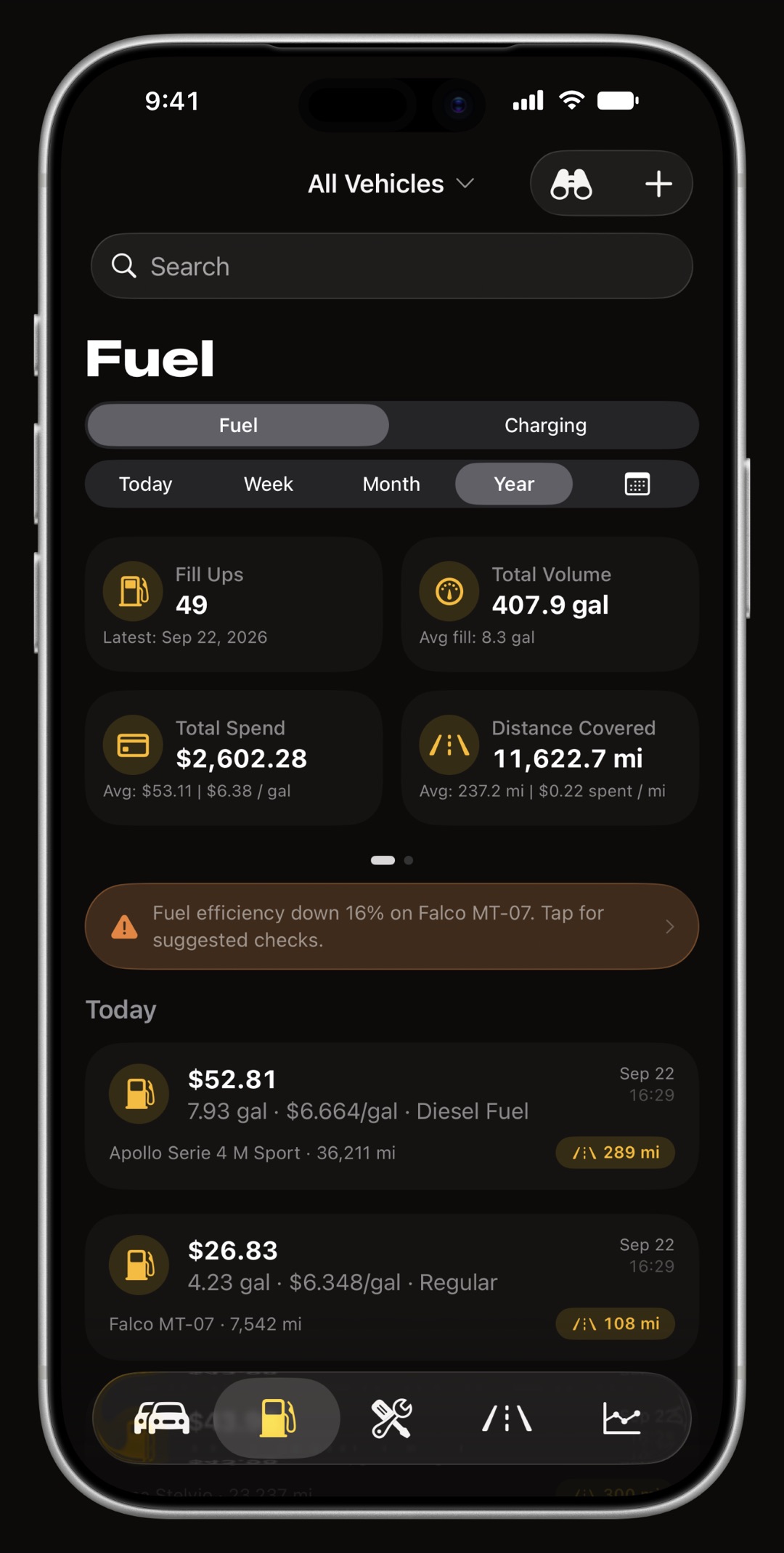
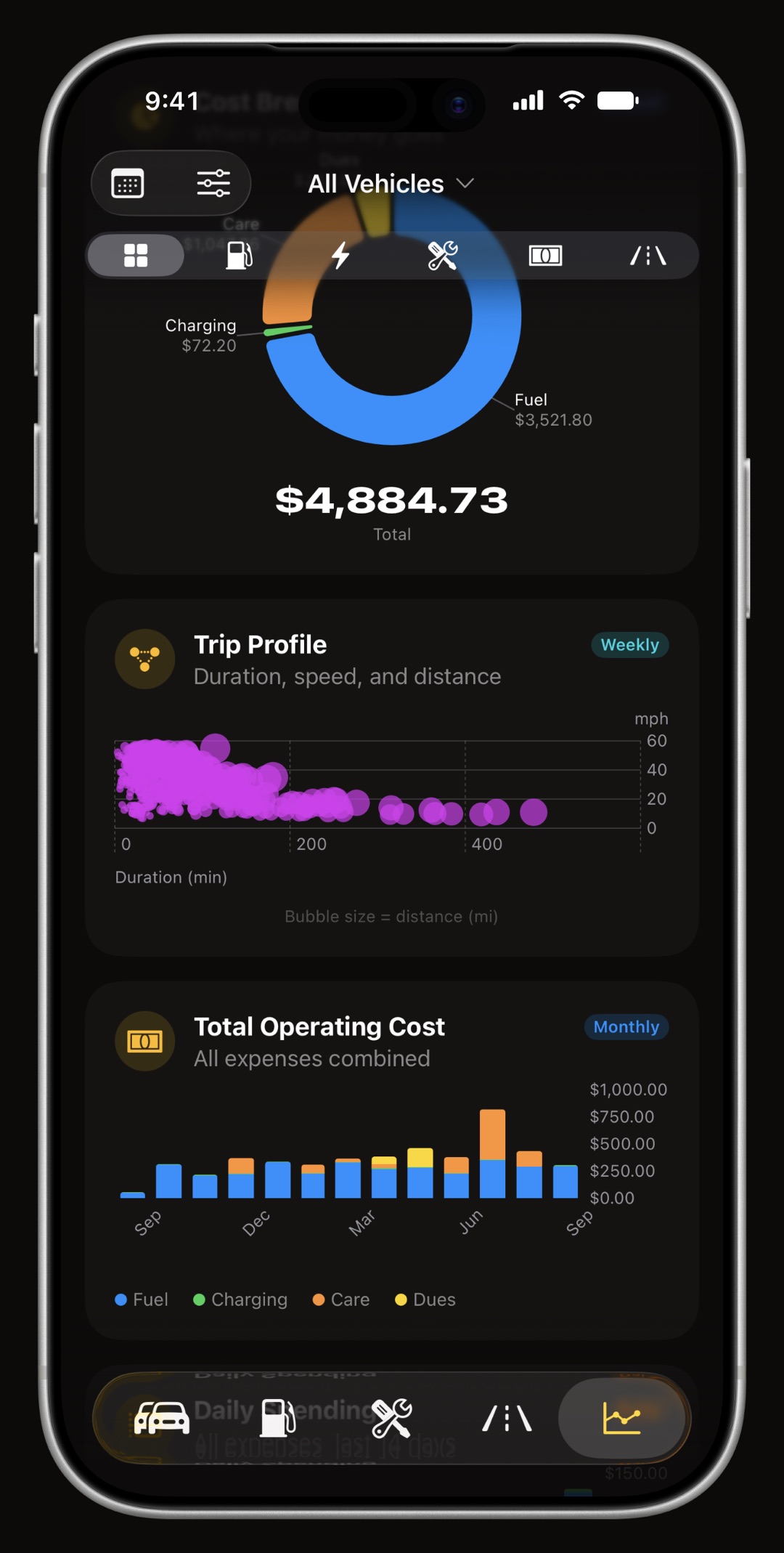
Everything WrenchTime does with an entry logged by hand, because an imported entry is exactly that. Fill-ups with their full-tank flags feed tank-to-tank fuel economy and the 31 charts, and the care history sits beside the reminders you schedule, by date or by odometer, for what comes next. From there, trips can record themselves when the phone connects to the car's Bluetooth, a Bluetooth OBD-II adapter adds live engine data, and a car with more than one driver can be shared with the family so everyone logs into the same history.
Frequently asked questions
Can I import my Fuelly data into WrenchTime?
Yes. WrenchTime recognises both Fuelly exports: the app's CSV, which can hold several vehicles and asks which one to bring in, and the fuelly.com export, which comes as a fuel-ups file and a services file. Fill-ups keep their full-tank and missed fill-up flags, services are matched to WrenchTime's maintenance procedures, and Fuelly's gallons are taken as US gallons with a prompt to confirm. The import is in Settings, Data & iCloud, Import from CSV, and is part of WrenchTime Pro.
Can I import my Drivvo data into WrenchTime?
Yes. Export a CSV from the History screen in Drivvo and choose it in Settings, Data & iCloud, Import from CSV. That vehicle's refuellings, charging sessions, services and expenses come across together, even when Drivvo wrote its column headers in a language other than English. The import is part of WrenchTime Pro.
Can I import my Fuelio data into WrenchTime?
Yes. Use Export CSV under Settings, Backup in Fuelio, then choose the file in Settings, Data & iCloud, Import from CSV. Fill-ups, charging sessions and costs come across with the units the file states and with their full-tank and missed fill-up flags, so fuel economy stays right. Each Fuelio file holds one vehicle. The import is part of WrenchTime Pro.
Can I import my Spritmonitor data into WrenchTime?
Yes. Spritmonitor's website exports a fuellings file and a costs file for each vehicle; import both into the same WrenchTime vehicle. The files carry no units, so the preview asks for the ones your Spritmonitor account uses. Full-tank flags come across, and AdBlue logged as a fuel arrives as a care entry. The import is part of WrenchTime Pro.
Can I import trips from another app?
No. A CSV row has no GPS route, so trips cannot be imported. Fill-ups, charging sessions, care entries and odometer readings can, and WrenchTime records new trips on its own once trip detection is set up.
Can I import an Excel spreadsheet into WrenchTime?
Yes, after saving it as CSV: WrenchTime does not read .xlsx or .numbers files directly. The CSV opens a column mapper where you say what each row is and which column holds the date, the odometer, the quantity and the cost, prefilled by Apple Intelligence on devices that have it.
Does importing delete anything in my old app?
No. WrenchTime reads a CSV file you exported, so the other app and its data are untouched. You can keep both while you decide, and import a later export again: entries already in WrenchTime are skipped as duplicates.
Can I undo an import?
Yes. Every import tags its entries with a tag of its own, such as Imported from Drivvo followed by the date. In Settings, Data & iCloud, Data Cleanup, pick that tag to delete exactly that import. The vehicle's odometer is not rolled back; adjust it by hand if it needs to go back.
Is importing into WrenchTime free?
No. Import from CSV is part of WrenchTime Pro, which is a monthly or yearly subscription with a free trial, or a one-time lifetime purchase. Exporting your data to CSV and PDF is on the free tier.
Made for people who would rather know than guess.
Free to download. One vehicle, real features, no ads. Your garage will thank you.
Download WrenchTime on the App Store