Tutorial · Custom PIDs
How to add custom OBD-II PIDs in WrenchTime
You rarely need to type a custom PID in WrenchTime: the Community Catalogue already has them, ready to test on your car. Connect your adapter from Vehicle Tools, open Signals, tap the three dots in the top right corner and choose Import from Catalogue. Tap Start Full Scan and wait: every signal your car answers is marked Responds, with its value. Tick the ones you want and tap Import. They join your Signals list as custom signals, ready for CarPlay, the Live dashboard and your trips. Custom signals are part of WrenchTime Pro.
What do I need before I start?
Four things, and the first two take a minute if you have not set them up yet:
- An OBD-II adapter paired with the vehicle. If you have not done it yet, follow how to connect an OBD-II adapter first. The guide on which adapters work with an iPhone helps you pick one.
- WrenchTime Pro. Adding, importing and saving custom signals are part of Pro. Opening Signals and testing the built-in readings are free.
- The engine running. Some control units only answer with the engine on, so a test with the ignition alone can miss them. Park somewhere safe and stay parked: testing is paused while a trip is being recorded.
- The model year on the vehicle. It is optional, but with it the catalogue marks which signals are verified for your year. You set it in the vehicle's edit form.
Open Vehicle Tools and connect the adapter
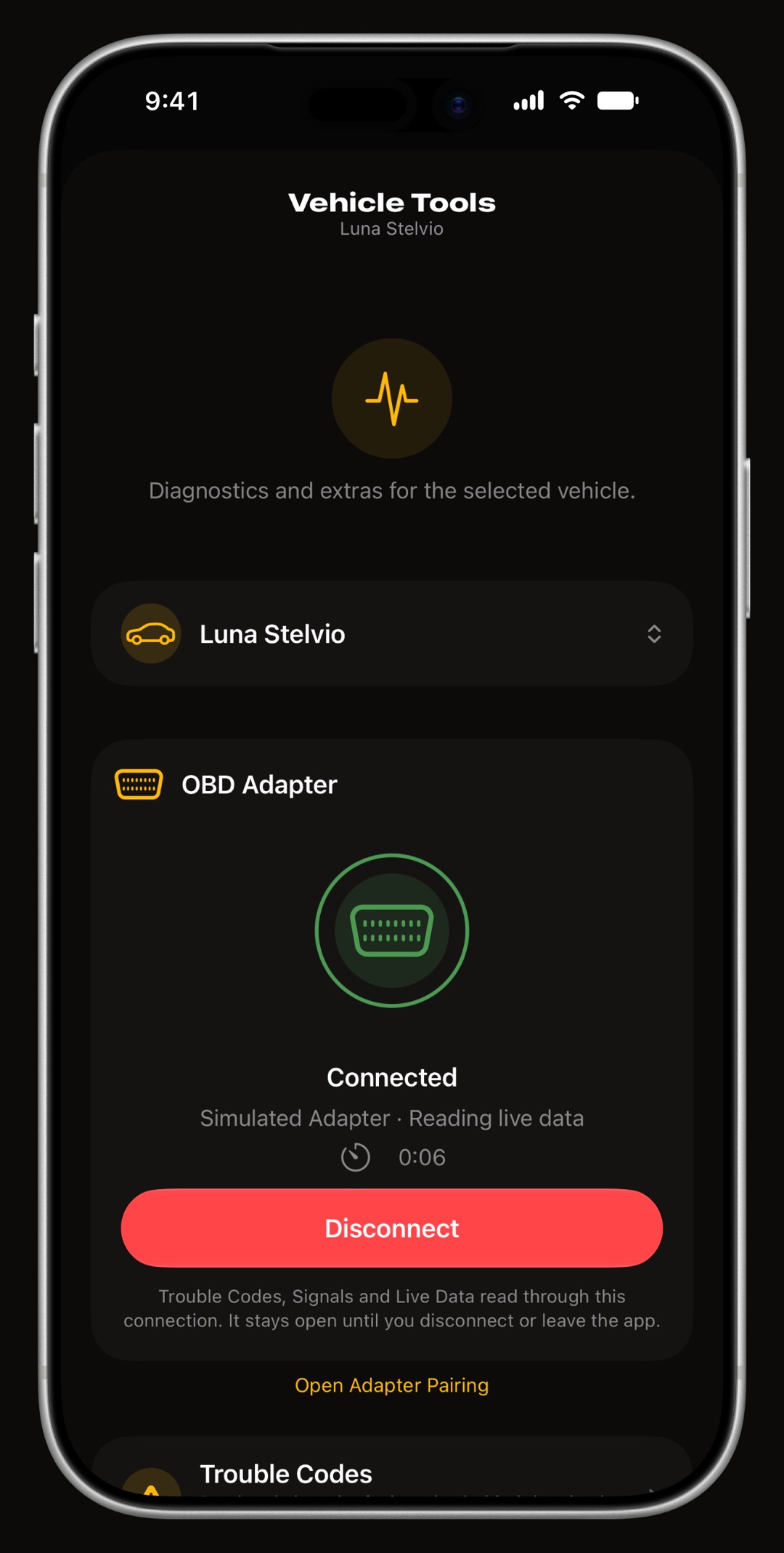
Open the Vehicles tab and tap the round button with a heartbeat line in the bottom right corner: that is Vehicle Tools, for the vehicle on screen. At the top of the page, the OBD Adapter card shows the adapter paired with this car. Tap Connect and wait until the card reads Connected. The connection stays open while you work, until you tap Disconnect or leave the app.
- The card says No Adapter Paired? tap Pair Adapter and pair it first.
- The wrong car? with more than one vehicle, pick the right one from the vehicle row at the top of the page.
Open Signals
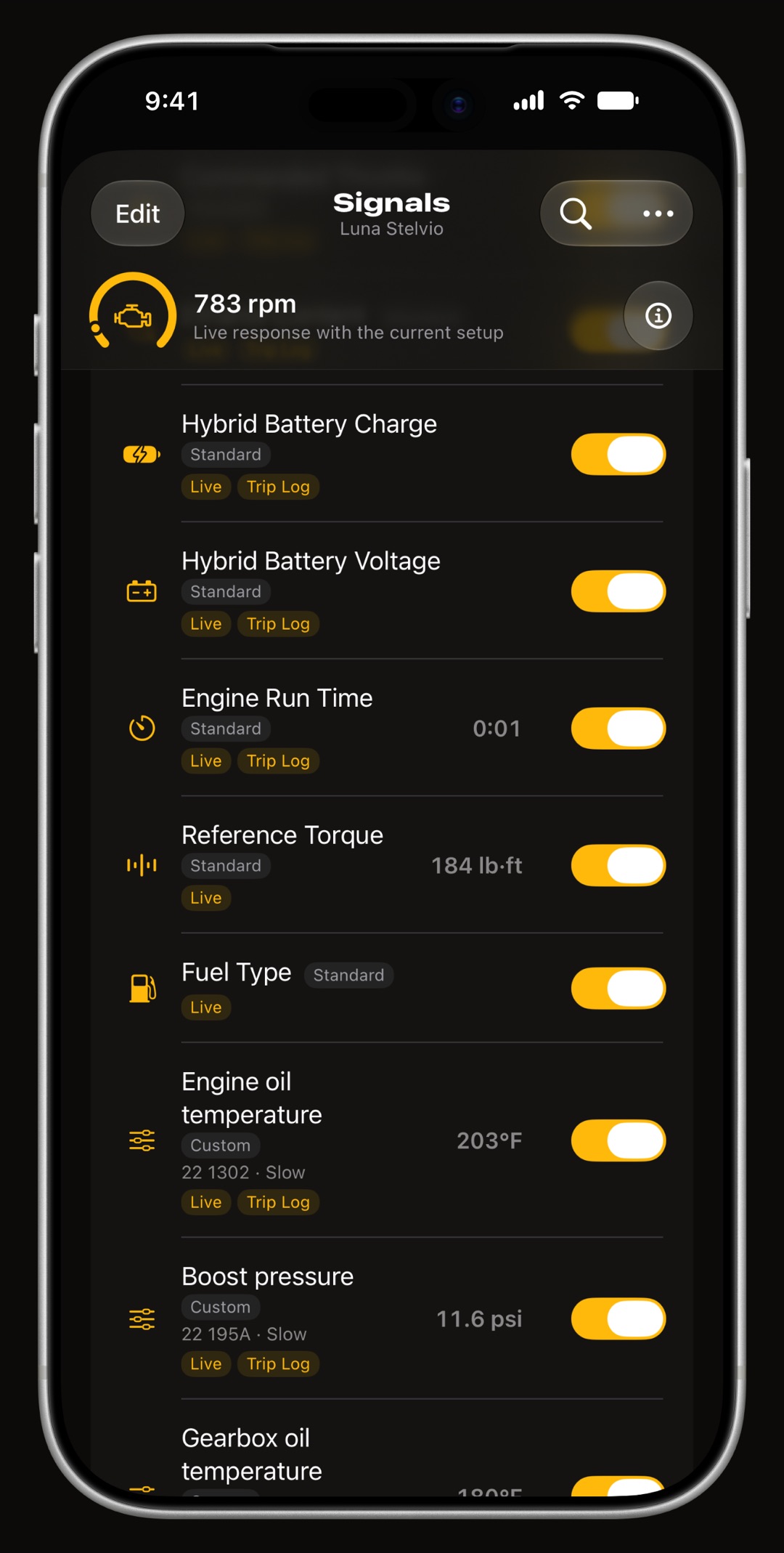
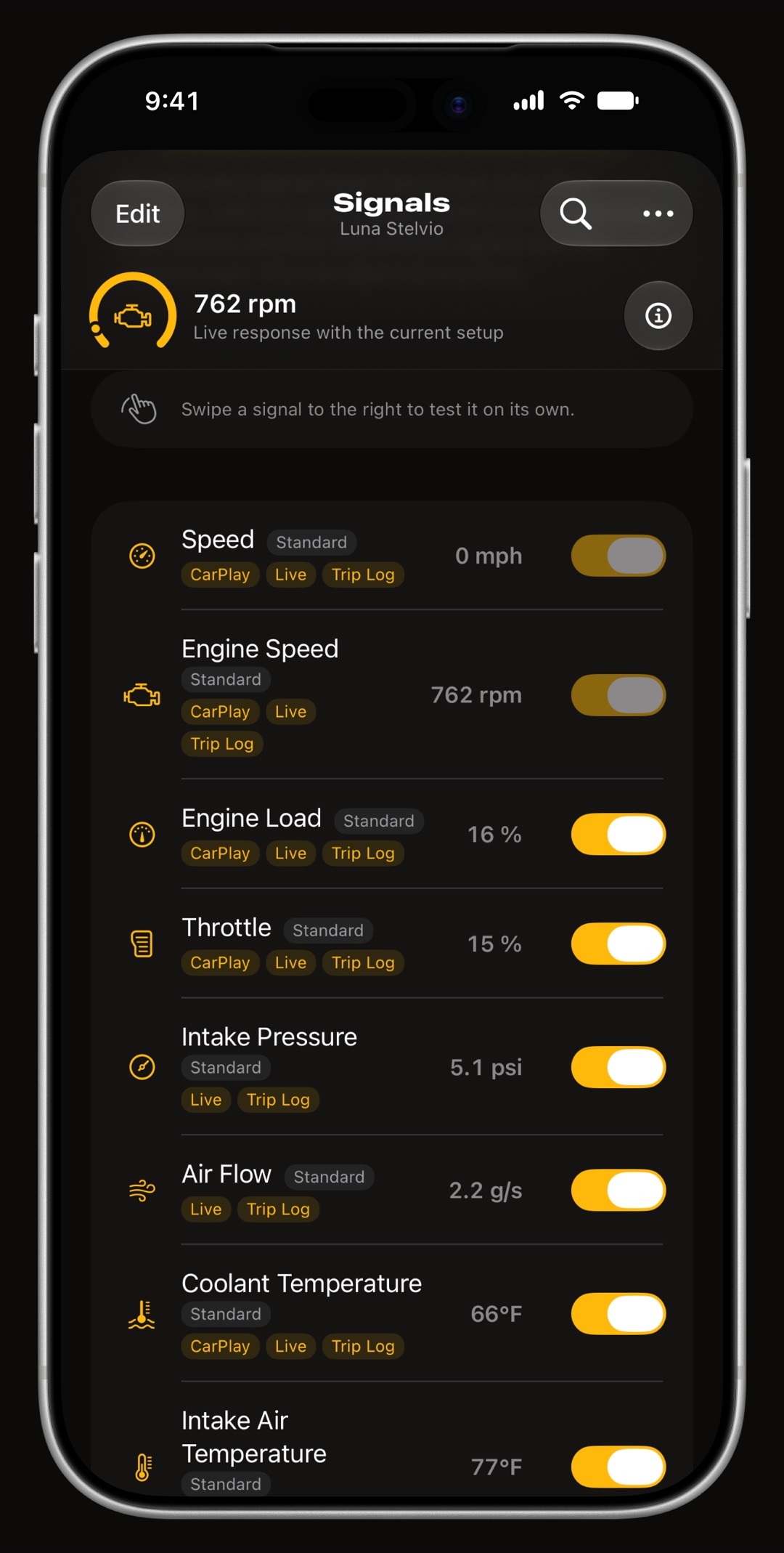
In Vehicle Tools, tap Signals. This list holds every reading the app can take from this vehicle: the built-in ones, marked Standard, and later your own, marked Custom. While the adapter is connected, each row shows its live value. You add custom signals from the button with three dots in the top right corner, which opens a short menu:
- Import from Catalogue the readings the community has already mapped for your car. Start here.
- New Custom Signal write one yourself, if you already know the request and the formula.
- Paste Link add a signal someone sent you as a link.
Open the Community Catalogue
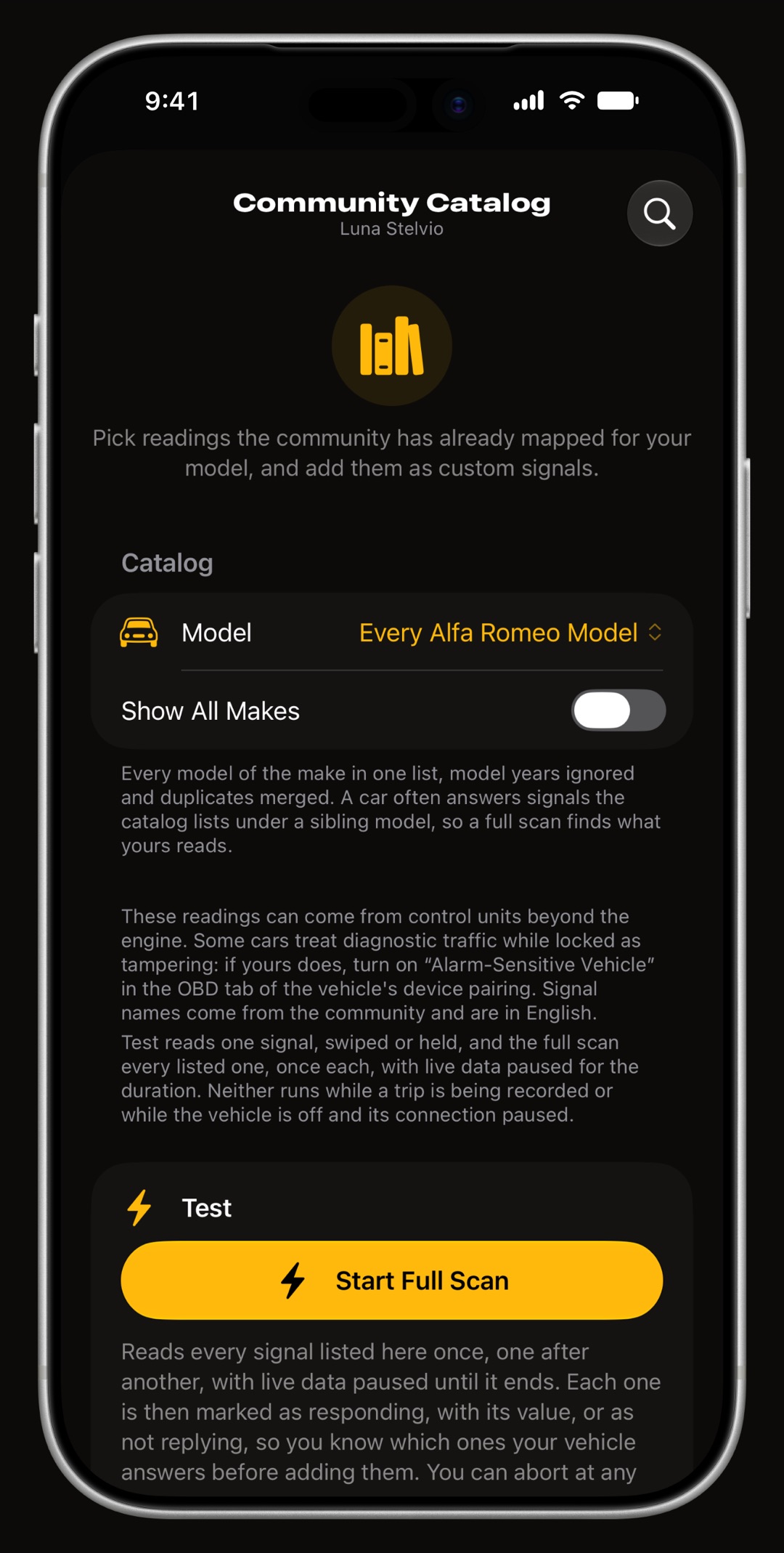
Tap the three dots, then Import from Catalogue. The Community Catalogue opens on Every … Model, with your car's make in place of the dots, marked Recommended: every model of the make in one list, with the signals written for your own model first. Keep it that way. A car often answers signals that the catalogue lists under a sibling model, and the scan in the next step finds them. The list brings together three collections:
- WrenchTime the WrenchTime Signal Library, our own collections, built into the app, so it works offline too.
- OBDb the open community catalogue, downloaded and kept on your iPhone.
- WiCAN vehicle profiles from the WiCAN project, shown where OBDb has nothing for your model.
Run a full scan to see what your car answers
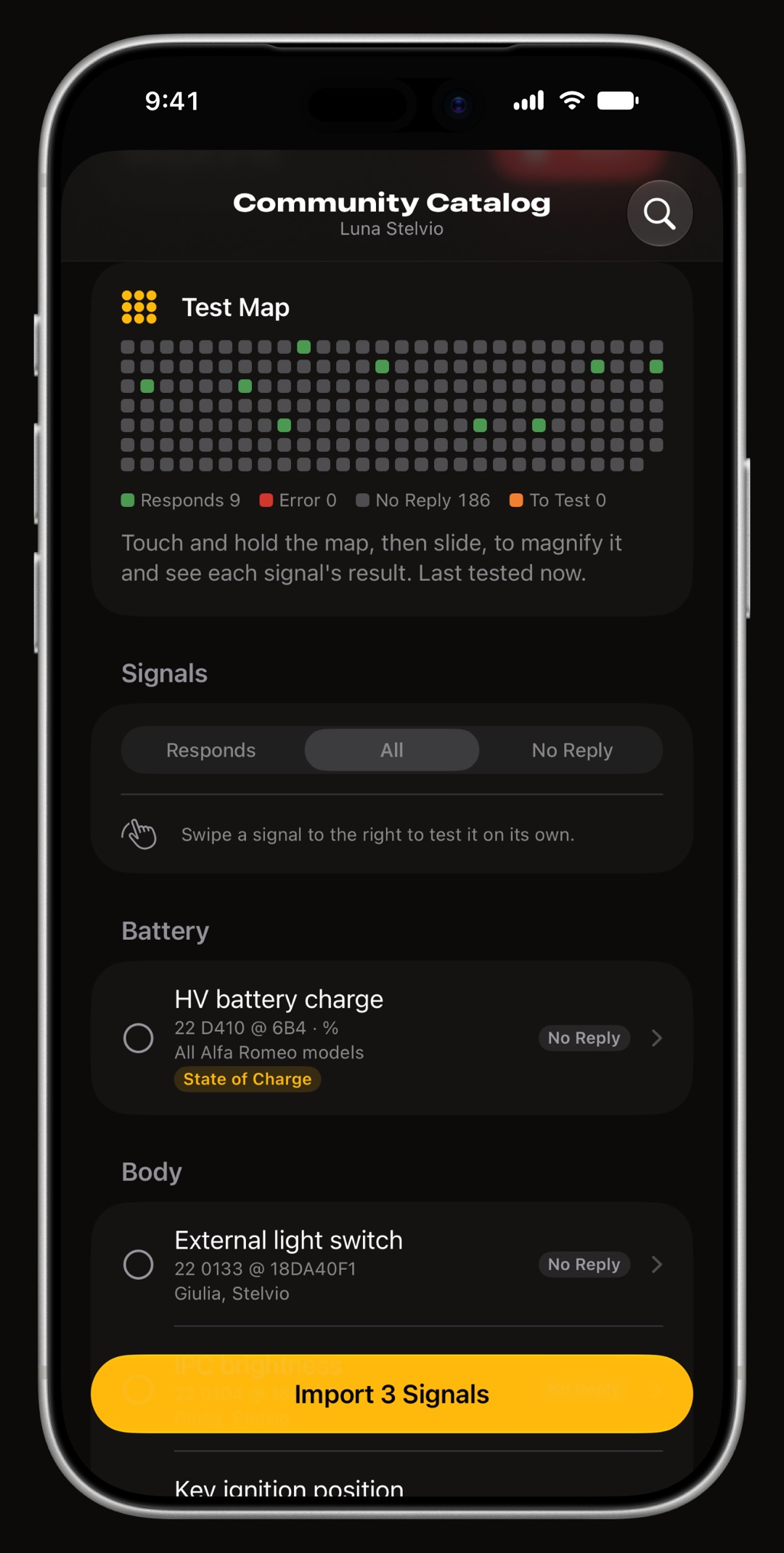
In the Test card, tap Start Full Scan. The app asks your car for every signal on the list, once each, and skips a control unit that does not answer at all, which keeps the scan short. Live data pauses until it ends, and you can tap Abort at any time. When it finishes, the list shows only the signals your car Responds to, each with the value it read. The Show control switches to All or No Reply. What each mark means:
- Responds (green) your car answered, and the value is next to it. Check that it looks right: an oil temperature should read like one.
- No Reply (grey) your car did not answer this one. Leave it out.
- Error (red) the answer came back but could not be read, with the reason.
- The Test Map one dot per signal, in list order. Tap a dot to jump to its signal. Results are kept on this iPhone for this vehicle, so you can come back later.
- Just one signal? swipe it to the right, or hold it, and tap Test.
Tick the signals you want and import them
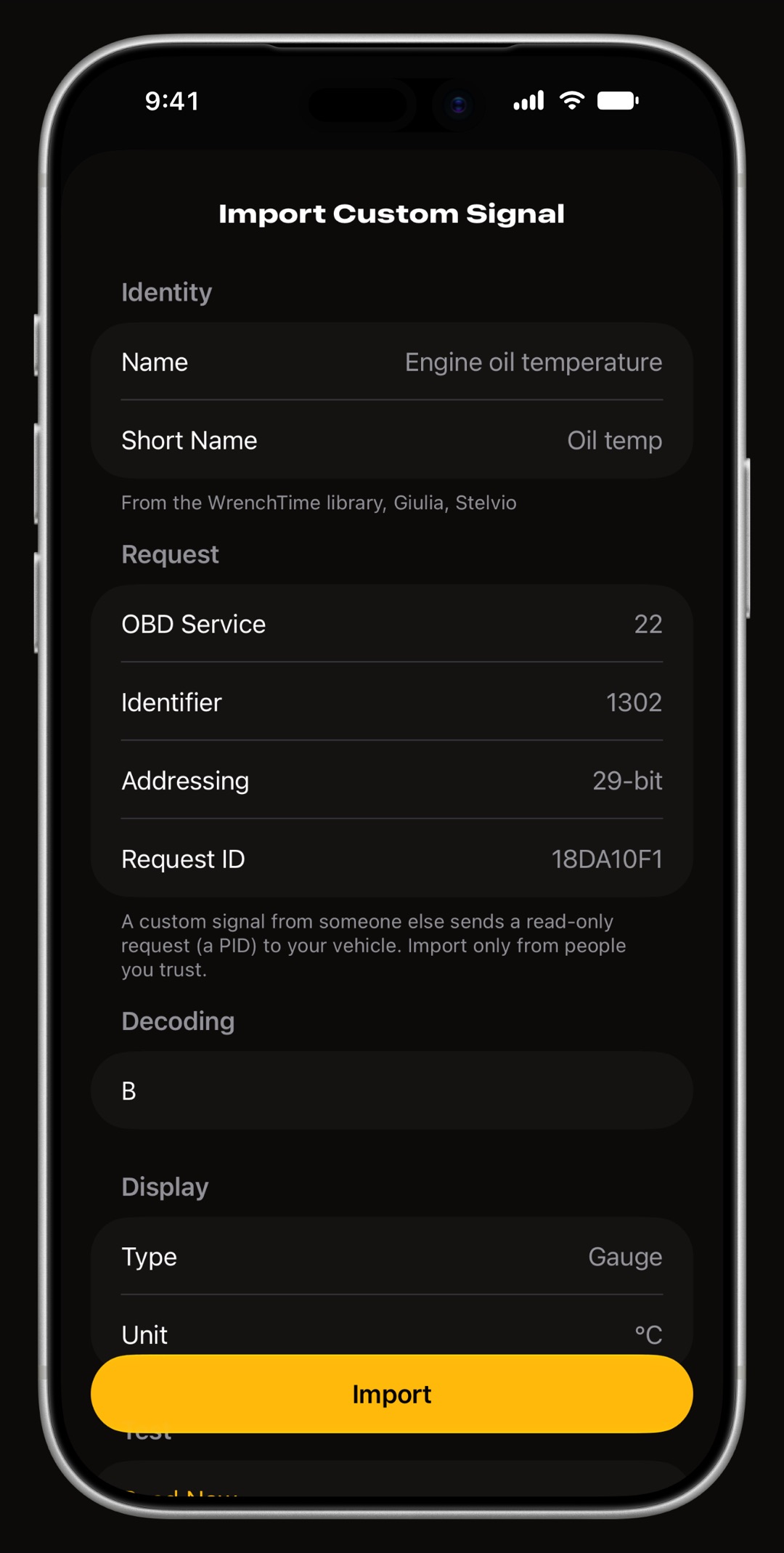
Tap the circle in front of each signal you want. A button appears at the bottom of the screen, for example Import 3 Signals: tap it, and the catalogue closes back on your Signals list. A signal the vehicle already has is skipped, and reads Added in the catalogue. To look at a signal closely first, tap its row instead: the Import Custom Signal page shows its request, its formula and its unit, Read Now reads it once from your car, and Import adds it.
- Unusual Range the gauge's minimum or maximum looks wrong. Tap Import Anyway and correct it later from the signal's page.
- Which signal should supply…? the signal can feed a value of the vehicle, such as its fuel level, that another signal already supplies. Choose the one to keep.
- Several decodings some signals carry an orange Decodings pill: the catalogue has more than one formula for them. Open the row and pick the one whose value looks right.
Choose where each new signal shows
Back in Signals, your new rows carry the Custom pill, their request (for example 22 and its identifier) and pills for where they show: CarPlay, Live and Trip Log. Tap a row to open Edit Custom Signal, then use its three switches:
- CarPlay a tile on the CarPlay Live grid of this vehicle. Open CarPlay Layout sets its place among the other tiles.
- Live Dashboard offers it as a card on the Live dashboard.
- Record During Trips keeps it with every trip this vehicle drives, so you can read it back on the trip's chart.
- Gauge Scale the gauge's range and its caution and critical bands, in case the catalogue's do not suit your car.
Not in the catalogue? Write a signal yourself
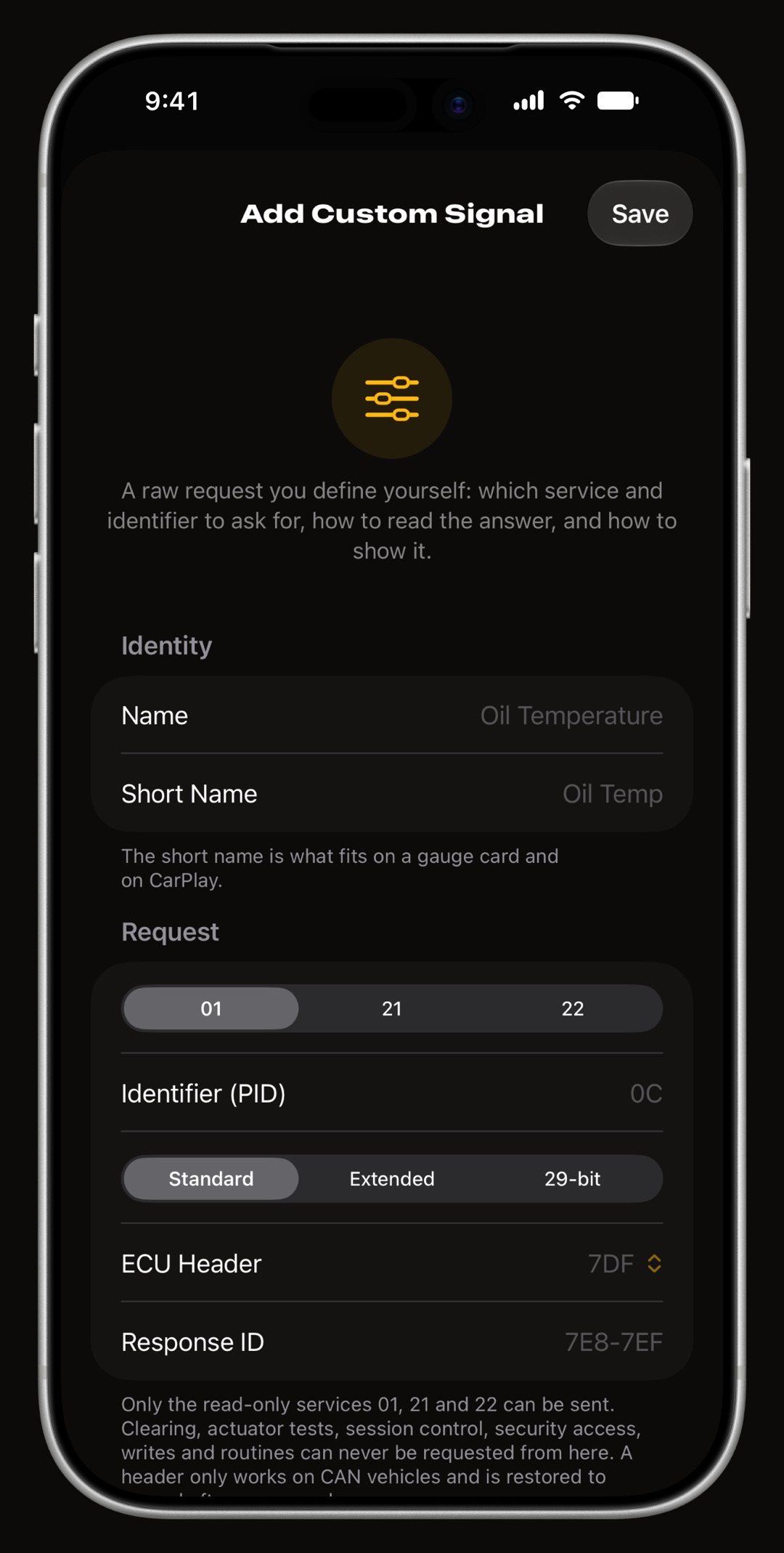
Tap the three dots, then New Custom Signal. You fill in four parts, from top to bottom, then tap Save. Before saving, Read Now at the bottom of the page sends the request once and shows the raw answer and the value. What each part means, and the formula syntax, are in the guide to custom OBD-II PIDs.
- Identity a Name, and a Short Name that fits on a gauge card and on CarPlay.
- Request the OBD Service (01, 21 or 22), the Identifier (PID) and, if the reading lives in another control unit, its ECU Header.
- Decoding Simple reads the answer's bytes with a scale and an offset; Formula takes an expression such as A * 0.75 - 40.
- Display the Type (Gauge, Number, Status or Lookup Table) and the Unit.
Share a signal with a link
A signal that works on your car can help someone with the same model. Open it in Signals and tap the share button at the top of Edit Custom Signal: WrenchTime makes a link you can send in Messages or post in a forum. Whoever receives it copies the whole link, opens Signals, taps the three dots and chooses Paste Link. A review page shows exactly what the signal sends before Import. Import only from people you trust.
What if my car does not answer a signal?
A signal listed for your model is not a promise that your car answers it. These are the usual reasons, from the most common:
- The engine is off some control units only answer with the engine running. Start it and scan again.
- Another year or engine signals filed under Other Model Years or Other Engines were written for a different version of the car. They can still work, so test them.
- A silent control unit the scan skips a control unit that does not answer its first signal. Also Test Silent Control Units tests them anyway, slowly, and is rarely worth it.
- Paused a custom signal that never answered while driving is paused. A successful test resumes it.
- Too Many Signals every signal switched on shares the adapter's time. If this banner appears, switch off the ones you do not use.
- An alarm that reacts some cars treat diagnostic traffic on a locked car as a break-in. If yours does, turn on Alarm-Sensitive Vehicle in the OBD-II tab of the vehicle's pairing screen, and disconnect before you lock the car.
Frequently asked questions
Do I need WrenchTime Pro to add custom PIDs?
Yes. Importing from the Community Catalogue, pasting a link, and creating or saving a custom signal are part of WrenchTime Pro. Opening Signals, switching the built-in readings on and off, and testing them are free.
Can a custom PID damage my car or change its settings?
No. A custom signal can only send read-only requests on OBD services 01, 21 and 22. Clearing codes, actuator tests, writes and routines can never be sent from it.
Does the Community Catalogue work without an internet connection?
The WrenchTime Signal Library is built into the app and works offline. OBDb and WiCAN are downloaded and kept on your iPhone, so a copy you already have still answers when you are offline.
Why does my car not answer a signal listed for my model?
Cars of the same model differ by year, engine and equipment, and some control units only answer with the engine running. That is why the catalogue opens on every model of the make and why you scan before importing: only the signals marked Responds are worth adding.
Are my scan results saved?
Yes, on this iPhone and for this vehicle. Reopen the catalogue and the Test Map shows the last results and when they were taken.
Can I use the same custom signals on another vehicle?
Custom signals belong to the vehicle they were added to. To add one to another vehicle, share it as a link and import the link into the other vehicle, or import it again from the catalogue with that vehicle selected in Vehicle Tools.
Made for people who would rather know than guess.
Free to download. One vehicle, real features, no ads. Your garage will thank you.
Download WrenchTime on the App Store