Tutorial · Maintenance
How to schedule maintenance and get reminders in WrenchTime
In WrenchTime, maintenance lives in the Care tab. Tap Add Entry, pick a procedure or a kit under Type, then set Schedule by to Date only, Odometer only, or Date and Odometer. Turn on Enable reminder to be notified on the date or at the odometer reading, whichever comes first, and turn on Recurring if the job repeats. Overdue jobs rise to the top of the list. When the work is done, swipe the row and tap Complete, then enter the date, the odometer and the cost.
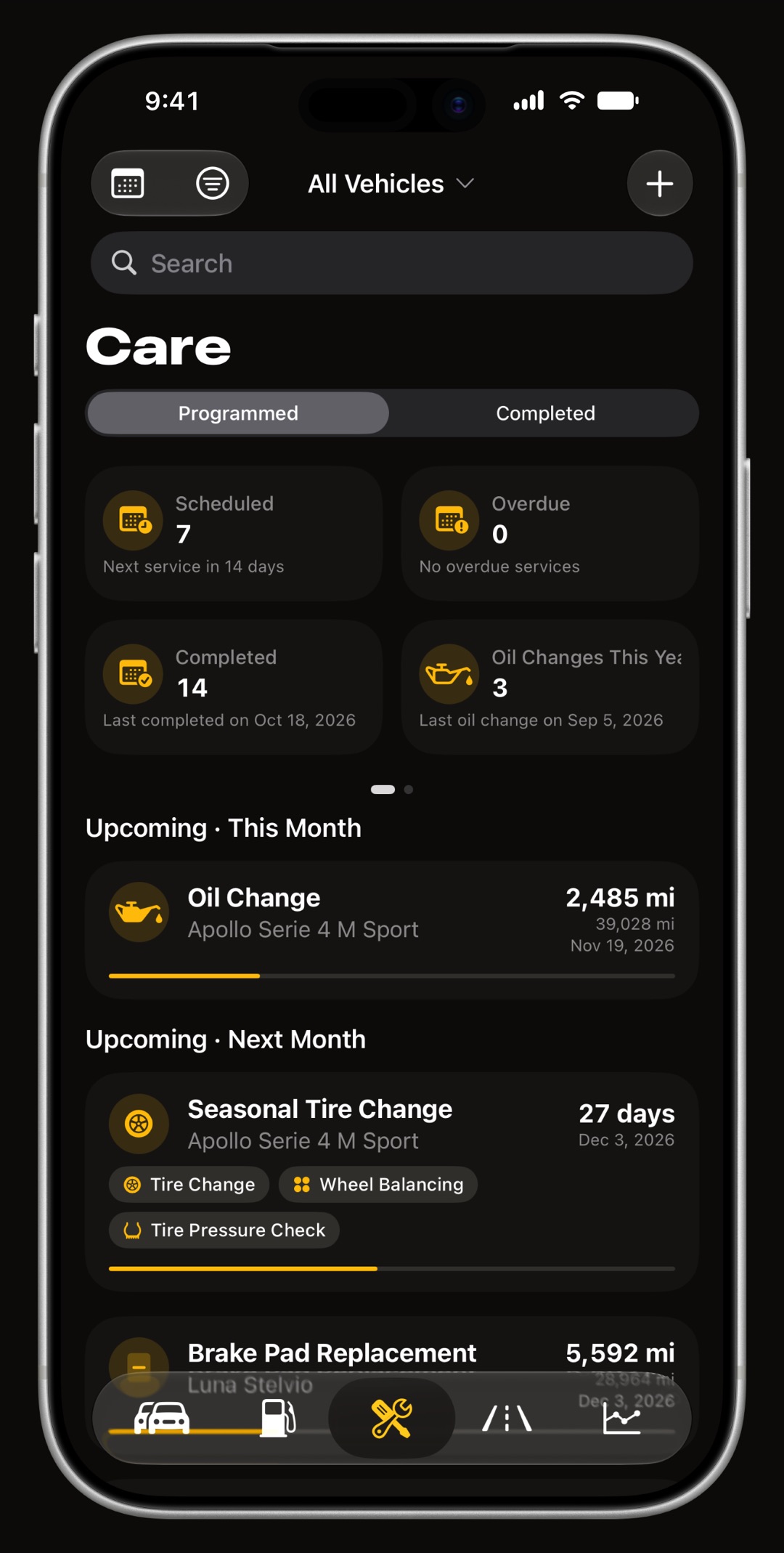
Add a care entry from the Care tab
Open the Care tab and tap + (Add Entry) in the top right corner. Choose the Vehicle, then tap Type to open Select Type. The catalog holds 59 procedures and only shows the ones that fit the vehicle, so an electric car is never offered an oil change and a motorcycle gets chain care. Why this matters for a bike or for your running costs is covered in the motorcycle maintenance guide and the car expense tracker guide.
- Search type in the search field to find a procedure or a kit by name.
- Not in the list? tap Manual to enter a procedure with your own name.
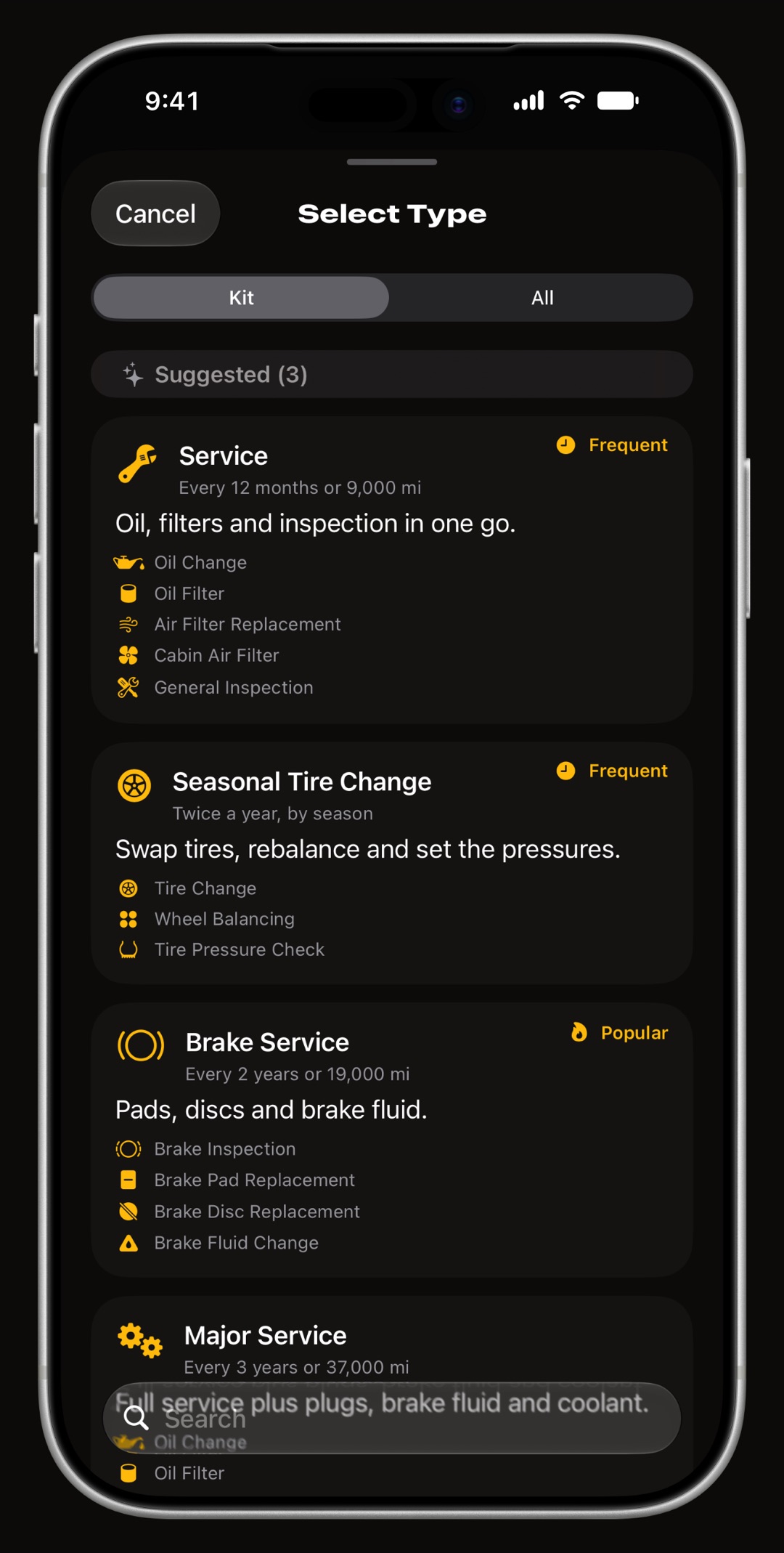
Pick a single procedure or a kit
At the top of Select Type, the segmented control switches between Kit and All. All lists single procedures by category, with a Suggested group first. Kit lists 12 bundles such as Service, Brake Service, Winter Prep or Motorcycle Service. A kit opens an Interventions section where you choose which jobs it includes; every selected intervention is tracked and completed together, as one entry. Winter Prep, for example, groups the jobs covered in car maintenance in winter: the tyre change, the tyre pressure check, the battery check, the coolant flush and the wiper blades.
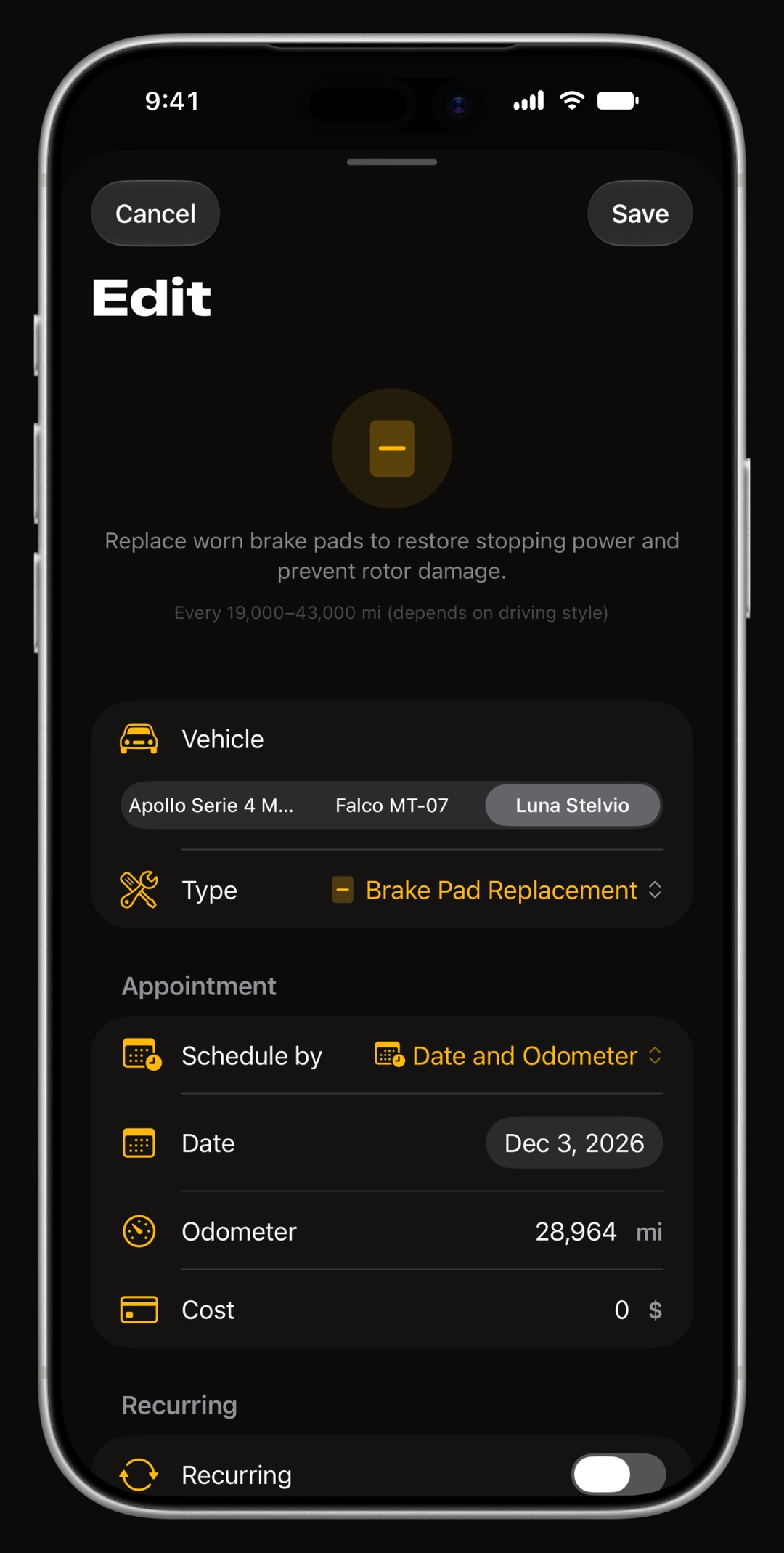
Schedule it by date, by odometer, or both
In the Appointment section, set Schedule by to Date only, Odometer only or Date and Odometer. Enter the date, the target odometer reading in your own distance unit, or both, and an expected cost if you know it. A job tracked both ways counts as due on whichever axis comes first. Each procedure also shows a typical interval and a tip, so you have a starting point for the target. An oil change is the usual case for both: most manuals give it a mileage and a number of months, as the guide on how often to change oil explains.
Turn on a reminder
In the Reminder section, switch on Enable reminder and choose a Reminder type: date only, odometer only, or date and odometer. WrenchTime asks for notification permission the first time you save a dated reminder. A date reminder is scheduled with iOS and arrives even with the app closed. An odometer reminder has no trigger iOS can hold, so it fires once WrenchTime sees the vehicle's odometer reach the reading, after a trip, a fill-up or an odometer update.
Make it a recurring series
Turn on Recurring and the job schedules itself again, by date, by distance, or both, following the appointment above. Set Every for the interval. A dated series can also take a Payment Day, Move to the Next Business Day, Auto-complete via direct debit for installments paid automatically, and Set end date. That is how insurance, road tax and loan payments are kept as dues. The same switch keeps a tyre pressure check coming back every two weeks through the cold months, when tyre pressure drops.
- When the next one appears a dated occurrence shows up on its due date, or from the reminder day when a reminder is set; a distance series adds the next one as soon as you complete the current one.
- Manage every series tap Active recurrences in the Care tab to open Recurrences, where a switch pauses a series without touching its completed history.
How does the Care list order overdue jobs?
The segmented control at the top switches between Programmed and Completed. Programmed jobs follow a fixed order: overdue by odometer, sorted by how far past the target you are; overdue by date, oldest first; upcoming by date, soonest first; then upcoming by odometer, closest first. Overdue headers are drawn in red, and a job tracked both ways is placed by the odometer check first. Completed jobs are grouped by the date they were done.
Mark it completed with date, odometer and cost
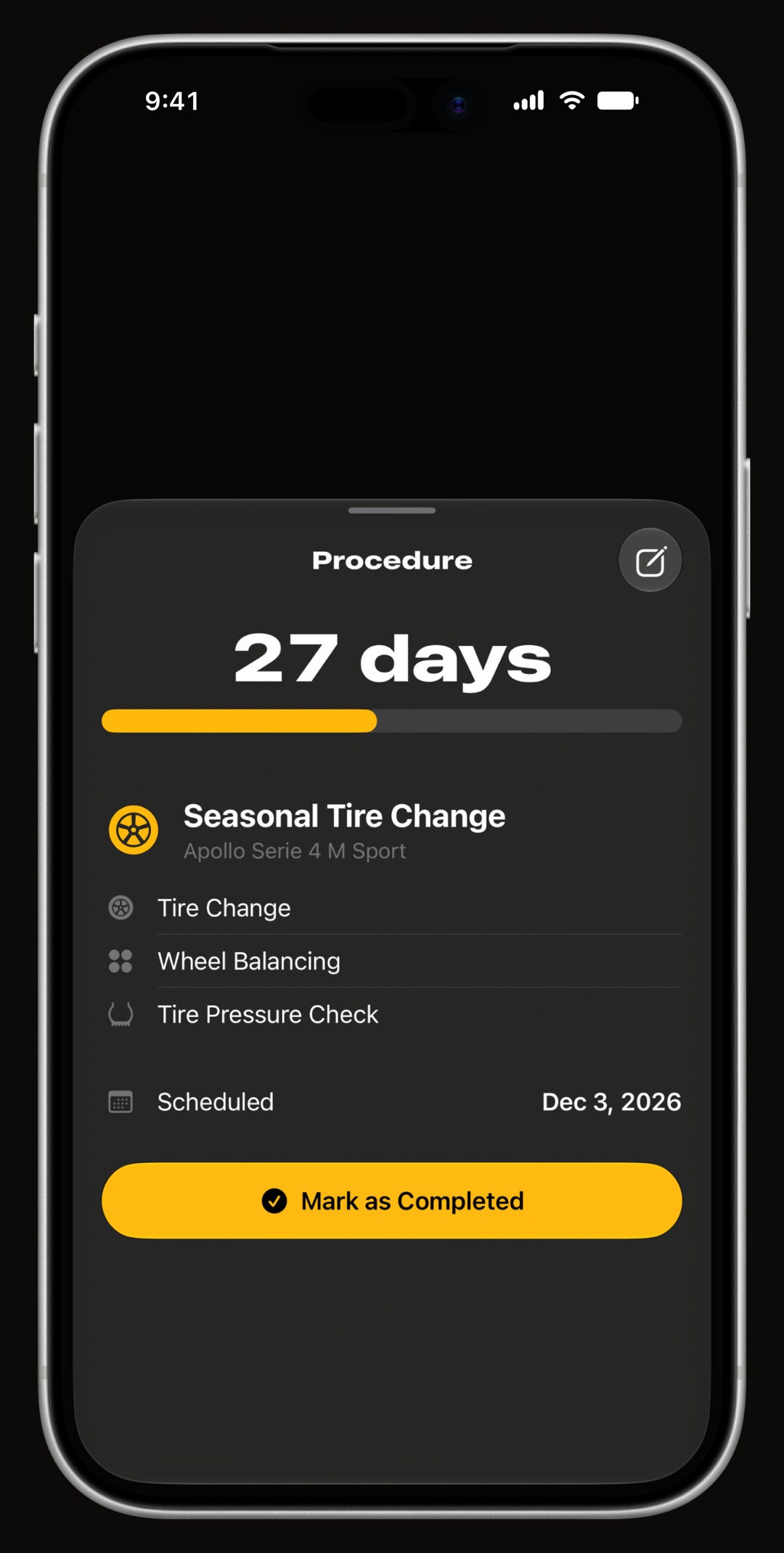
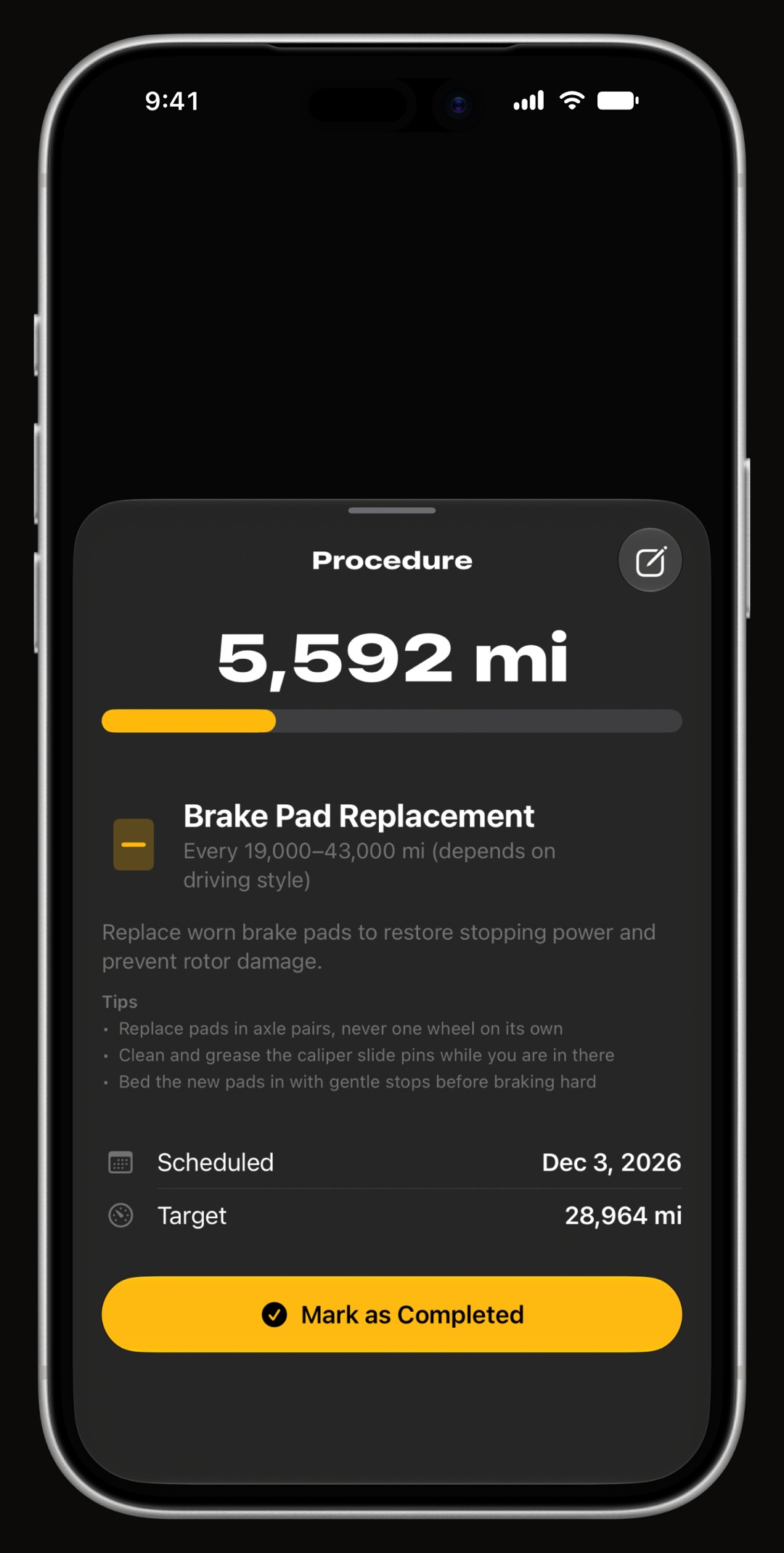
Swipe a row to the right and tap Complete, or tap the row and then Mark as Completed. Under Completion Details, enter the Date, the Odometer and the Cost, then tap Save and close. For a one-off job, Schedule next appointment? lets you set the next date, odometer and reminder in the same step. For a kit, check only the interventions actually done: only those are marked as completed.
What if a reminder does not arrive?
Most missed reminders come down to one of these, all visible in the app or in iOS.
- Notifications are off if you declined the prompt, turn notifications on for WrenchTime in the iOS Settings app; WrenchTime does not ask twice.
- The odometer has not moved a mileage reminder waits for the vehicle's odometer to reach the target, so record trips or fill-ups, or update the odometer by hand.
- The date has passed a reminder date must be in the future; an overdue job still sits at the top of the list.
- The monthly limit the free tier adds 2 care entries a month; WrenchTime Pro removes the limit.
- A shared vehicle a vehicle shared with you view-only cannot be edited.
Frequently asked questions
Can WrenchTime remind me by mileage instead of date?
Yes. Set Reminder type to Odometer only and enter the reading. The reminder fires when WrenchTime sees the vehicle's odometer reach it, which happens as trips, fill-ups and manual odometer updates are recorded.
What happens if I set both a date and an odometer reading?
Whichever comes first counts. The reminder fires once, on the date or at the reading, and the job is placed in the Care list by the axis that becomes overdue first. Most fluid schedules are written this way, as the guide to how often to change transmission fluid shows.
Do recurring jobs need to be entered again?
No. A recurring series creates each occurrence for you on its due date, or from the reminder day when one is set, with its reminder already scheduled. You only mark each occurrence completed, unless Auto-complete via direct debit does it for you.
Can I pause a recurring payment?
Yes. Tap Active recurrences in the Care tab and switch the series off in Recurrences. Pausing removes upcoming entries and reminders and keeps completed history and overdue entries.
Where do I see completed maintenance?
Switch the Care tab to Completed. Finished jobs are grouped by the date they were done, with the odometer and cost you entered.
Made for people who would rather know than guess.
Free to download. One vehicle, real features, no ads. Your garage will thank you.
Download WrenchTime on the App Store